List of Topics:
Location Research Breakthrough Possible @S-Logix pro@slogix.in

Office Address

Social List

How to List Out All Running and Stopped Docker Containers on Your System?

Docker

Condition for List Out All Running and Stopped Docker Containers on Your System

  • Description:
    This task helps you practice inspecting Docker containers. Using docker ps, you can view currently running containers. Adding the -a flag (docker ps -a) lists all containers, including those that are stopped or exited. This is useful for managing, troubleshooting, or cleaning up containers.

Steps

  •  Step 1 — List Running Containers
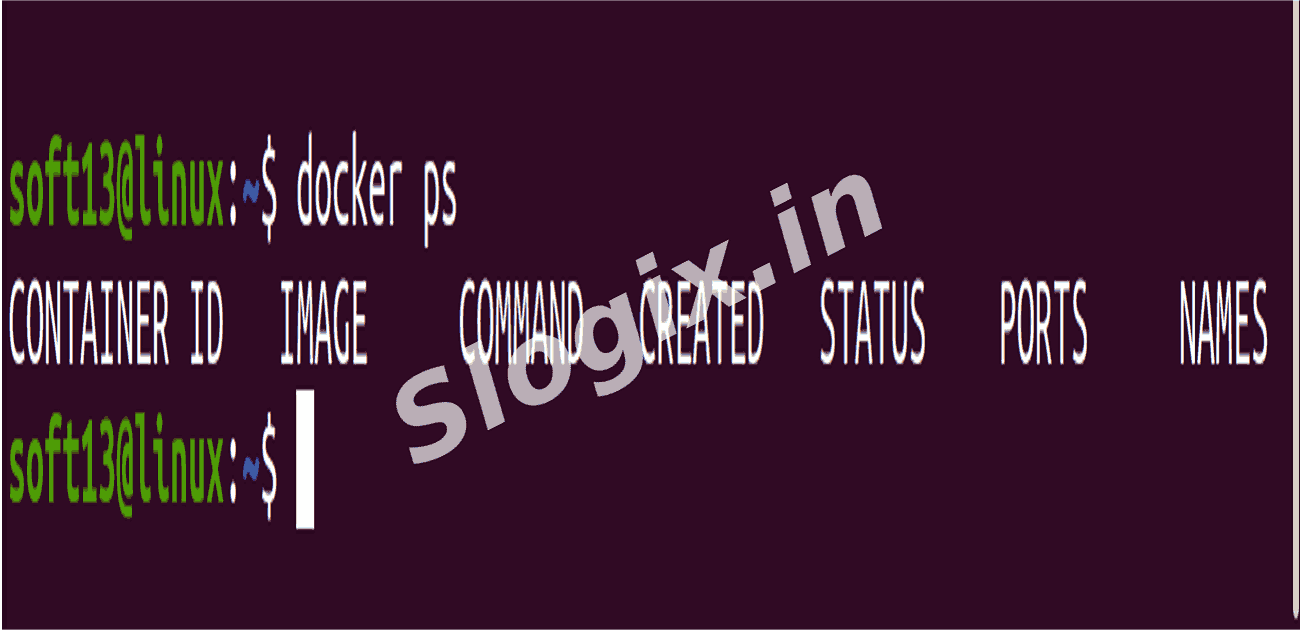
     Description: Display all Docker containers that are currently running on your system.
     Command:
    docker ps
     Expected Result: You’ll see a table showing only the active containers with columns like CONTAINER ID, IMAGE, COMMAND, STATUS, and NAMES.
  •  Step 2 — List All Containers
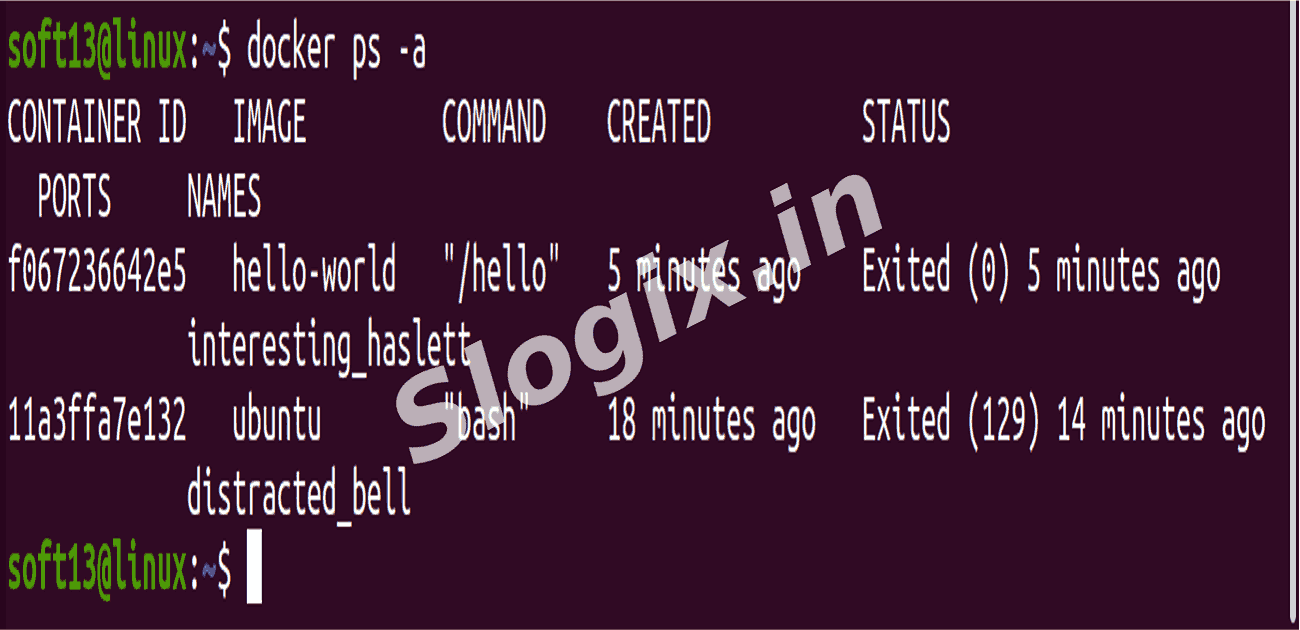
     Description: Show all containers, including running, stopped, exited, or paused ones.
     Command:
    docker ps -a
     Expected Result: A table with all containers on your system, showing their status.
  •  Step 3 — Understand the Output
     Description: Examine the table to see details about each container. Key columns:
     CONTAINER ID → unique identifier of the container
     IMAGE → Docker image used
     COMMAND → command executed inside container
     STATUS → current state (Up, Exited, Paused, etc.)
     NAMES → container name
  •  Step 4 — Identify Container Status
     Description: Check the STATUS column to determine which containers are running, stopped, or exited.
     Example:
    CONTAINER ID   IMAGE         COMMAND          STATUS                    NAMES
    a1b2c3d4e5f6   ubuntu        "bash"           Up 5 minutes             my-ubuntu
    f6e5d4c3b2a1   hello-world   "/hello"         Exited (0) 10 minutes ago test-hello
                
Screenshots
  • 314
  • 315