Location Research Breakthrough Possible @S-Logix pro@slogix.in

How to List Out All Running and Stopped Docker Containers on Your System?

Docker

Condition for List Out All Running and Stopped Docker Containers on Your System

  • Description:
    This task helps you practice inspecting Docker containers. Using docker ps, you can view currently running containers. Adding the -a flag (docker ps -a) lists all containers, including those that are stopped or exited. This is useful for managing, troubleshooting, or cleaning up containers.

Steps

  •  Step 1 — List Running Containers
     Description: Display all Docker containers that are currently running on your system.
     Command:
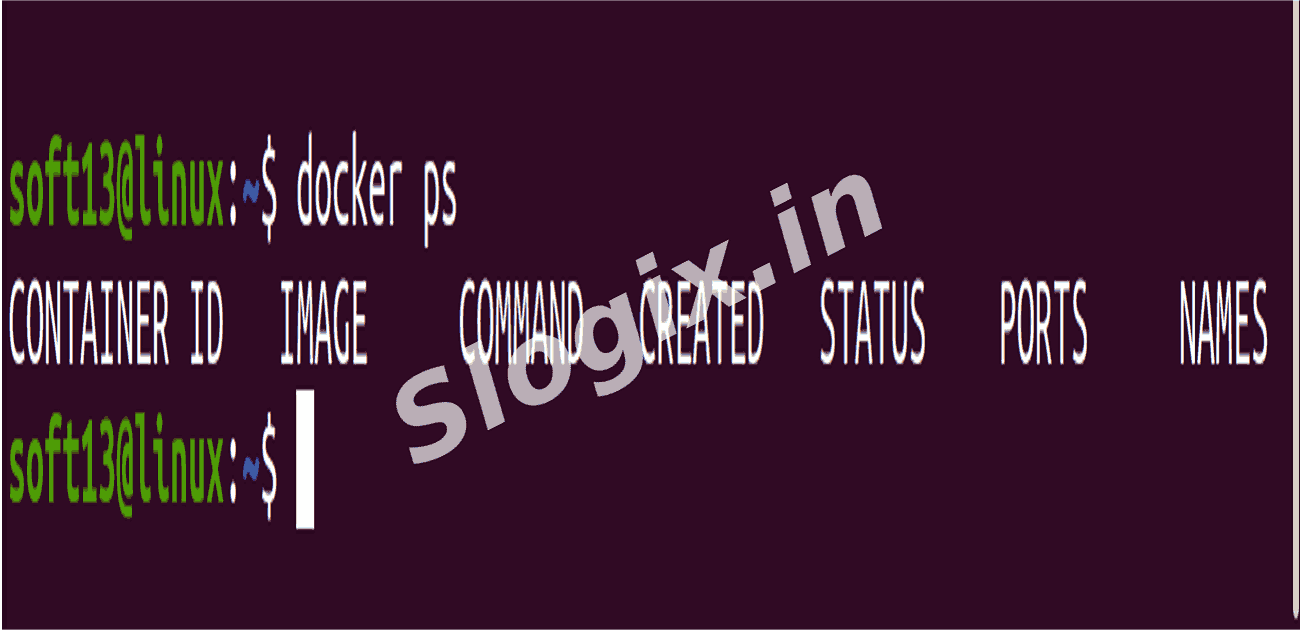
    docker ps
     Expected Result: You’ll see a table showing only the active containers with columns like CONTAINER ID, IMAGE, COMMAND, STATUS, and NAMES.
  •  Step 2 — List All Containers
     Description: Show all containers, including running, stopped, exited, or paused ones.
     Command:
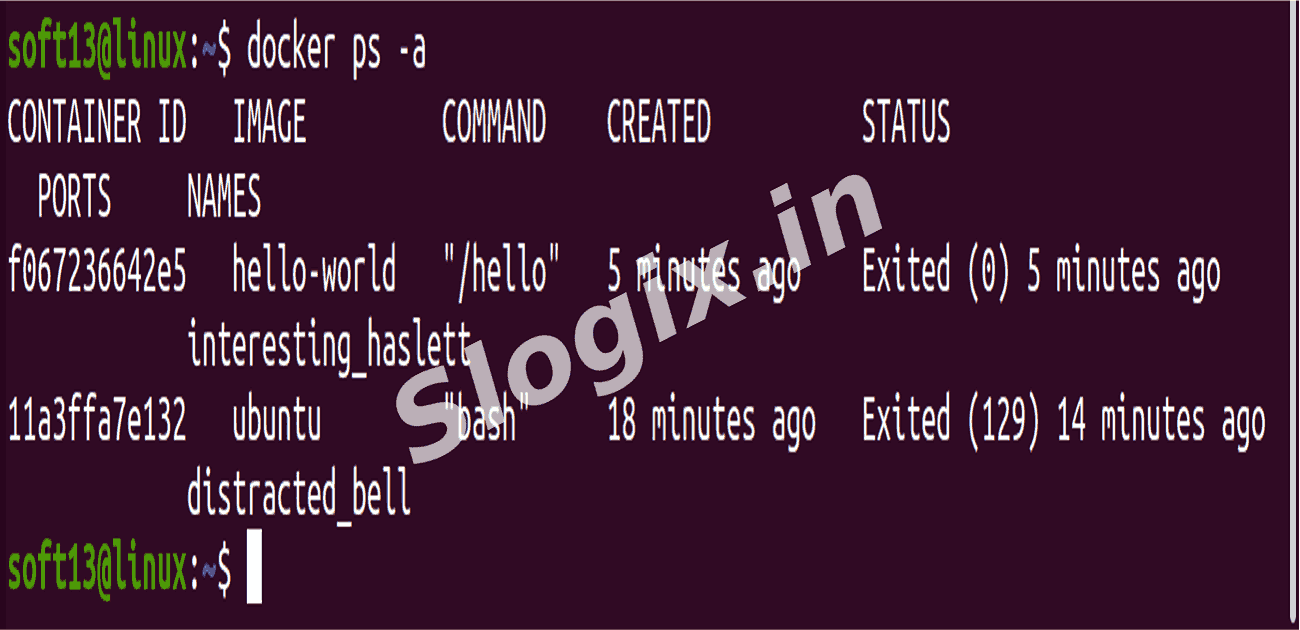
    docker ps -a
     Expected Result: A table with all containers on your system, showing their status.
  •  Step 3 — Understand the Output
     Description: Examine the table to see details about each container. Key columns:
     CONTAINER ID → unique identifier of the container
     IMAGE → Docker image used
     COMMAND → command executed inside container
     STATUS → current state (Up, Exited, Paused, etc.)
     NAMES → container name
  •  Step 4 — Identify Container Status
     Description: Check the STATUS column to determine which containers are running, stopped, or exited.
     Example:
    CONTAINER ID   IMAGE         COMMAND          STATUS                    NAMES
    a1b2c3d4e5f6   ubuntu        "bash"           Up 5 minutes             my-ubuntu
    f6e5d4c3b2a1   hello-world   "/hello"         Exited (0) 10 minutes ago test-hello
                
Screenshots
  • 314
  • 315