Location Research Breakthrough Possible @S-Logix pro@slogix.in

How to Create an NGINX Load Balancer for Two Web Servers in Docker?

Docker

Condition for Create an NGINX Load Balancer for Two Web Servers in Docker

  • Description:
    In this task, you will:
     Run two separate NGINX containers (app1 and app2)
     Create a custom NGINX load balancer container
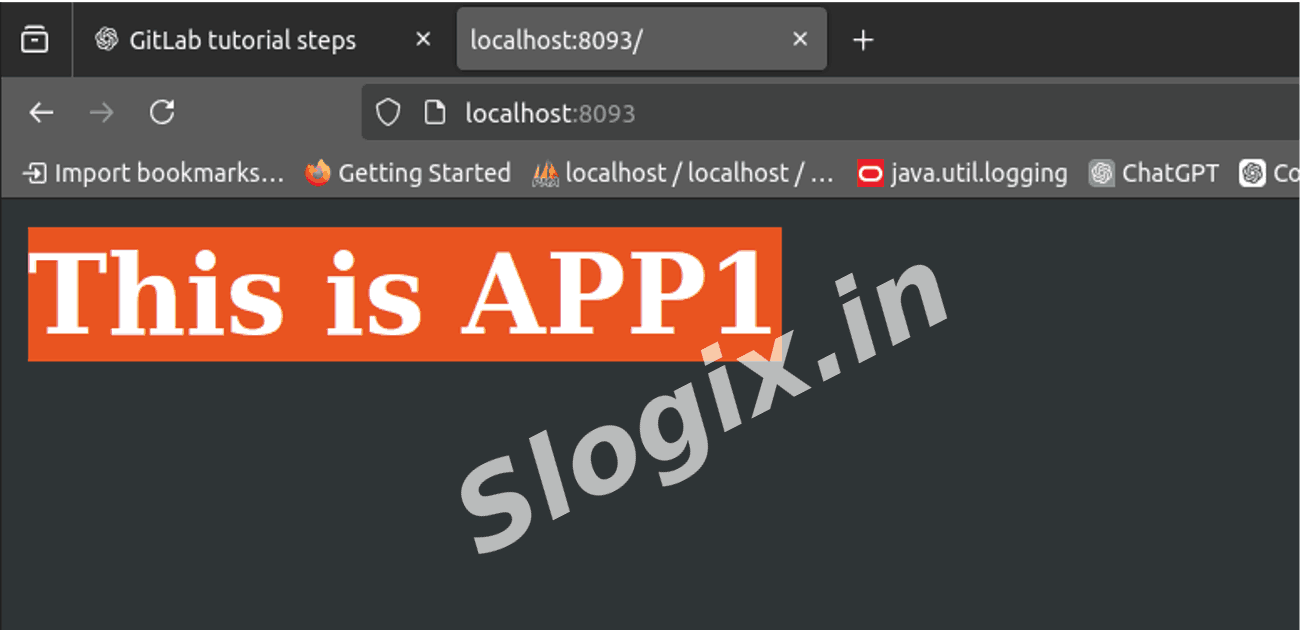
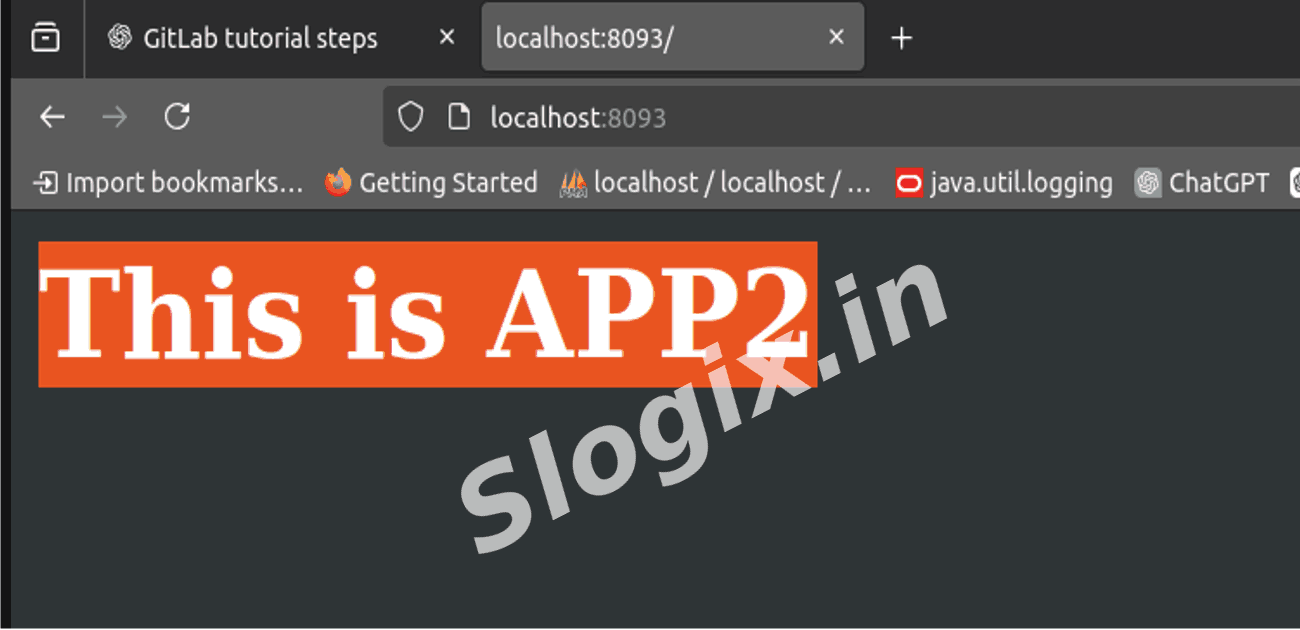
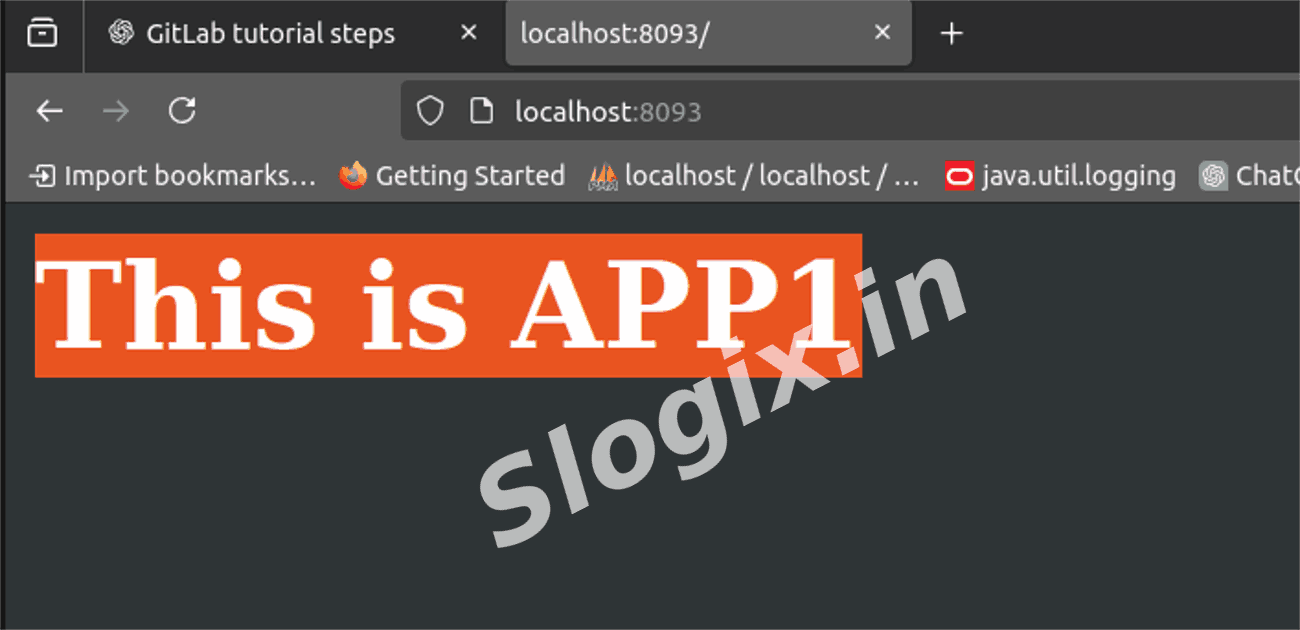
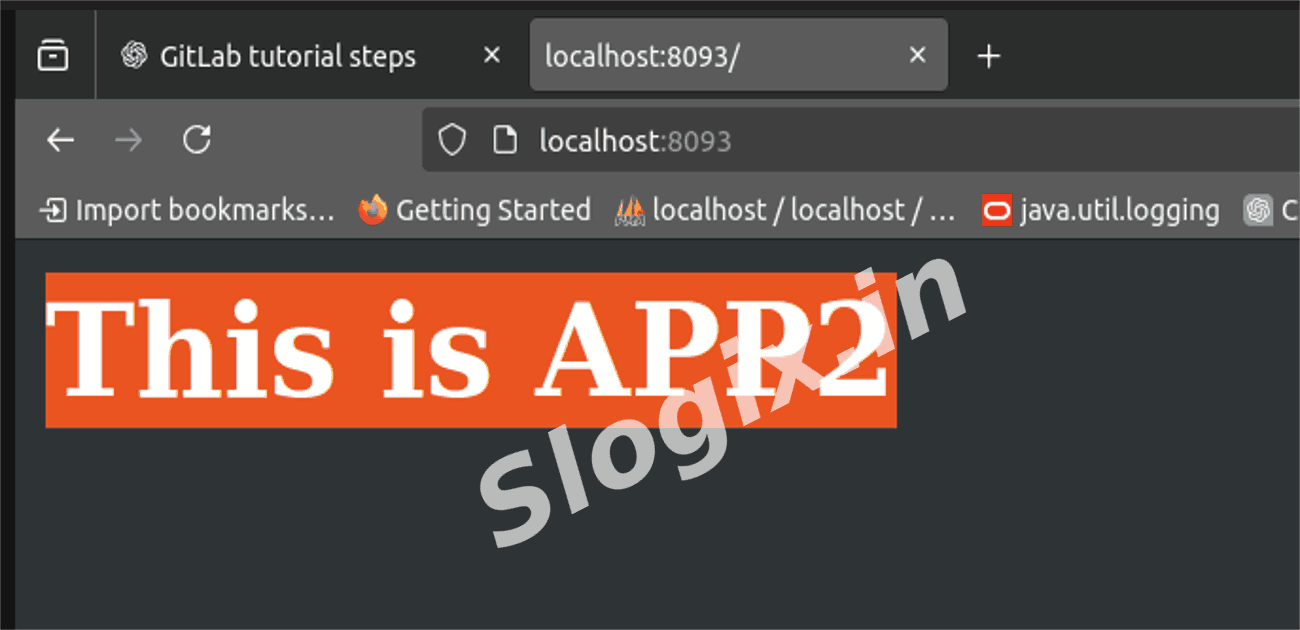
     Configure load balancing so that each browser refresh alternates between the two applications
     This demonstrates how NGINX acts as a reverse proxy and load balancer inside Docker.

Steps

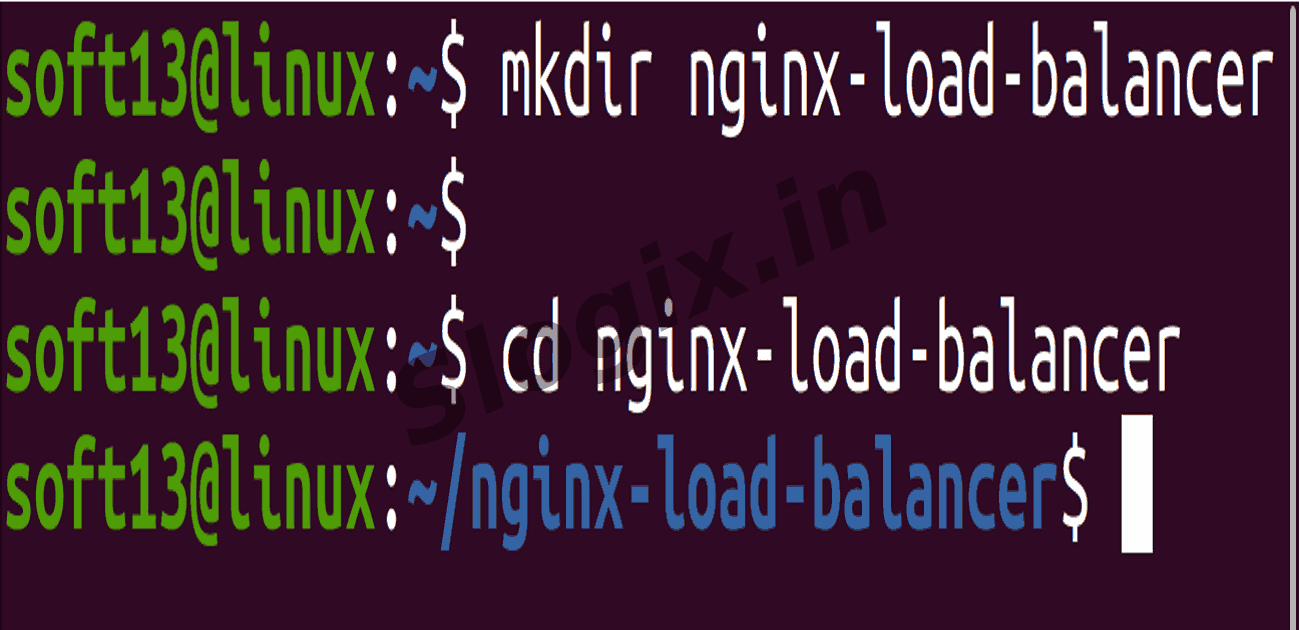
  •  Step 1: Create a Working Folder
     Description: Create a project directory where configuration files will be stored.
     Command:
    mkdir nginx-load-balancer
    cd nginx-load-balancer
                
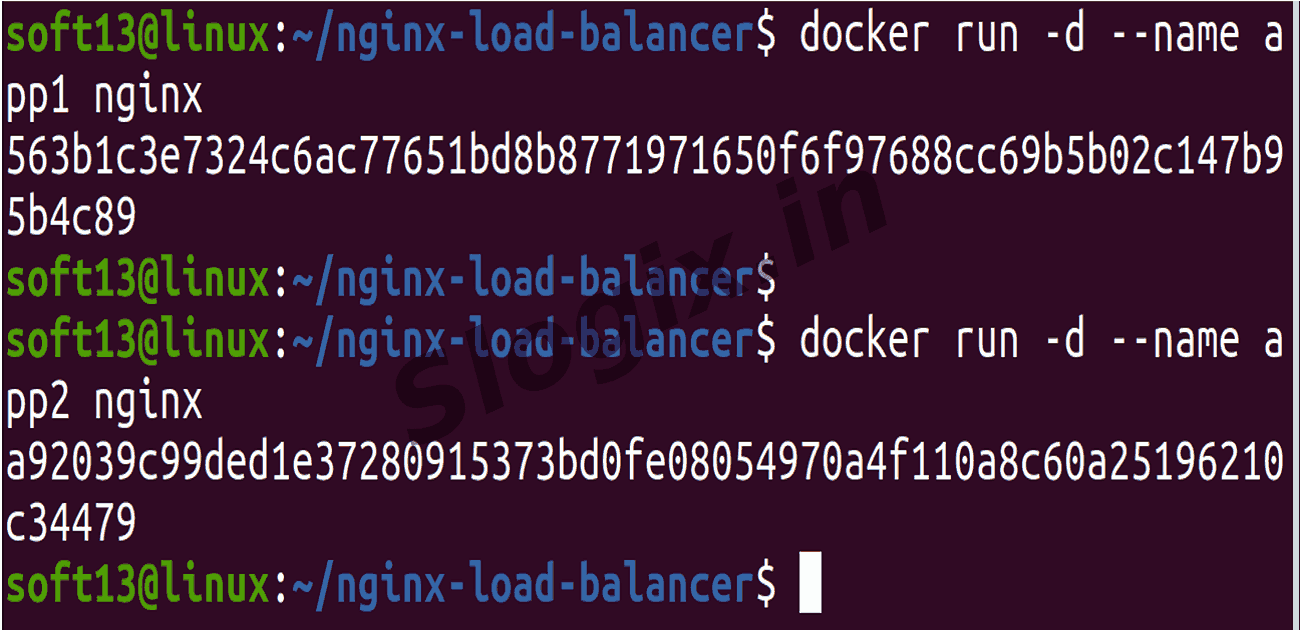
  •  Step 2: Run Two Web Server Containers
     Description: Start two independent NGINX containers that will act as backend servers.
     Commands:
    docker run -d --name app1 nginx
    docker run -d --name app2 nginx
                
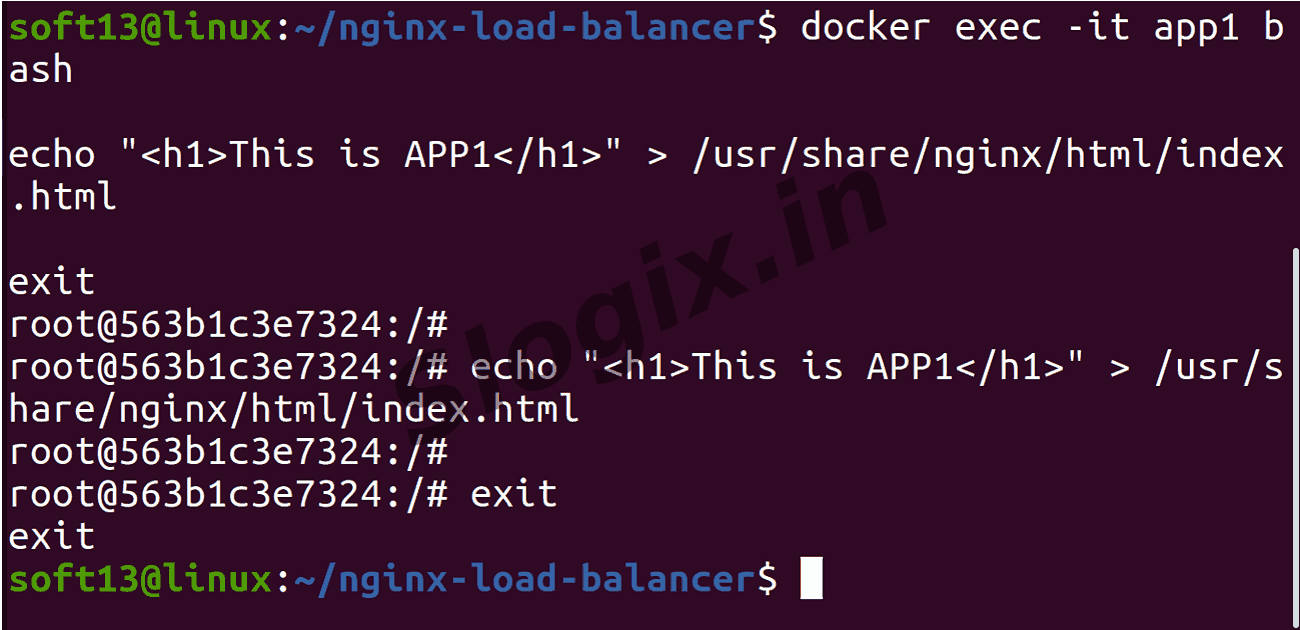
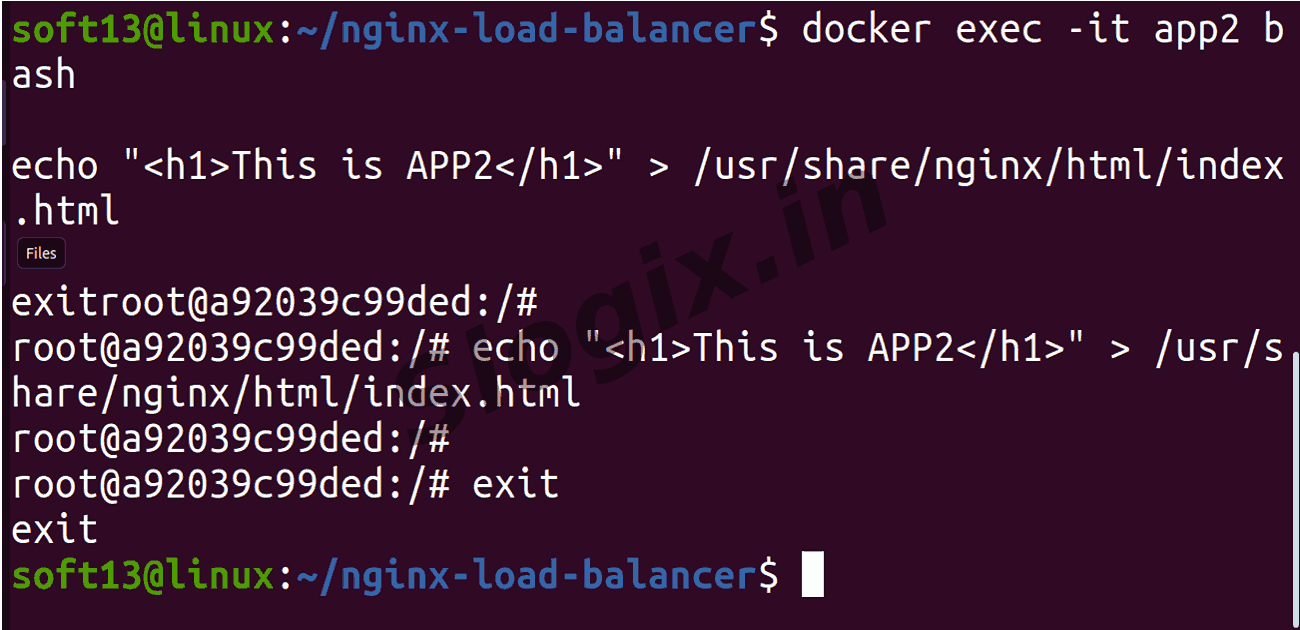
    Container Command to set response
    For APP1 docker exec -it app1 bash
    echo "<h1>This is APP1</h1>" > /usr/share/nginx/html/index.html
    exit
    For APP2 docker exec -it app2 bash
    echo "<h1>This is APP2</h1>" > /usr/share/nginx/html/index.html
    exit
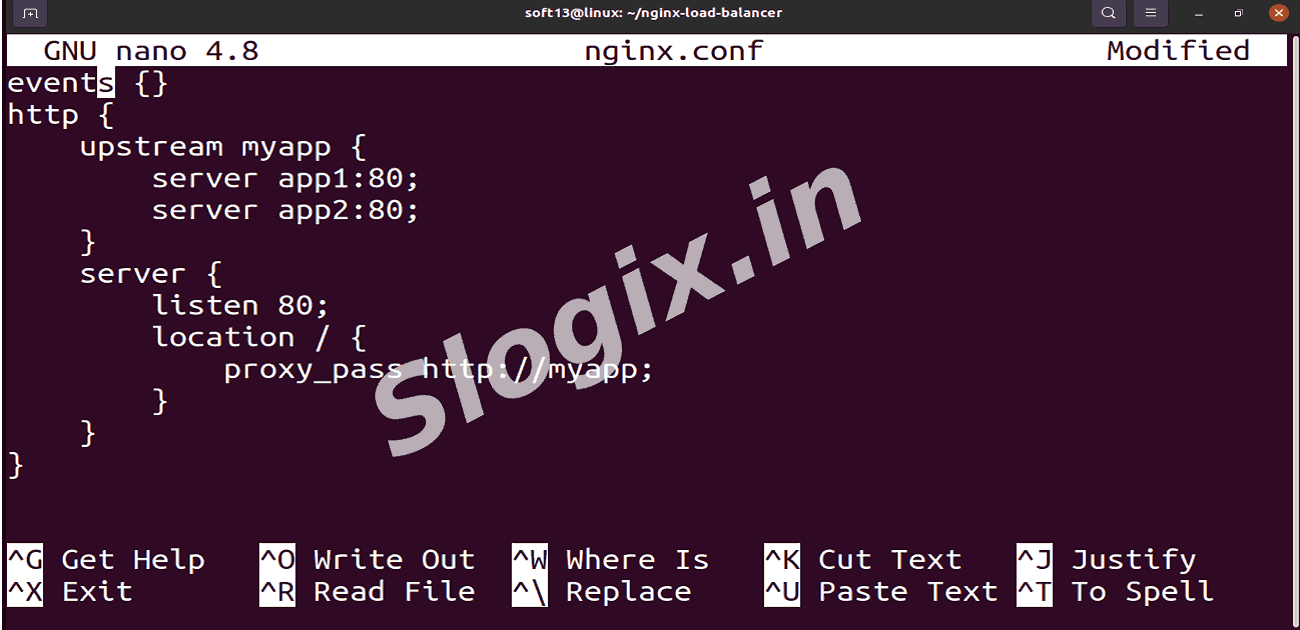
  •  Step 3: Create nginx.conf (Load Balancer Configuration)
     Description: Create a custom config file that forwards requests to both containers.
     Command:
    nano nginx.conf
                
     Paste the following:
    events {}
    http {
        upstream myapp {
            server app1:80;
            server app2:80;
        }
    
        server {
            listen 80;
            location / {
                proxy_pass http://myapp;
            }
        }
    }
                
     Save → CTRL + O → Enter → CTRL + X
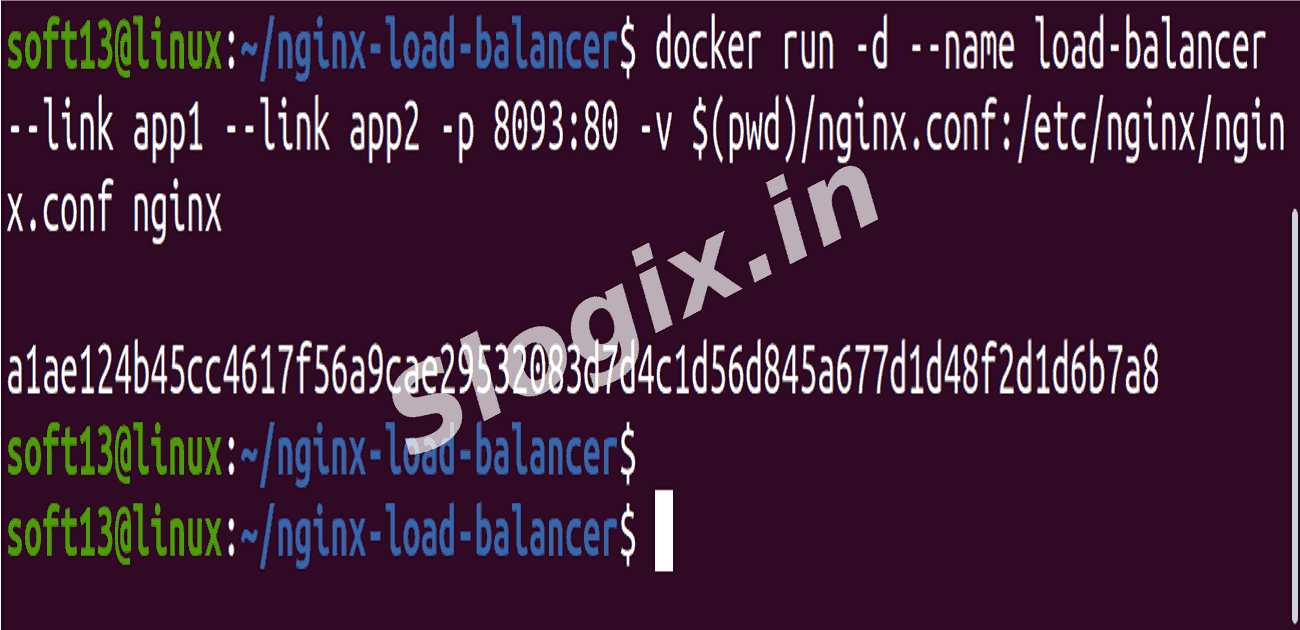
  •  Step 4: Run the NGINX Load Balancer Container
     Description: Start a new NGINX container that uses your custom configuration and connects to both backend apps.
     Command:
    docker run -d --name load-balancer --link app1 --link app2 -p 8093:80 -v $(pwd)/nginx.conf:/etc/nginx/nginx.conf nginx
                
     ✔ --link makes app1 & app2 reachable
     ✔ -v mounts custom config
     ✔ Port mapping: 8093 → 80
  •  Step 5: Test the Load Balancer
     Description: Access the container in the browser and refresh multiple times.
     Open:
     http://localhost:8093

     ➡ You should see alternating responses:
     This is APP1
     This is APP2
     This is APP1
     This is APP2
Screenshots
  • 387
  • 388
  • 389
  • 390
  • 391
  • 392
  • 393
  • 394
  • 395
  • 396
  • 397