List of Topics:
Location Research Breakthrough Possible @S-Logix pro@slogix.in

Office Address

Social List

How to Install and Access Jenkins Using Docker?

Docker

Condition for Install and Access Jenkins Using Docker

  • Description:
    This task demonstrates how to create a Python script, write a Dockerfile, build a Docker image, and run it as a container that prints output from inside Docker.

Steps

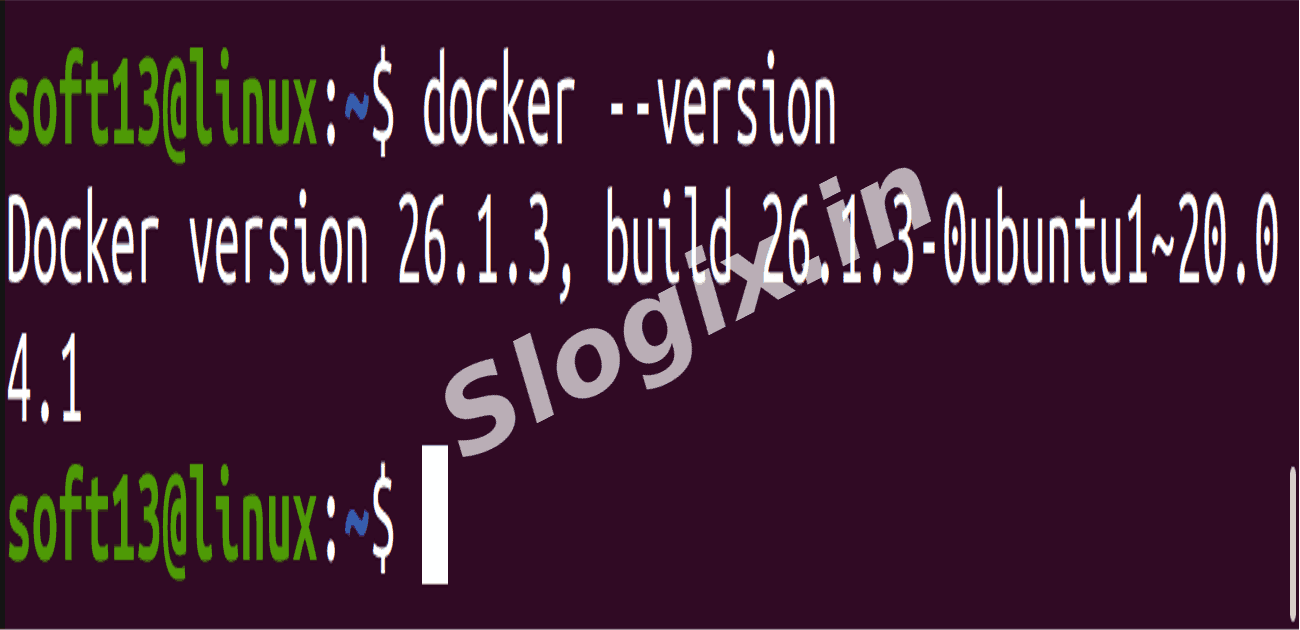
  •  Step 1: Check Docker Installation
     Description: Verify that Docker is installed and working on your system.
     Command:
    docker --version
                
     If it shows a version number → Docker is installed successfully.
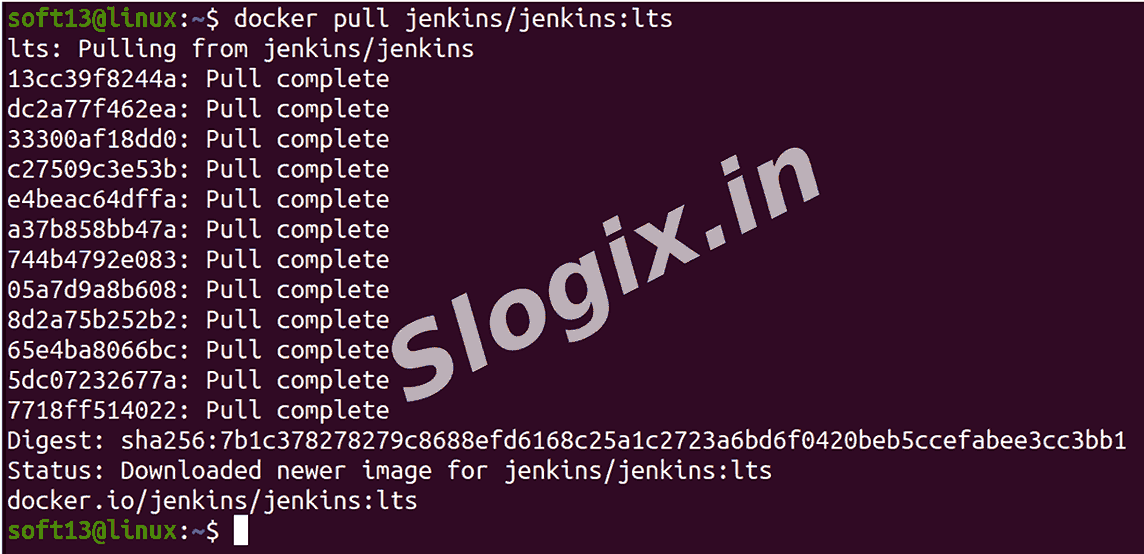
  •  Step 2: Pull Jenkins Image
     Description: Download the official Jenkins Long Term Support image.
     Command:
    docker pull jenkins/jenkins:lts
                
     lts → Long-Term Support version (recommended for production)
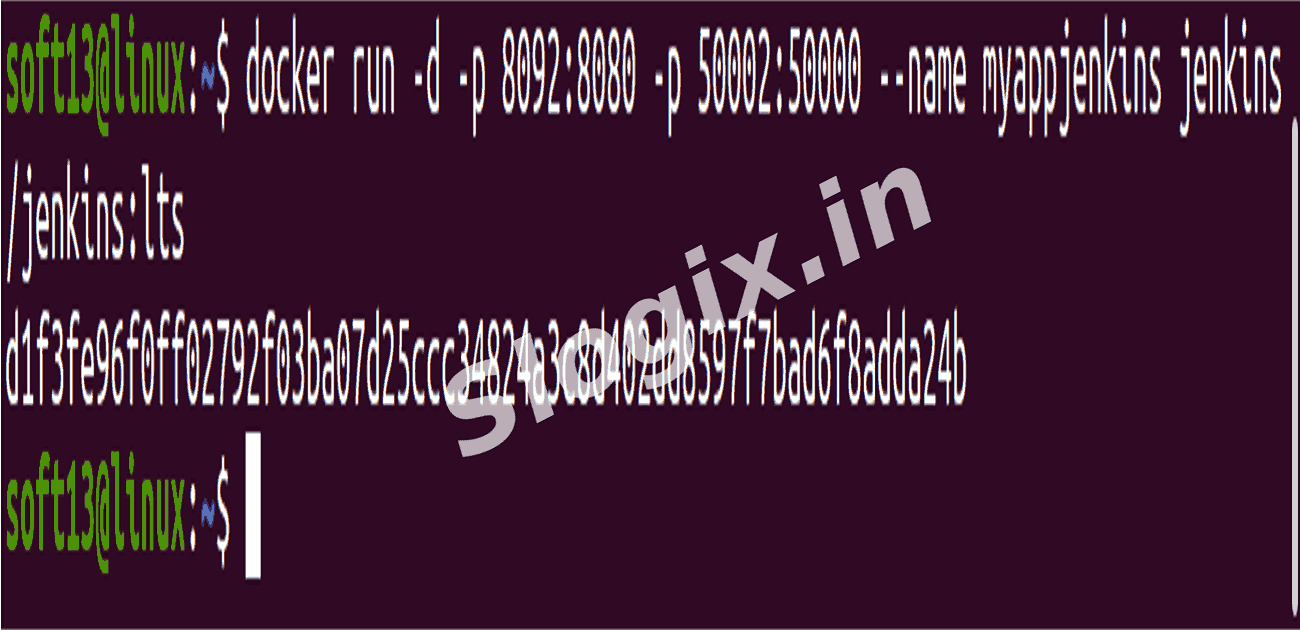
  •  Step 3: Run Jenkins Container
     Description: Start Jenkins container and expose required ports.
     Command:
    docker run -d -p 8092:8080 -p 50002:50000 --name myappjenkins jenkins/jenkins:lts
                

    Command Purpose
    -d Run as background service
    -p 8092:8080 Jenkins web UI
    -p 50002:50000 Jenkins agent communication
    --name myjenkins Name for container

     Check if container is running:
    docker ps
                
  •  Step 4: Access Jenkins in Browser
     Description: Open Jenkins dashboard using browser.
     Open:
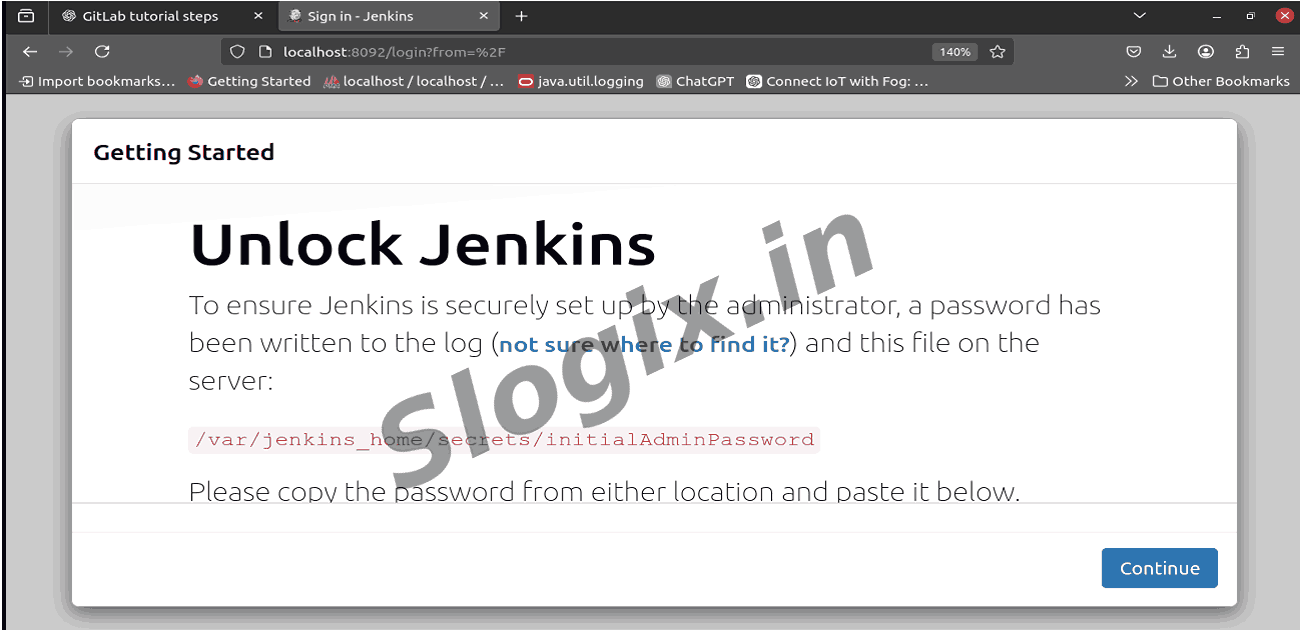
     ➡ http://localhost:8092
     You will see Initial Jenkins Setup screen requesting the admin password.
  •  Step 5: Get Initial Admin Password
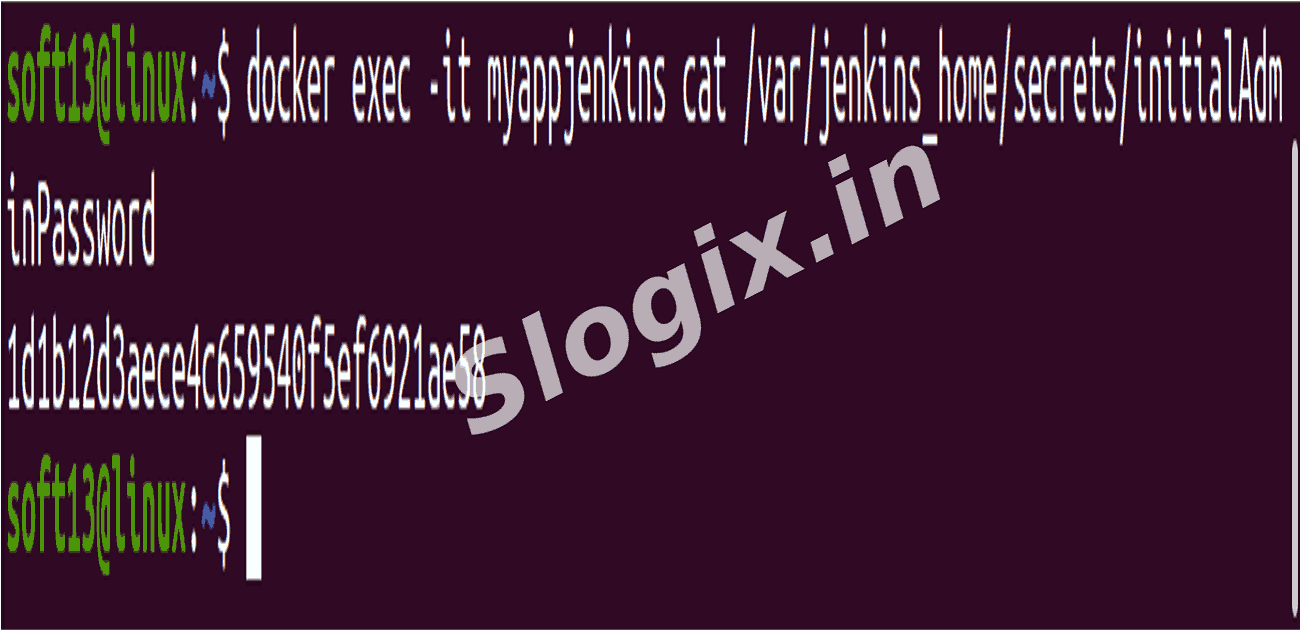
     Description: Retrieve Jenkins system password stored inside the container.
     Command:
    docker exec -it myappjenkins cat /var/jenkins_home/secrets/initialAdminPassword
                
    1d1b12d3aece4c659540f5ef6921ae58
                
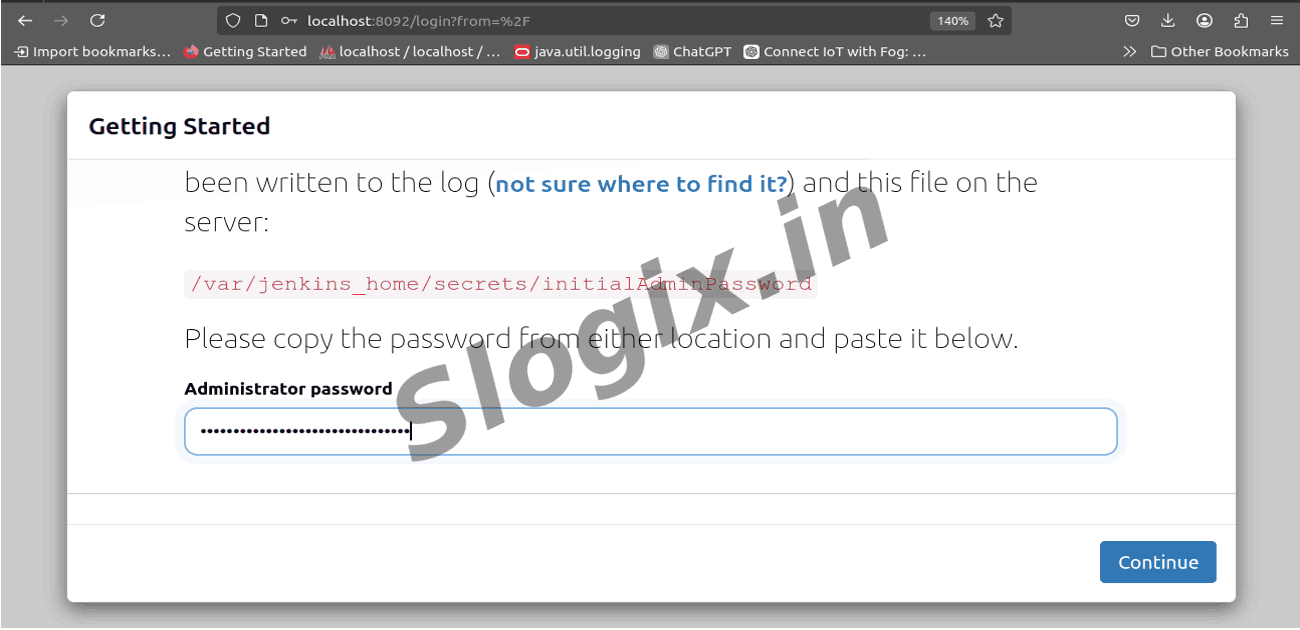
     Copy the displayed password and paste it into the browser.
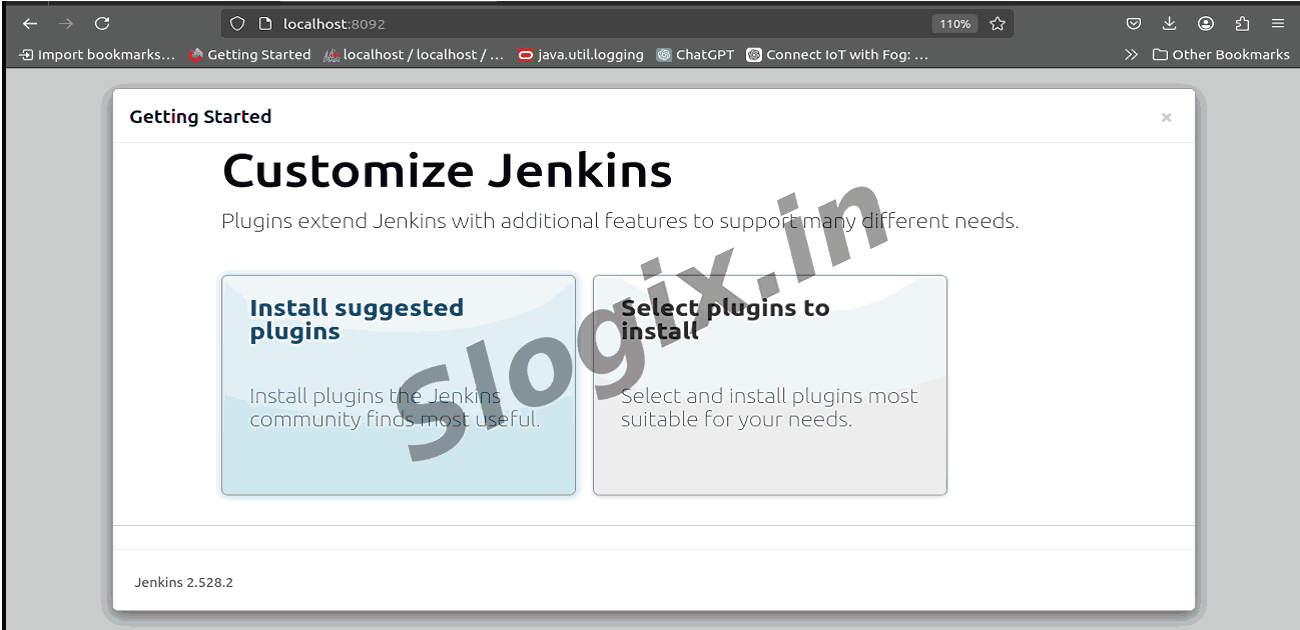
  •  Step 6: Install Suggested Plugins
     Description: Jenkins installer recommends default plugins required for pipeline jobs.
     Action:
     ➡ Click Install Suggested Plugins
     Wait for installation to complete.
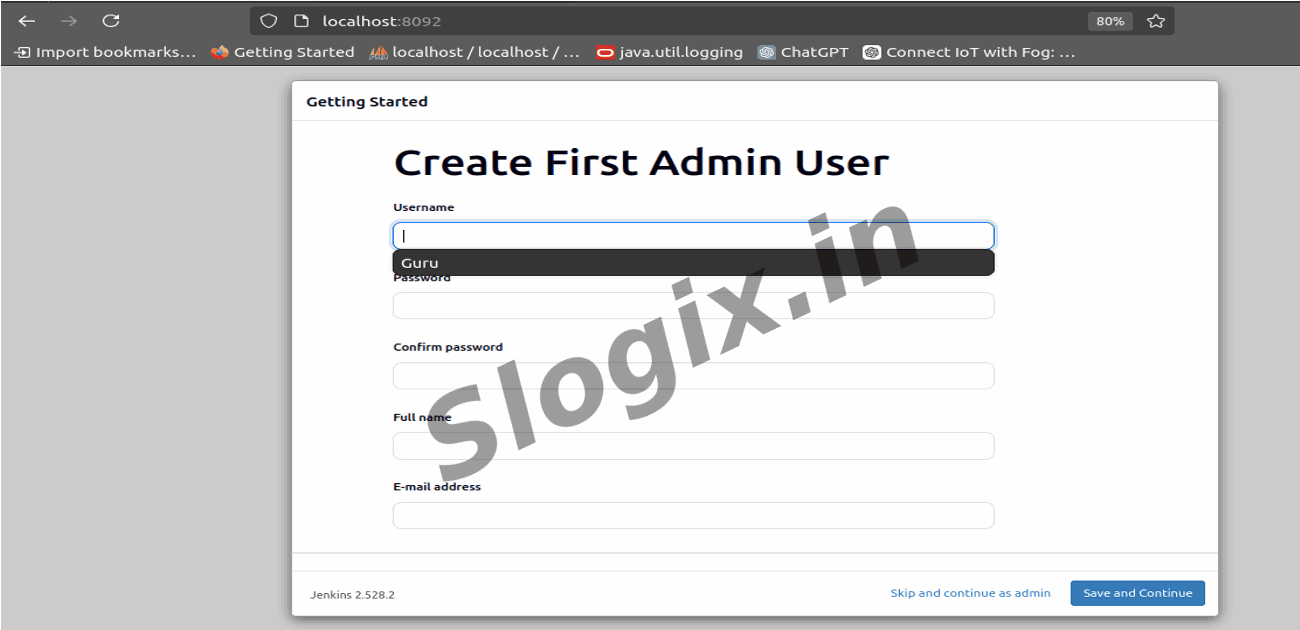
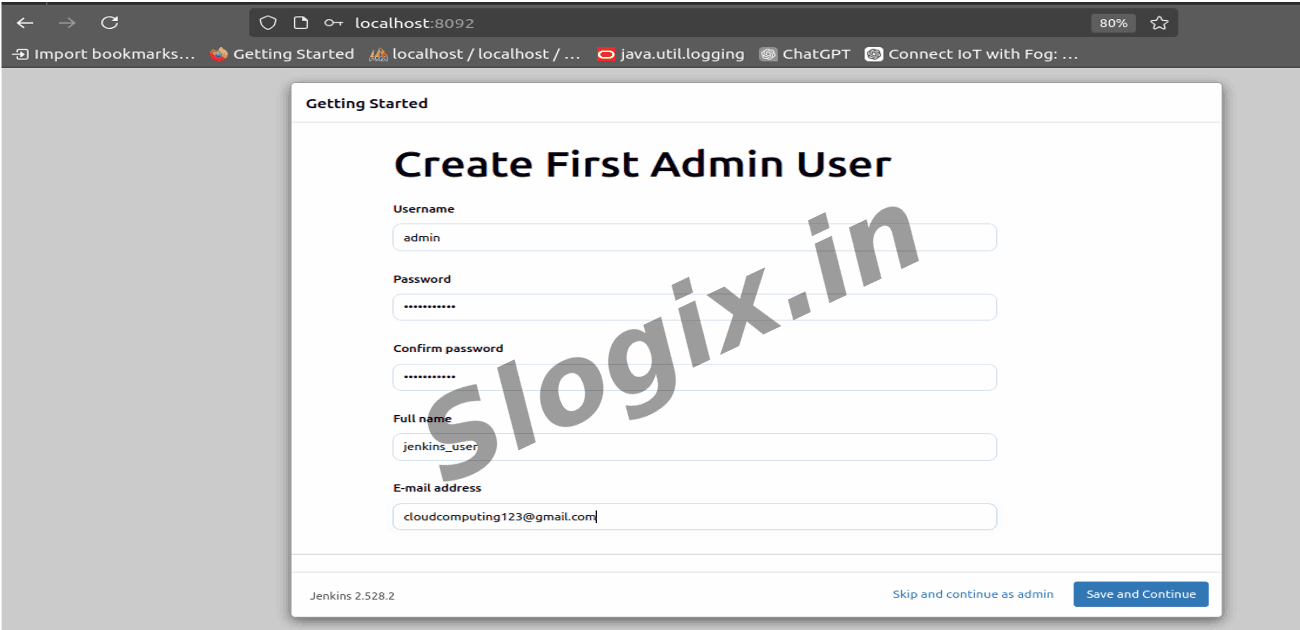
  •  Step 7: Create First Admin User
     Description: Set your login credentials.

    Field Example
    Username admin
    Password jenkins@123
    Full Name Your name
    Email your email

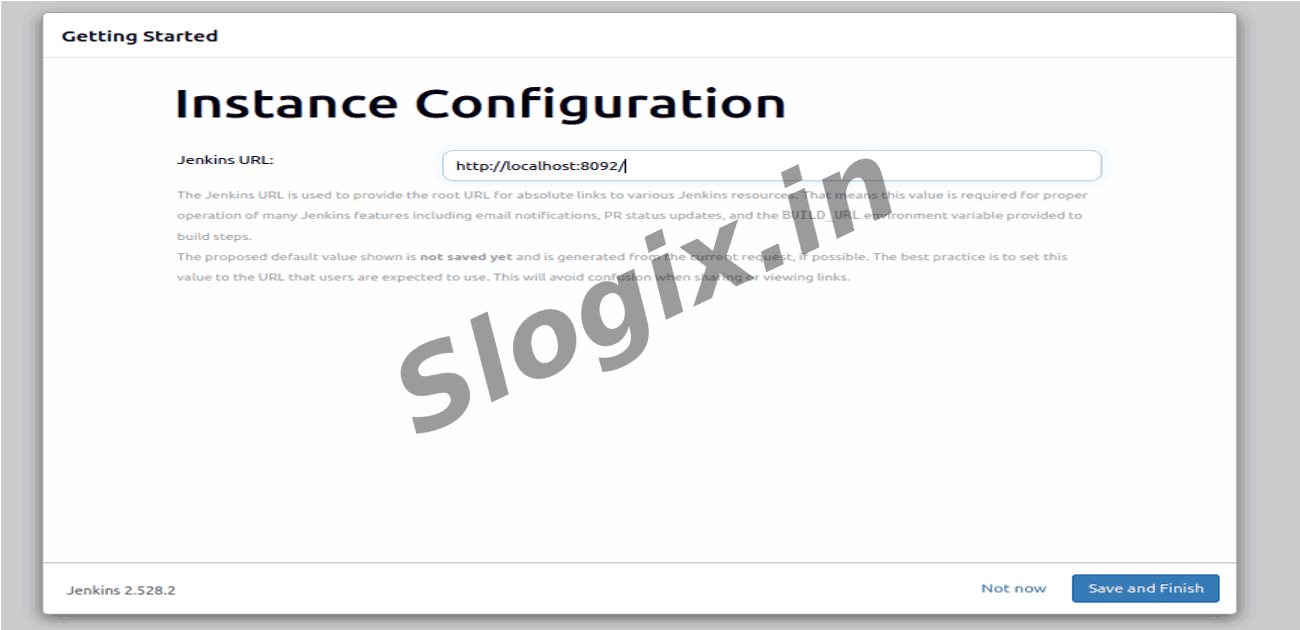
     Then click Save & Continue
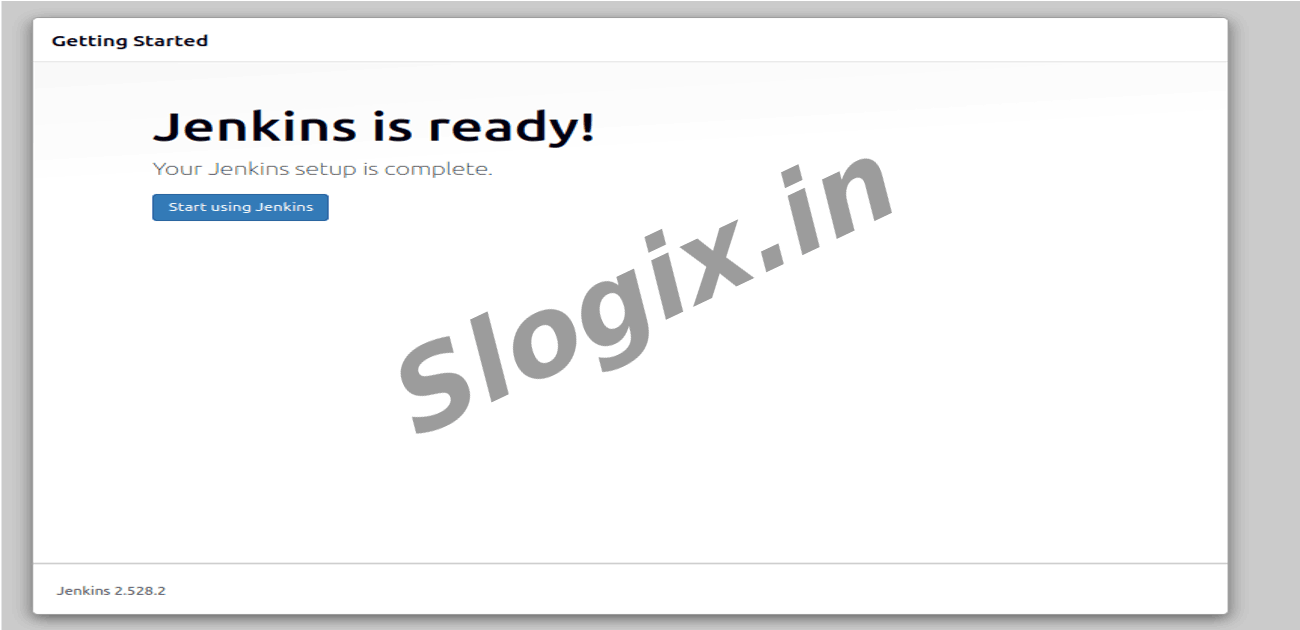
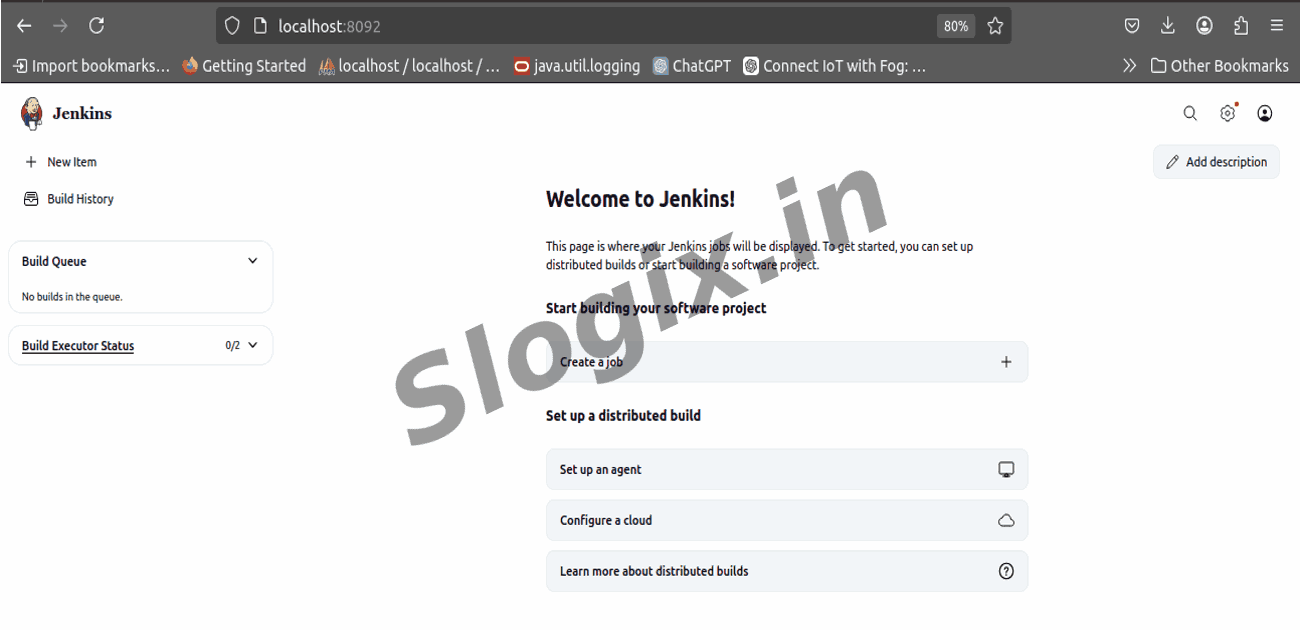
  •  Step 8 — Jenkins Dashboard
     You should now see:
     Jenkins is ready!
     Click Start using Jenkins
Screenshots
  • 375
  • 376
  • 377
  • 378
  • 379
  • 380
  • 381
  • 382
  • 383
  • 384
  • 385
  • 386