How to Deploy and Run a “Hello World” Docker Container on Amazon ECS using Fargate?
Share
Condition for Deploy and Run a “Hello World” Docker Container on Amazon ECS using Fargate
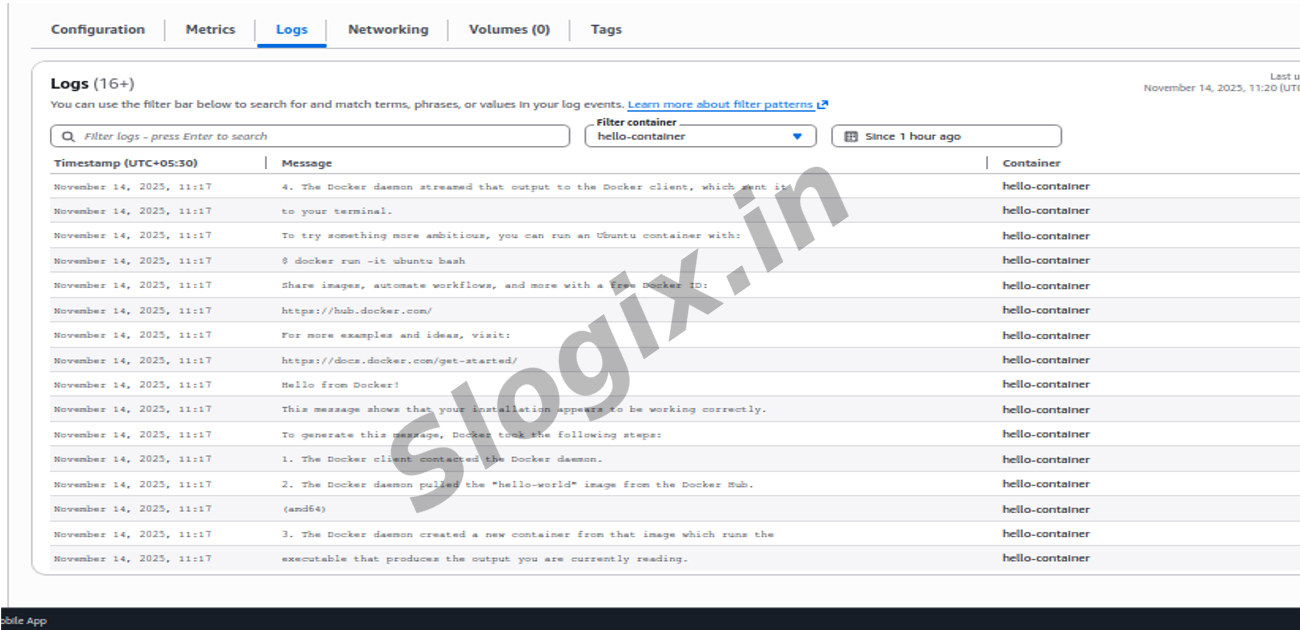
Description: It demonstrates how to deploy and run a simple “Hello World” Docker container on Amazon ECS using AWS Fargate. You begin by creating a new ECS cluster configured for “Networking only,” which is optimized for serverless Fargate tasks. Next, you define a Fargate task definition specifying CPU, memory, and a container that uses the public hello-world image from Amazon ECR Public. After creating the task definition, you run the task inside your cluster using the Fargate launch type and assign it to a subnet within your VPC. Once the container starts, you can open the task details and view the log output, where the hello-world container prints its default message. This verifies that ECS Fargate successfully pulls the image, launches the container, and executes it without needing to manage servers.
Steps
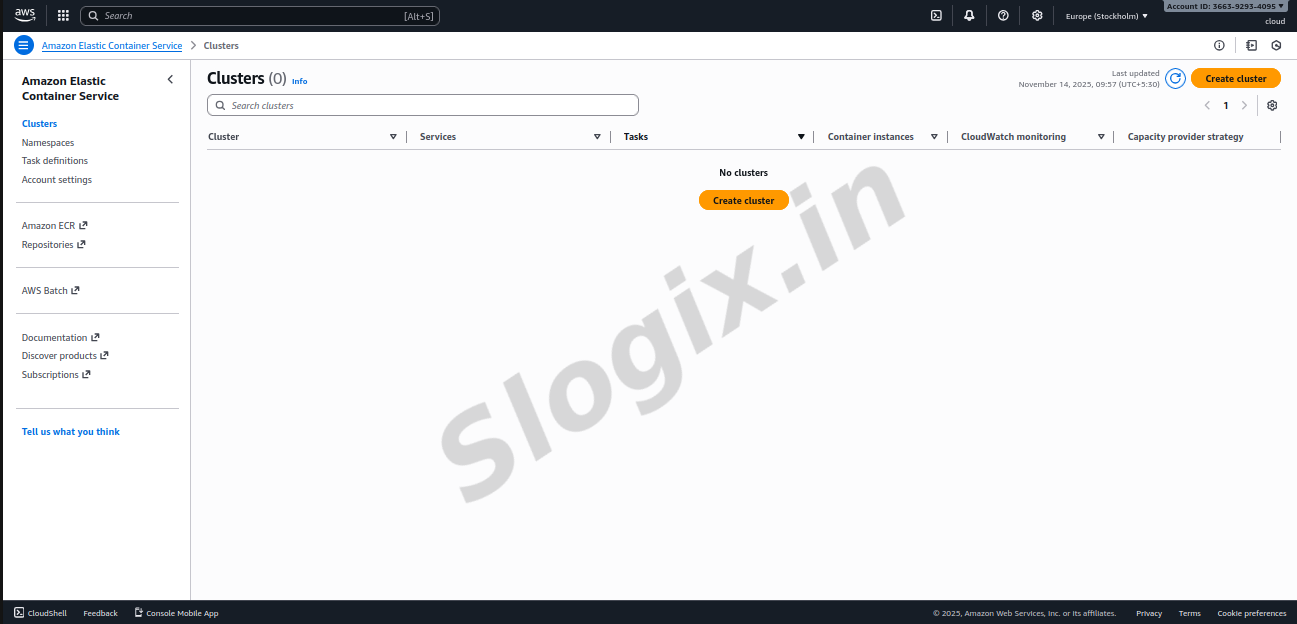
Step 1 : Open ECS Console
Go to:
AWS Console → ECS
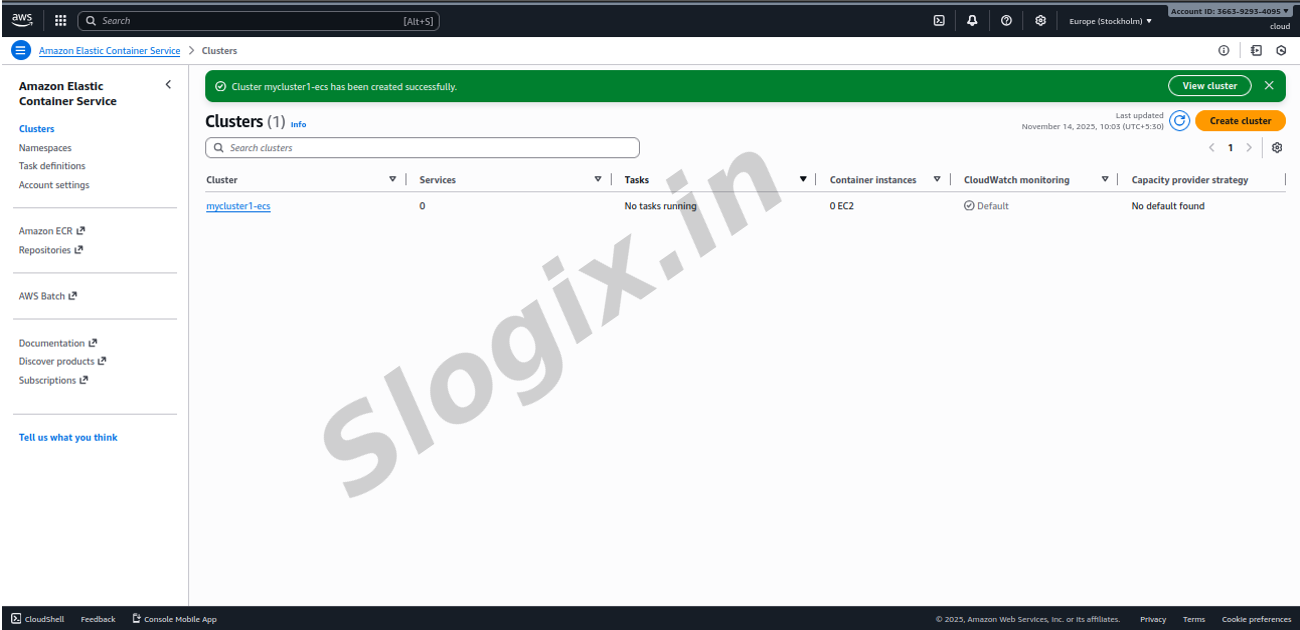
Step 2 : Create a New ECS Cluster
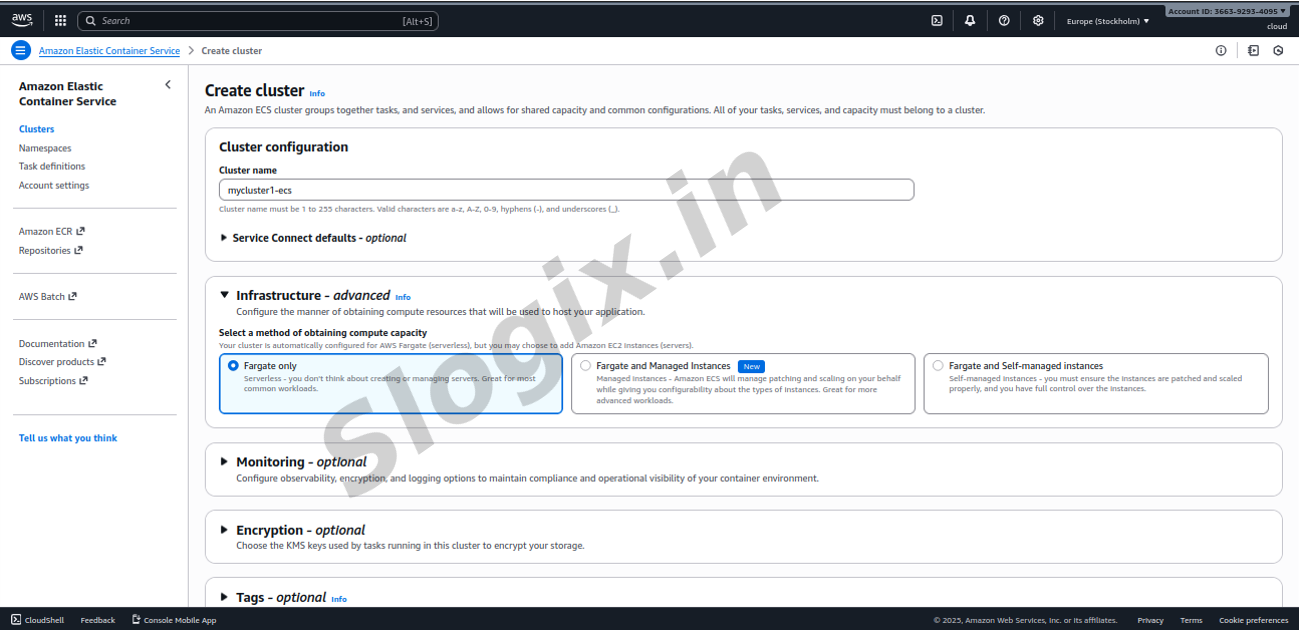
Click Create Cluster
Select: "Networking only" (Powered by AWS Fargate)
Keep default settings
Click Create
This gives a simple cluster for running Fargate tasks.
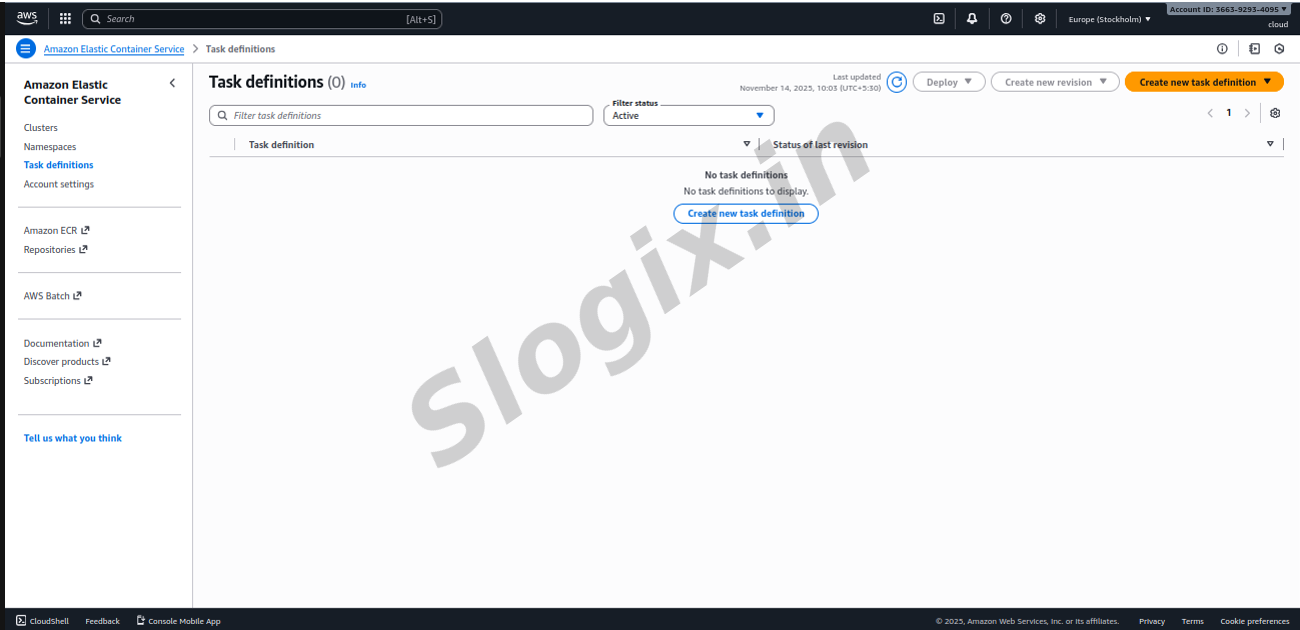
Step 3 : Create a Task Definition
From ECS left menu → Task Definitions
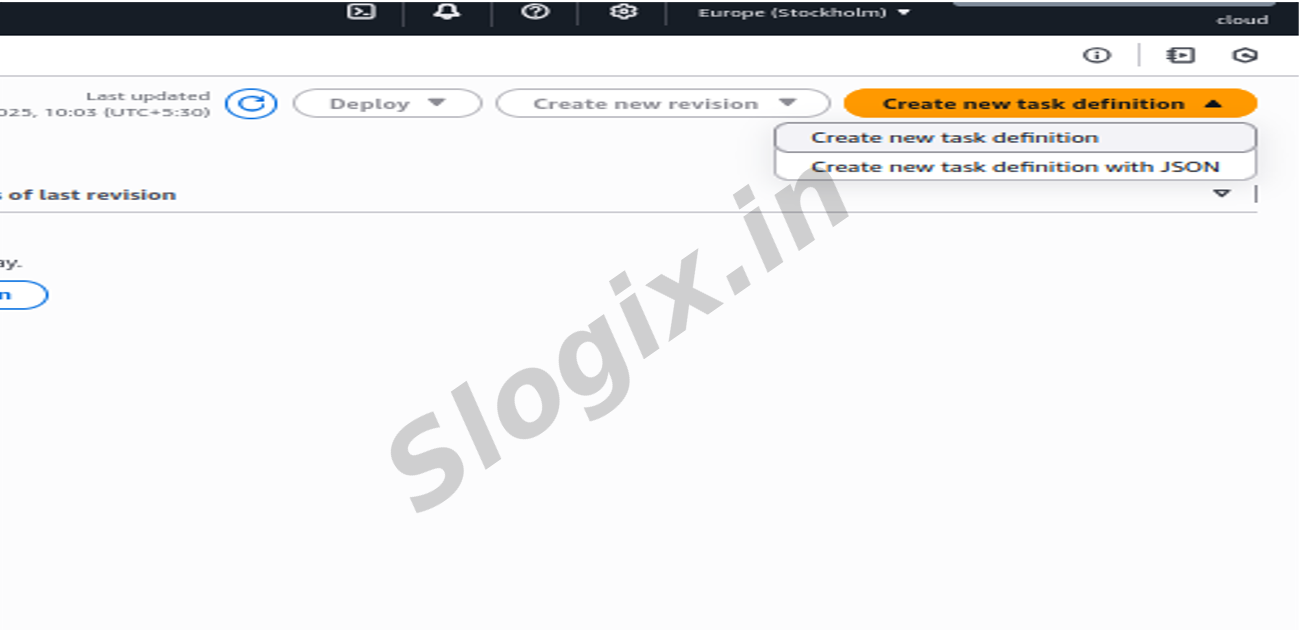
Click Create new Task Definition
Choose Fargate
Click Next
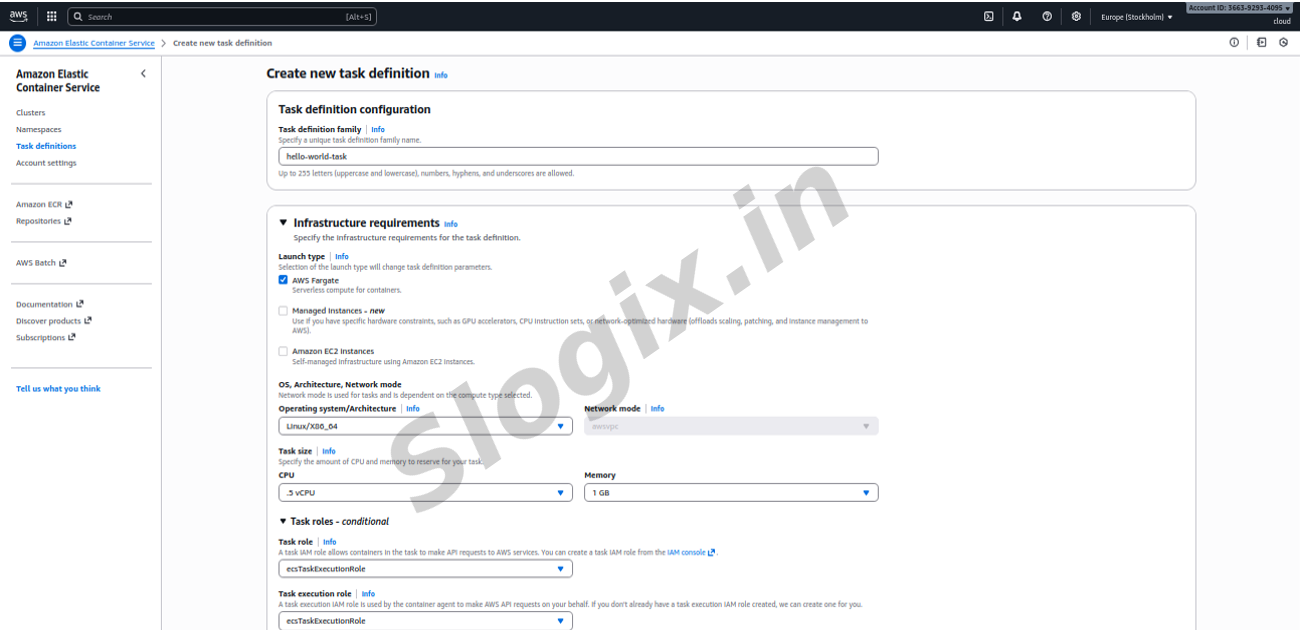
Step 4 : Configure the Task Definition
Fill the form:
General Settings
Task definition name: hello-world-task
Task Size
CPU: 0.25 vCPU
Memory: 0.5 GB
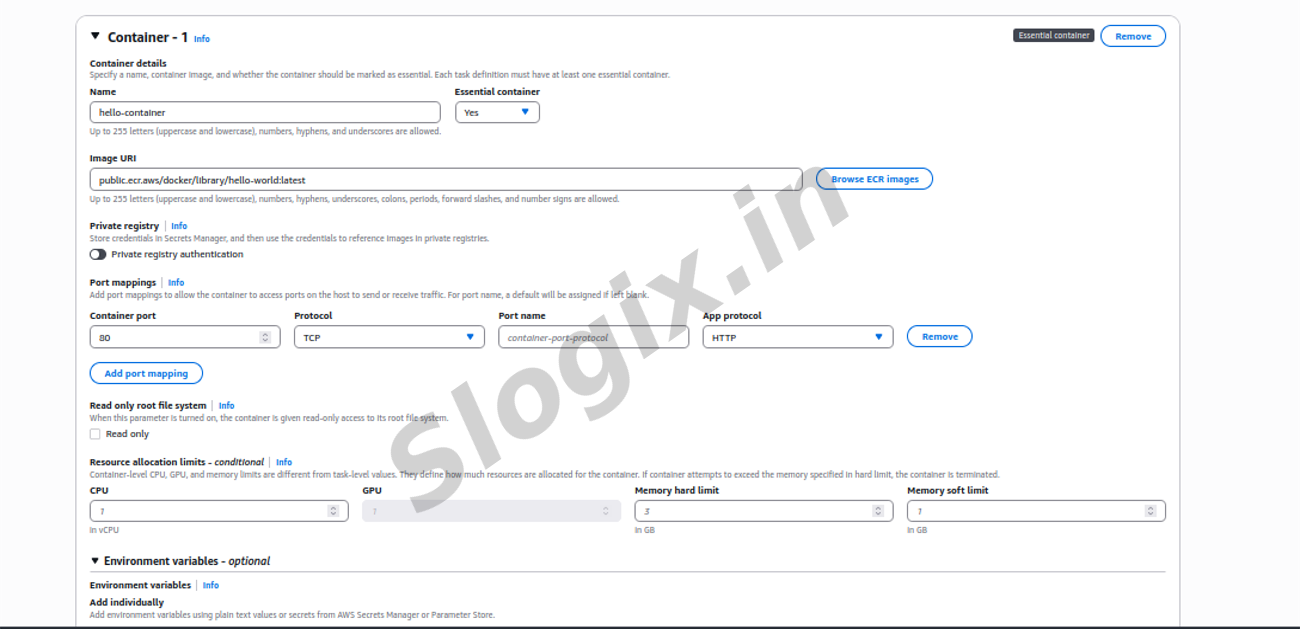
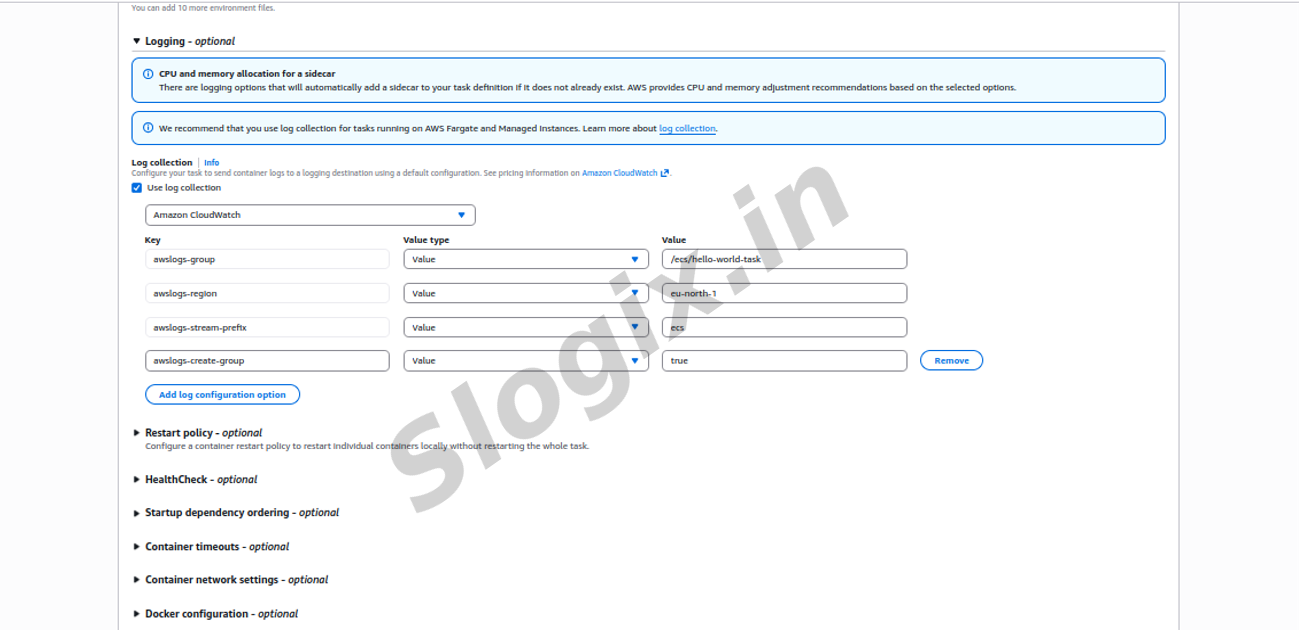
Container Definition
Click Add Container
Fill:
Container name: hello-container
Image URI:
public.ecr.aws/docker/library/hello-world:latest
Port mappings: (Leave empty) → This container prints output only.
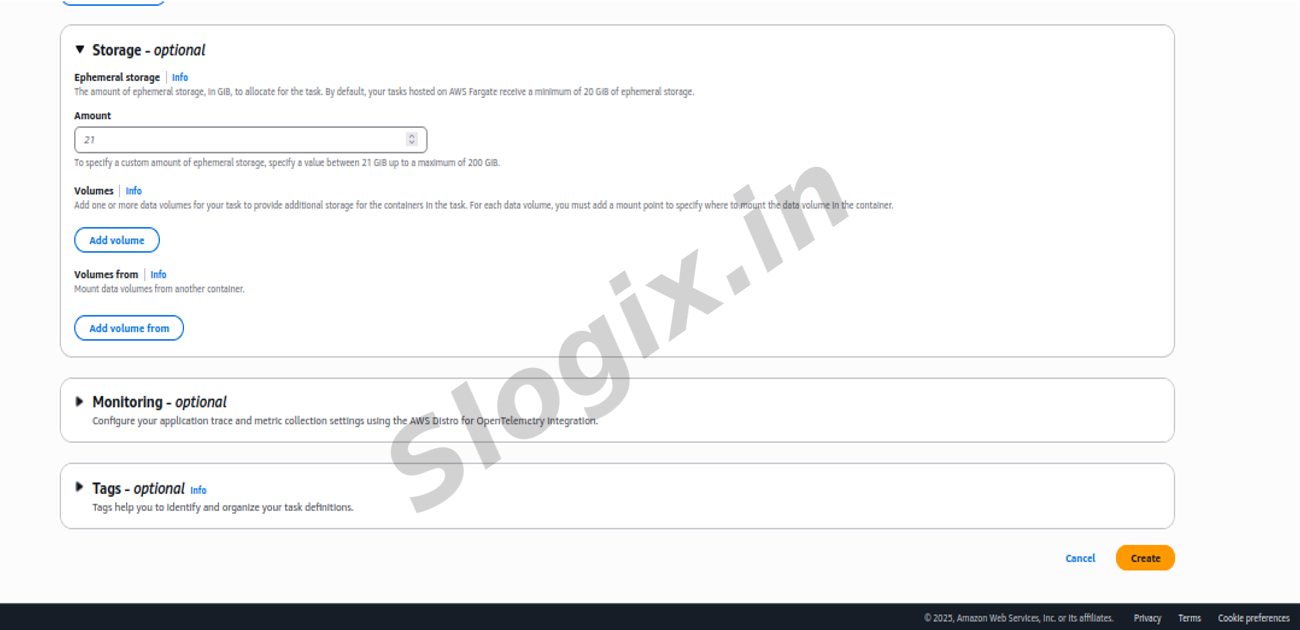
Click Add
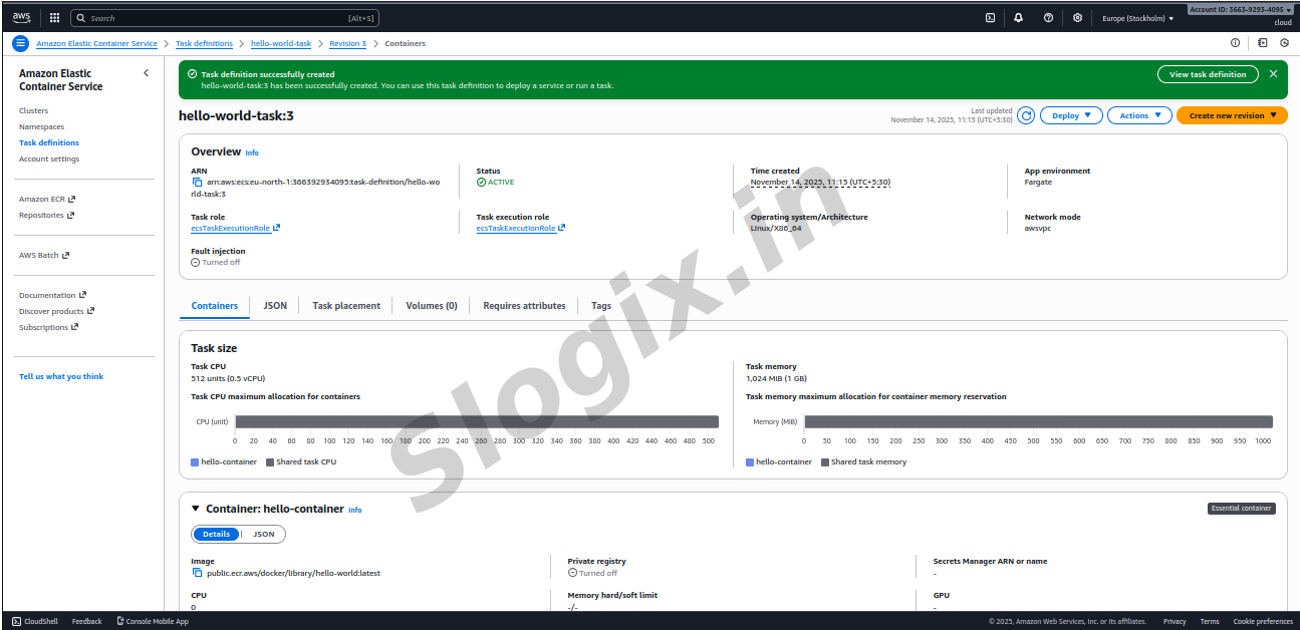
Then click Create
Task definition is now created!
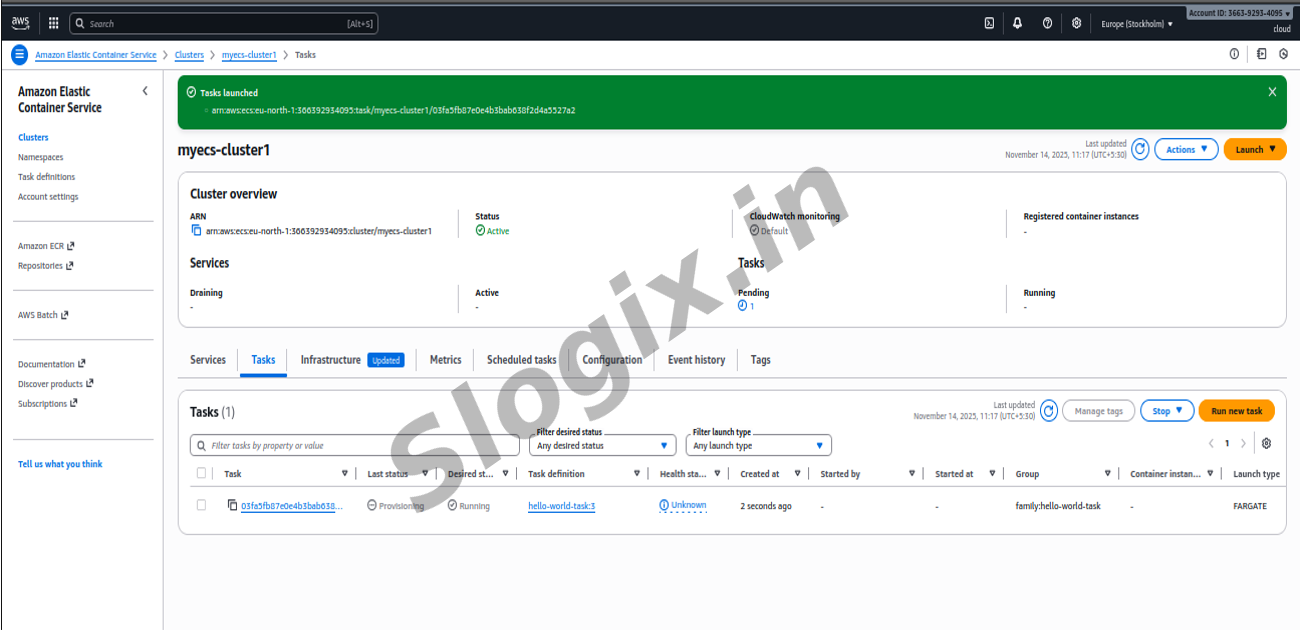
Step 5 : Run the Task
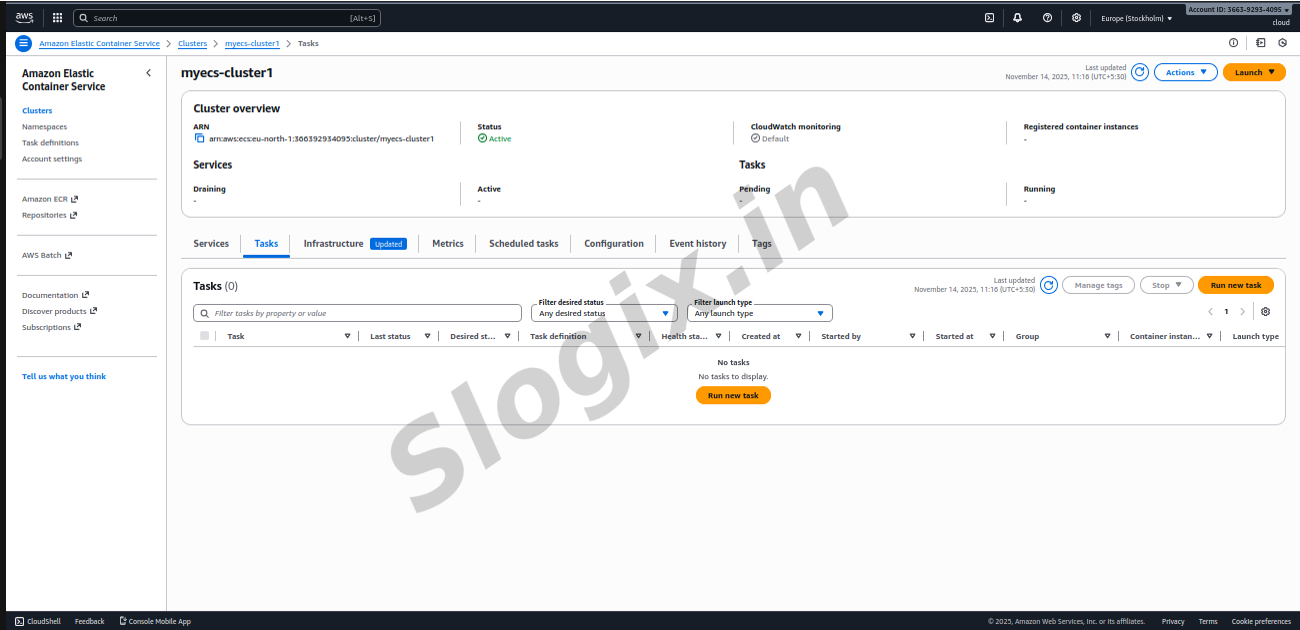
Open your Cluster
Go to Tasks
Click Run new Task
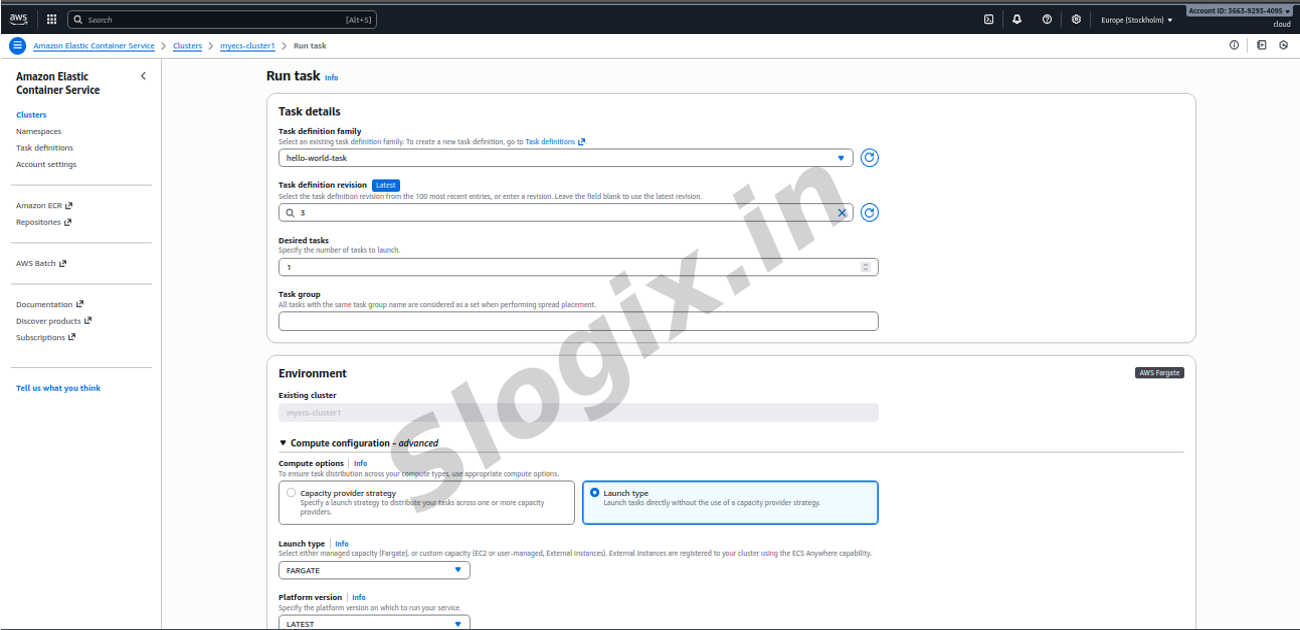
Choose:
Launch type: FARGATE
Task definition: hello-world-task
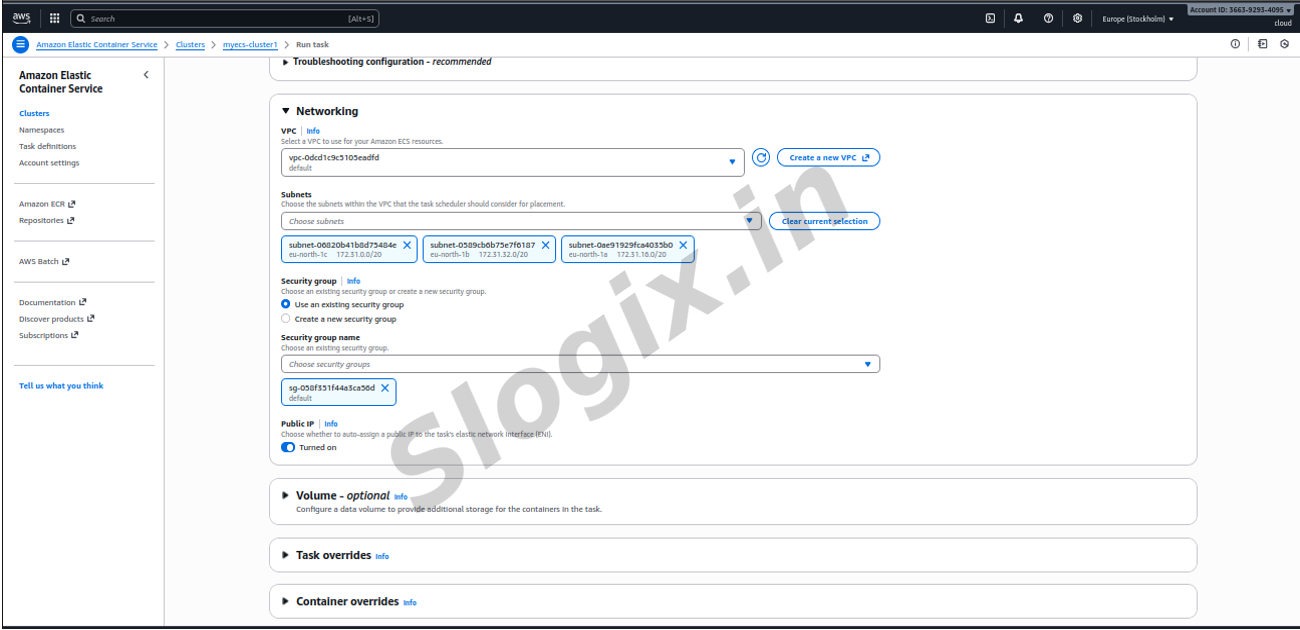
VPC: Select your default VPC
Subnets: Select any public subnet
Public IP: ENABLED (optional)
Click Run Task
ECS will start your container.
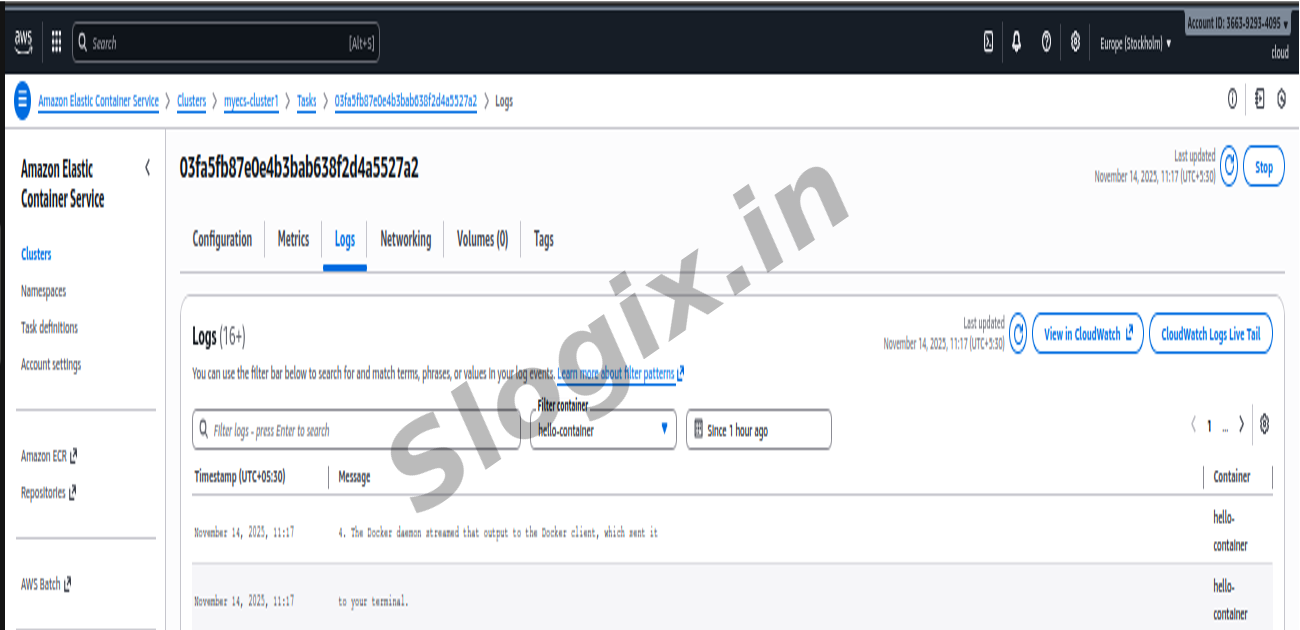
Step 6 : View Logs
Open the running task
Click the Logs tab
-> Output
 Research Breakthrough Possible @S-Logix