How to Create a Text Document Locally and Successfully Push it into a Gitlab Repository?
Share
Condition for Create a Text Document Locally and Successfully Push it into a Gitlab Repository
Description: To create a text document and push it into GitLab, we first start by creating a new project inside GitLab and then initializing Git on our local system using git init in the project folder located at /soft13/Project 2025/Devops samples/Gitlab. Since Git automatically creates a default branch named master, and sometimes GitLab expects main as the default branch, we removed the existing remote reference using git remote remove origin and added the correct GitLab repository using git remote add origin https://gitlab.com/text-document.git After this, we staged the file using git add . and committed it with a message "Added GitLabCoreConcepts.txt". When we tried pushing using git push -u origin master, the issue occurred because the GitLab project accepted main instead of master. Running git branch confirmed the branch name, and therefore we attempted git push -u origin main. However, error continued because GitLab already had an initial commit or README file, causing our local branch to be behind. To resolve this, we executed git pull --rebase origin main, which synchronized our local changes with the remote main branch by placing our commit on top. After rebasing, git push -u origin main successfully pushed the document to GitLab and set the main branch as the upstream tracking branch.
Steps
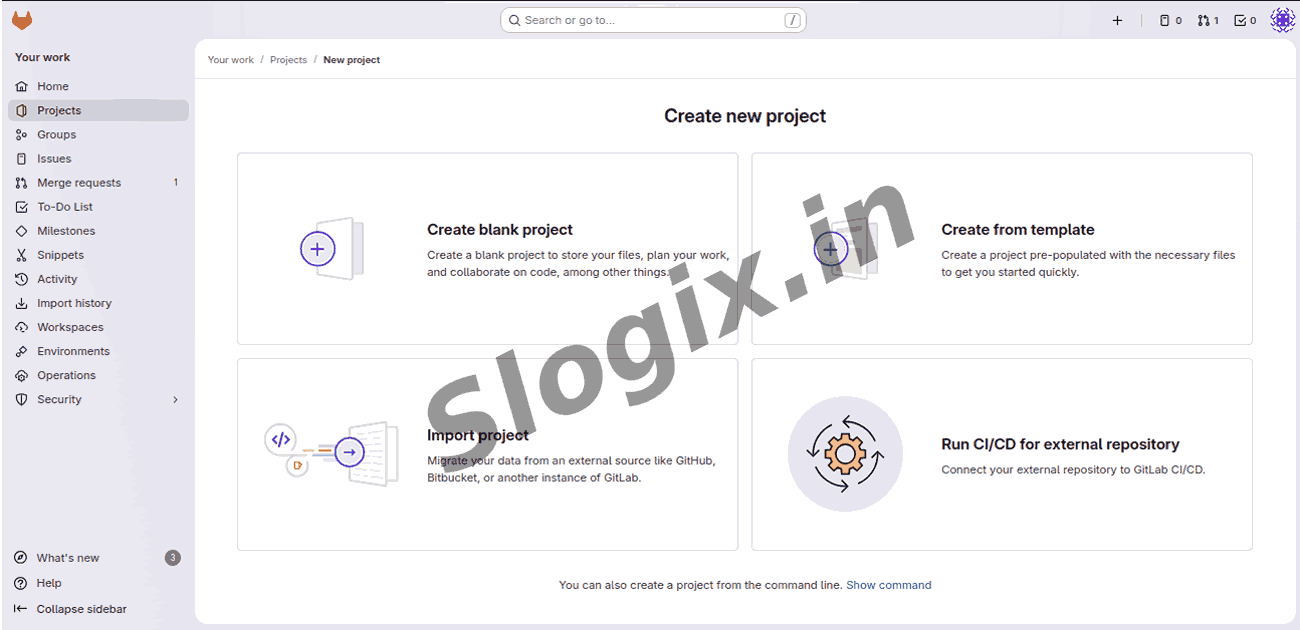
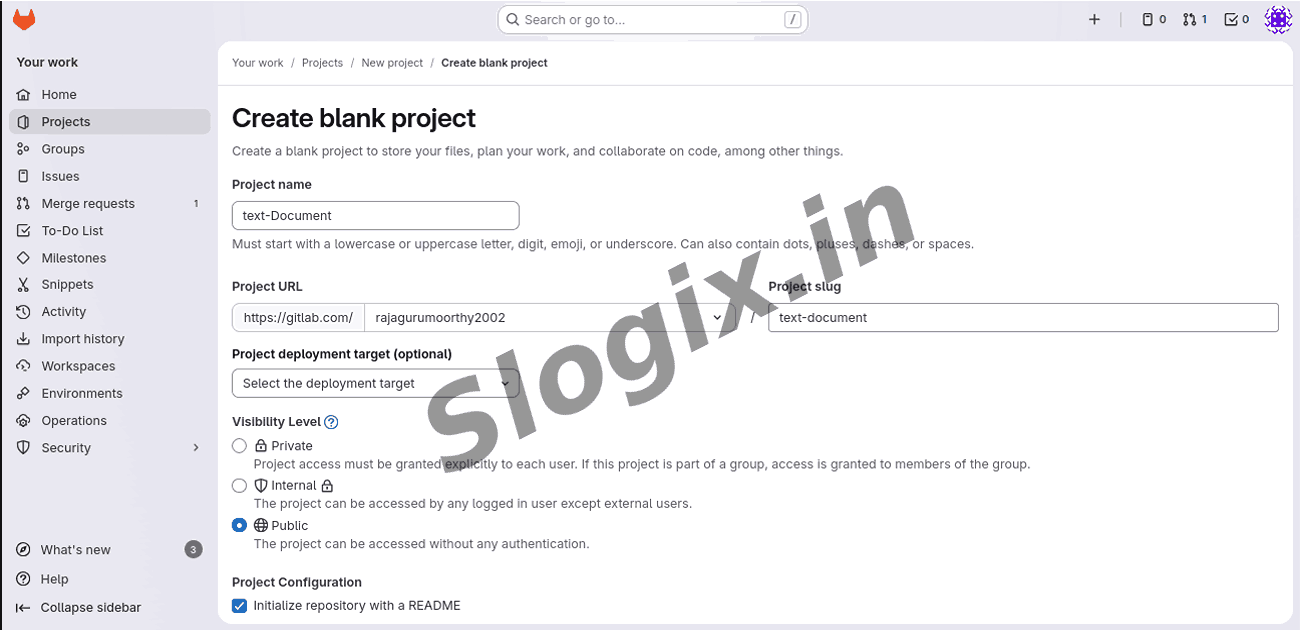
Step 1: Create a project in GitLab
Log in to GitLab → Click New Project → Create blank project → Enter project name (Ex: text-document) → Create.
Step 2: Go to your local folder path
Open Terminal and move into your project folder:
cd /soft13/Project 2025/Devops samples/Gitlab/sample1
This is the location where your text document is saved.
Step 3: Initialize Git in this folder
This command makes the folder a Git repository.
git init
Step 4: Remove old remote origin (if exists)
This avoids conflict with previous Git links.
git remote remove origin
Step 5: Add your GitLab project link
Connect your local folder to your GitLab repository.
git remote add origin https://gitlab.com/rajagurumoorthy2002/text-document.git
Step 6: Add all project files to Git staging
Tells Git which files you want to track.
git add .
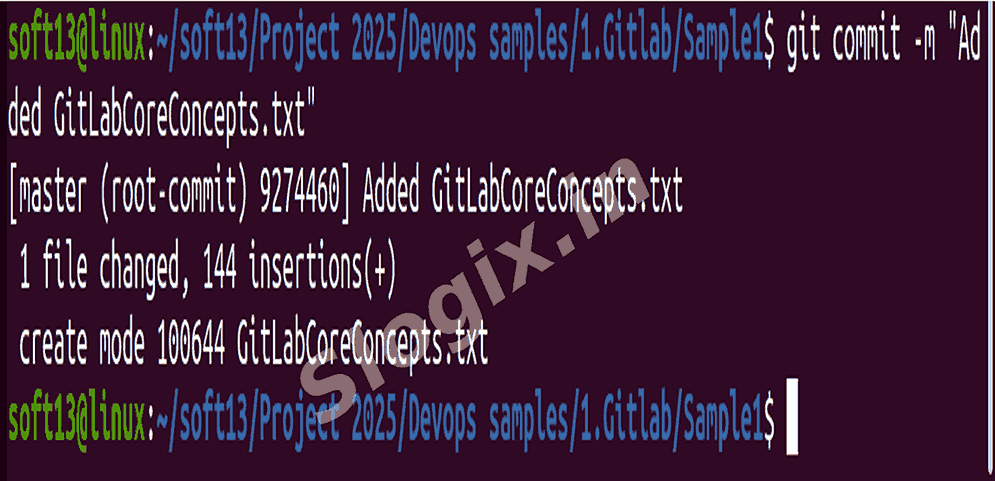
Step 7: Commit your changes with a message
Commit saves your changes locally with a message.
git commit -m "Added GitLabCoreConcepts.txt"
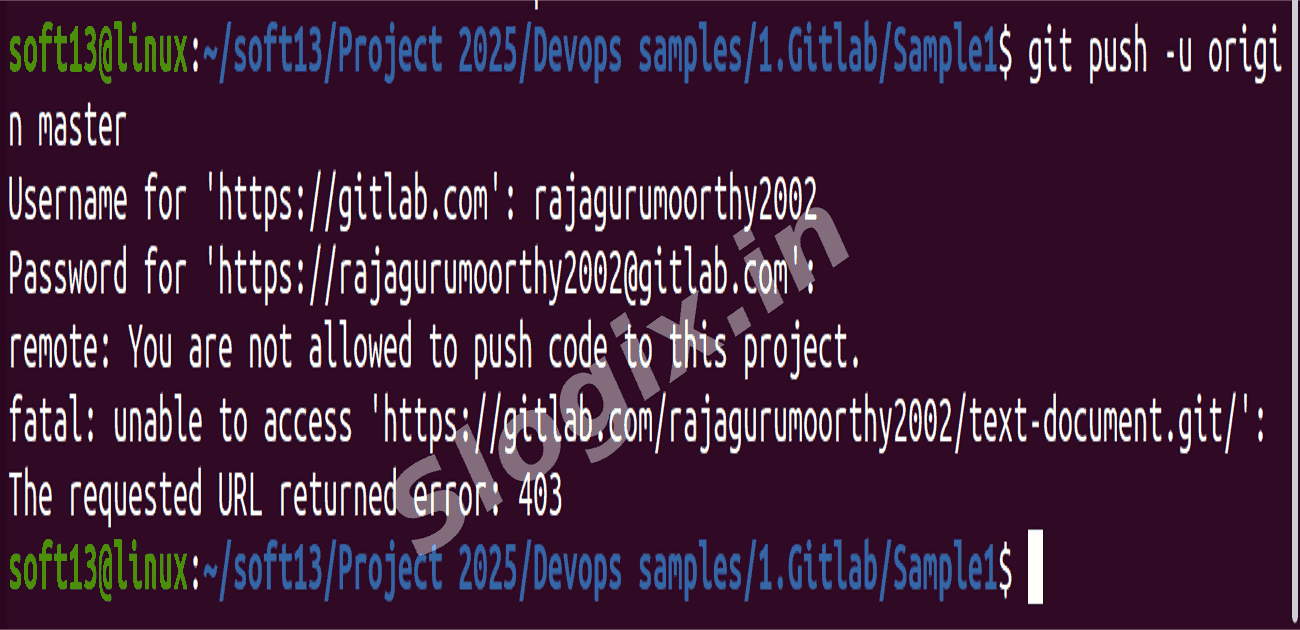
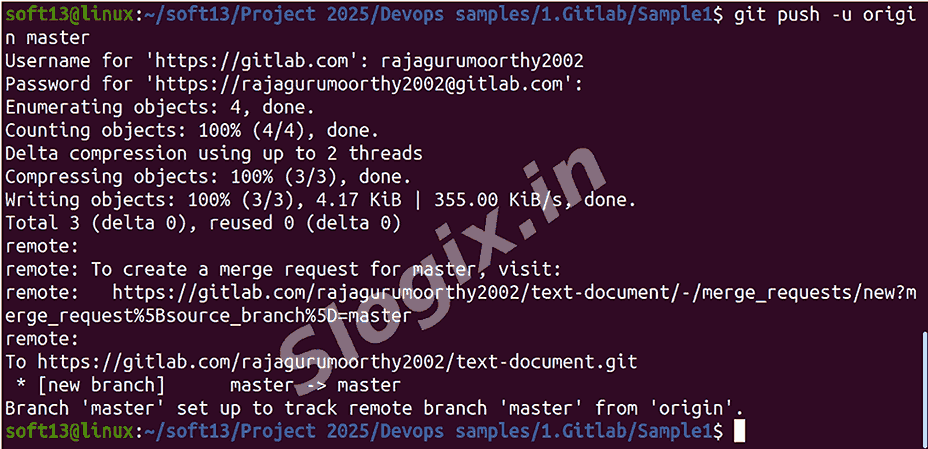
Step 8: Try pushing to master branch
Many times, push fails because master branch doesn't exist.
git push -u origin master
Issue Happened – Check Current Branch
You are probably not on master branch; you are on main branch.
git branch
Step 9: Push to the correct branch (main)
Since GitLab uses main as default, push to main.
git push -u origin main
This will ask for username and password.
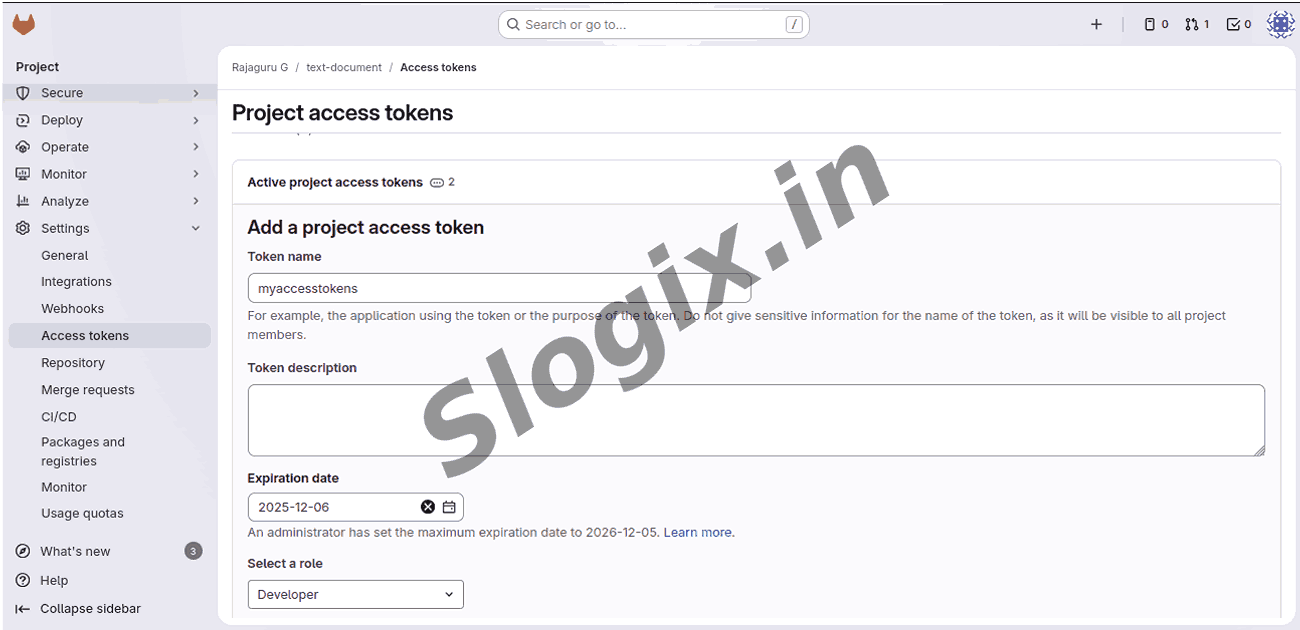
Step 10: Enter Access Token (GitLab Password)
GitLab will NOT accept normal password.
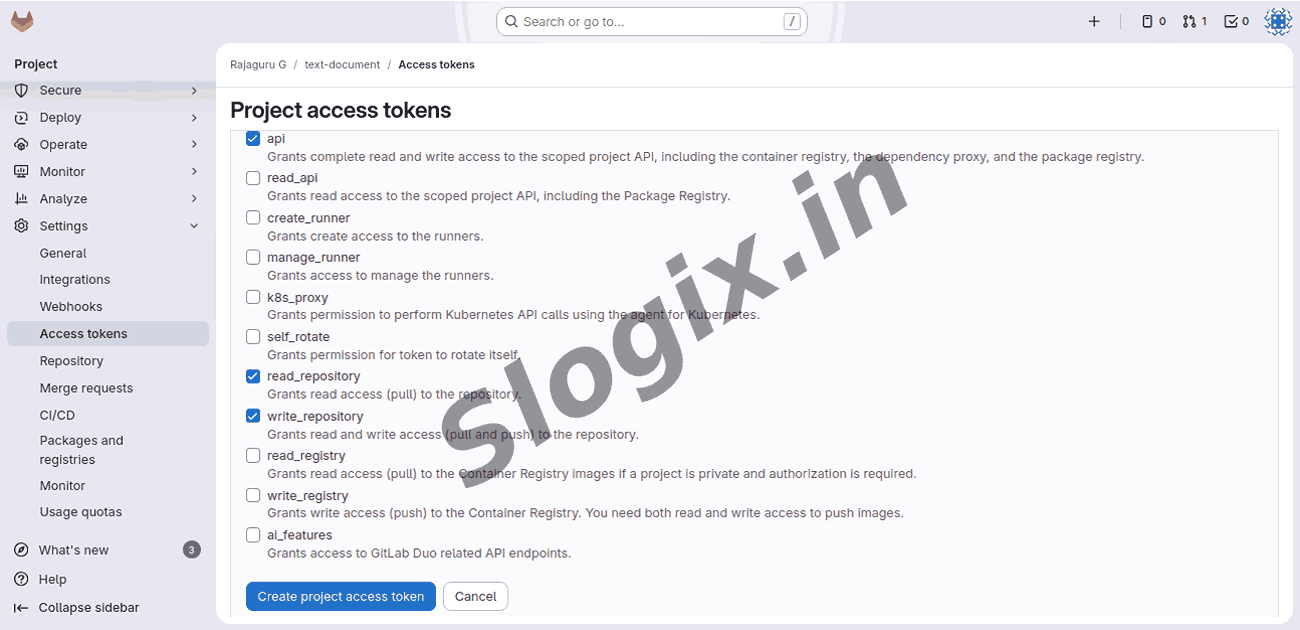
You must paste GitLab Personal Access Token (PAT)
This acts as your GitLab password.
Go to GitLab → Profile → Settings → Access Tokens → Create token → Copy token → Paste it when terminal asks password.
Result
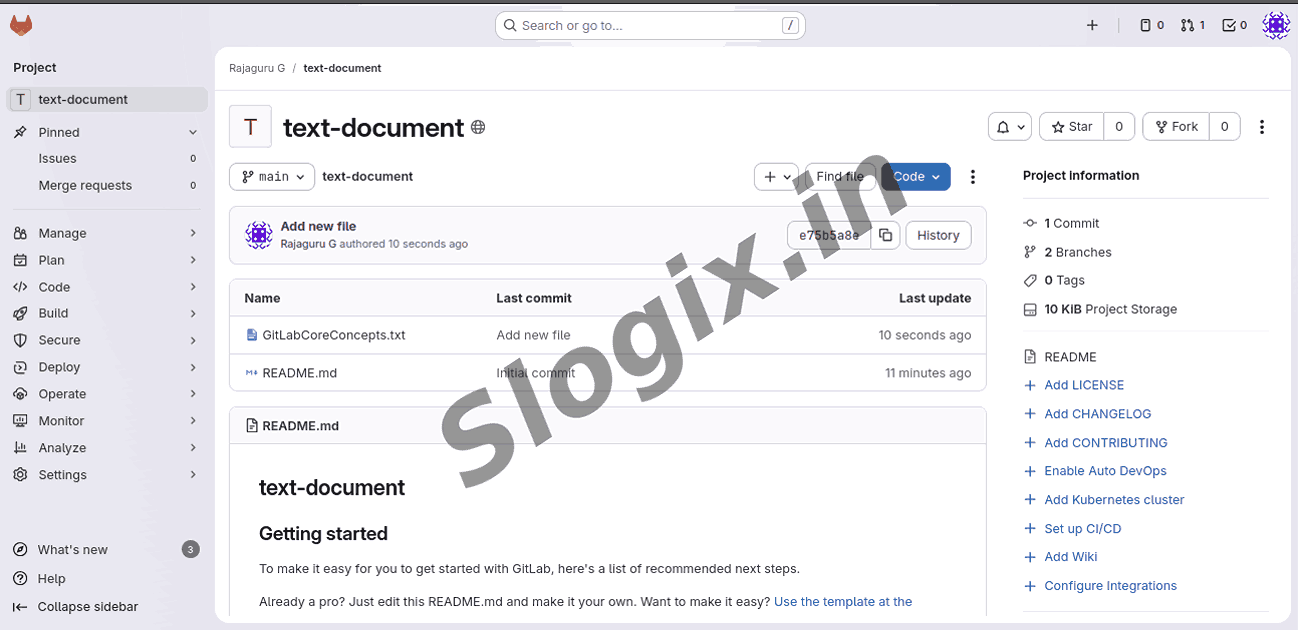
The text file is now successfully pushed to GitLab repository and visible under your GitLab project.
 Research Breakthrough Possible @S-Logix