List of Topics:
Location Research Breakthrough Possible @S-Logix pro@slogix.in

Office Address

Social List

How to install Jenkins?

Jenkins

Condition for install Jenkins

  • Description:
    Installing Jenkins involves setting up the required Java environment, adding the official Jenkins repository, and installing the Jenkins package on the system. After installation, the Jenkins service is started and accessed through a web browser, where the initial setup is completed by unlocking Jenkins, installing recommended plugins, and creating an admin user to confirm that Jenkins is running and ready for use.

Steps

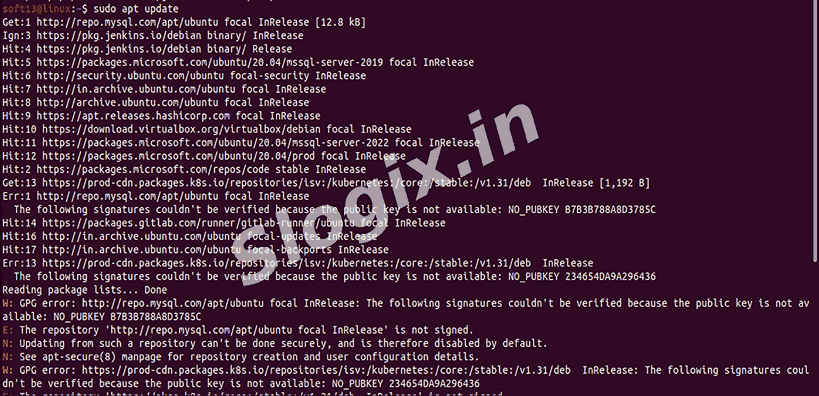
  •  Step 1: Update System
     sudo apt update
     sudo apt upgrade -y
  •  Step 2: Install Java (Jenkins Requires Java 17+)
     Install OpenJDK 17 (recommended):
     sudo apt install openjdk-17-jdk -y

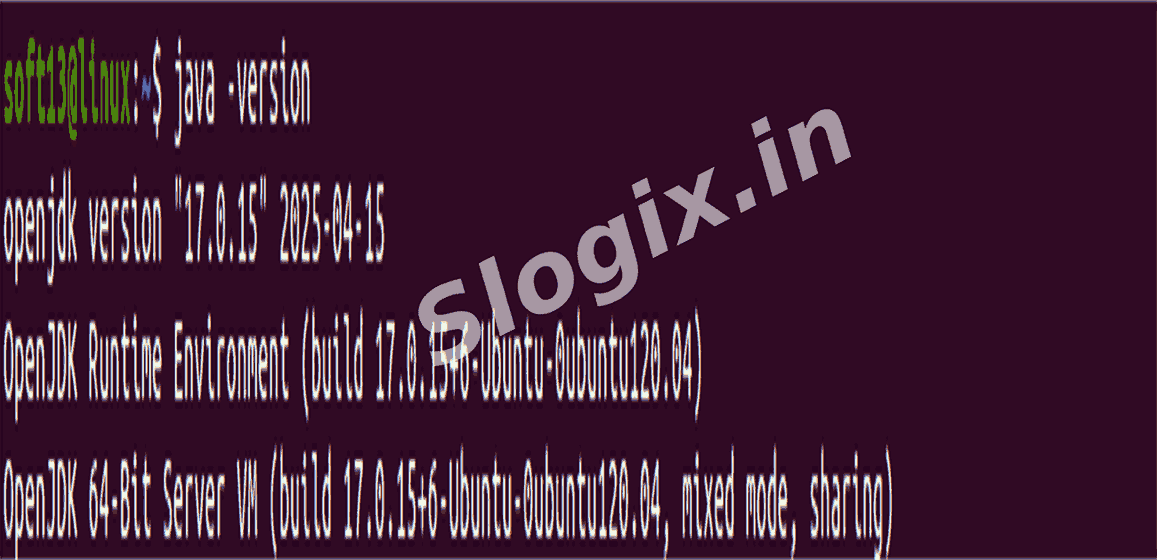
     Verify Java:
     java -version
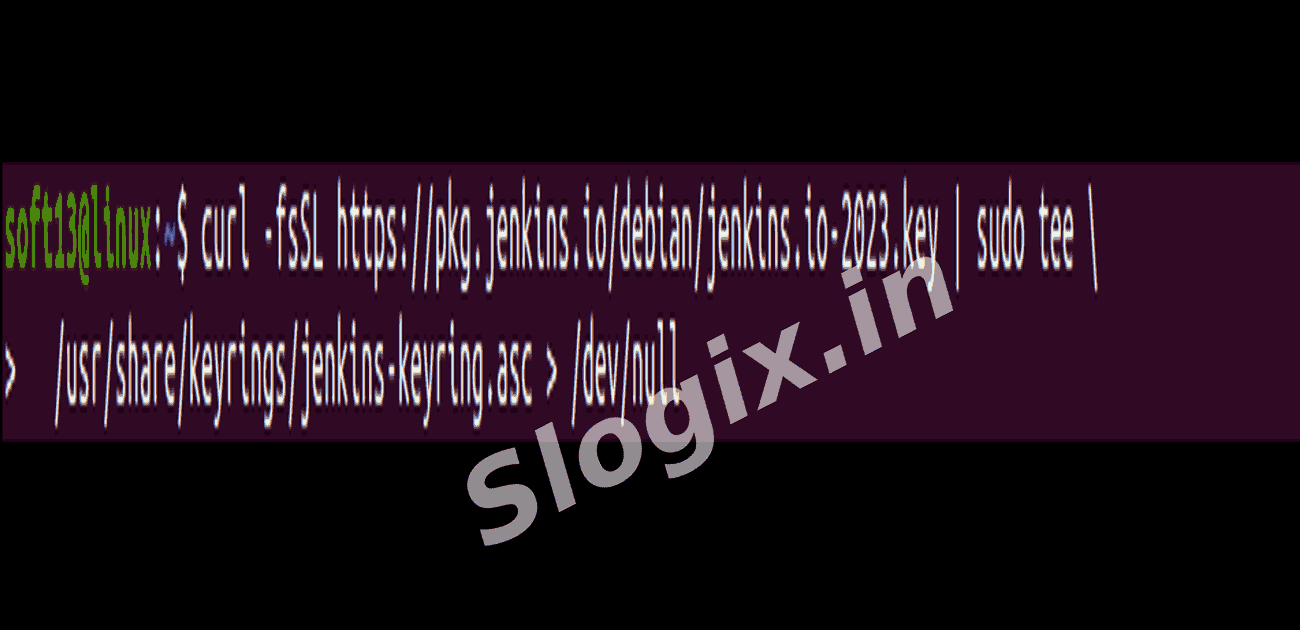
  •  Step 3: Add Jenkins Repository Key
     curl -fsSL https://pkg.jenkins.io/debian/jenkins.io-2023.key | sudo tee /usr/share/keyrings/jenkins-keyring.asc > /dev/null
  •  Step 4: Add Jenkins Package Repository
     echo deb [signed-by=/usr/share/keyrings/jenkins-keyring.asc] https://pkg.jenkins.io/debian binary/ | sudo tee /etc/apt/sources.list.d/jenkins.list > /dev/null
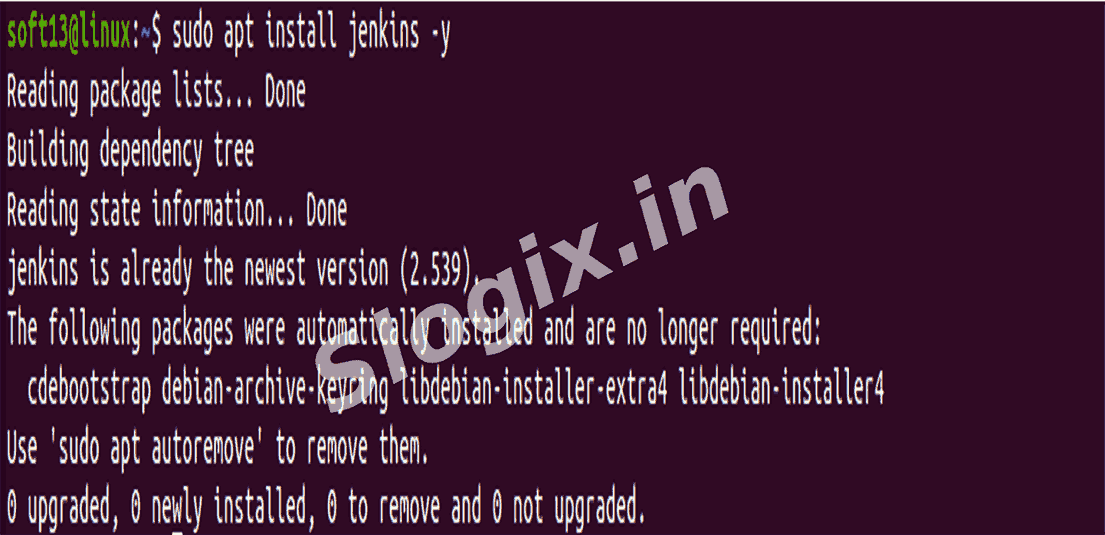
  •  Step 5: Install Jenkins
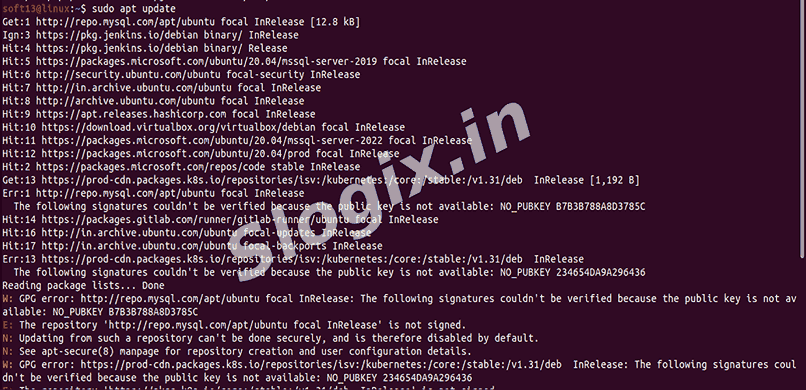
     sudo apt update

     sudo apt install jenkins -y
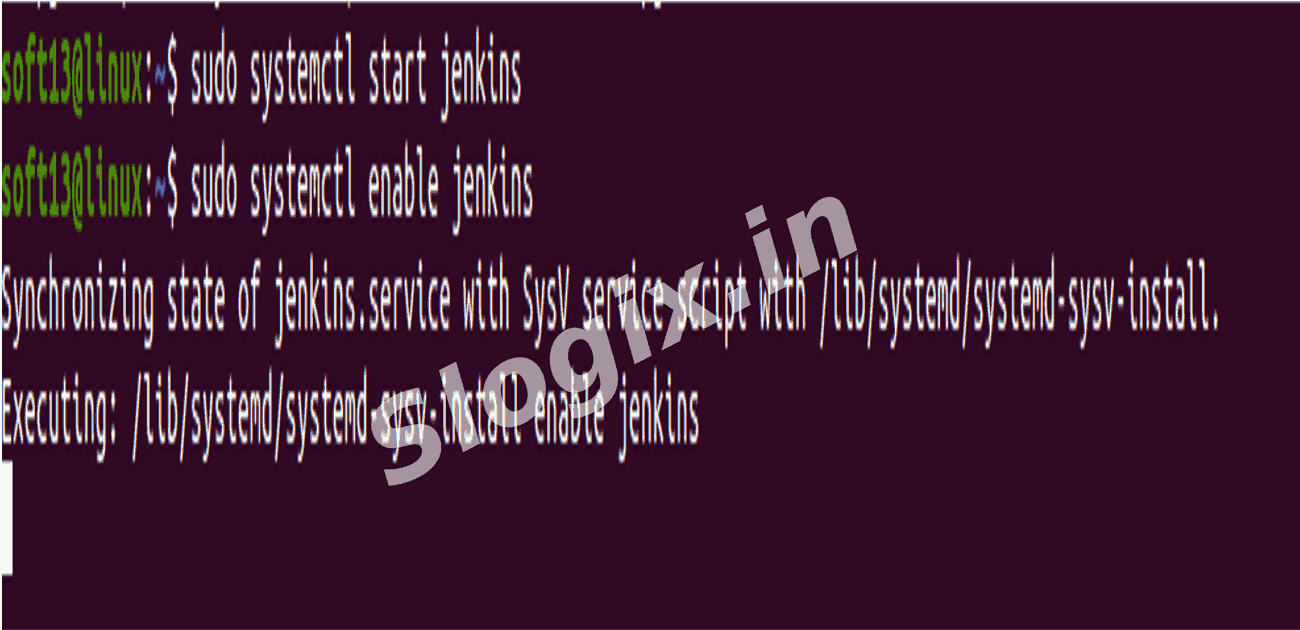
  •  Step 6: Start & Enable Jenkins Service
     sudo systemctl start jenkins
     sudo systemctl enable jenkins
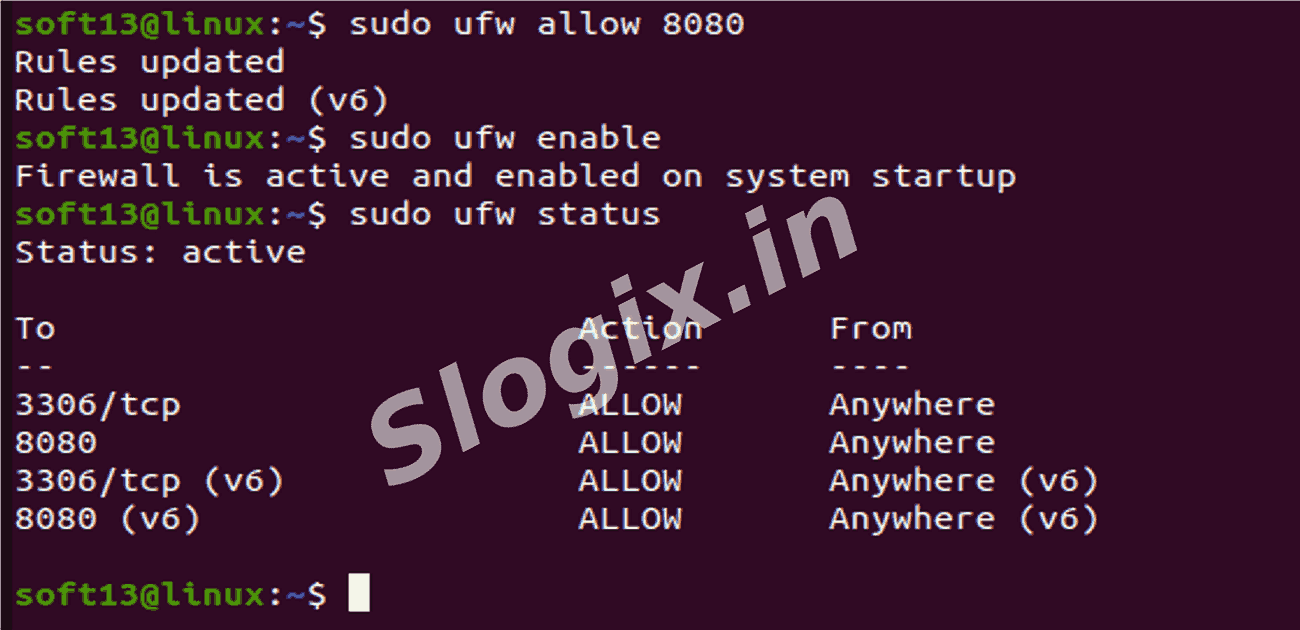
  •  Step 7: Allow Firewall (if using UFW)
     sudo ufw allow 8080
     sudo ufw enable
     sudo ufw status
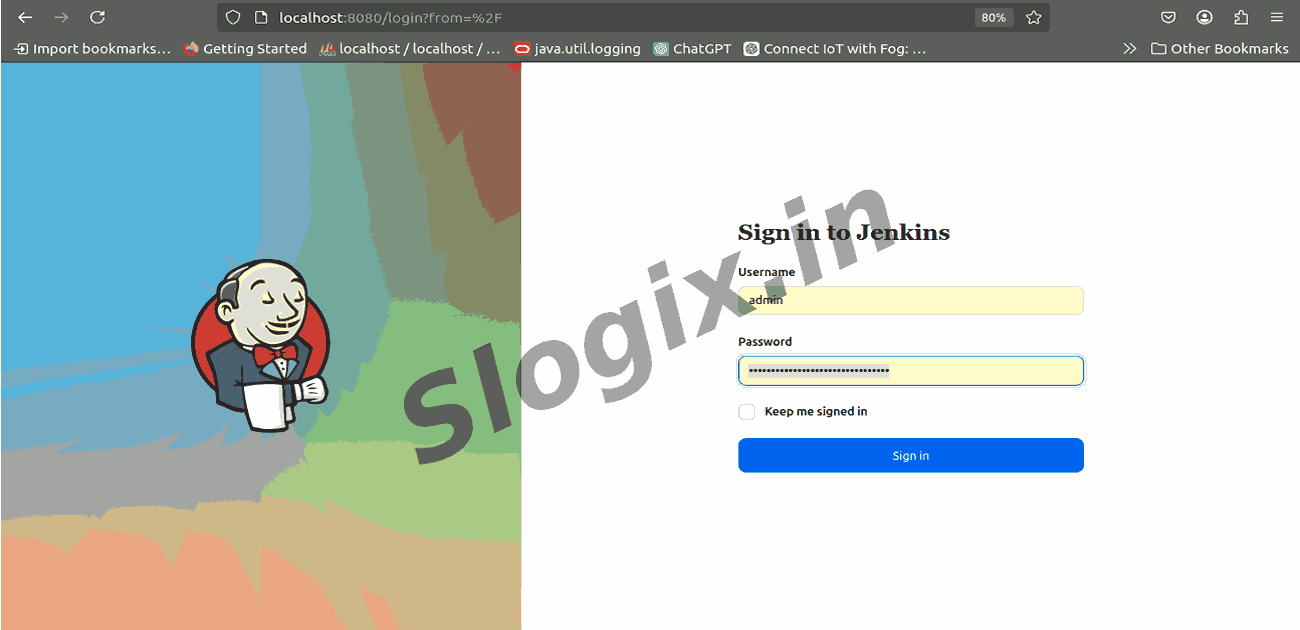
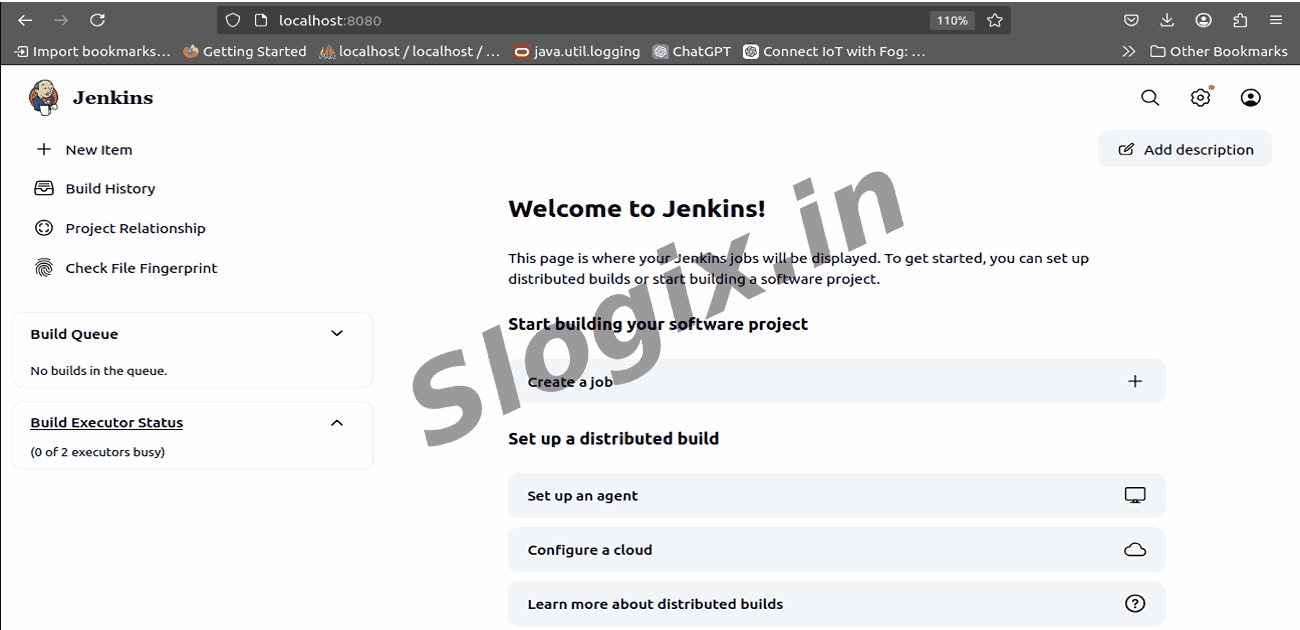
  •  Step 8: Open Jenkins in Browser
     http://localhost:8080
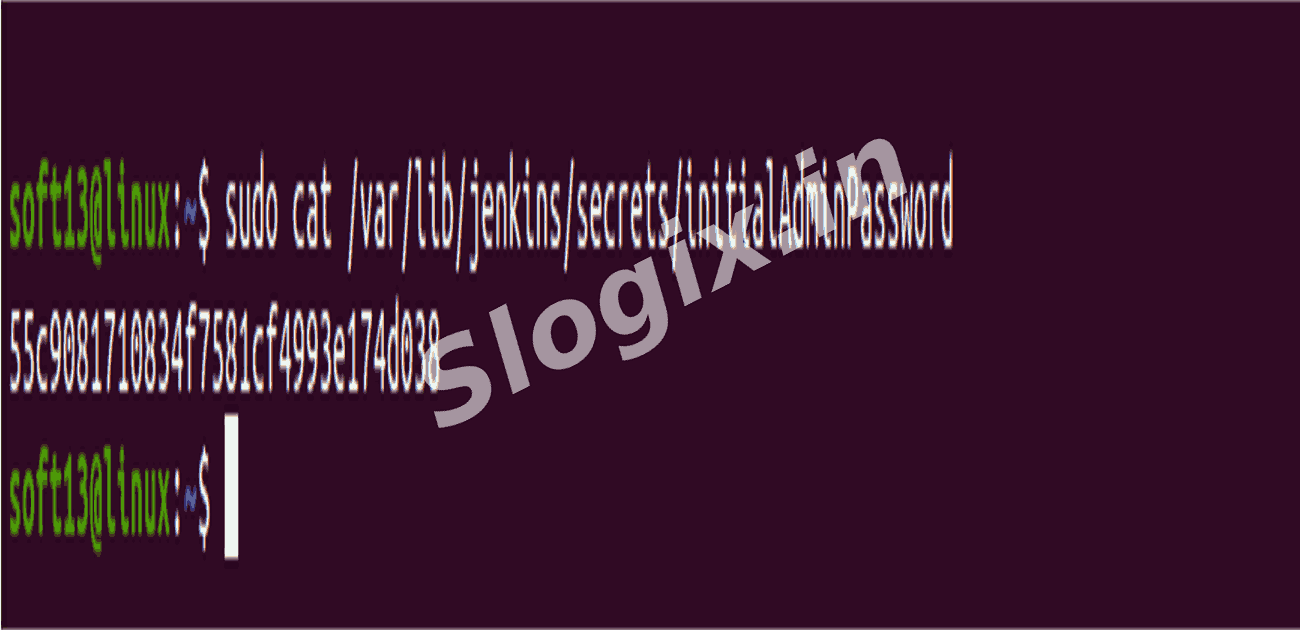
  •  Step 9: Get Initial Admin Password
     sudo cat /var/lib/jenkins/secrets/initialAdminPassword

     Pwd: 55c9081710834f7581cf4993e174d038

     Copy the password → paste it into Jenkins setup page.
Screenshots
  • 141
  • 142
  • 143
  • 144
  • 145
  • 146
  • 147
  • 148
  • 149
  • 150