How to Run a Basic Ubuntu Container in Docker and Perform Basic Linux Operations Inside the Container?
Share
Condition for Run a Basic Ubuntu Container in Docker and Perform Basic Linux Operations Inside the Container
Description: This task demonstrates how to download and run an Ubuntu container using Docker. Inside the container, you will execute basic Linux commands, install packages, and create files and folders. It helps beginners understand how Docker containers work like lightweight Linux environments.
Steps
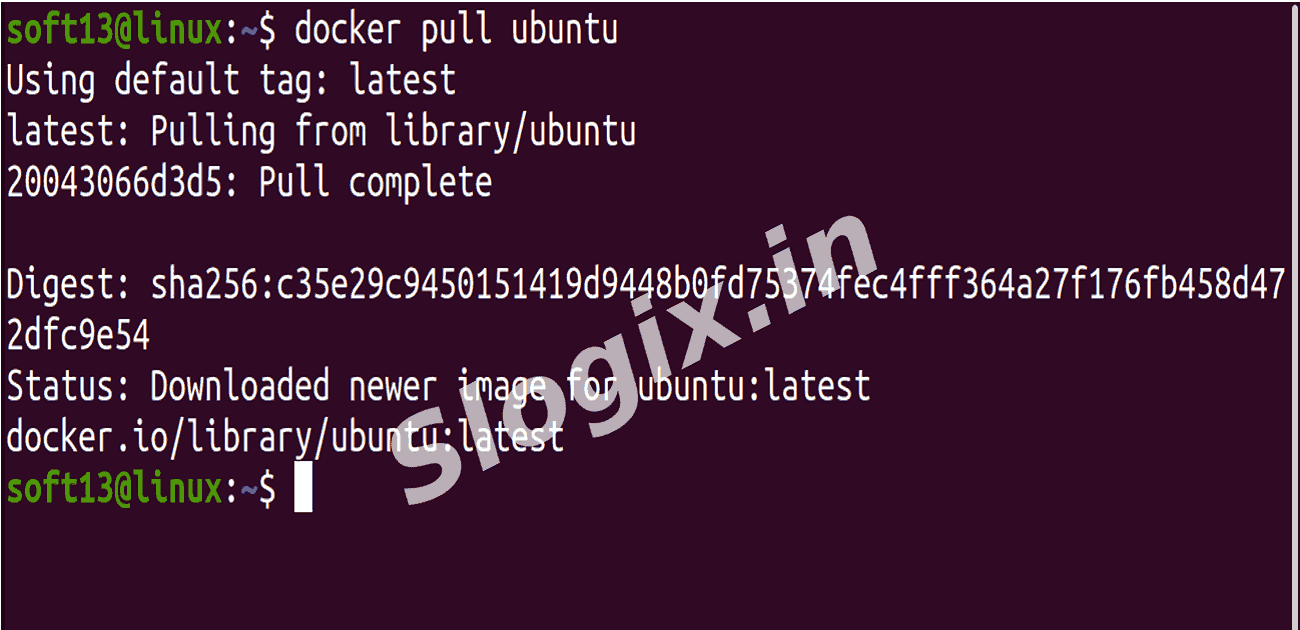
Step 1 — Pull the Ubuntu image
Description: Download the official Ubuntu container image from Docker Hub.
Command:
docker pull ubuntu
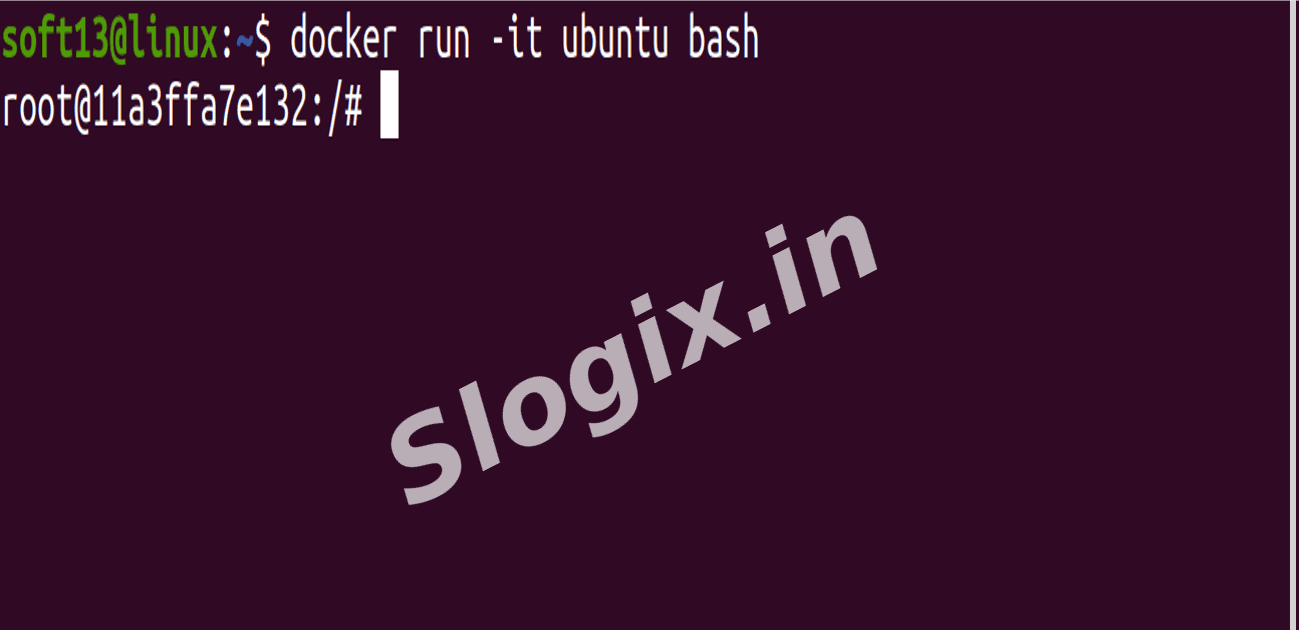
Step 2 — Run an interactive Ubuntu container
Description: Start a container and get an interactive bash shell inside it.
Command:
docker run -it ubuntu bash
Step 3 — Check the Linux/kernel version inside the container
Description: Verify the OS and kernel details of the running container.
Command:
uname -a
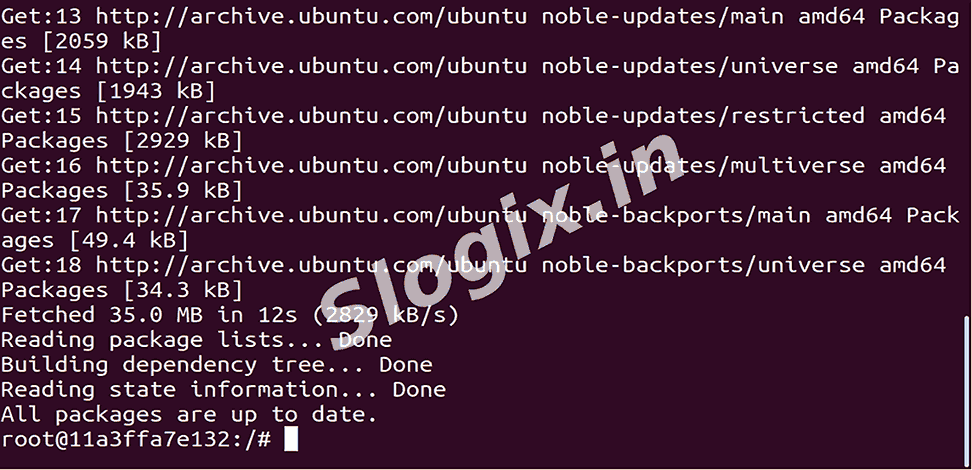
Step 4 — Update the package list
Description: Refresh apt package indexes so you can install packages.
Command:
apt update
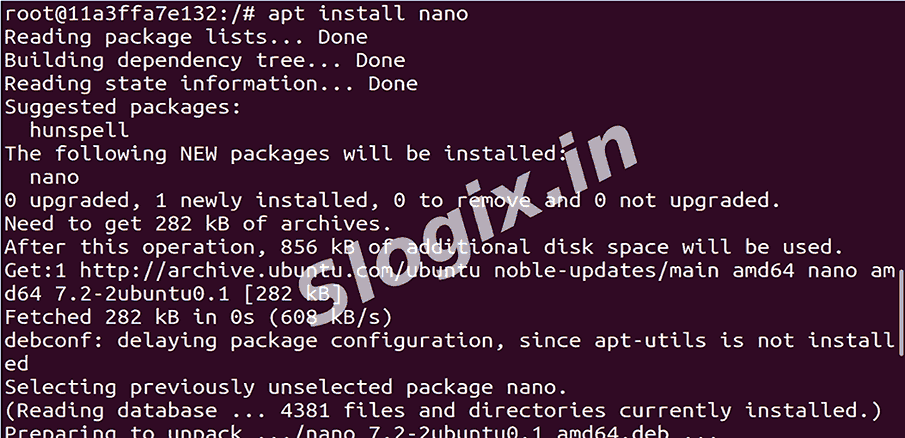
Step 5 — Install the nano text editor
Description: Install a simple editor to edit files inside the container.
Command:
apt install nano -y
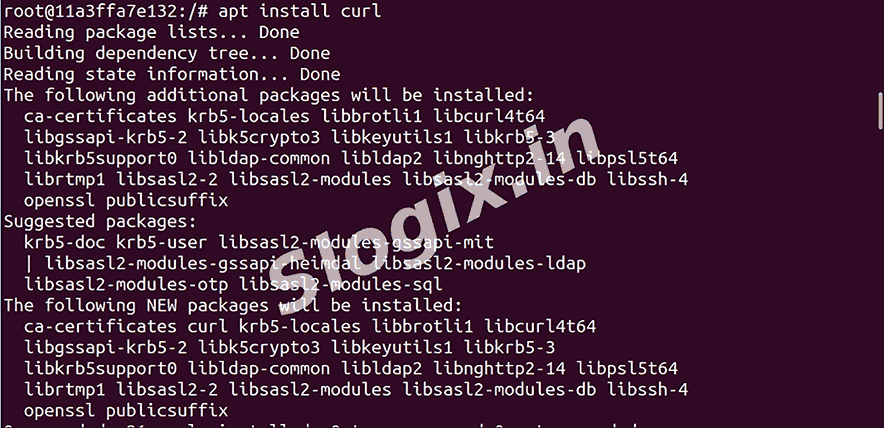
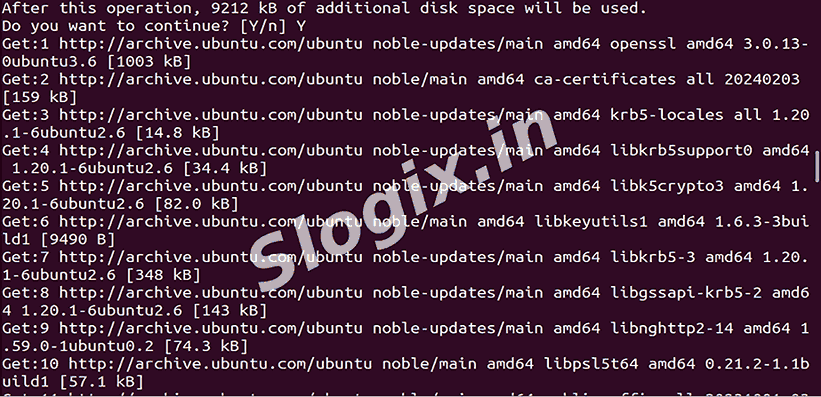
Step 6 — Install curl
Description: Install curl for testing HTTP requests from inside the container.
Command:
apt install curl -y
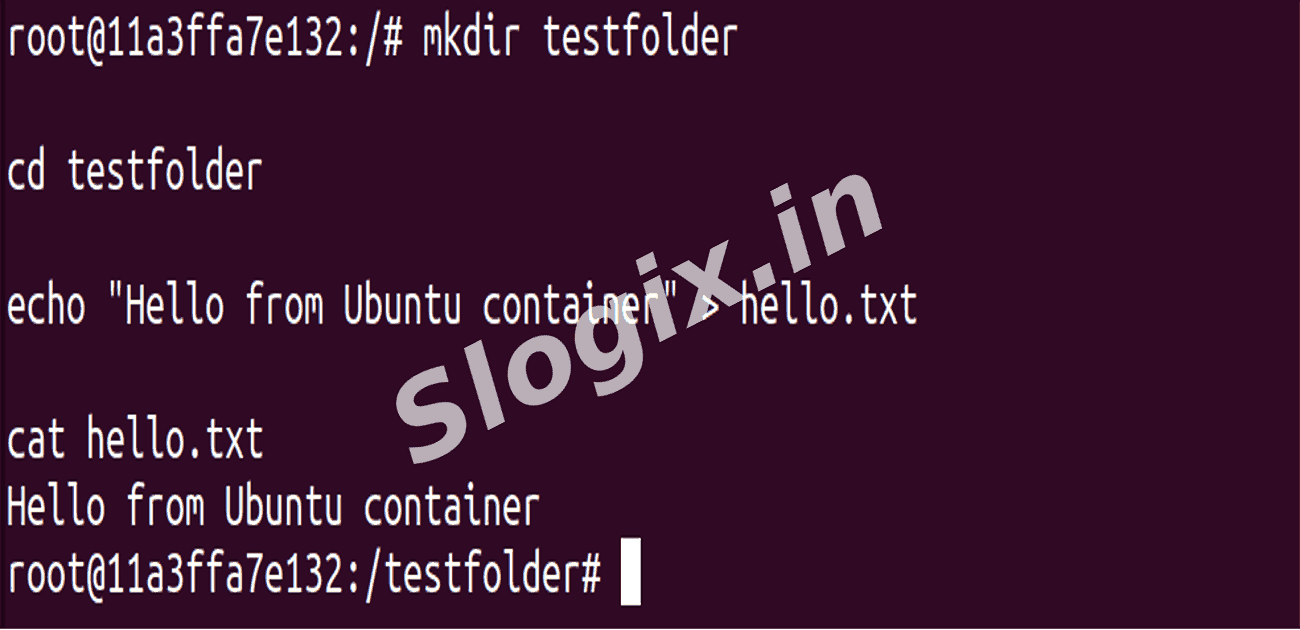
Step 7 — Create a folder named testfolder
Description: Make a directory to store test files.
Command:
mkdir testfolder
Step 8 — Change into the new folder
Description: Move into the directory you just created.
Command:
cd testfolder
Step 9 — Create a text file with a message
Description: Write a simple text file to confirm file creation.
Command:
echo "Hello from Ubuntu container" > hello.txt
Step 10 — Display the file content
Description: Verify the file was created and contains the expected text.
Command: