List of Topics:
Location Research Breakthrough Possible @S-Logix pro@slogix.in

Office Address

Social List

How to Create a CloudWatch Alarm to Detect when the EC2 Instance CPU Utilization Exceeds 70%?

CPU Utilization Exceeds 70%

Condition for Create a CloudWatch Alarm to Detect when the EC2 Instance CPU Utilization Exceeds 70%

  • Description:
    This process establishes an automated alert that activates when a specific performance value exceeds a defined limit. It begins by accessing the monitoring interface and navigating to the section where alerting rules are managed. A new rule is created by first selecting the measurement to be observed. After choosing the appropriate data source, a condition is defined that determines when the alert should trigger. The rule is configured with a comparison method, a numerical threshold, and an evaluation timeframe. Once the condition is set, a notification action is attached so that a message is delivered whenever the threshold is breached. The workflow concludes by assigning a label to the rule and activating it.After activation, the alert continuously evaluates incoming data and sends notifications whenever the defined condition is met.

Steps

  •  Step 1: Open CloudWatch
     Go to:
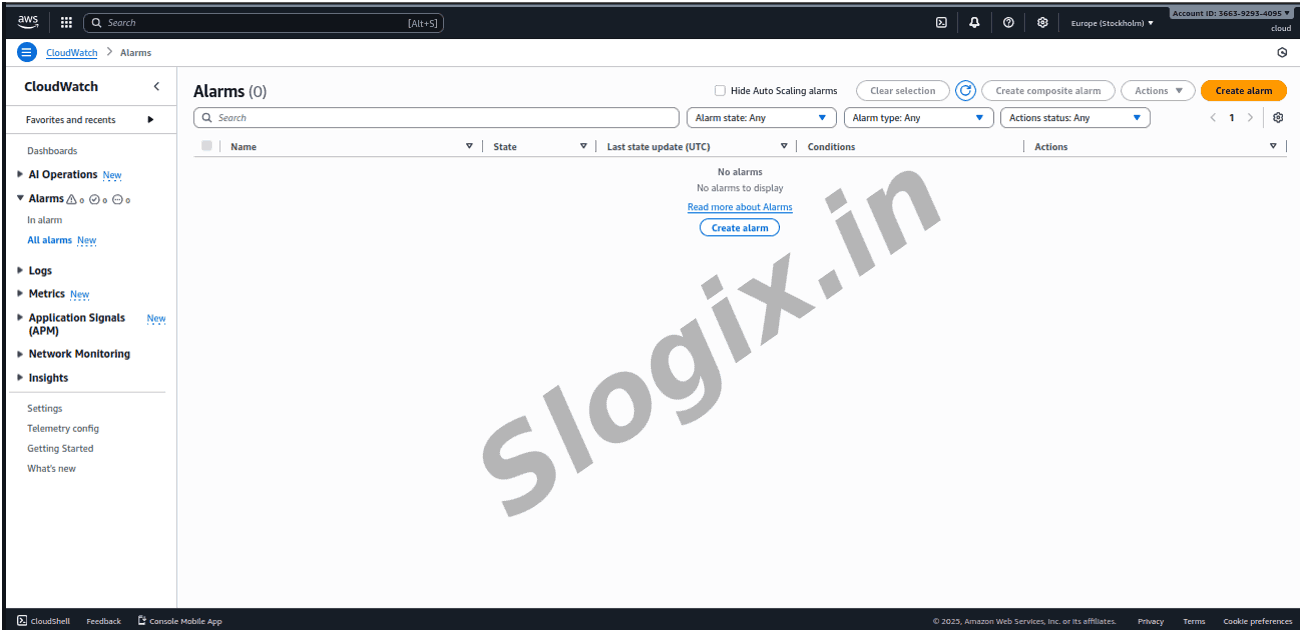
     AWS Console → CloudWatch
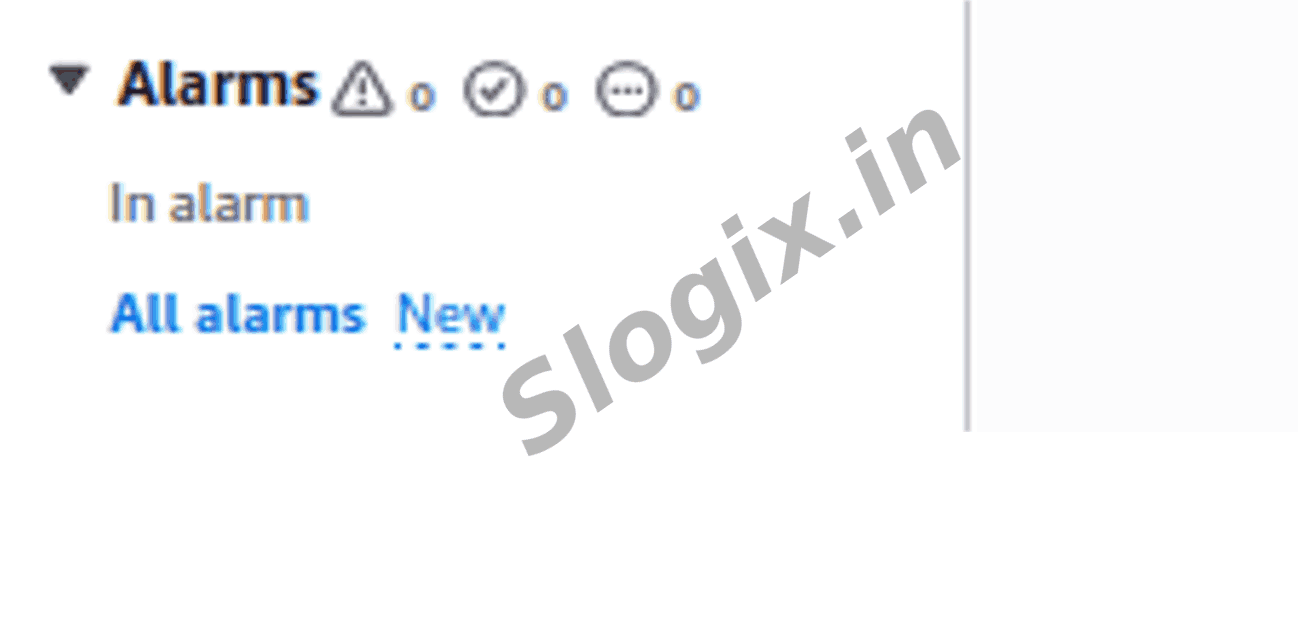
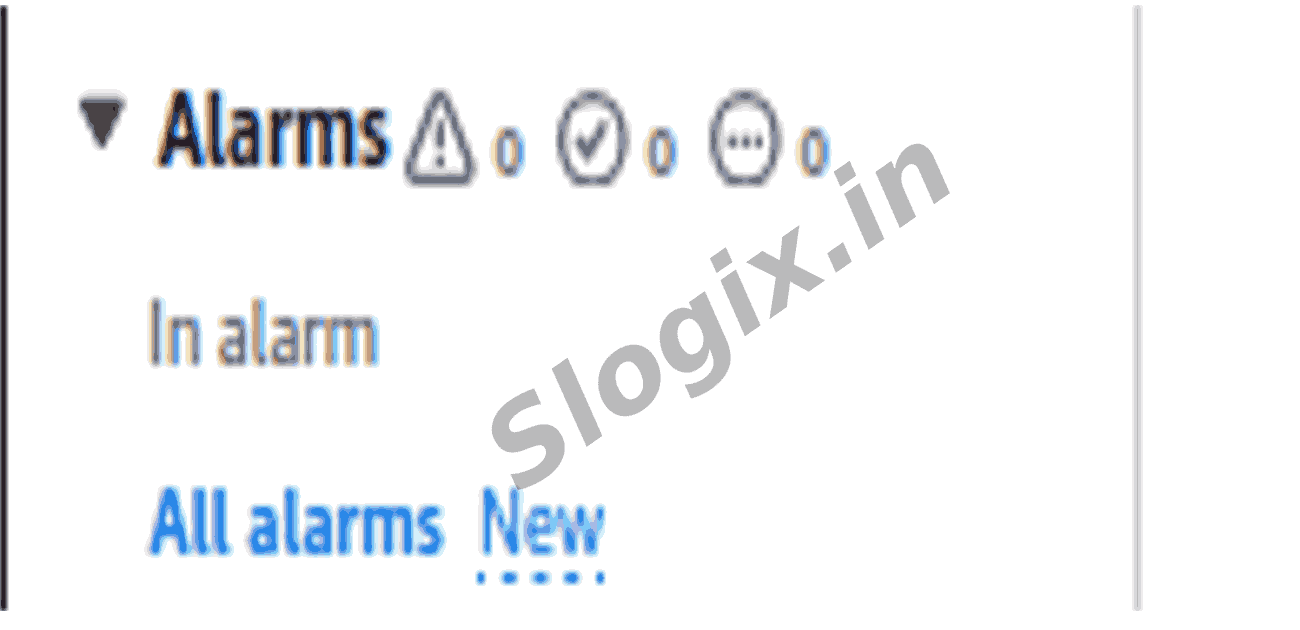
  •  Step 2: Click "Alarms"
     Left side menu → Alarms → All Alarms
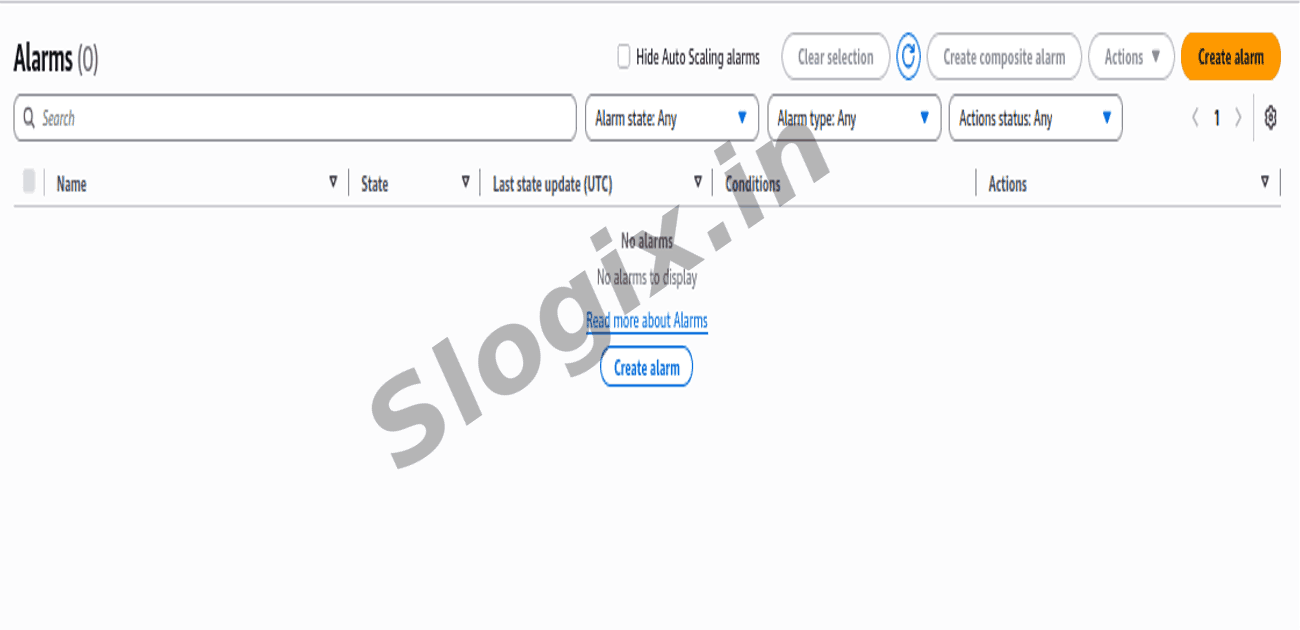
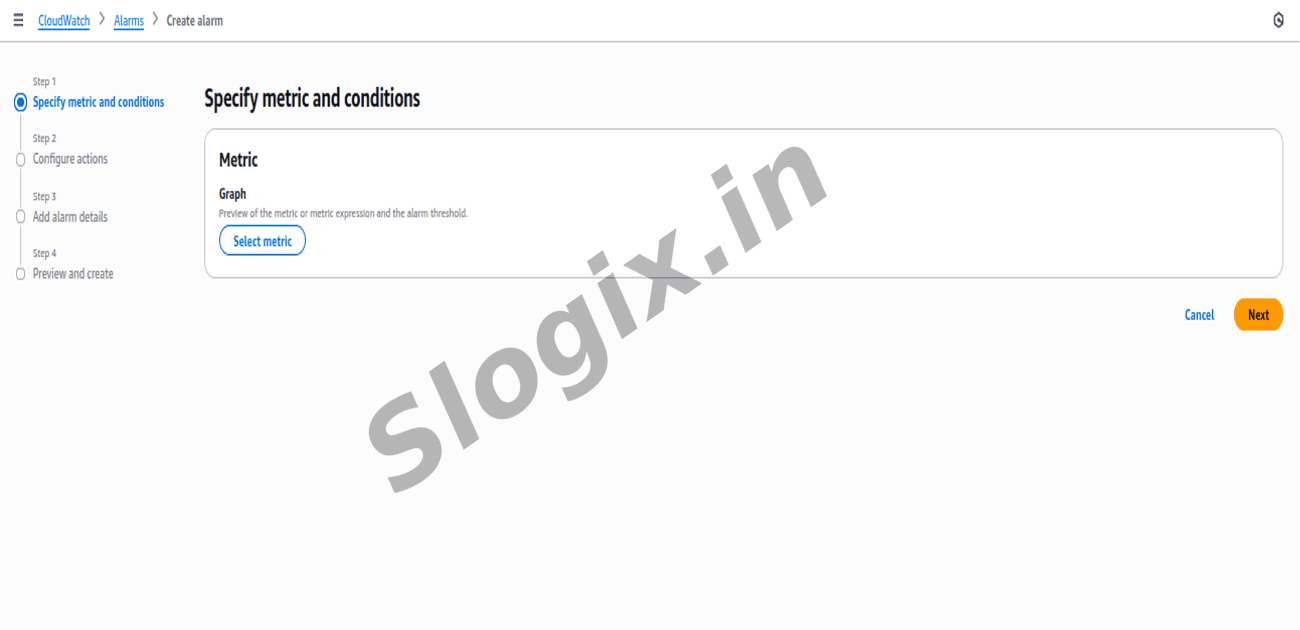
  •  Step 3: Click “Create Alarm”
     Click “Create Alarm”
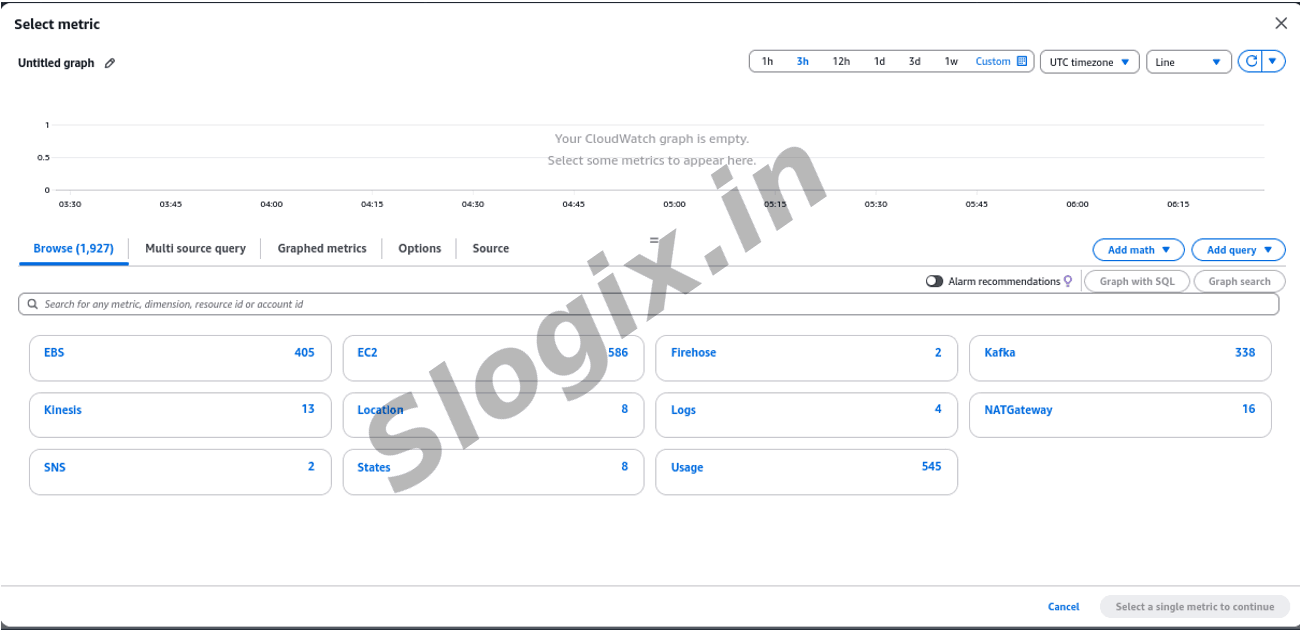
  •  Step 4: Click “Select Metric”
     Then choose:
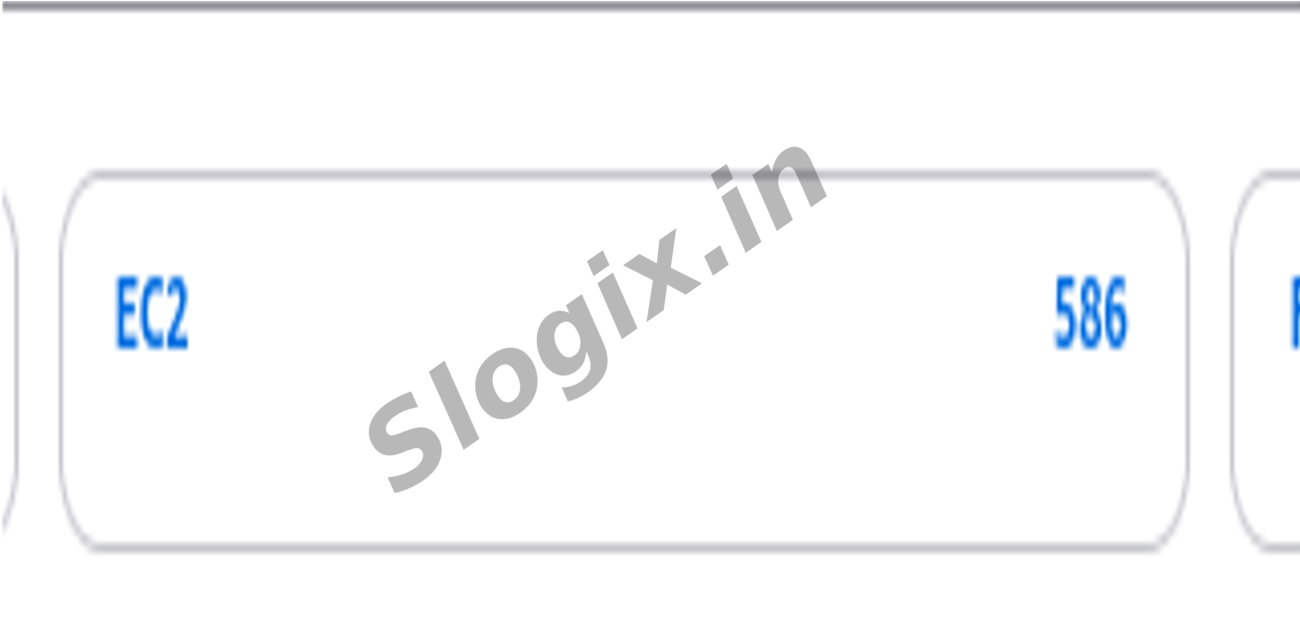
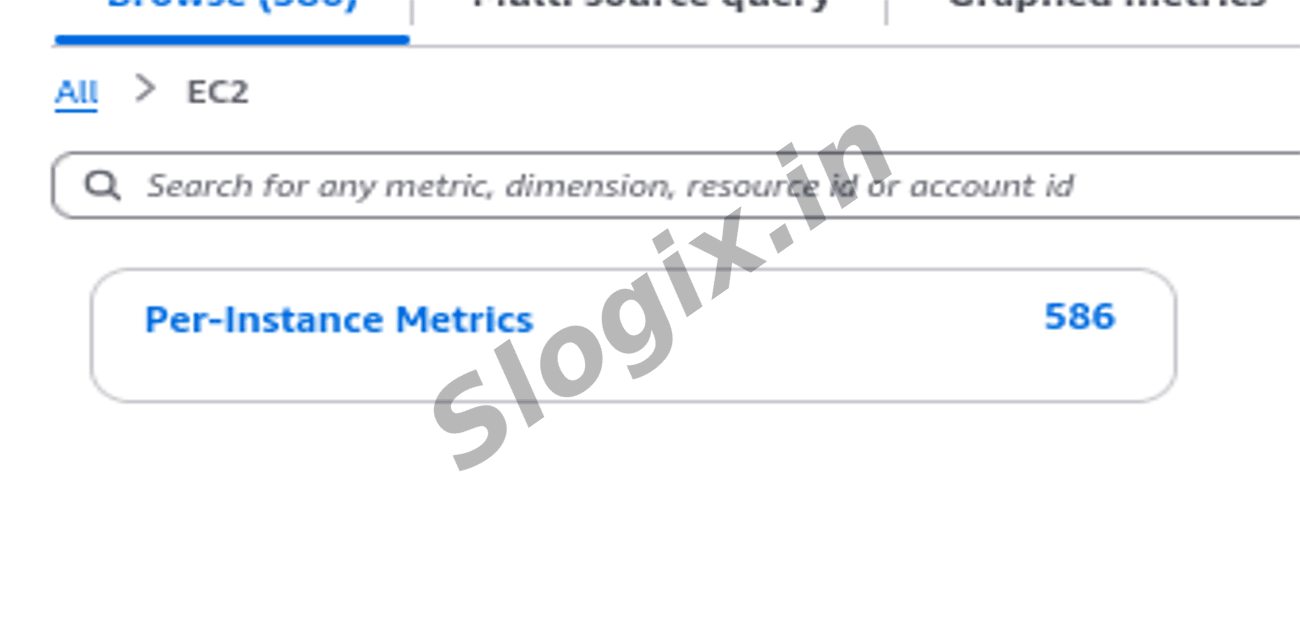
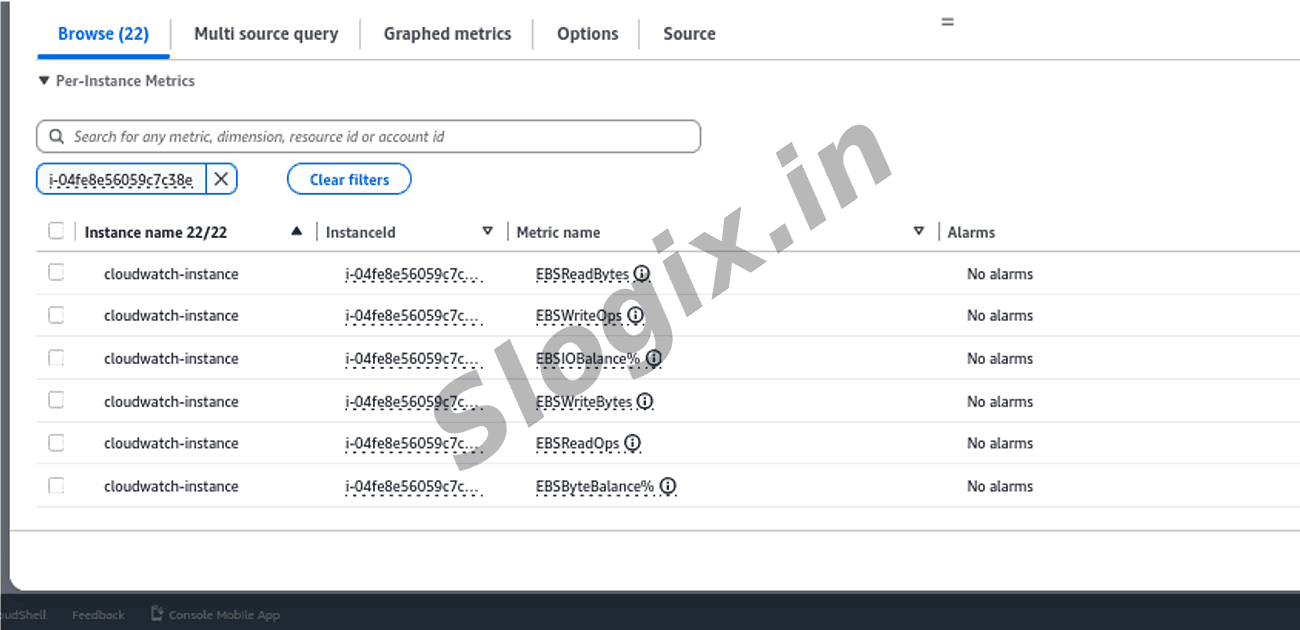
     AWS namespaces → EC2 → Per-Instance Metrics

     Find the instance:
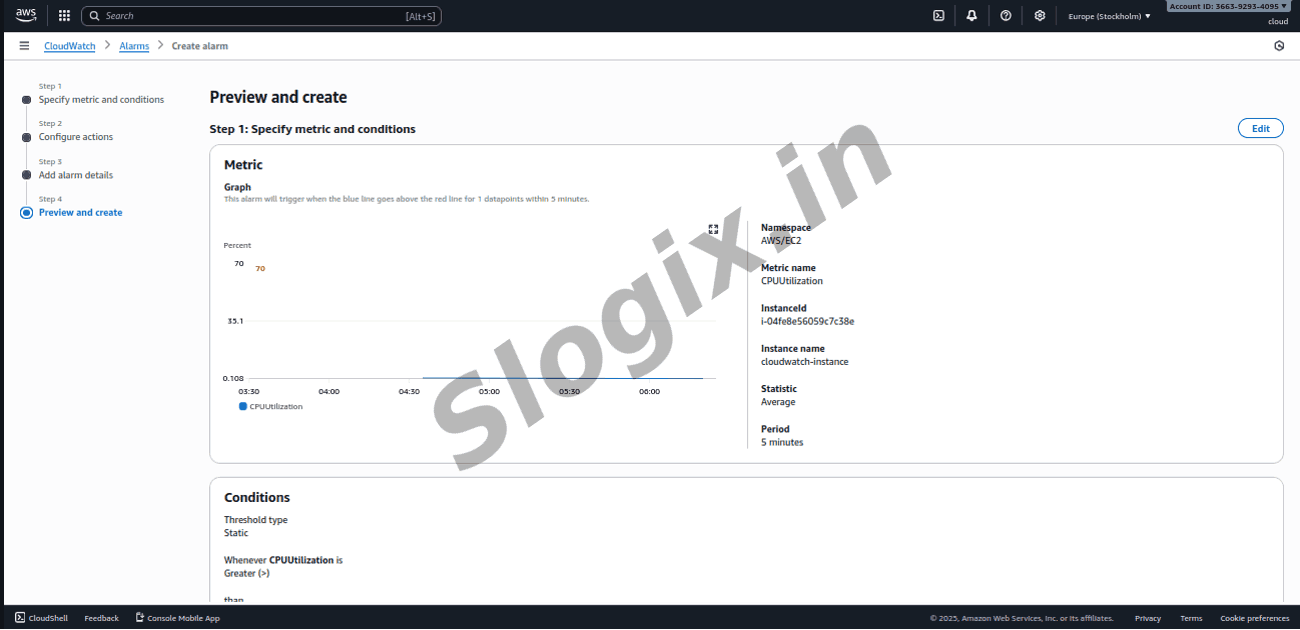
     i-04fe8e56059c7c38e

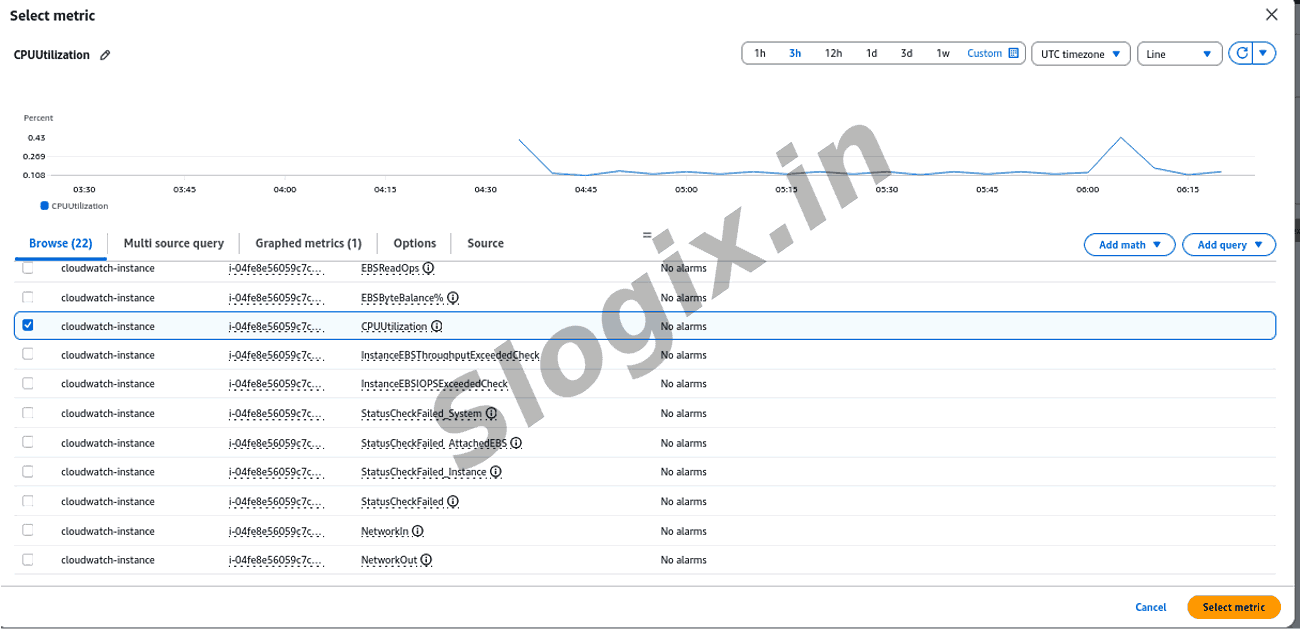
     Select metric:
     CPUUtilization

     Click Select metric
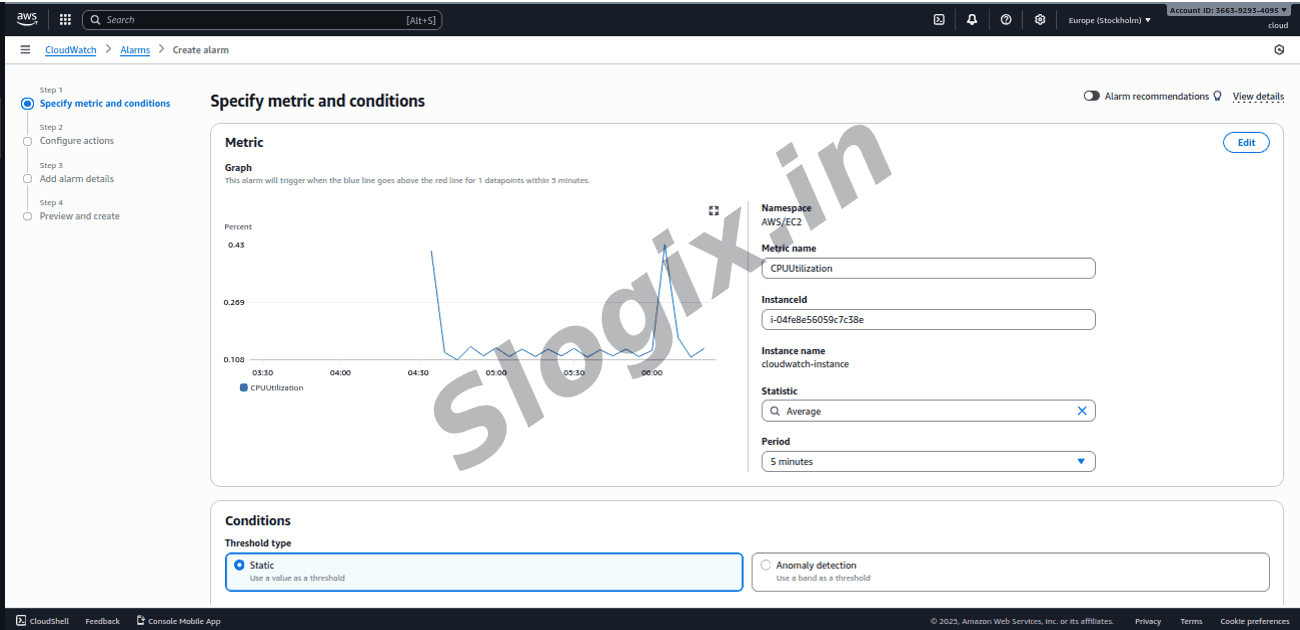
  •  Step 5: Configure Conditions
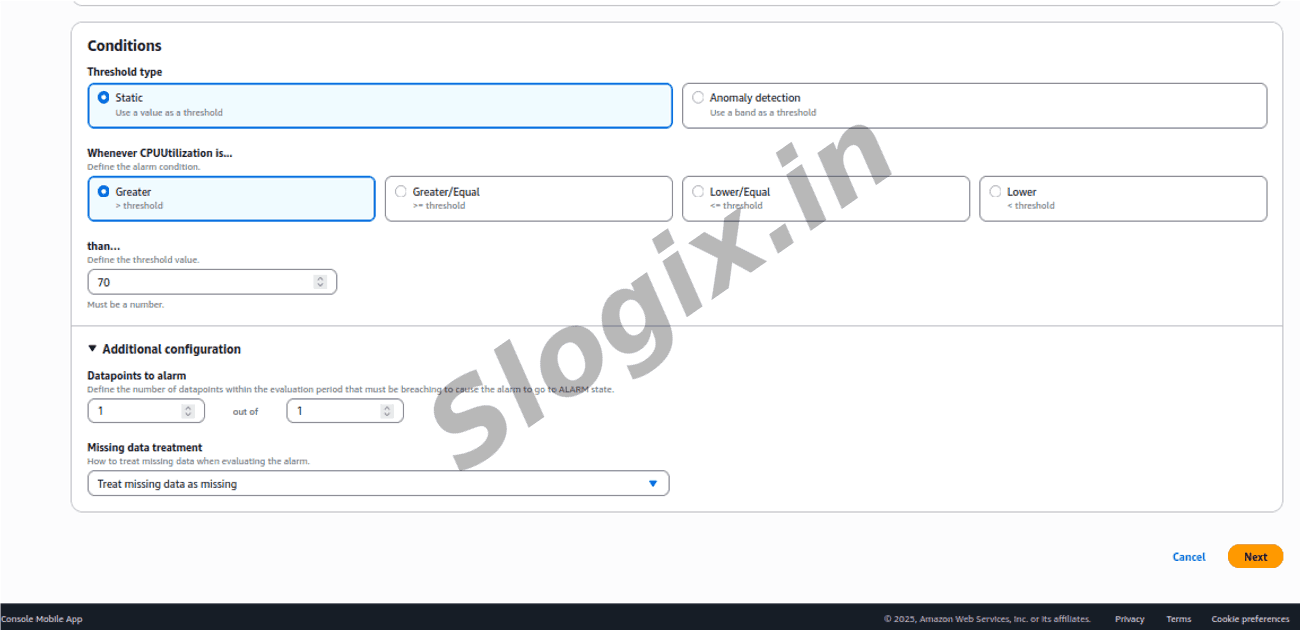
     Set like this:
    Setting Value
    Threshold type Static
    Whenever CPUUtilization is Greater than 70
    Period 1 minute
    Evaluation periods 1
     Click Next
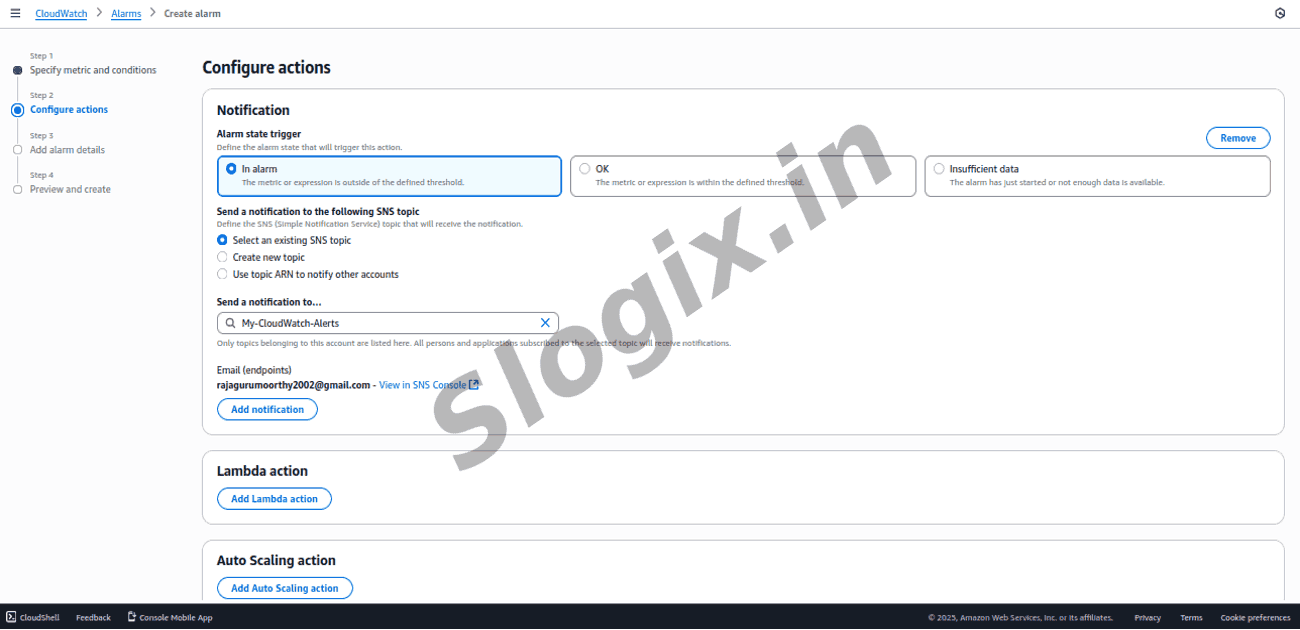
  •  Step 6: Notification Trigger
     On the Notification screen:
     Select In alarm
     Choose SNS topic:
     My-CloudWatch-Alerts
     (If you don’t see it, press refresh)
     Click Next
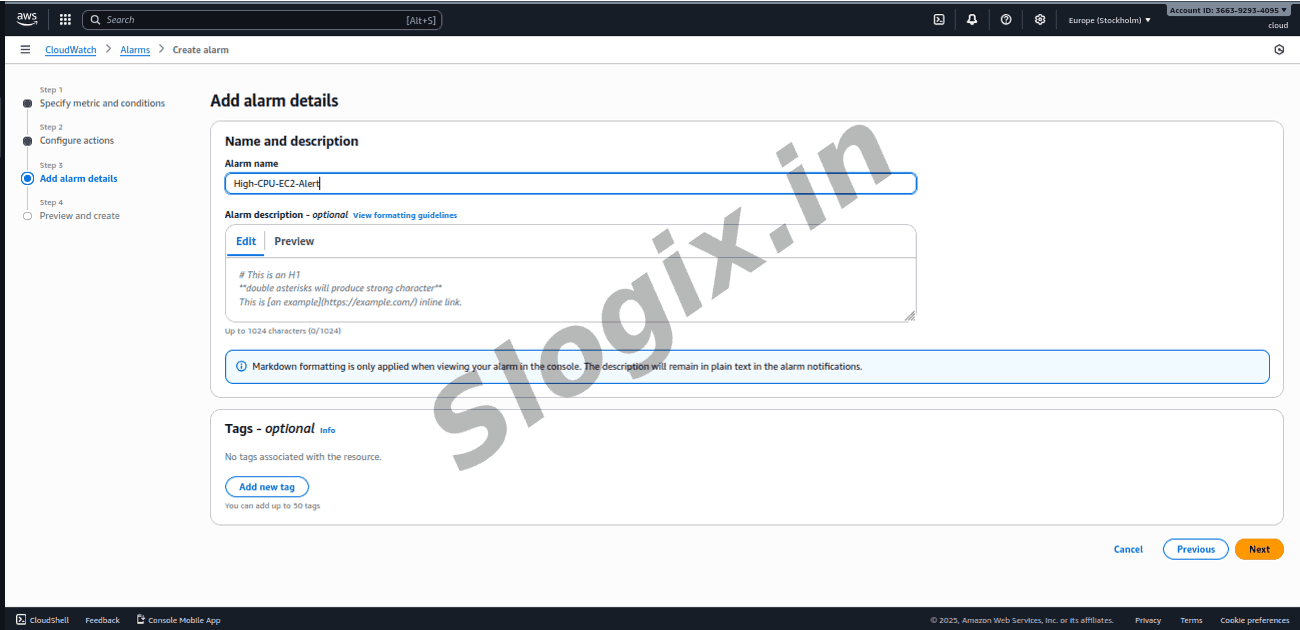
  •  Step 7: Give alarm name
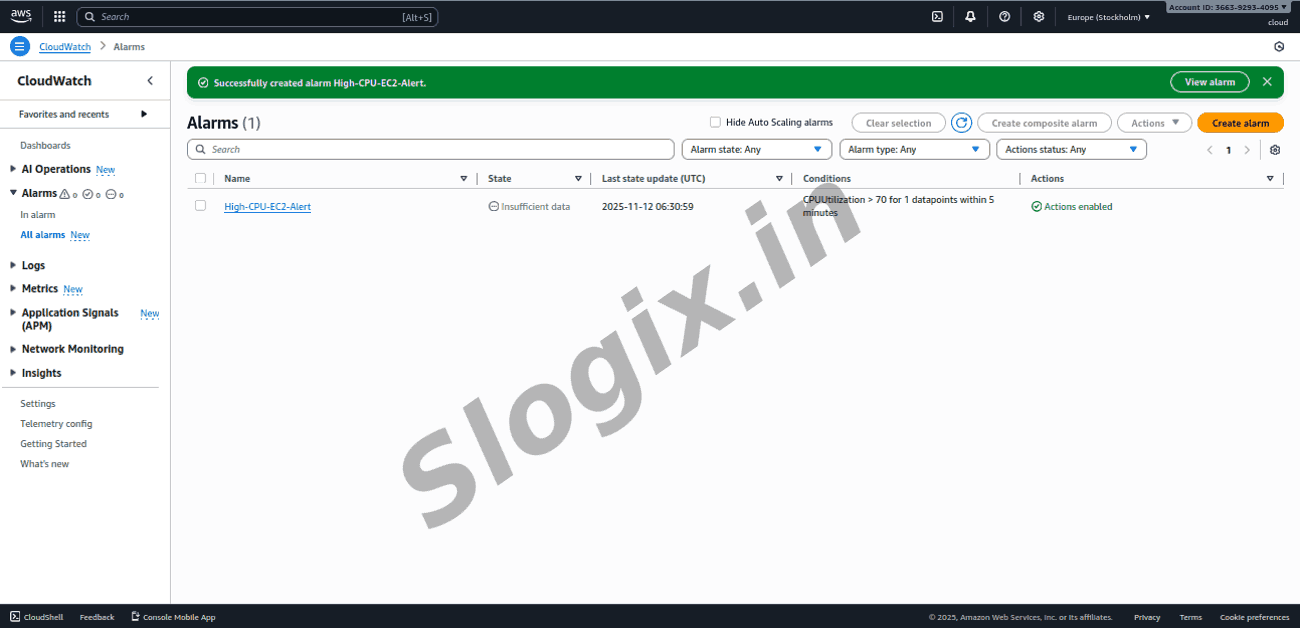
     High-CPU-EC2-Alert
     Click Next → Create alarm
     Alarm is created and linked to the email!
Screenshots
  • 156
  • 157
  • 158
  • 159
  • 160
  • 161
  • 162
  • 163
  • 164
  • 165
  • 166
  • 167
  • 168
  • 169
  • 170
  • 171
  • 172
  • 173