List of Topics:
Location Research Breakthrough Possible @S-Logix pro@slogix.in

Office Address

Social List

How to Create an Amazon EMR Cluster with Spark and Hive using the AWS Management Console, Including Configuring Nodes, Networking, Logging, and IAM Roles?

 Alarm Triggers

Condition for Create an Amazon EMR Cluster with Spark and Hive using the AWS Management Console

  • Goal: Launch EMR with Spark + Hive
  • Description:
    This workflow guides through to creating an Amazon EMR cluster with Spark and Hive using the AWS Management Console. You begin by selecting EMR on EC2 and defining the cluster name, applications, and operating system. Next, you configure the cluster using uniform instance groups and set up the node types, including one master and two core nodes. After choosing manual scaling, you configure networking using default VPC settings and enable log storage in an S3 bucket. You then specify security settings, select an EC2 key pair, and create the required IAM roles for the EMR service and EC2 instances. Finally, you review the configuration and launch the cluster, resulting in a fully provisioned EMR environment ready for big data processing.

Steps

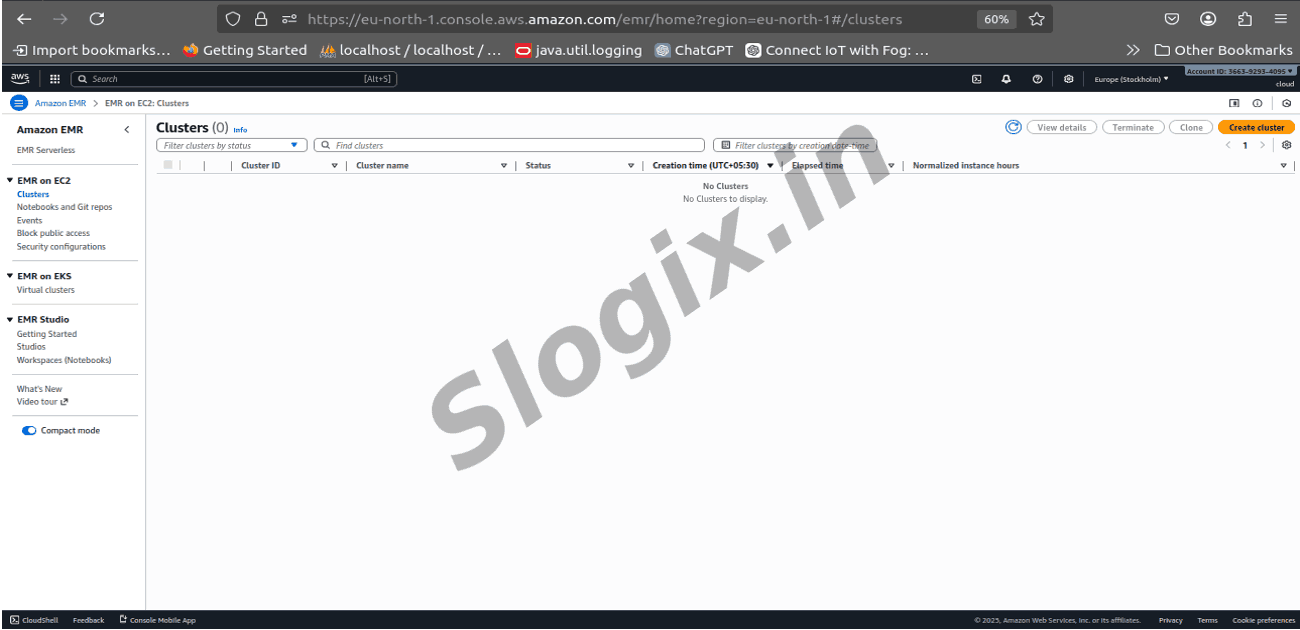
  •  Go to AWS → EMR → Create Cluster
     Choose Release 6.x
     Select:
       Hadoop
       Spark
       Hive
     Set:
       1 Master, 2 Core nodes
       EC2 key pair
       Logging → S3 bucket
     Launch cluster
     Result: EMR cluster ready
  •  Step 1: Open EMR
     Go to AWS Console → Services
     Search → EMR
     Click EMR on EC2
     Click Create cluster
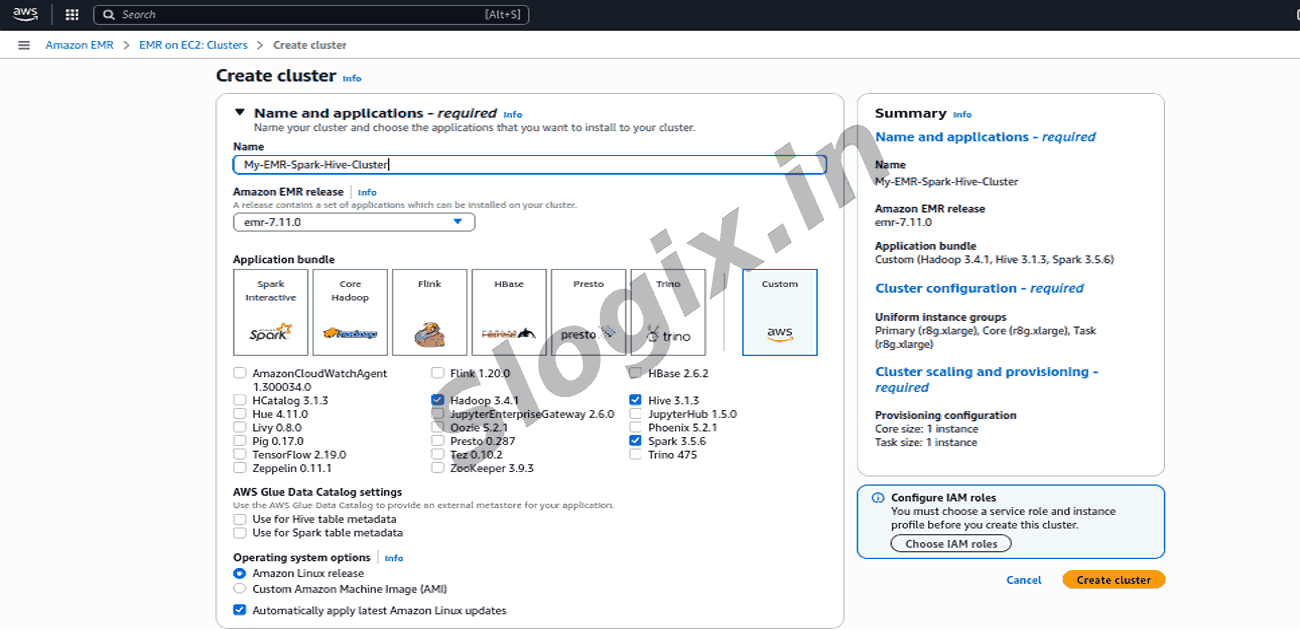
  •  Step 2: Name and Applications
    Setting Select / Enter
    Name My-EMR-Spark-Hive-Cluster (or any name)
    Application Bundle Custom
    Select Applications ✅ Hadoop ✅ Hive ✅ Spark (Others can remain, but ensure these 3 are selected)
    AWS Glue Data Catalog (optional) You can leave unchecked for now
    Operating System ✅ Amazon Linux (default)
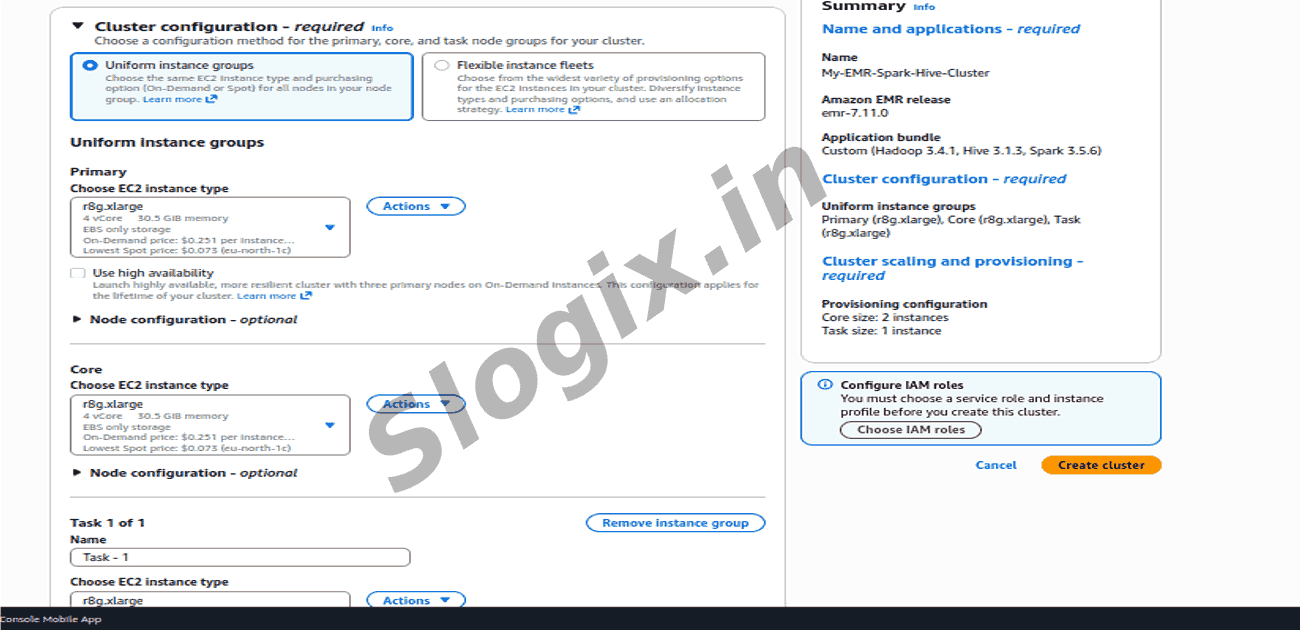
  •  Step 3: Cluster Configuration
    Option Select
    Cluster configuration method Uniform instance groups
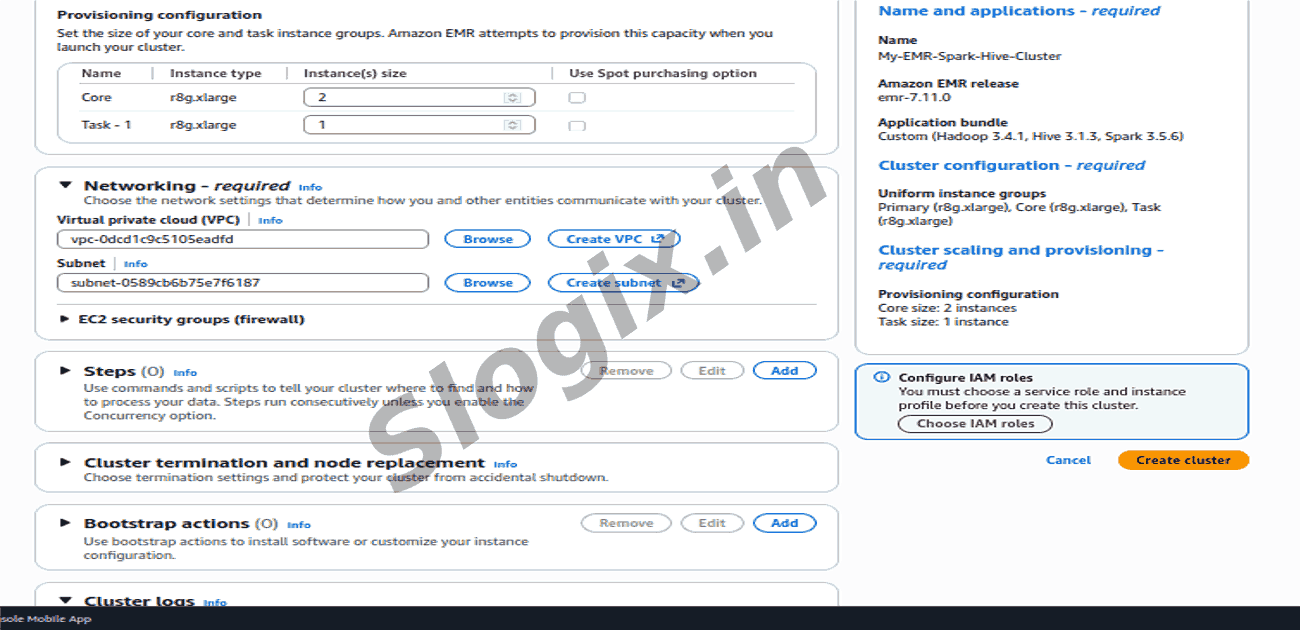
  •  Step 4: Node Configuration
    Node Type Instance Type Count
    Primary (Master) m5.xlarge (or r8g.xlarge if available in your region) 1
    Core m5.xlarge 2
    Task Leave empty (not required for now)
     Leave Use high availability unchecked
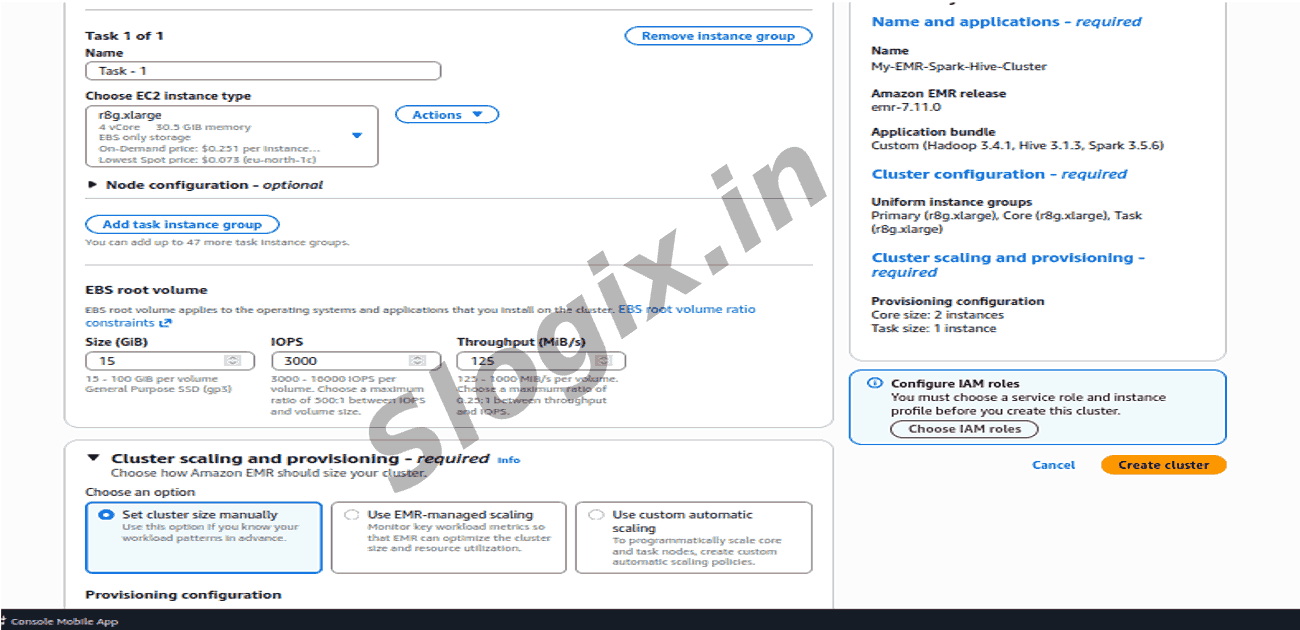
     Leave EBS volume as default (15–100 GiB is fine)
  •  Step 5: Cluster Scaling
     Choose: Set cluster size manually
      Then Verify :
    Group Instance Type Instance Count
    Core m5.xlarge 2
    Task Not needed 0
  •  Step 6: Networking
    Setting Select
    VPC Default VPC (or your VPC)
    Subnet Any public subnet
    Security Group Default (EMR will auto-create security groups if needed)
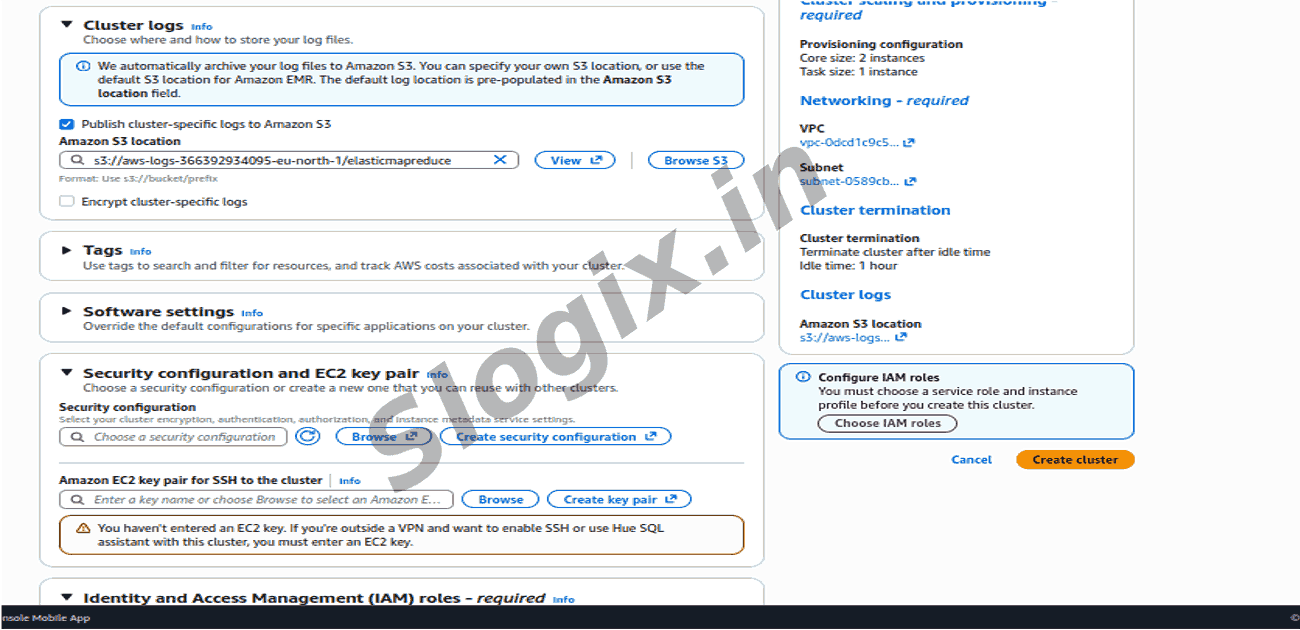
  •  Step 7: Cluster Logs
     Enable logging and choose/create an S3 bucket
     Example: s3://my-emr-cluster-logs/
  •  Step 8: Security & Key Pair
    Setting Choose
    Security configuration Leave default
    EC2 Key Pair ✅ Select your SSH key (or create new)
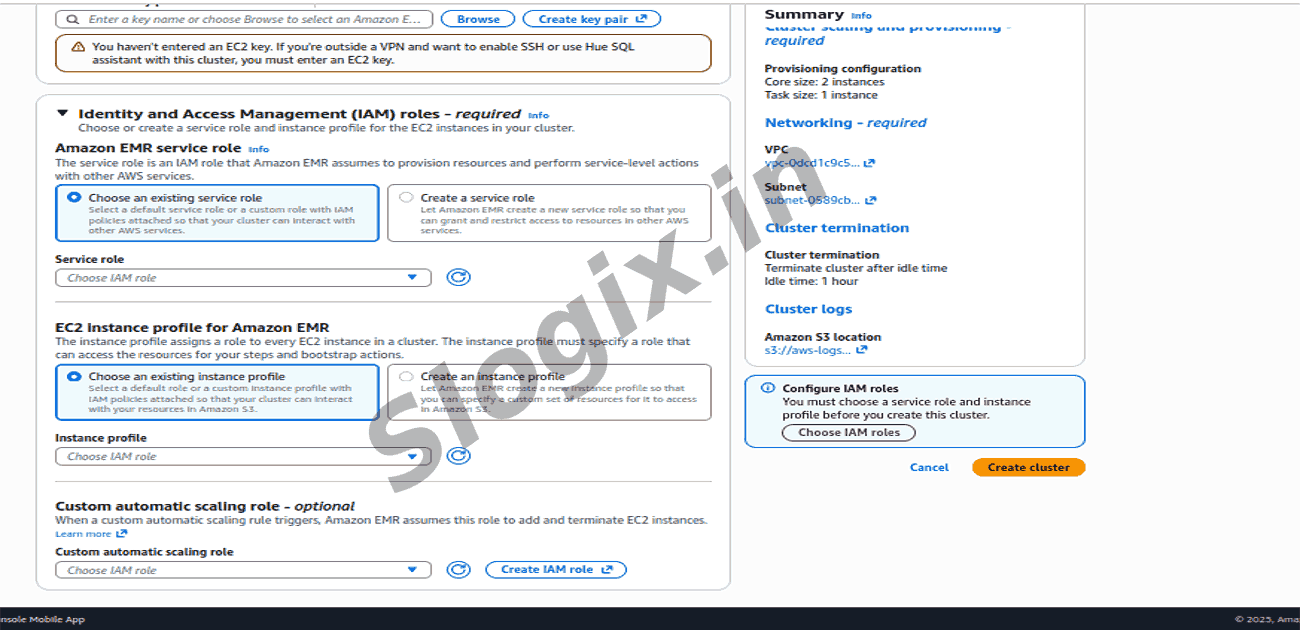
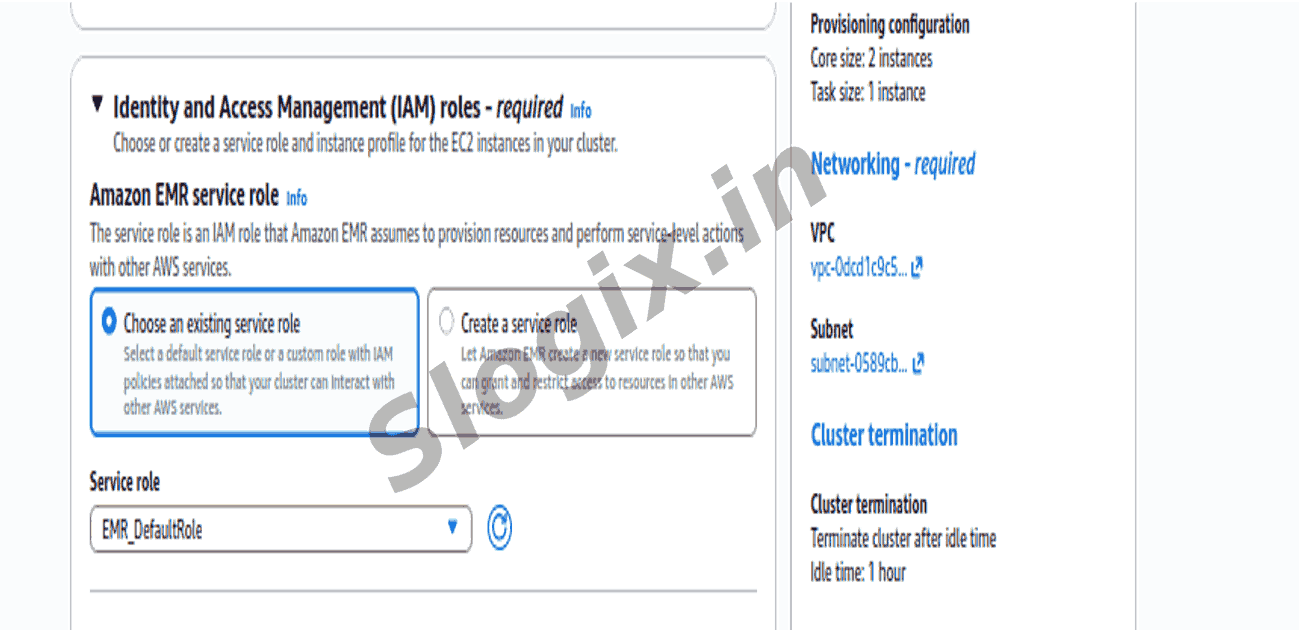
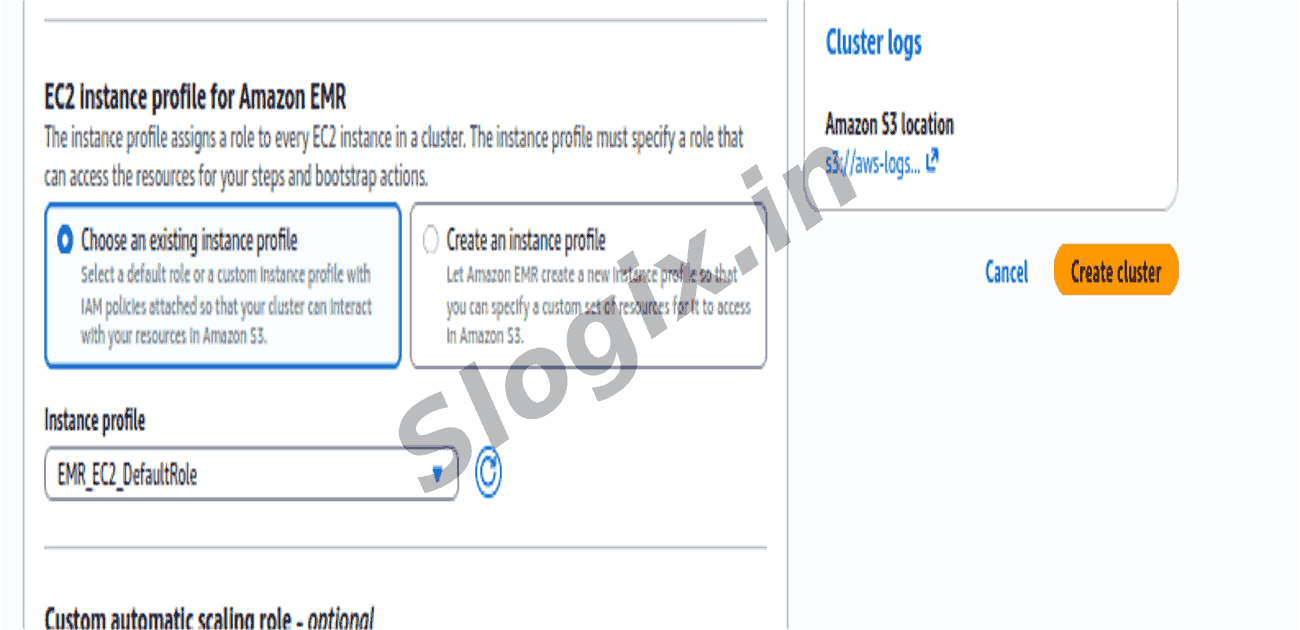
  •  Step 9: IAM Role
     Create EMR Service Role
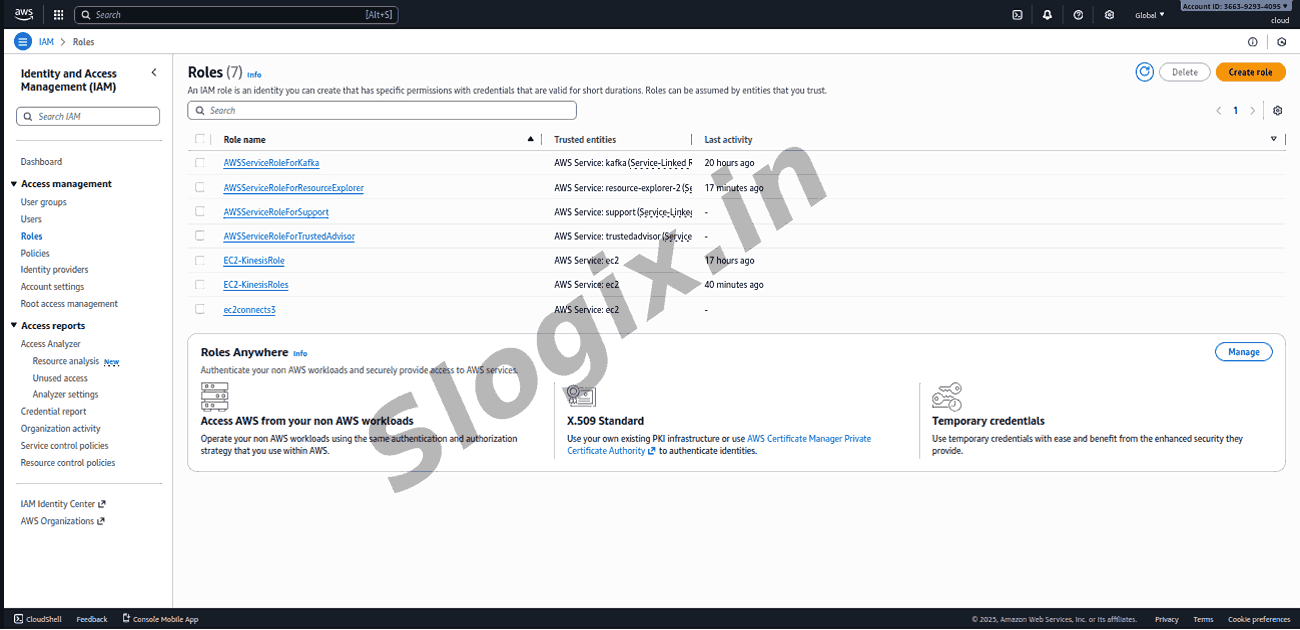
    Step 1: Open IAM
     Go to AWS Console
     Search IAM → Open it
     Click Roles (left menu)
     Click Create role
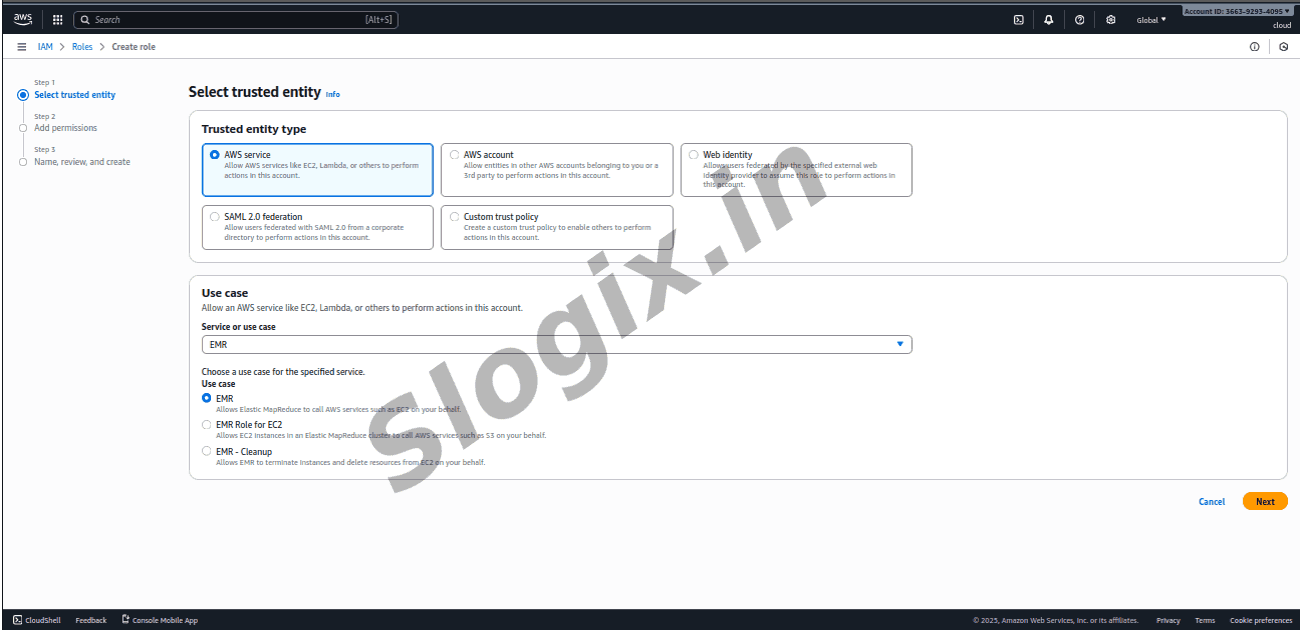
    Step 2: Select trusted entity
     Choose: AWS Service
     Use case: EMR
     Then select: EMR – Elastic MapReduce
     Click Next
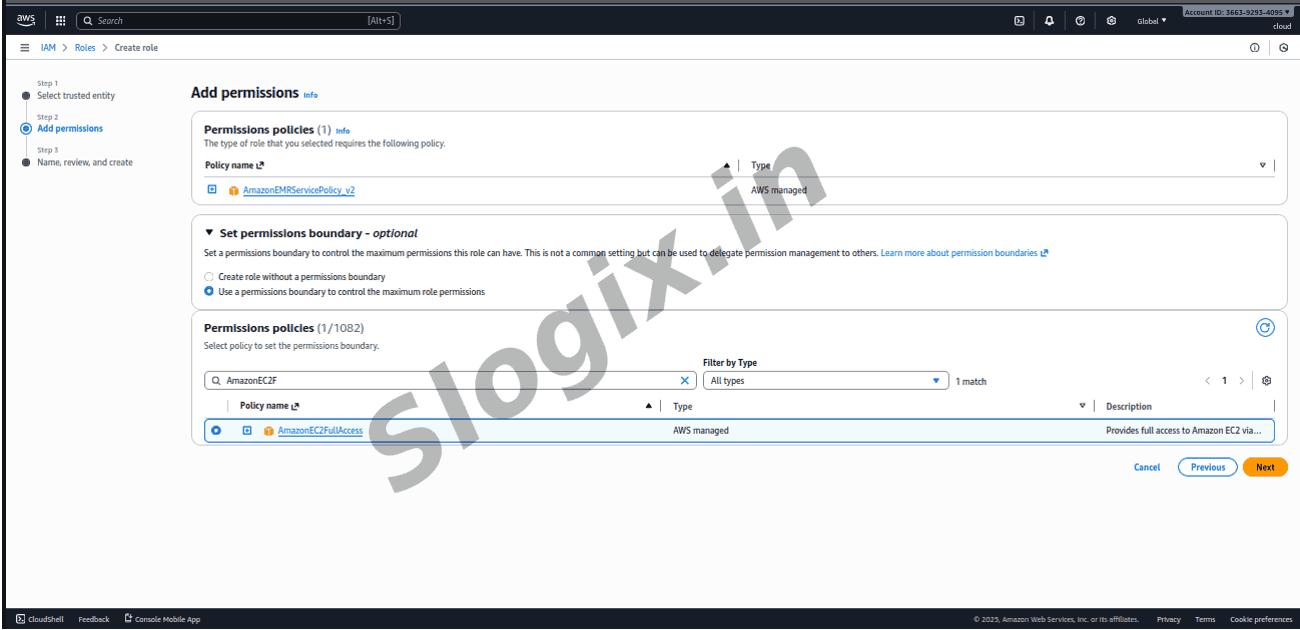
    Step 3: Attach Policies (required)
     Add these 2 policies:
       AmazonEMRServicePolicy
       AmazonEC2FullAccess (or leave default EMR-recommended policies if shown)
     Click Next
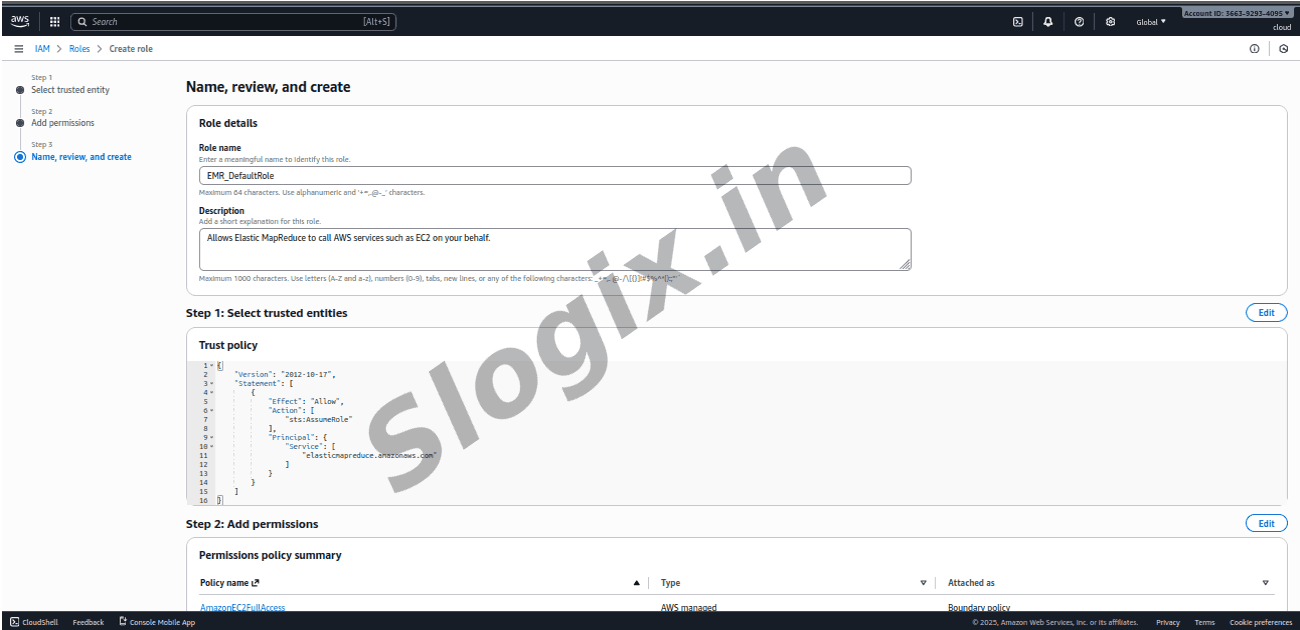
    Step 4: Name the role
     Role name: EMR_DefaultRole
     Click Create role
     Done – Service role created
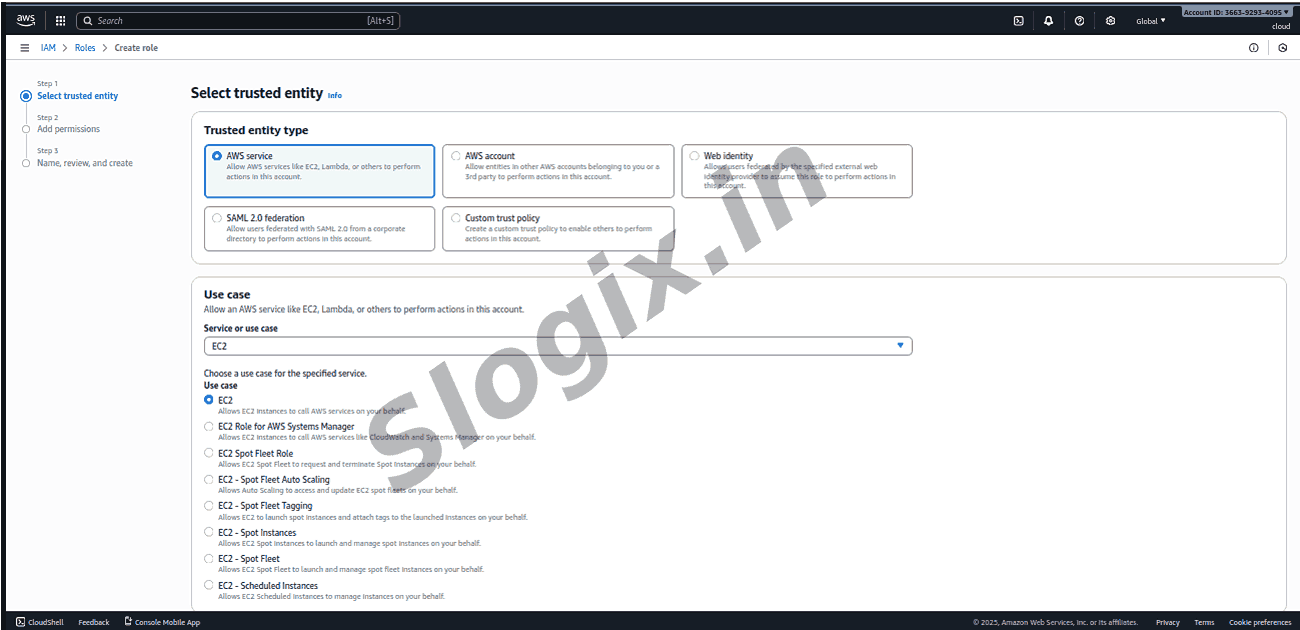
     Create EC2 Instance Profile Role (for EMR nodes)
    Step 1: Create new role
     In IAM → Roles
     Click Create role
    Step 2: Select trusted entity
     Choose: AWS Service
     Use case: EC2
     Click Next
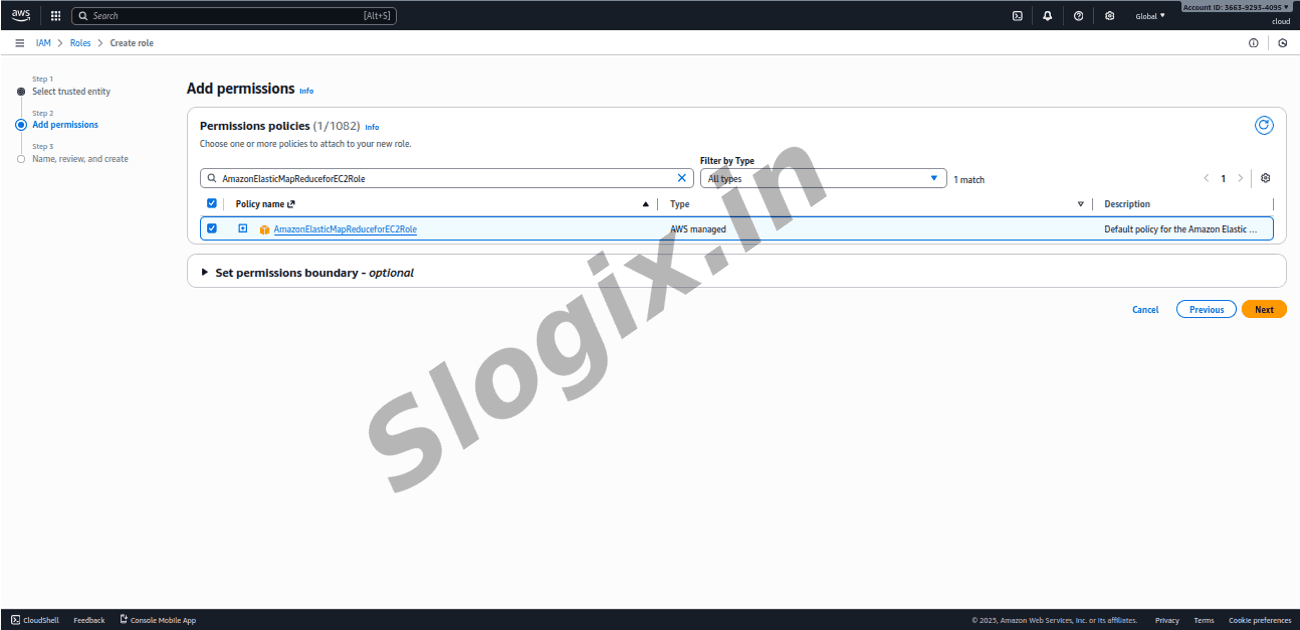
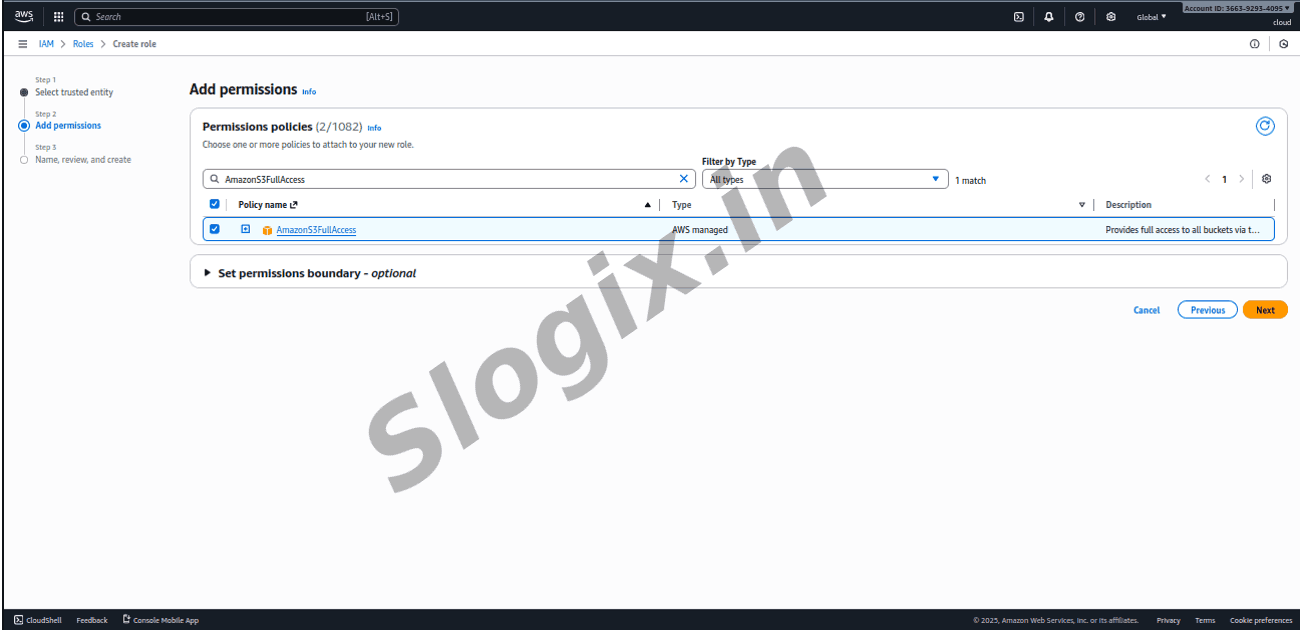
    Step 3: Attach Policies
     Add these policies:
       AmazonElasticMapReduceforEC2Role
       AmazonS3FullAccess (or a restricted bucket access policy)
     Click Next
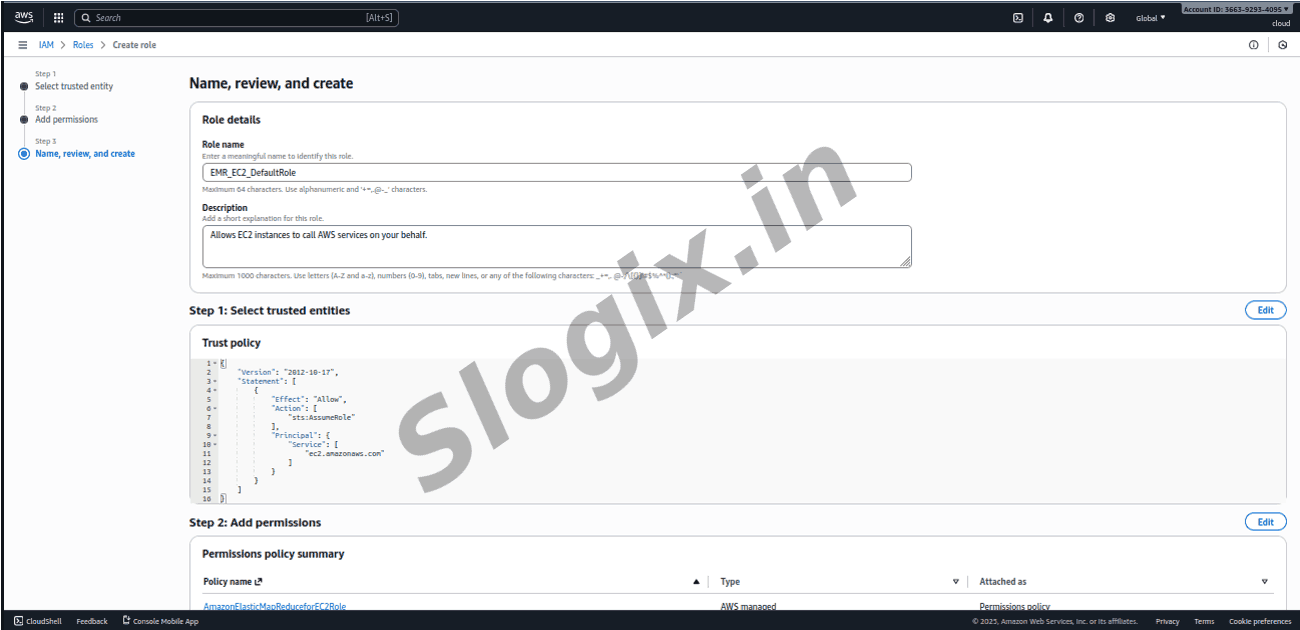
    Step 4: Name the role
     Role name: EMR_EC2_DefaultRole
     Click Create role
     Done – Instance role created
  •  Step 10: Create Cluster
     Click Create cluster → EMR cluster ready
Screenshots
  • 183
  • 184
  • 185
  • 186
  • 187
  • 188
  • 189
  • 190
  • 191
  • 192
  • 193
  • 194
  • 195
  • 196
  • 197
  • 198
  • 199