How to Create an ECS Service on AWS Fargate that Keeps Your Application Container Running Continuously, Handles Task Failures Automatically, and Ensures High Availability Through Auto-Healing?
Share
Condition for Create an ECS Service on AWS Fargate
Goal: A Service keeps your container running all the time, replaces it if it crashes, and supports scaling.
Description: To create an ECS Service to ensure your application container stays running continuously on AWS Fargate. Unlike a standalone task, an ECS Service automatically maintains the desired number of running tasks, replaces failed tasks, and supports scaling. You begin by opening your ECS cluster and choosing Create Service, selecting Fargate as the launch type and choosing the latest revision of your existing task definition. After naming the service and setting the desired count to 1, to configure networking by selecting the correct VPC, choosing a public subnet, attaching the security group that allows inbound traffic to your application, and enabling the public IP option. Once the configuration is reviewed and created, ECS launches a task and keeps it running. To verify the Service's auto-healing behavior, you manually stop the running task from the Tasks tab. Within seconds, ECS automatically starts a fresh replacement task, demonstrating that the Service actively maintains the application's availability. This completes the deployment of a self-healing, always-running container on ECS.
Steps
STEP 1 — Go to ECS Console
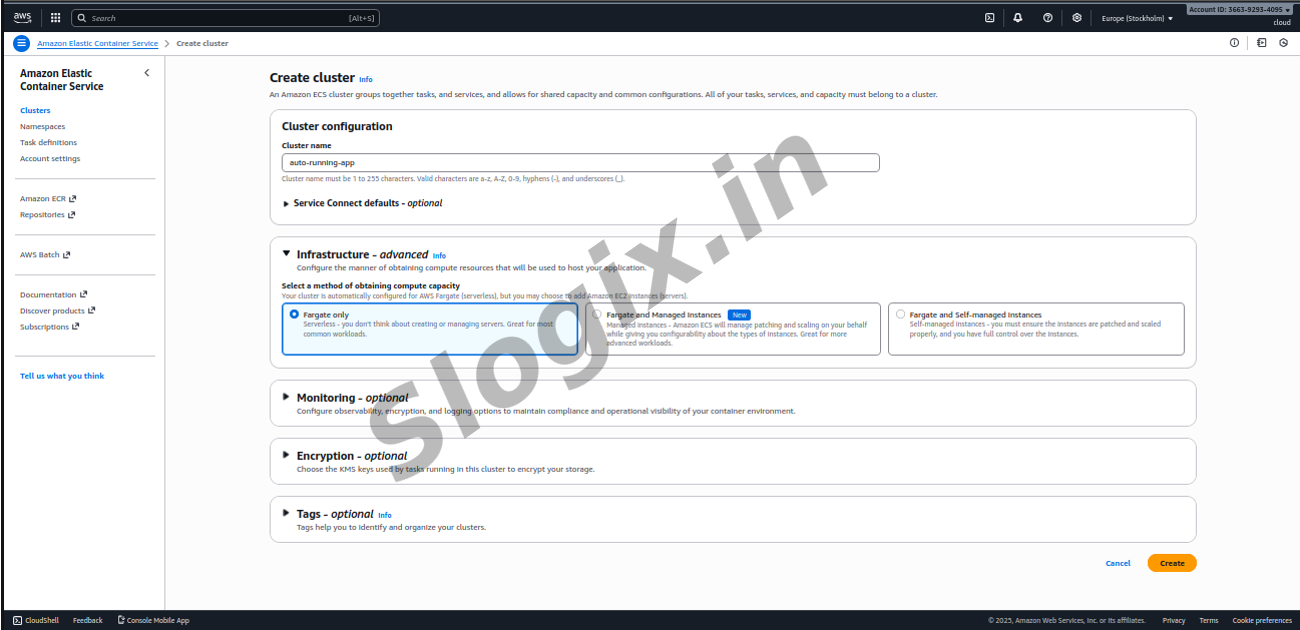
AWS Console → ECS → Your Cluster (example: spring-app-cluster)
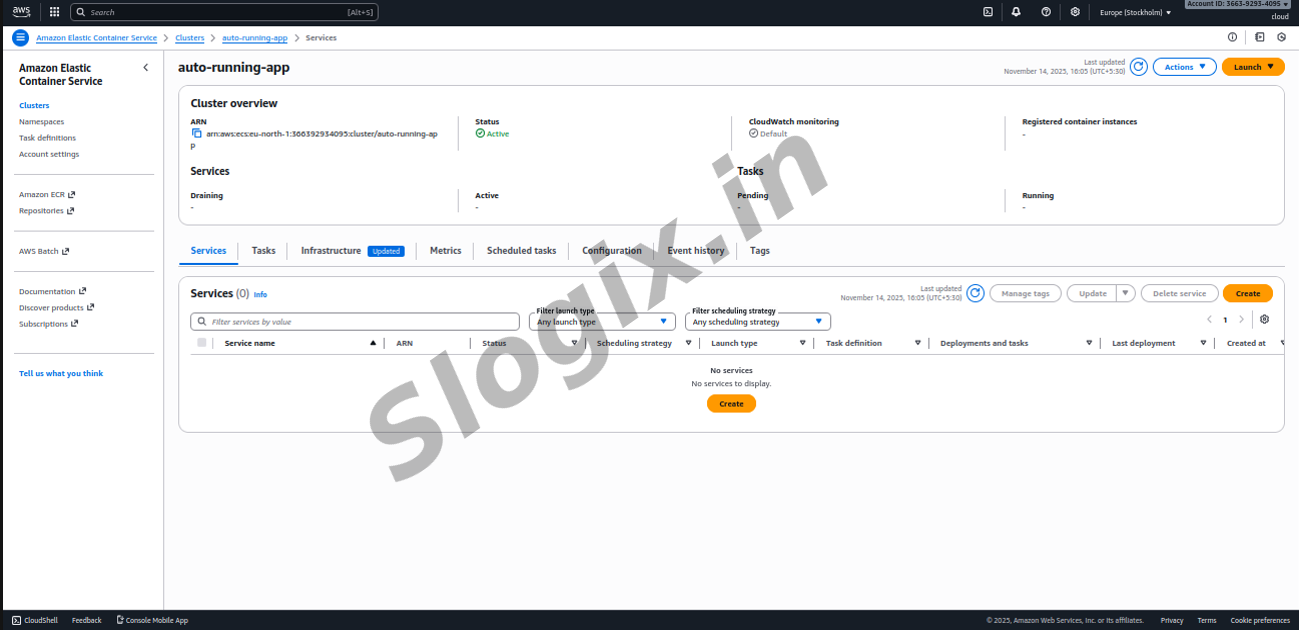
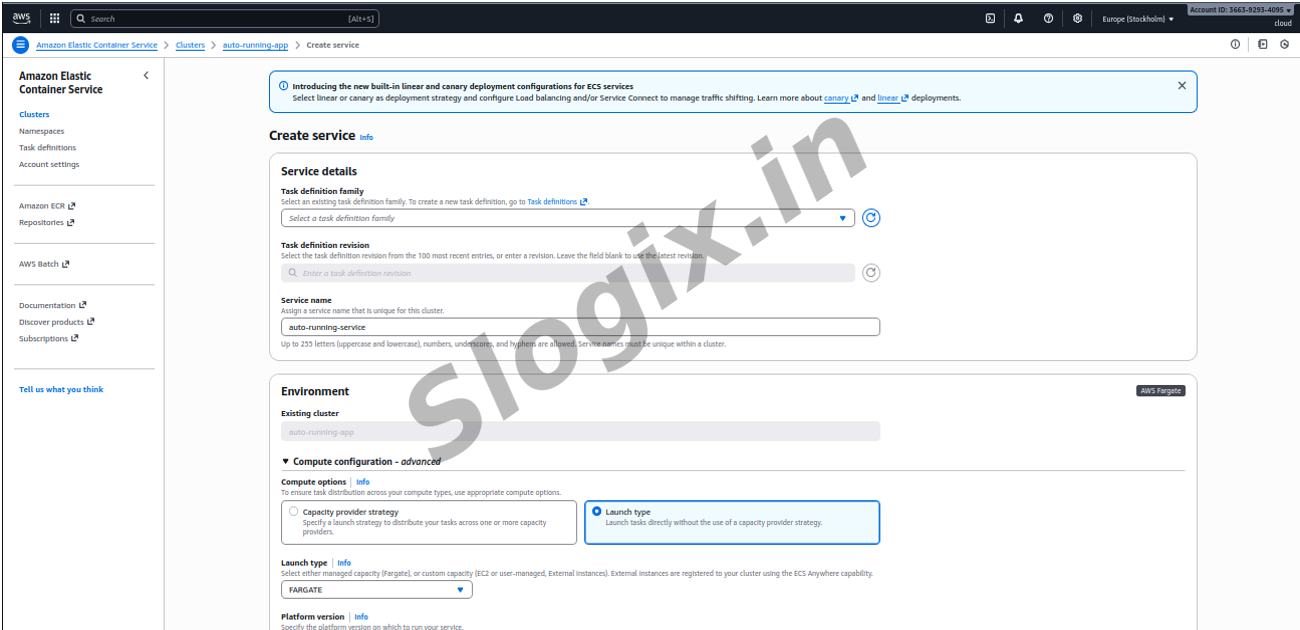
STEP 2 — Click “Create” → “Create Service”
On the cluster page:
Create → Create Service
STEP 3 — Select Deployment Type
Choose:
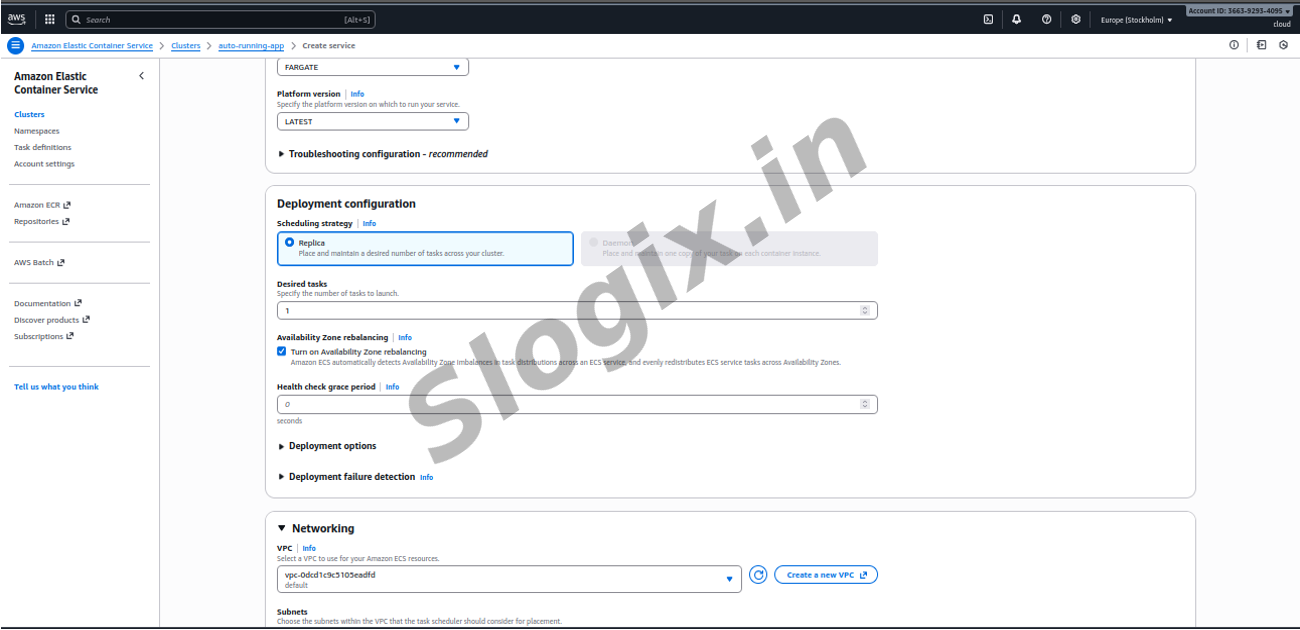
Launch Type: Fargate
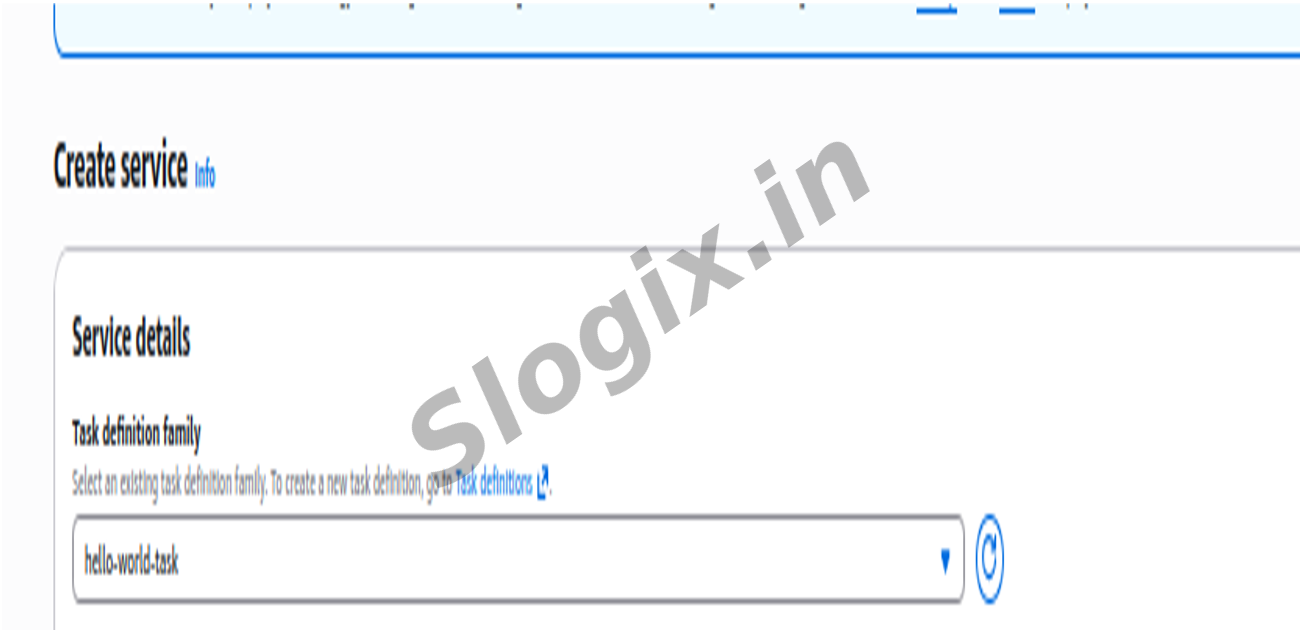
Task Definition: Select the one you created earlier
Task Revision: Latest
Service Name: myapp-service
Desired Count: 1
Click Next.
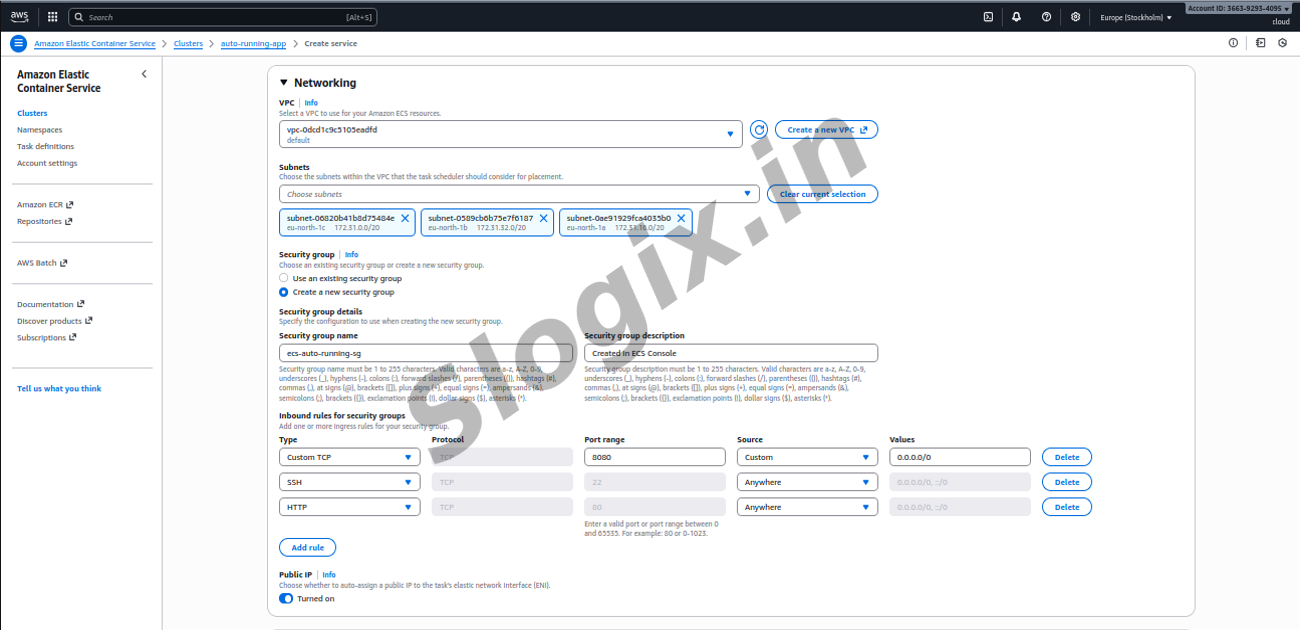
STEP 4 — Configure Networking
Select:
VPC: same VPC where your subnet is
Subnets: choose the public subnet
Security Group: select the SG which allows port 80 or 8080
Public IP: ENABLE (important)
Click Next.
STEP 5 — Skip Auto Scaling (for now)
Click Next.
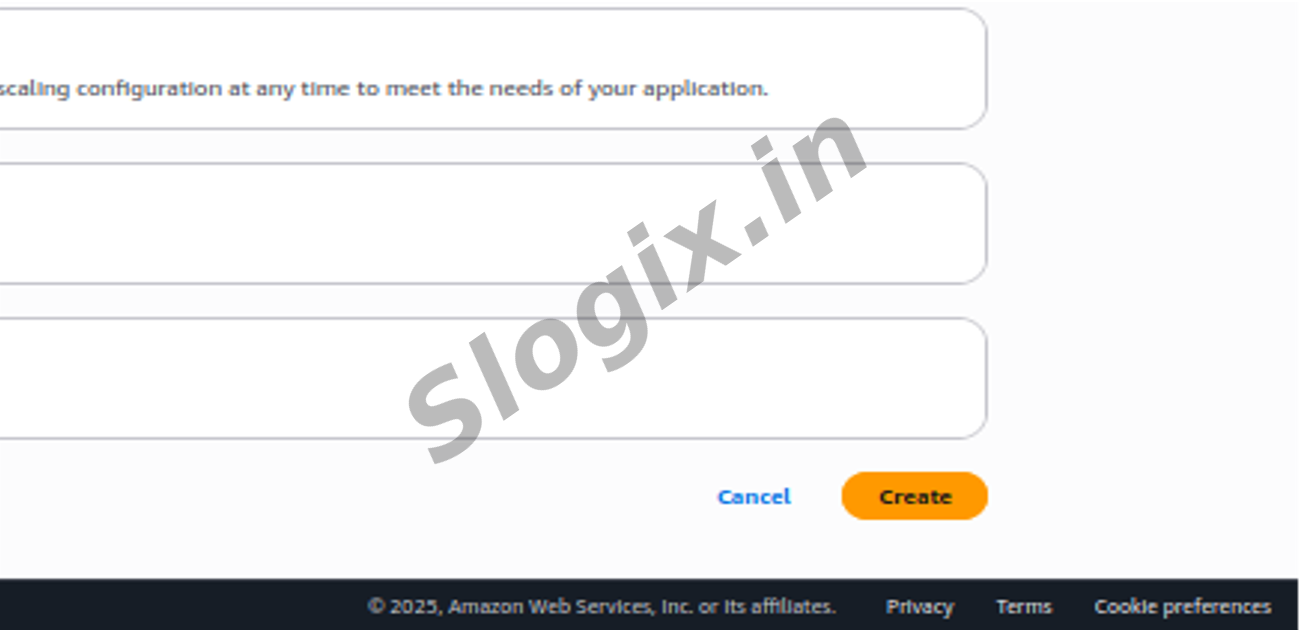
STEP 6 — Review → Create Service
Click Create Service
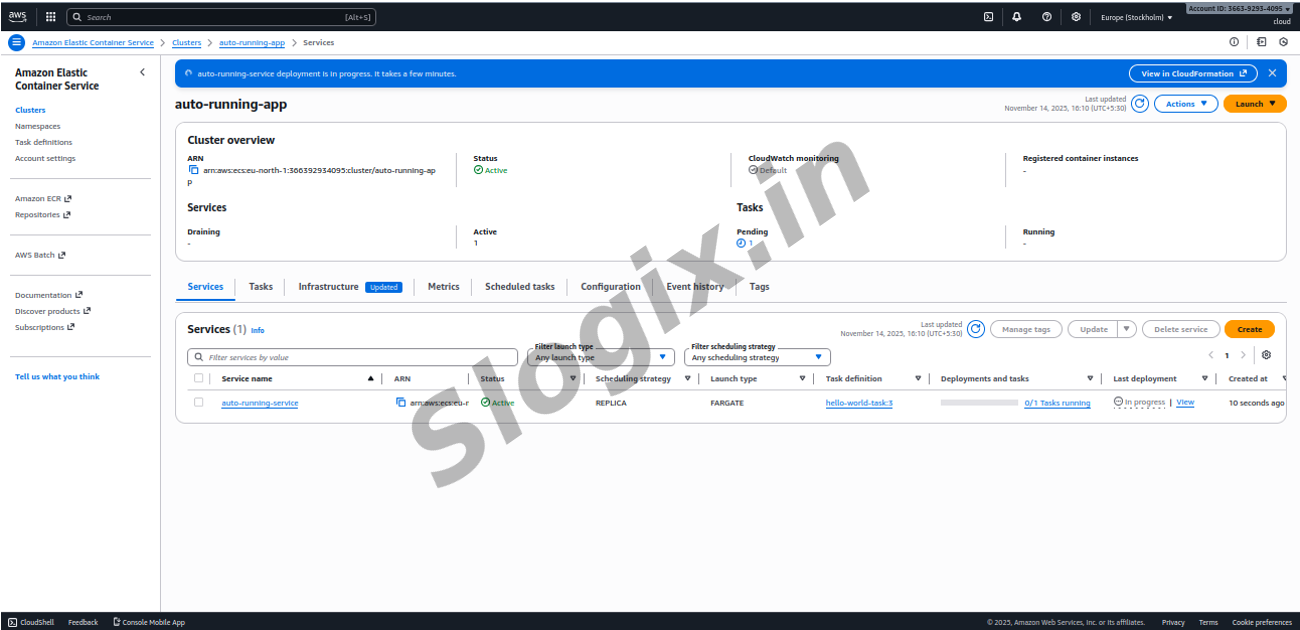
Your ECS Service is now running
It will start 1 task, and if you manually stop it:
➡ ECS will restart it automatically
➡ This is called auto-healing
Test Auto-Healing
Go to the “Tasks” tab inside your service
ECS → Cluster → Service → Tasks
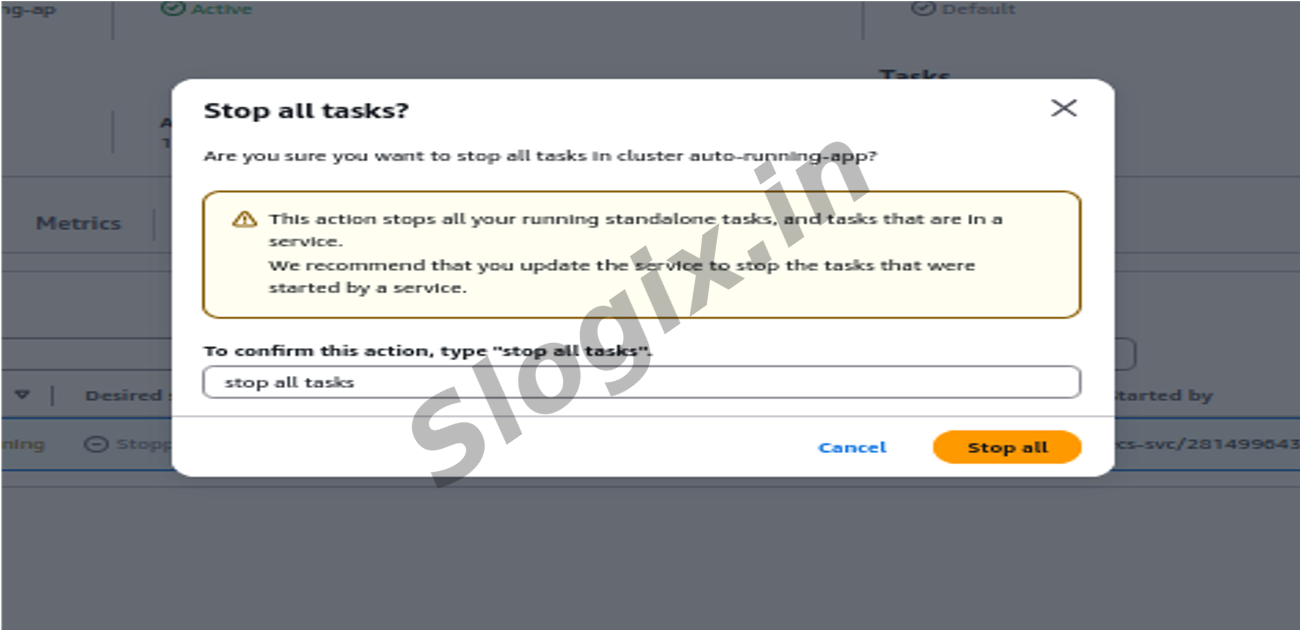
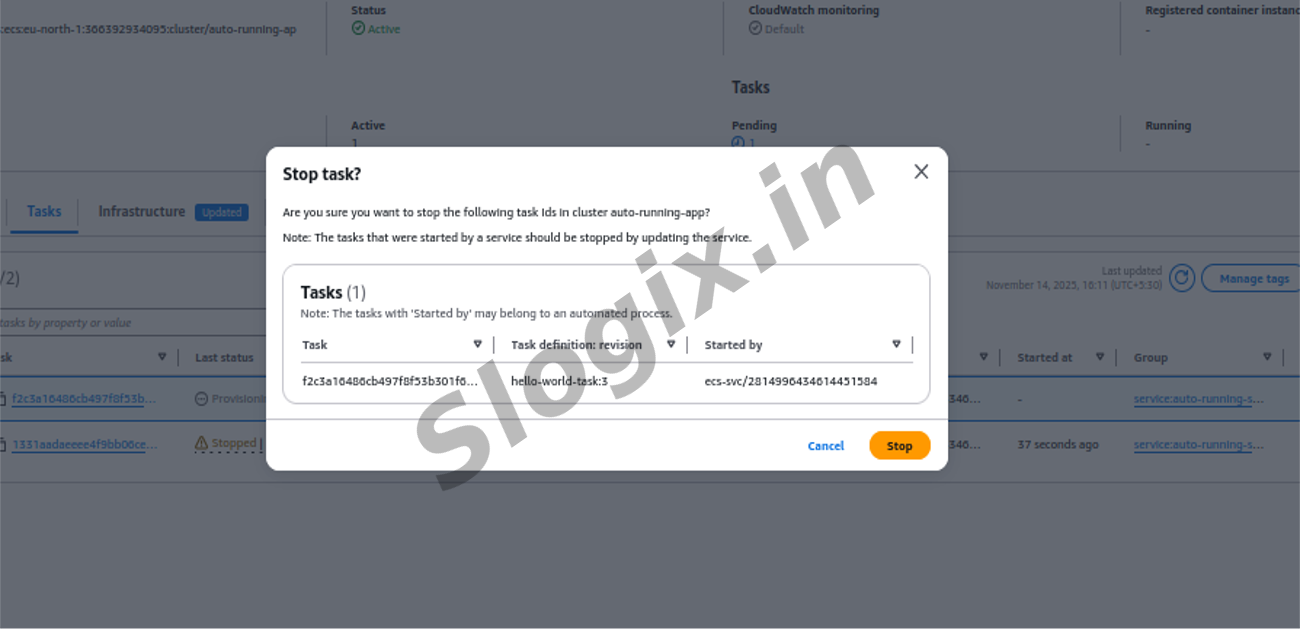
Select the running task → “Stop”
Confirm STOP task
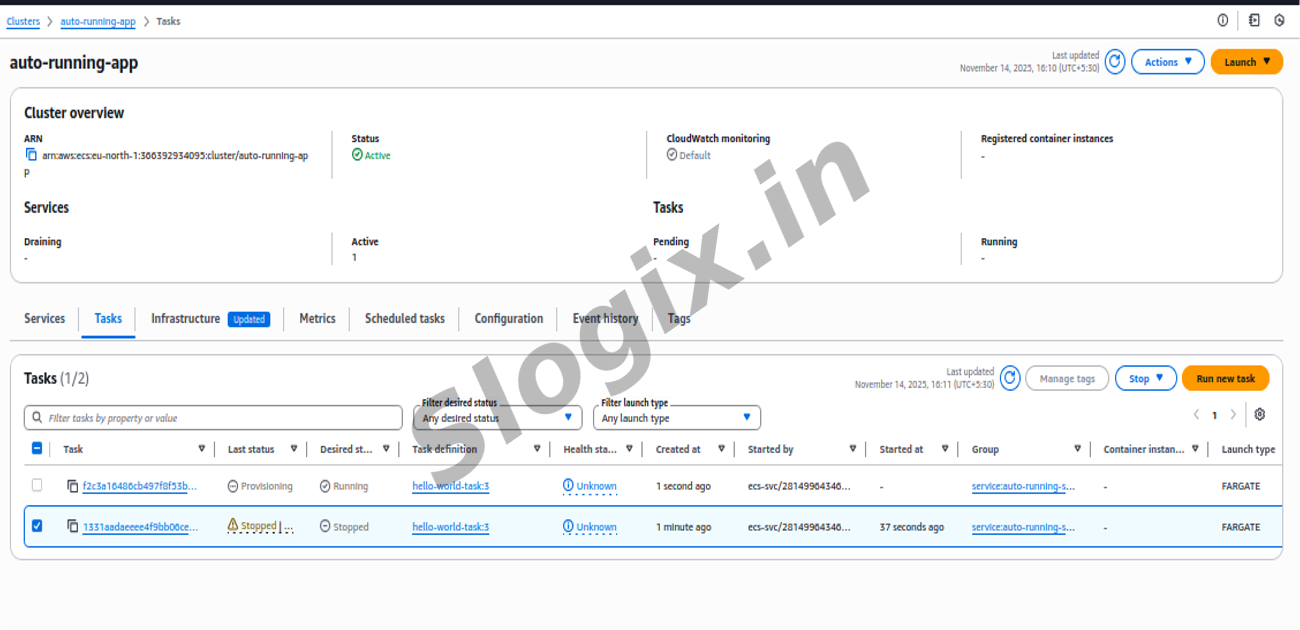
Watch ECS
Within 10–20 seconds:
✔ A new task will appear automatically
✔ The old one remains STOPPED
✔ The new one becomes RUNNING
This proves your Service is working.
 Research Breakthrough Possible @S-Logix