How to Test a CloudWatch Alarm by Intentionally Increasing the CPU Load on an EC2 Instance to Verify that the Alarm Triggers Correctly?
Share
Condition for Test a CloudWatch Alarm by Intentionally Increasing the CPU Load on an EC2 Instance to Verify that the Alarm Triggers Correctly
Description: This activity verifies that the alerting mechanism responds correctly when system utilization rises above the defined threshold.The process begins by connecting to the compute environment and preparing it to generate additional workload.A load-generation utility is installed and executed, causing the processing activity to rise significantly for a short duration.As the resource demand increases, the monitoring system detects the elevated usage.Once the defined limit is crossed, the previously configured alert becomes active.A notification is automatically delivered to the designated recipient, indicating that the threshold has been exceeded.After a brief evaluation period, the monitoring dashboard reflects the updated alert status.This confirms that both the alert rule and the notification channel are functioning as expected.
Steps
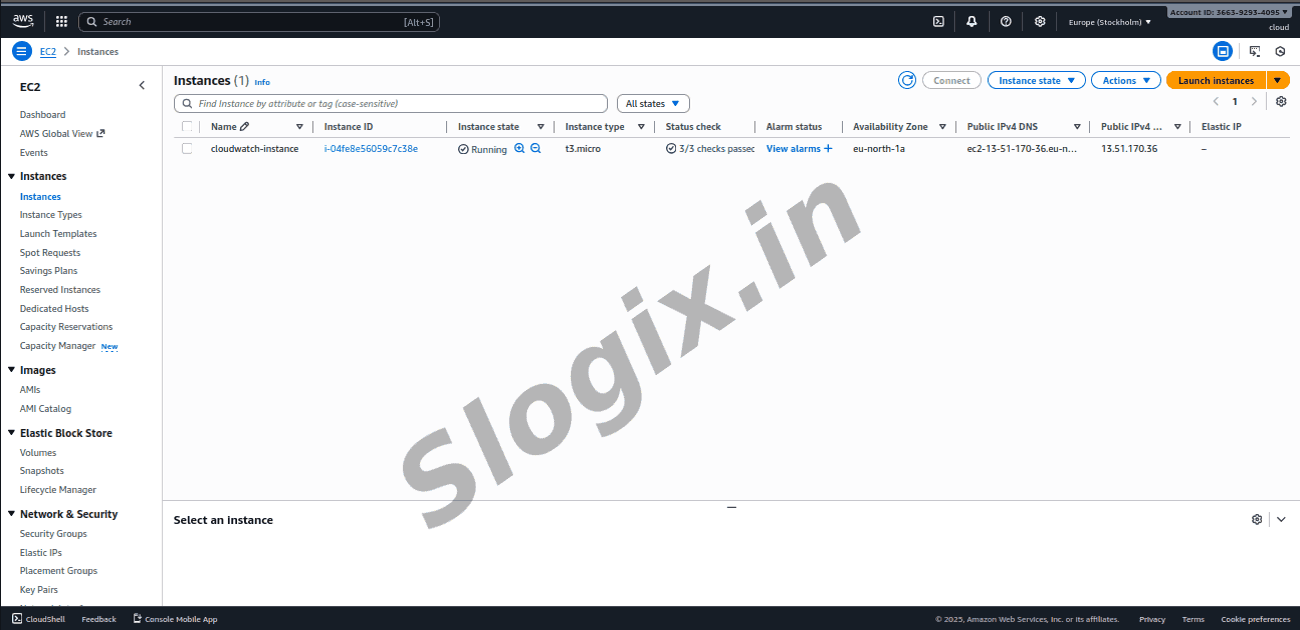
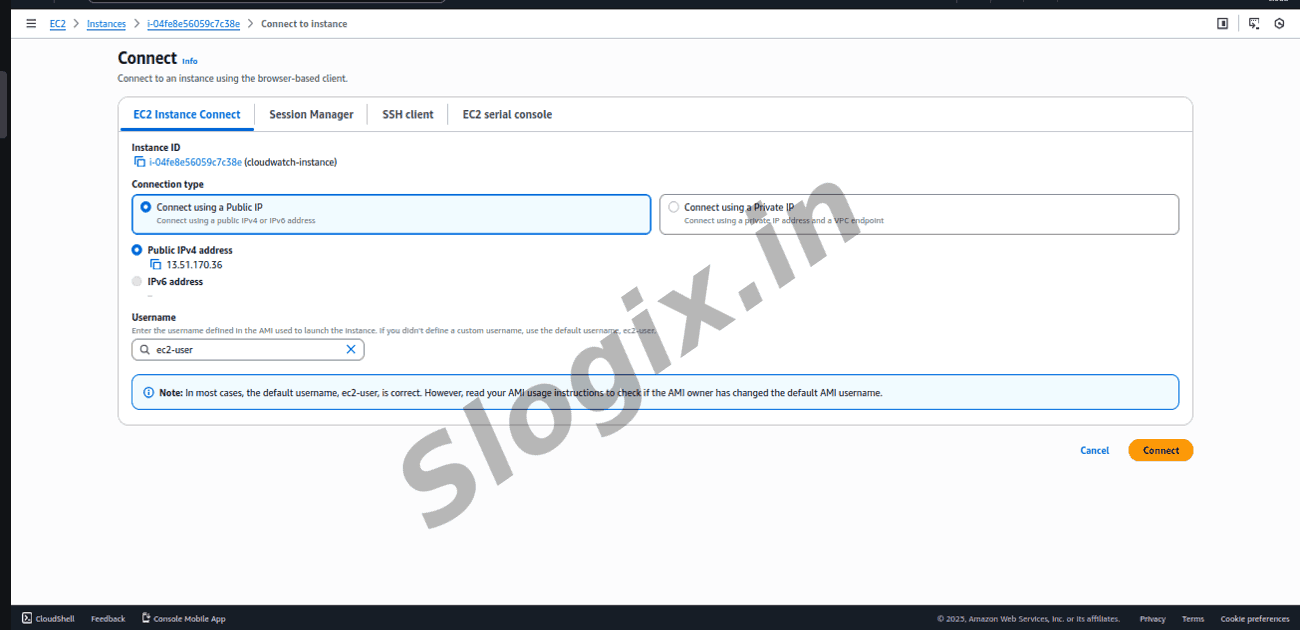
Step 1: Login to EC2
ssh -i key.pem ec2-user@your-public-ip
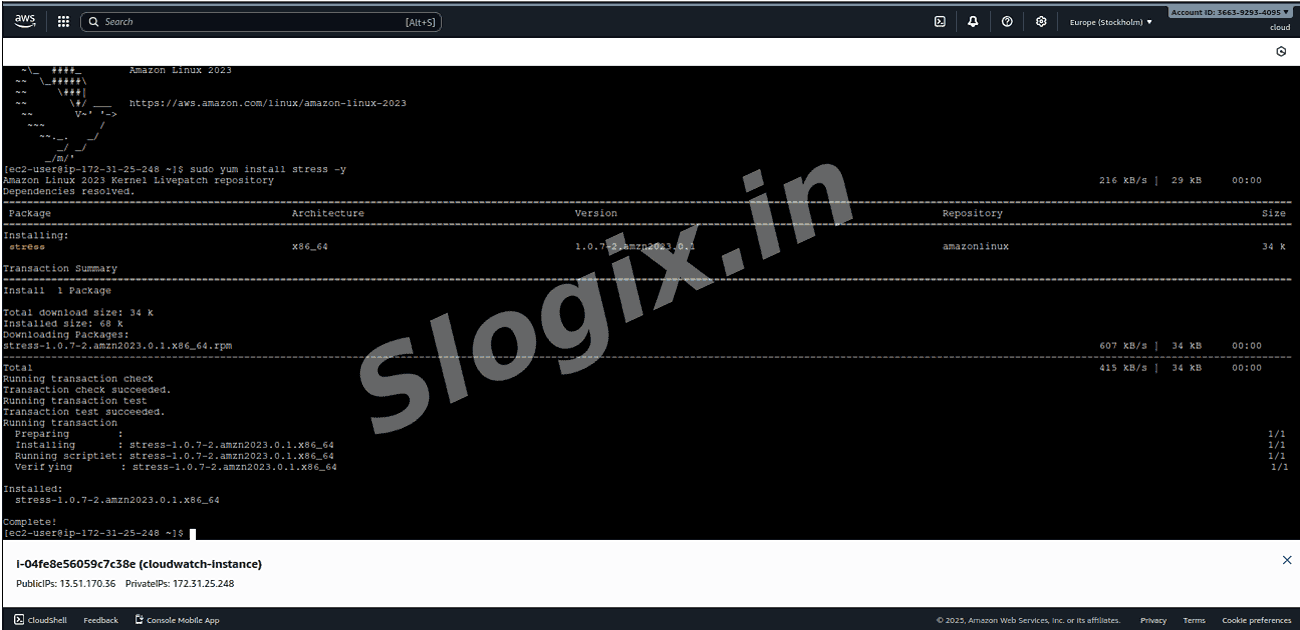
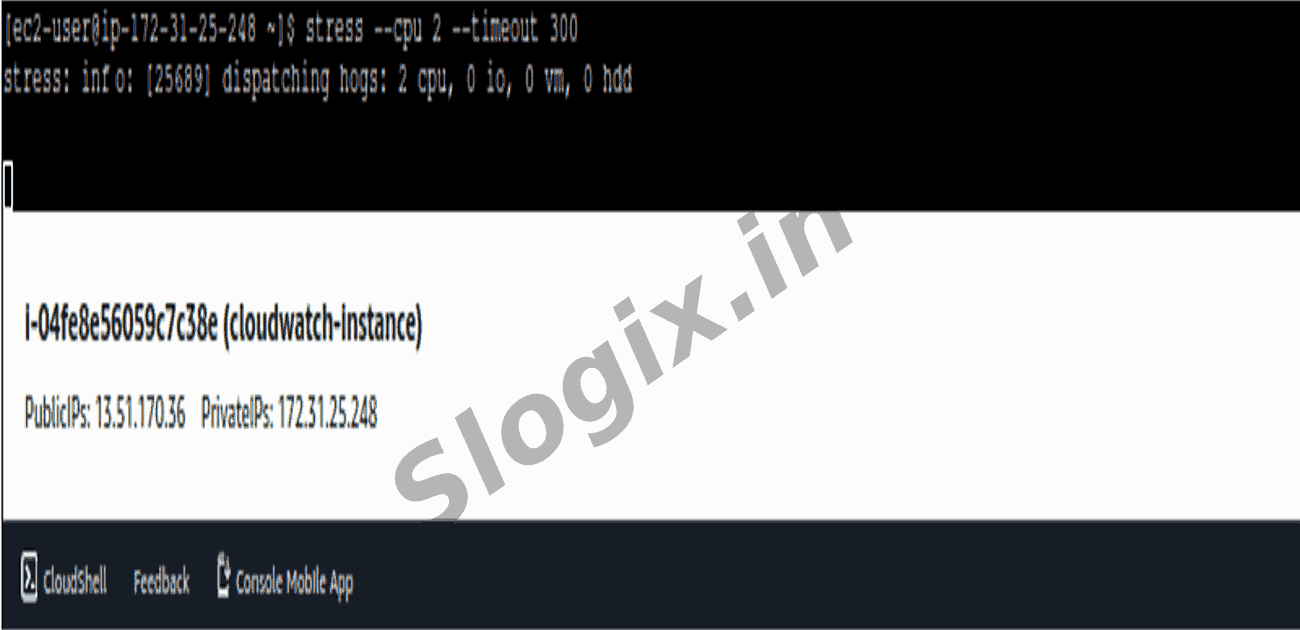
Step 3: Run CPU stress
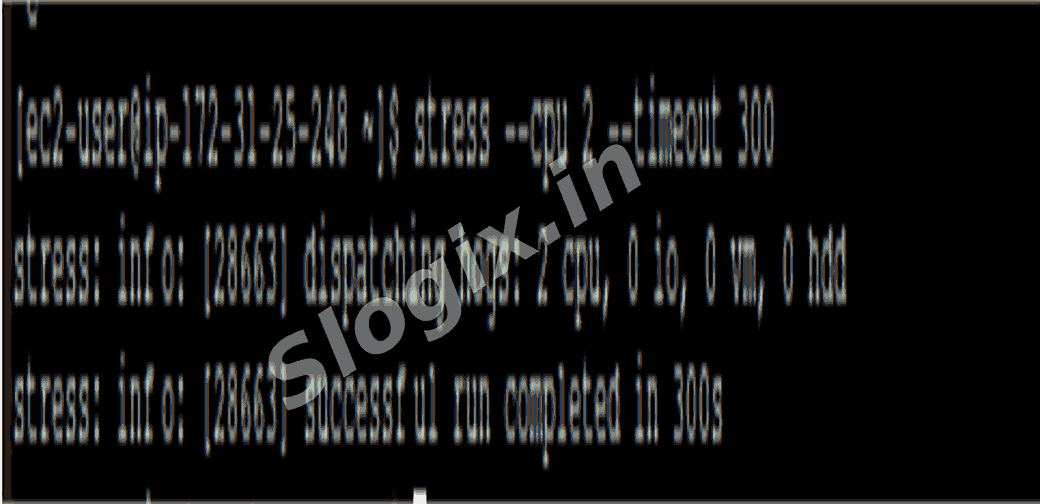
stress --cpu 2 --timeout 300
This pushes CPU high → CloudWatch triggers alarm → You get an email
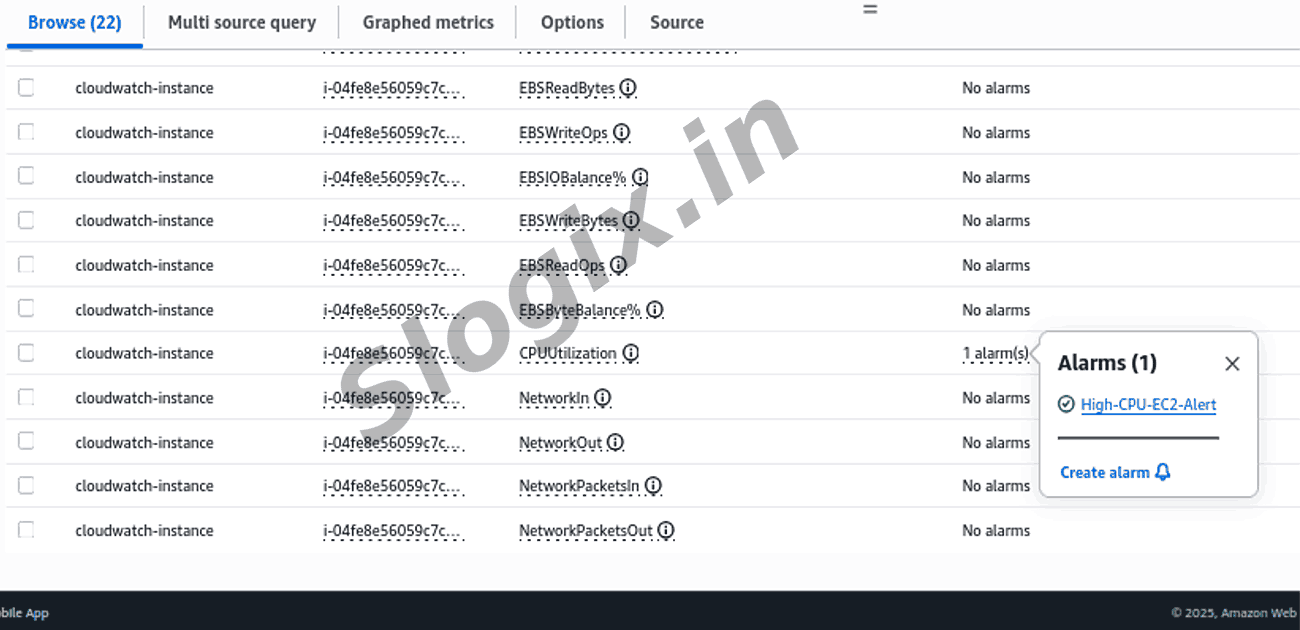
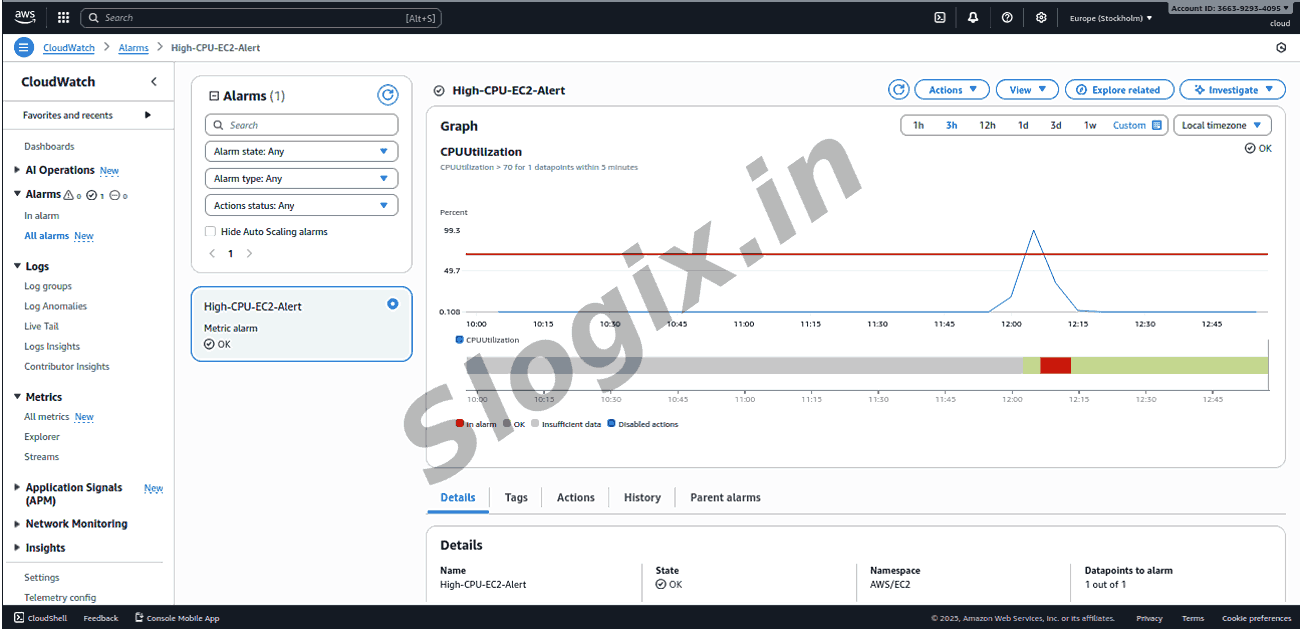
Step 4: Check CloudWatch Alarm status
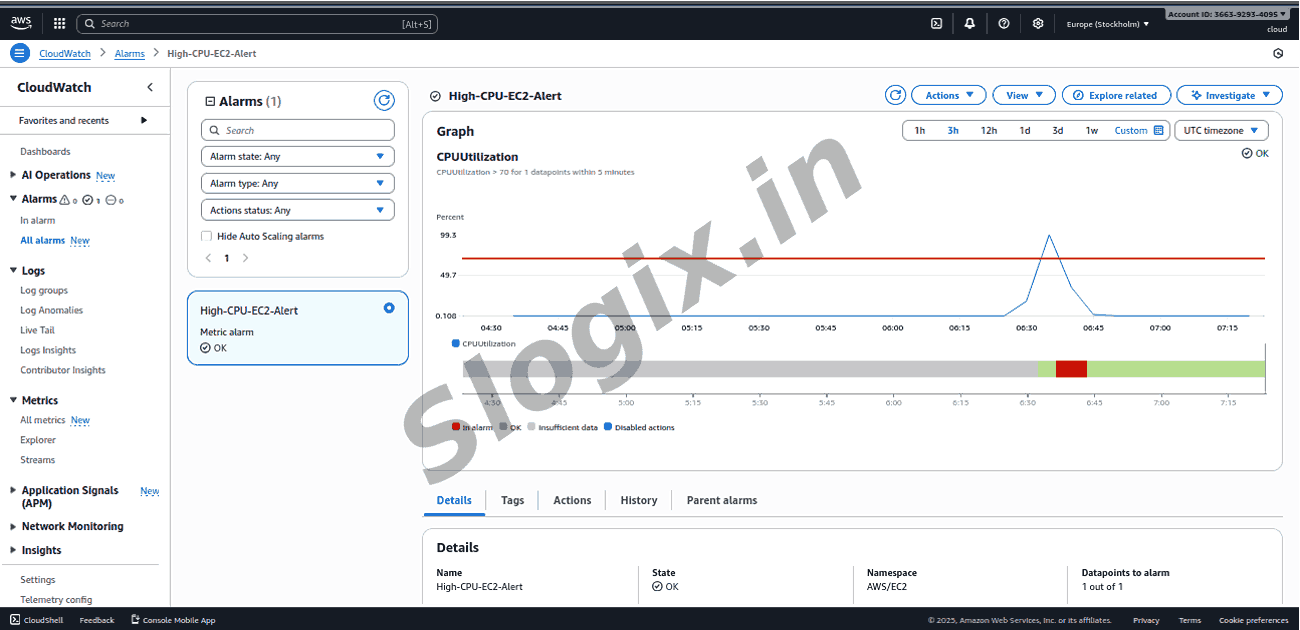
Check CloudWatch Alarm status → It will change to ALARM
Step 5: Result
Within 1–2 minutes:
CloudWatch Alarm state → ALARM
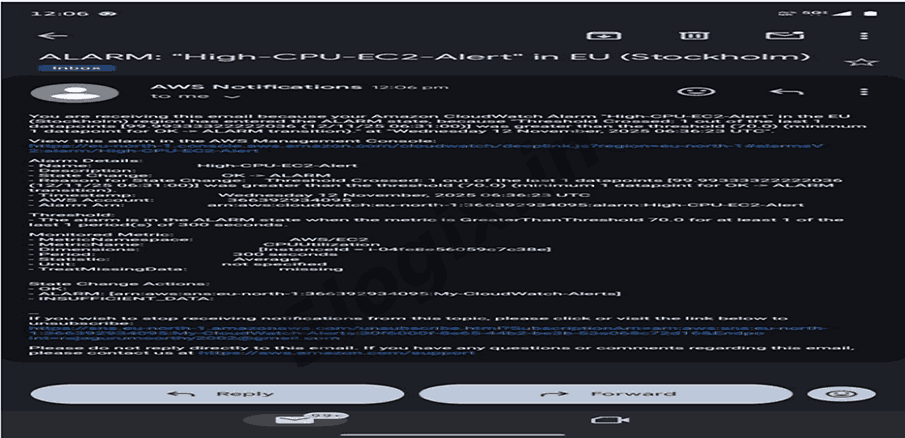
SNS sends email
The receive mail like:
ALARM: "High-CPU-EC2-Alert"
Reason: Threshold Crossed: 1 out of last 1 datapoints greater than 70.0
InstanceId: i-04fe8e56059c7c38e
Time: 2025-xx-xx
Region: eu-north-1
 Research Breakthrough Possible @S-Logix