List of Topics:
Location Research Breakthrough Possible @S-Logix pro@slogix.in

Office Address

Social List

How to Create a Create a Multi-Container Application Using Docker Compose (Web + DB)?

Docker

Condition for Multi-Container Application Using Docker Compose (Web + DB)

  • Description:
    This task demonstrate how to use Docker Compose to run a multi-container application. Specifically, you will deploy WordPress connected to a MySQL database using a single command. Docker Compose simplifies managing multiple containers and their dependencies.

Steps

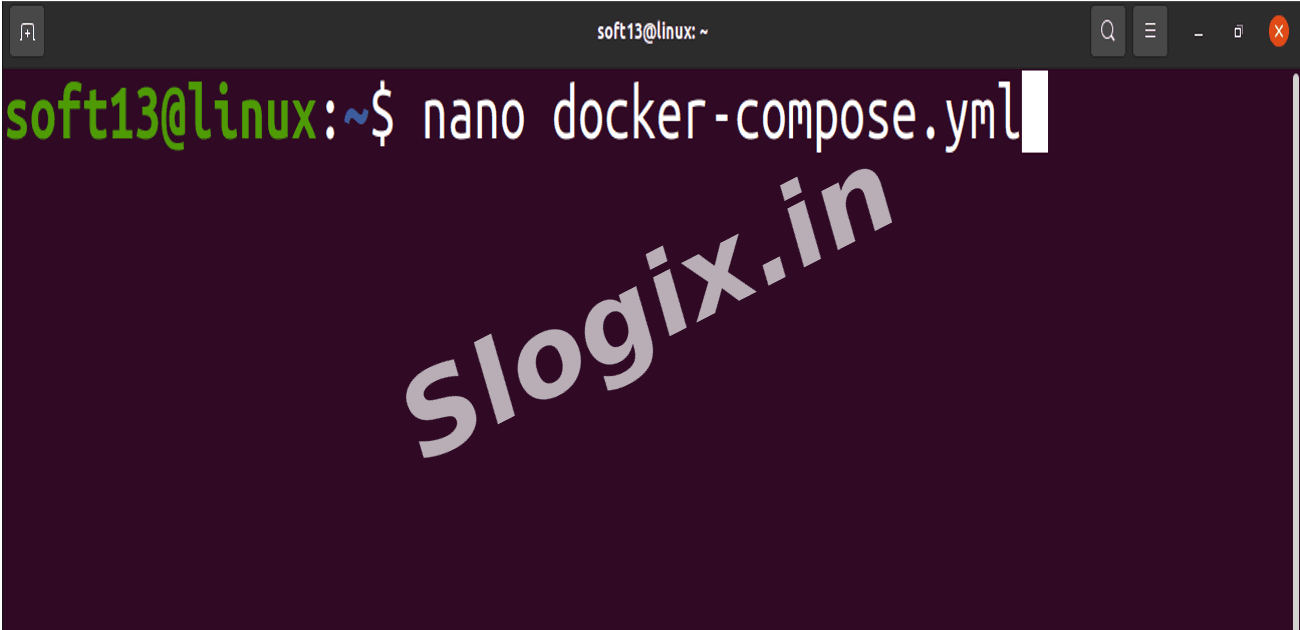
  •  STEP 1 — Create docker-compose.yml File
     Description: Create a file named docker-compose.yml for WordPress and MySQL.
     Command:
    nano docker-compose.yml
                
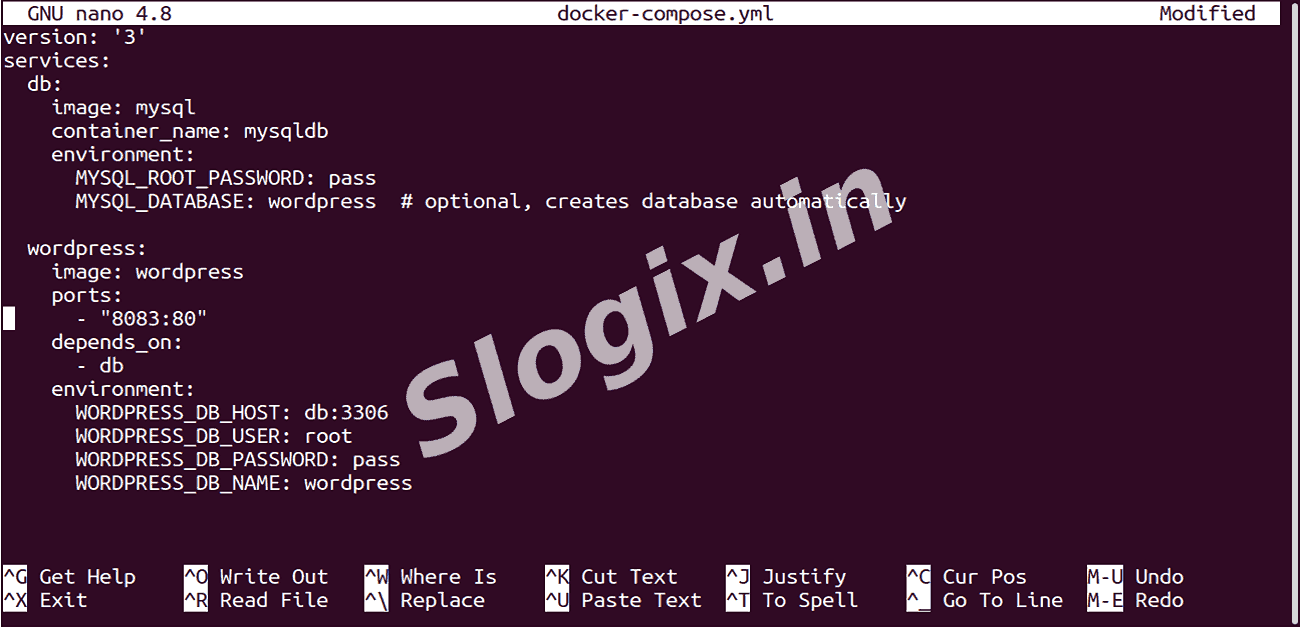
     Paste the following:
    version: '3'
    services:
      db:
        image: mysql
        container_name: mysqldb
        environment:
          MYSQL_ROOT_PASSWORD: pass
          MYSQL_DATABASE: wordpress  # optional, creates database automatically
    
      wordpress:
        image: wordpress
        ports:
          - "8083:80"
        depends_on:
          - db
        environment:
          WORDPRESS_DB_HOST: db:3306
          WORDPRESS_DB_USER: root
          WORDPRESS_DB_PASSWORD: pass
          WORDPRESS_DB_NAME: wordpress
                
     Notes:
    ✔ db service: Runs MySQL with root password pass.
    ✔ wordpress service: Runs WordPress and maps port 8083 on your host to port 80 in the container.
    ✔ depends_on: Ensures WordPress starts after MySQL is ready.
  •  STEP 2 — Installation of Docker Compose
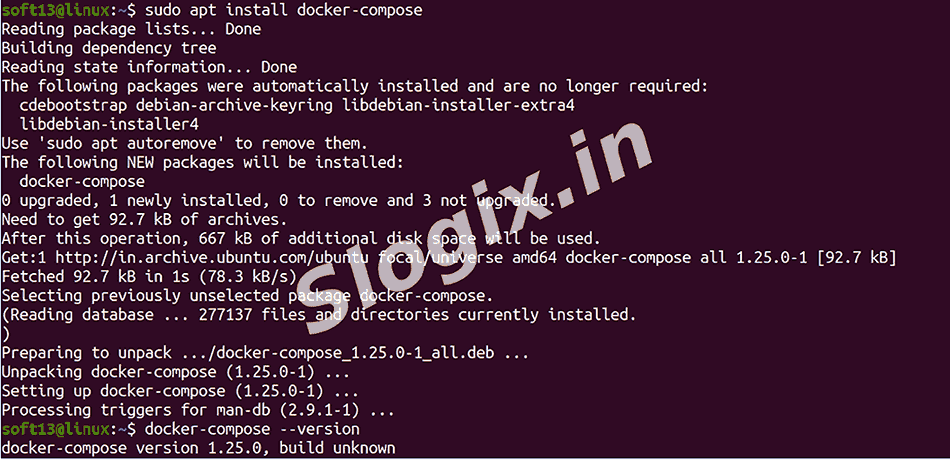
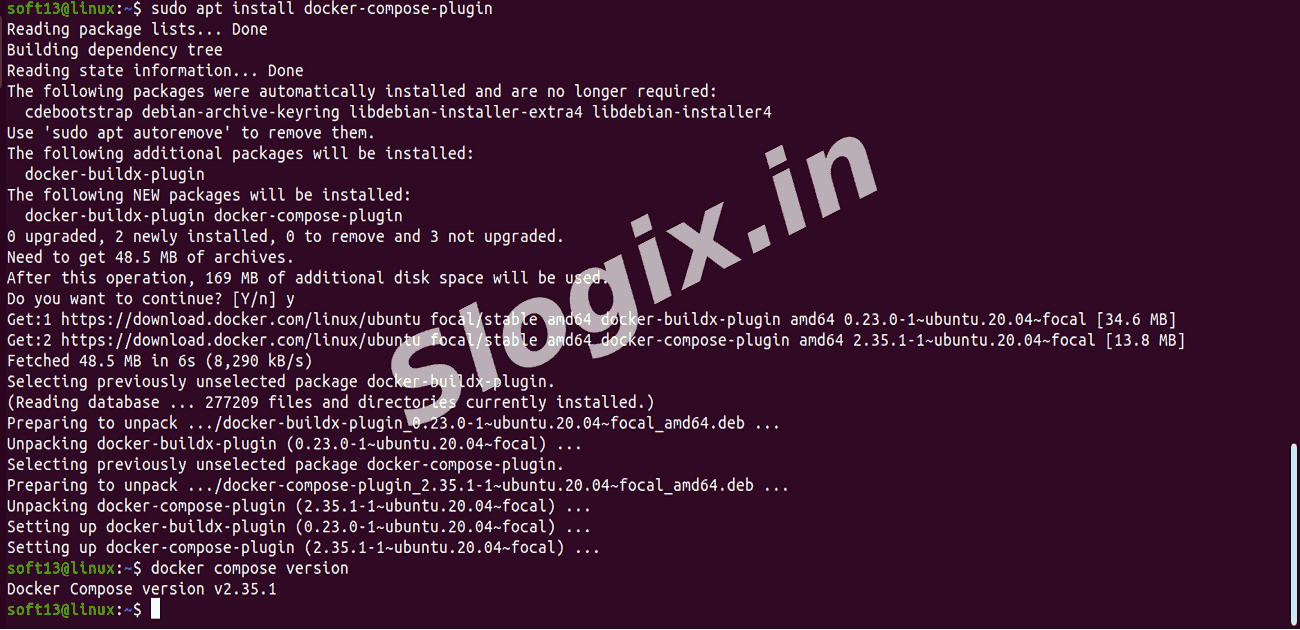
     Description: Install Docker Compose and verify the version.
     Commands:
    sudo apt install docker-compose
    docker-compose --version
    
    sudo apt install docker-compose-plugin
                
  •  STEP 3 — Start the Application
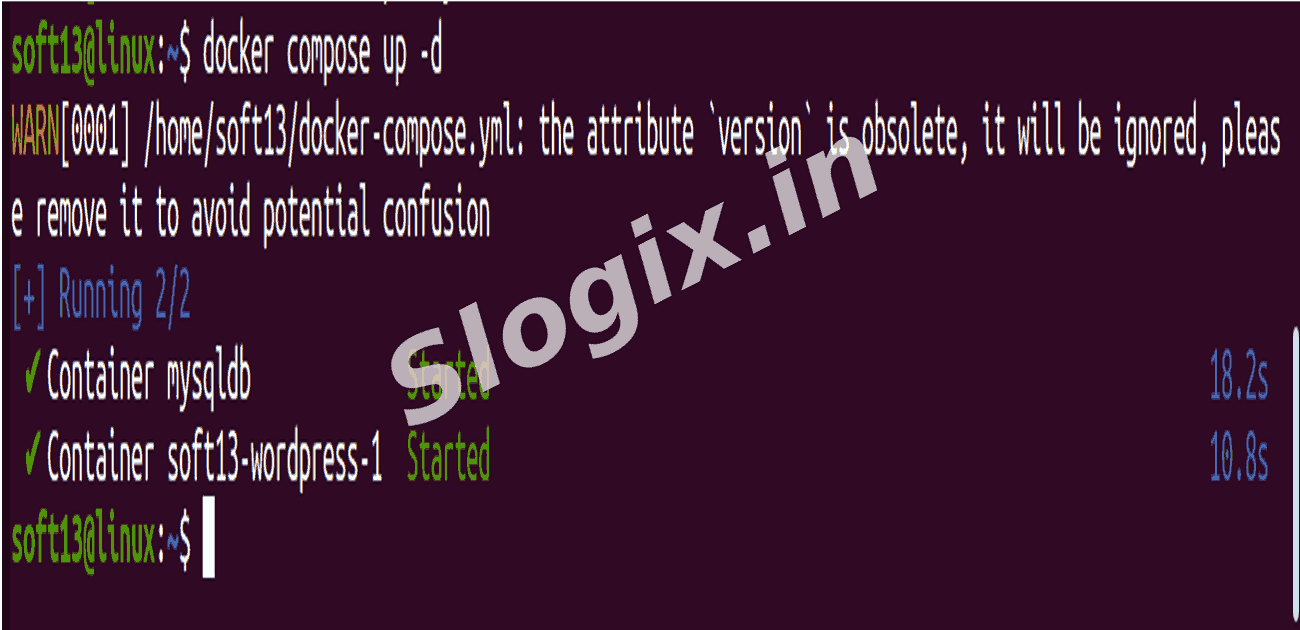
     Description: Run the WordPress and MySQL containers in detached mode.
     Command:
    docker compose up -d
                
      -d runs containers in background.
  •  STEP 4 — Restart Containers
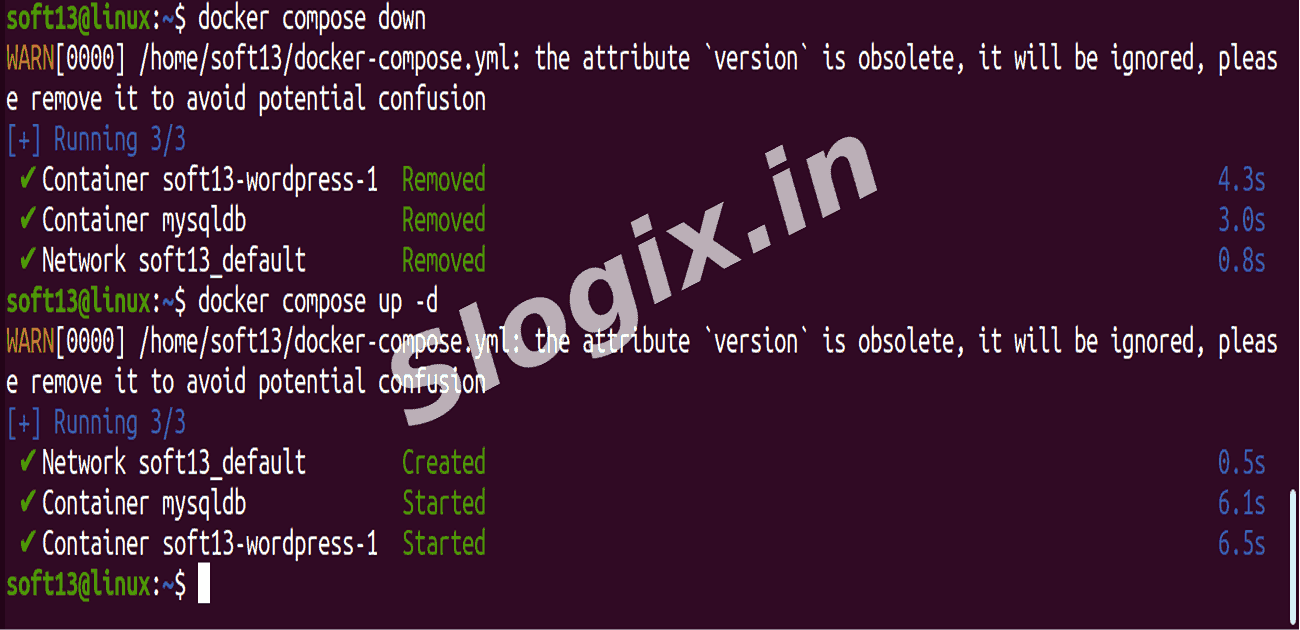
     Description: After updating the Compose file, restart containers.
     Commands:
    docker compose down
    docker compose up -d
                
    ✔ Wait a few seconds for MySQL to start before WordPress connects.
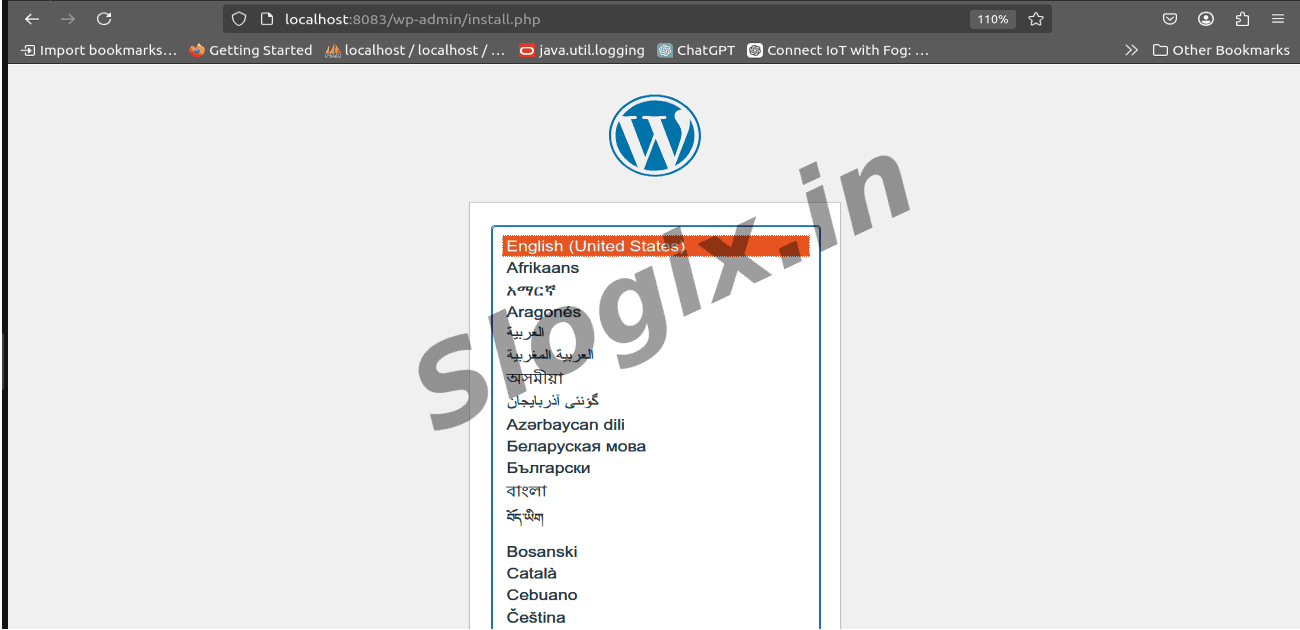
     Open http://localhost:8083 → WordPress setup should load without errors.
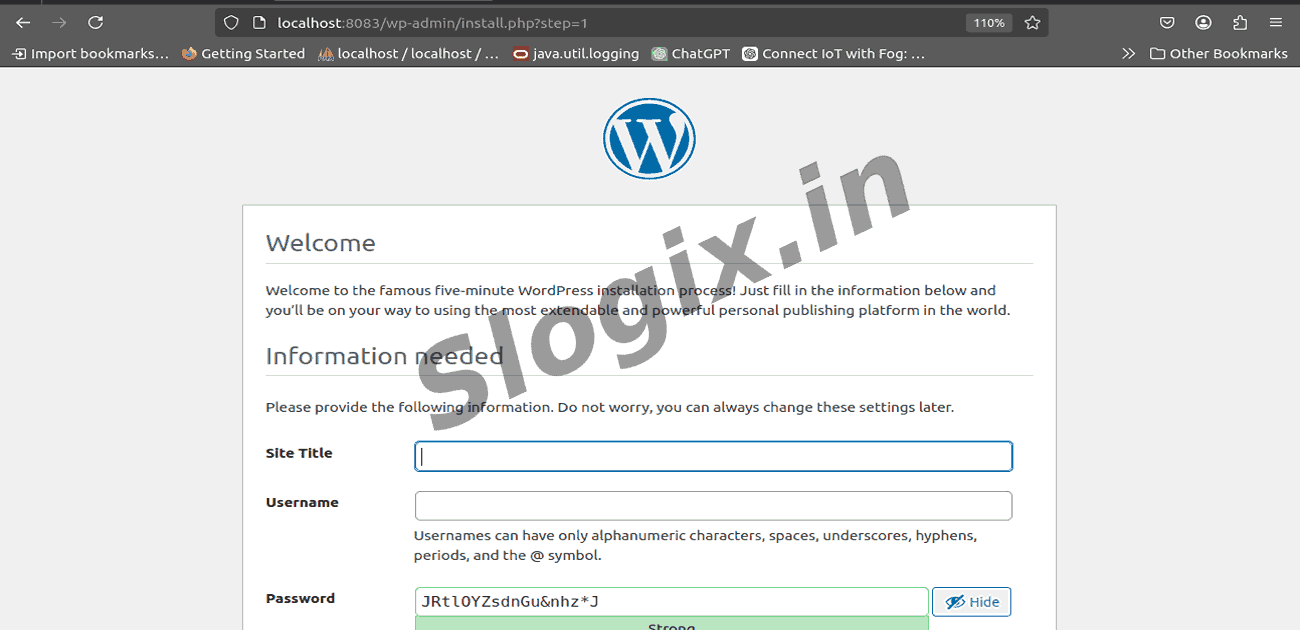
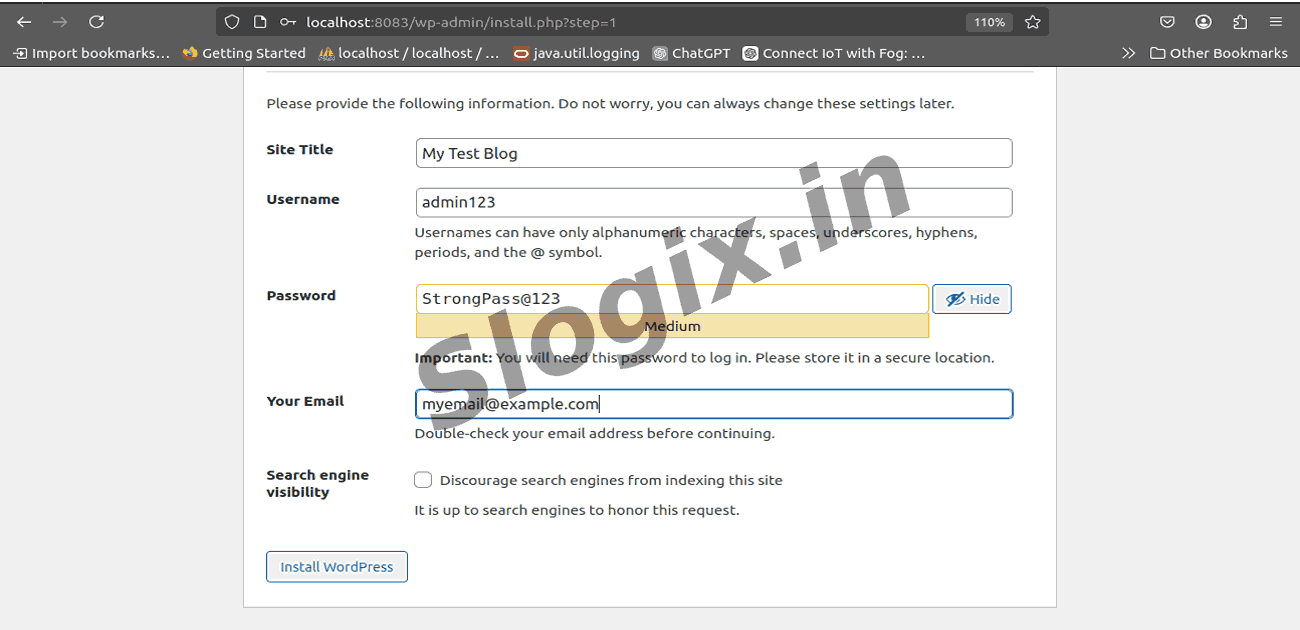
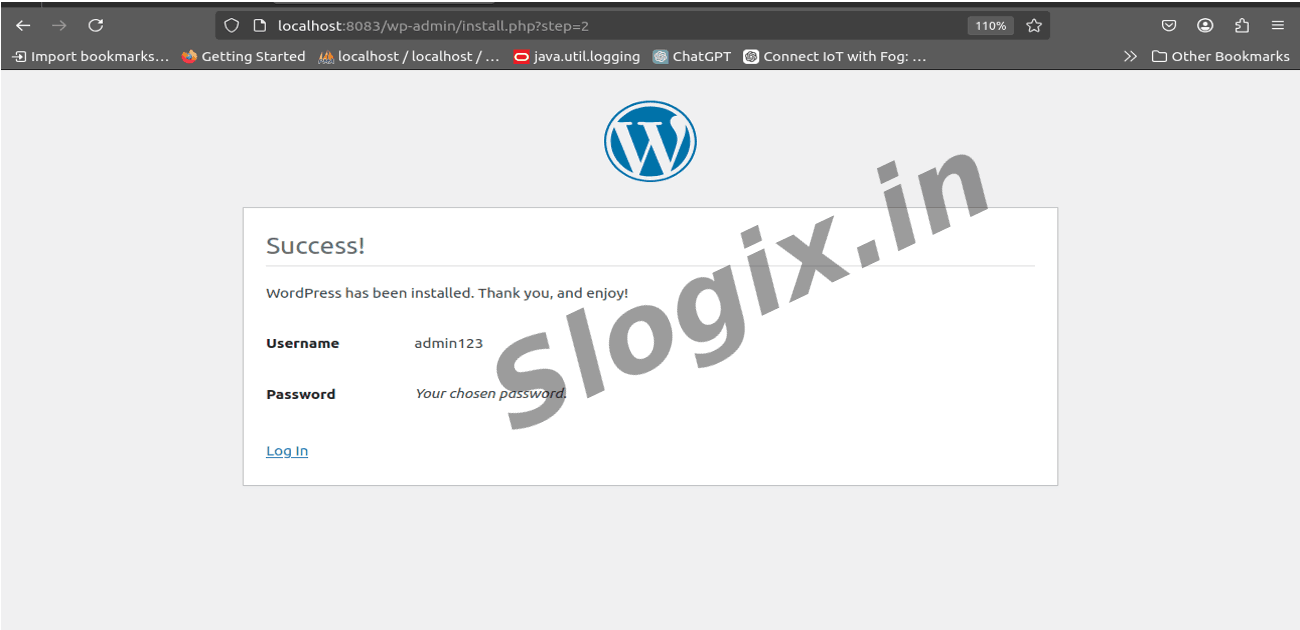
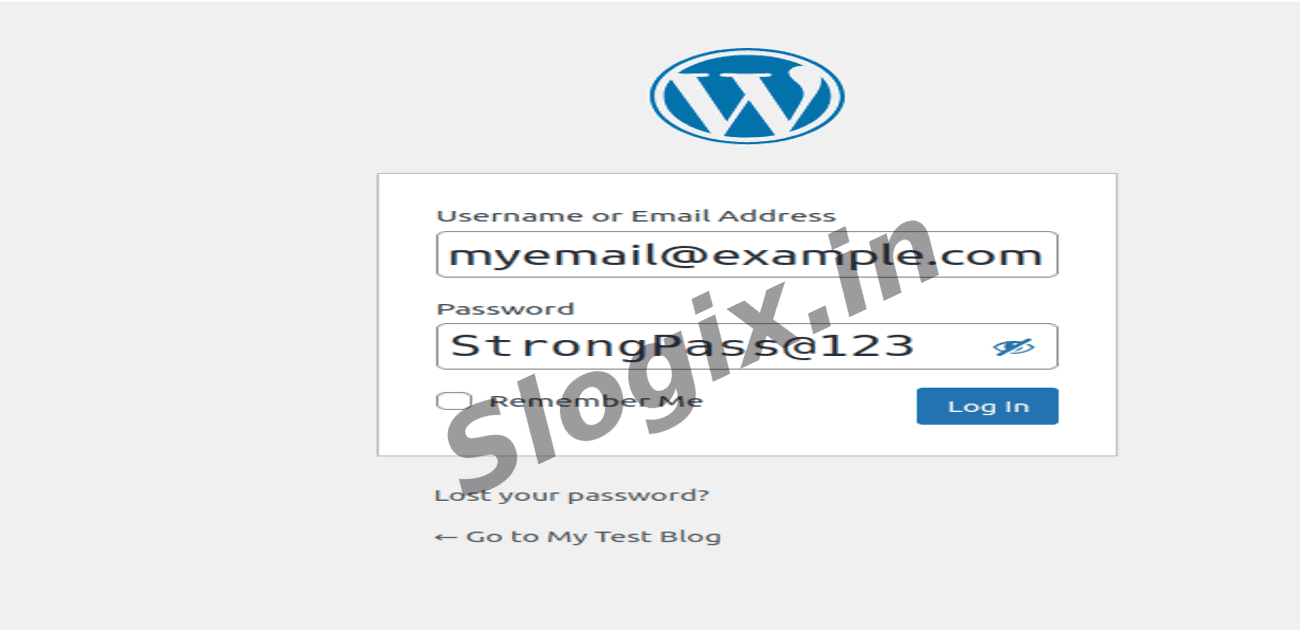
  •  STEP 5 — Configure WordPress Setup
     Field & Example Values:
    Field Example Value Notes
    Site Title My Test Blog Can be anything, e.g., your project or blog name
    Username admin123 Must be alphanumeric, can include _, -, ., @
    Password StrongPass@123 Use a strong password; WordPress will warn if weak
    Your Email myemail@example.com Used for admin notifications, password recovery
    Search Engine Visibility Leave unchecked Optional, depends if you want search engines to index
  •  Outcome
    ✔ A multi-container WordPress application running with a MySQL database.
    ✔ Managed entirely with Docker Compose, allowing easy start/stop with a single command.
Screenshots
  • 398
  • 399
  • 400
  • 401
  • 402
  • 403
  • 404
  • 405
  • 406
  • 407
  • 408
  • 409