List of Topics:
Location Research Breakthrough Possible @S-Logix pro@slogix.in

Office Address

Social List

How to Create an NGINX Load Balancer for Two Web Servers in Docker?

Docker

Condition for Create an NGINX Load Balancer for Two Web Servers in Docker

  • Description:
    In this task, you will:
     Run two separate NGINX containers (app1 and app2)
     Create a custom NGINX load balancer container
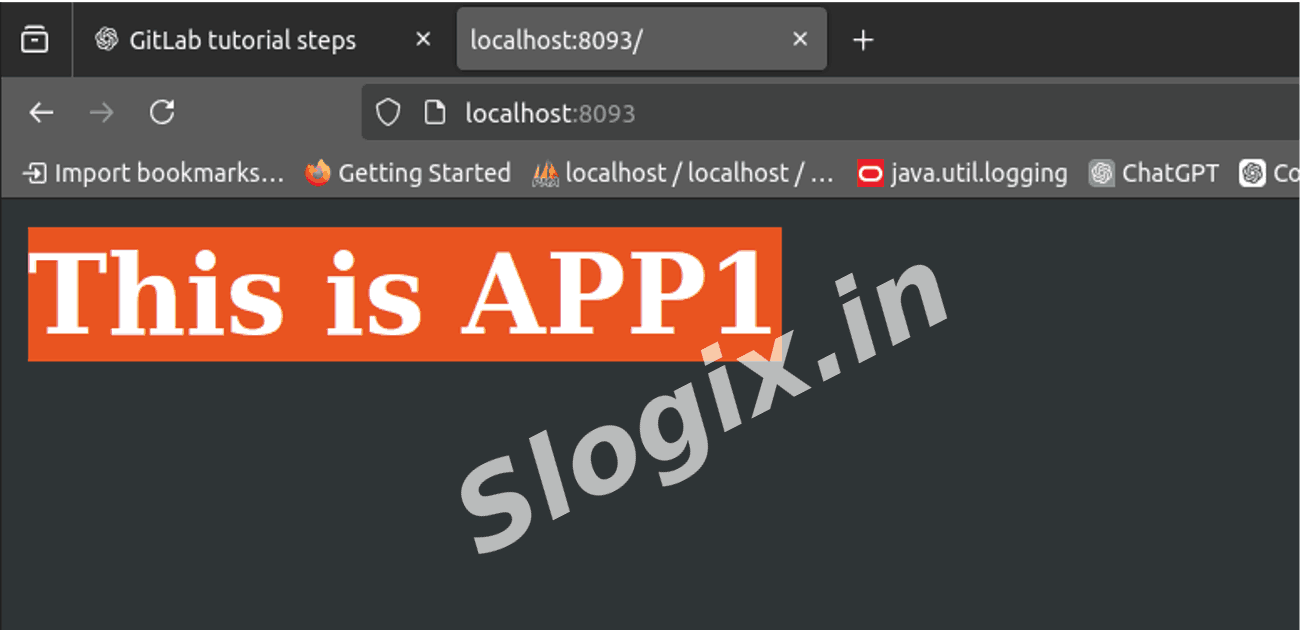
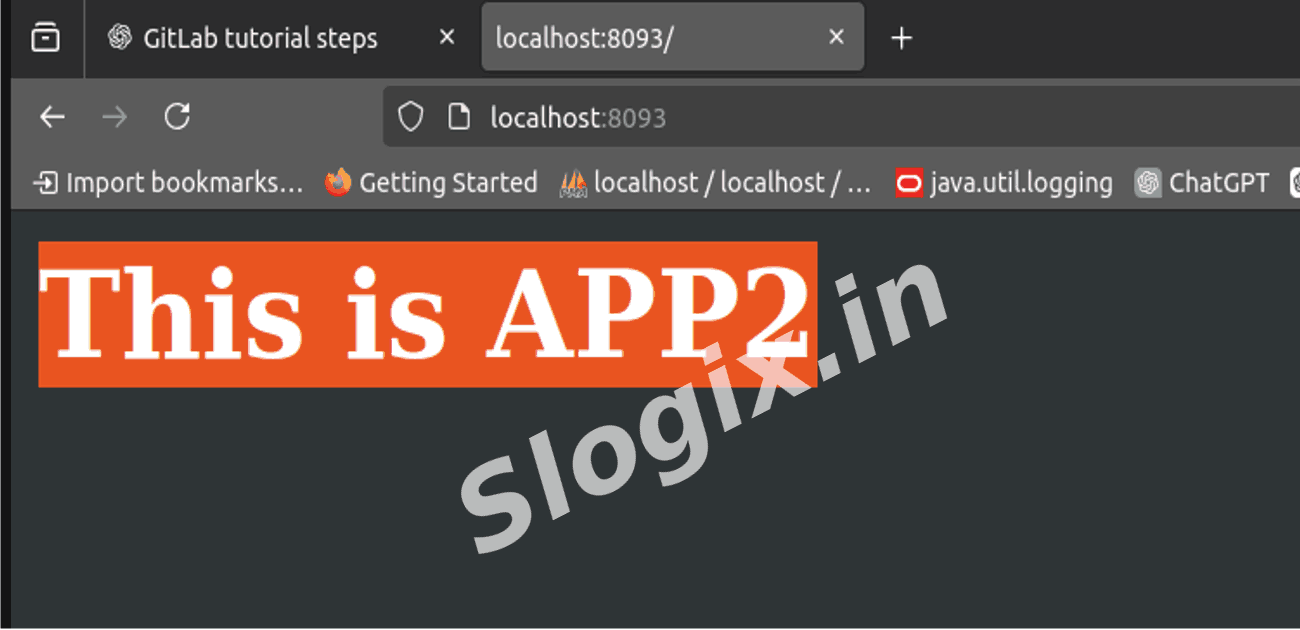
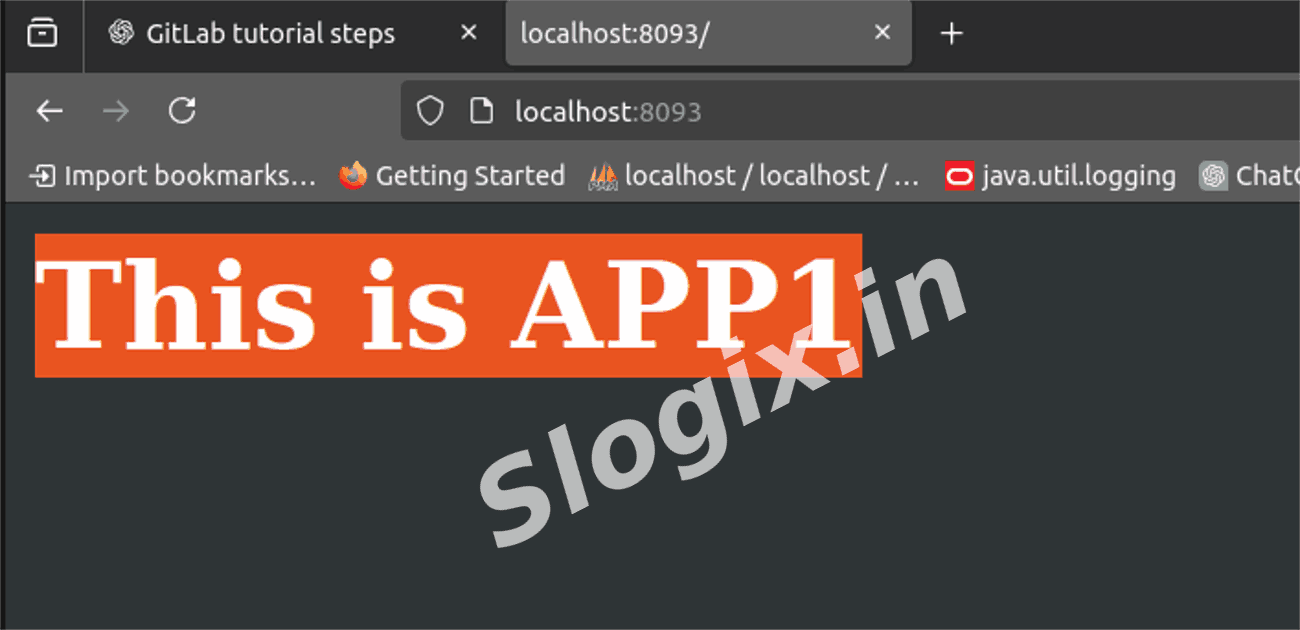
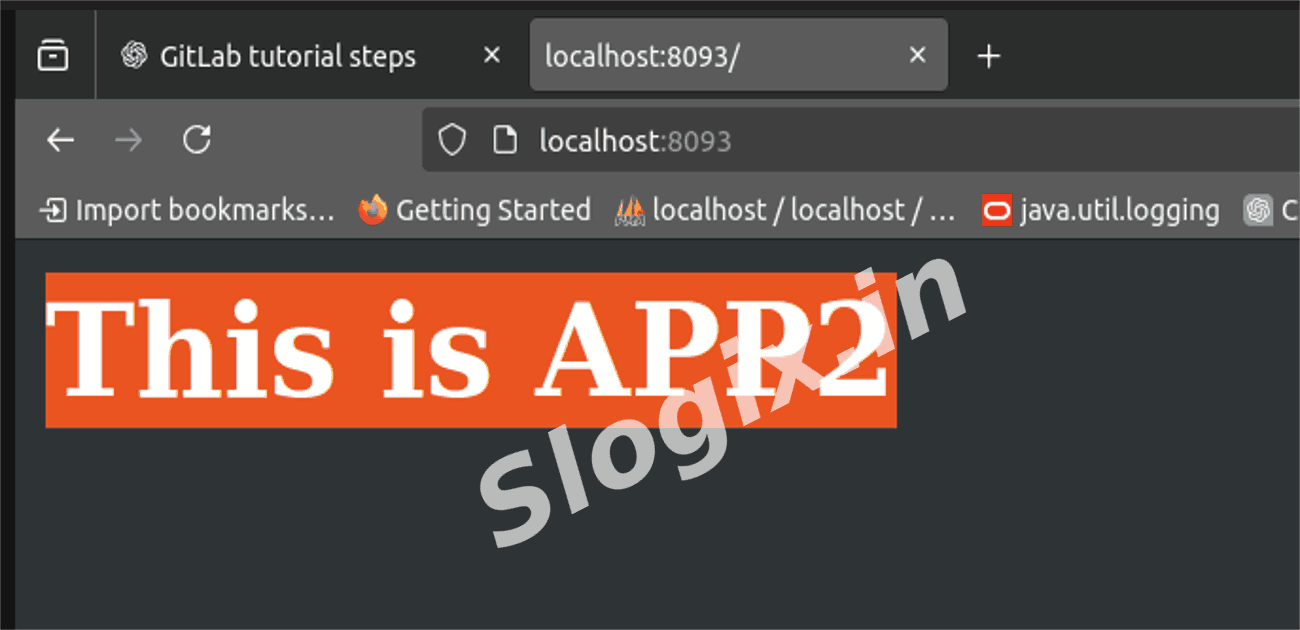
     Configure load balancing so that each browser refresh alternates between the two applications
     This demonstrates how NGINX acts as a reverse proxy and load balancer inside Docker.

Steps

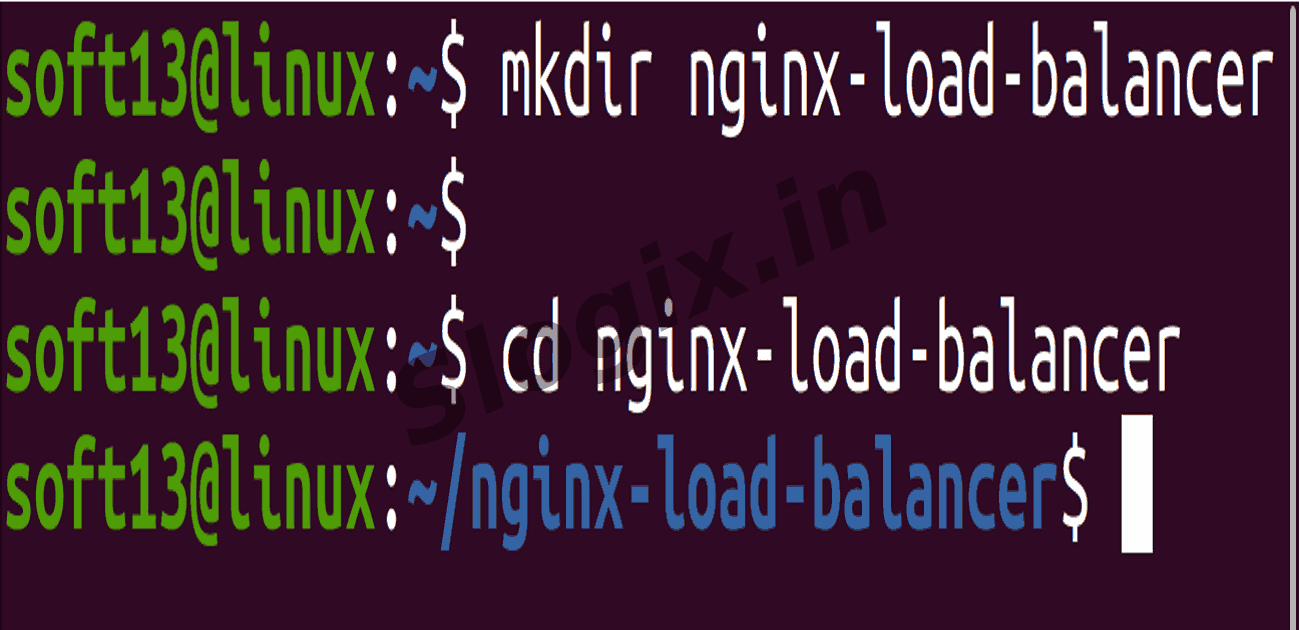
  •  Step 1: Create a Working Folder
     Description: Create a project directory where configuration files will be stored.
     Command:
    mkdir nginx-load-balancer
    cd nginx-load-balancer
                
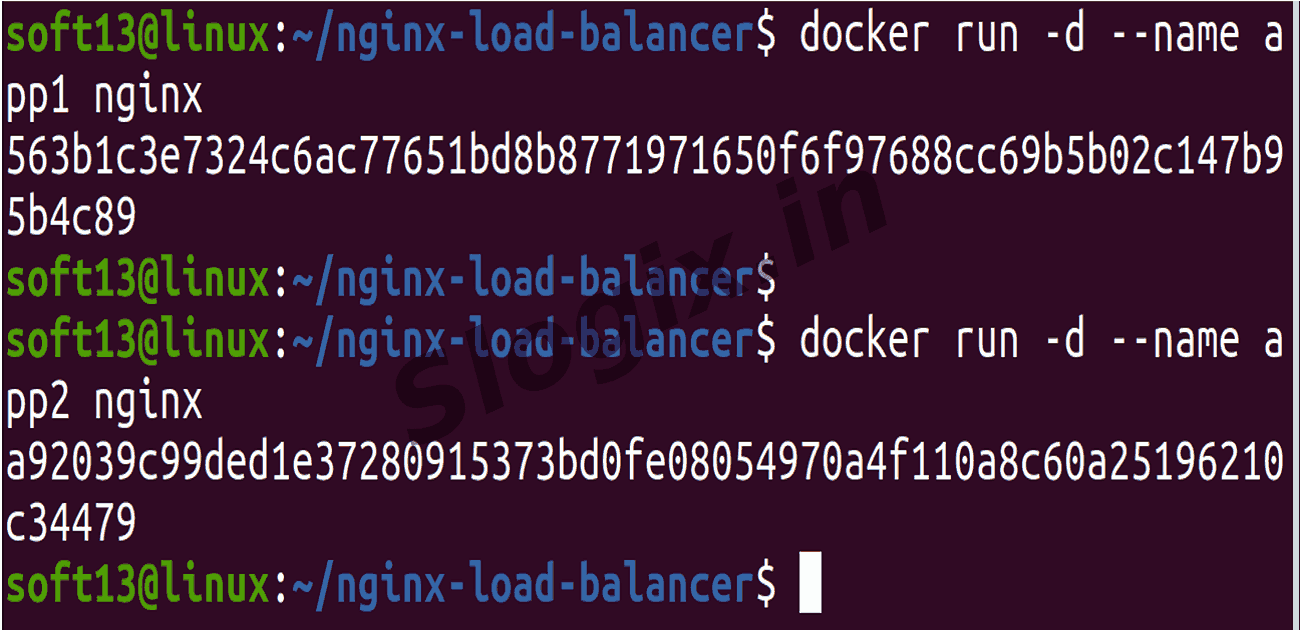
  •  Step 2: Run Two Web Server Containers
     Description: Start two independent NGINX containers that will act as backend servers.
     Commands:
    docker run -d --name app1 nginx
    docker run -d --name app2 nginx
                
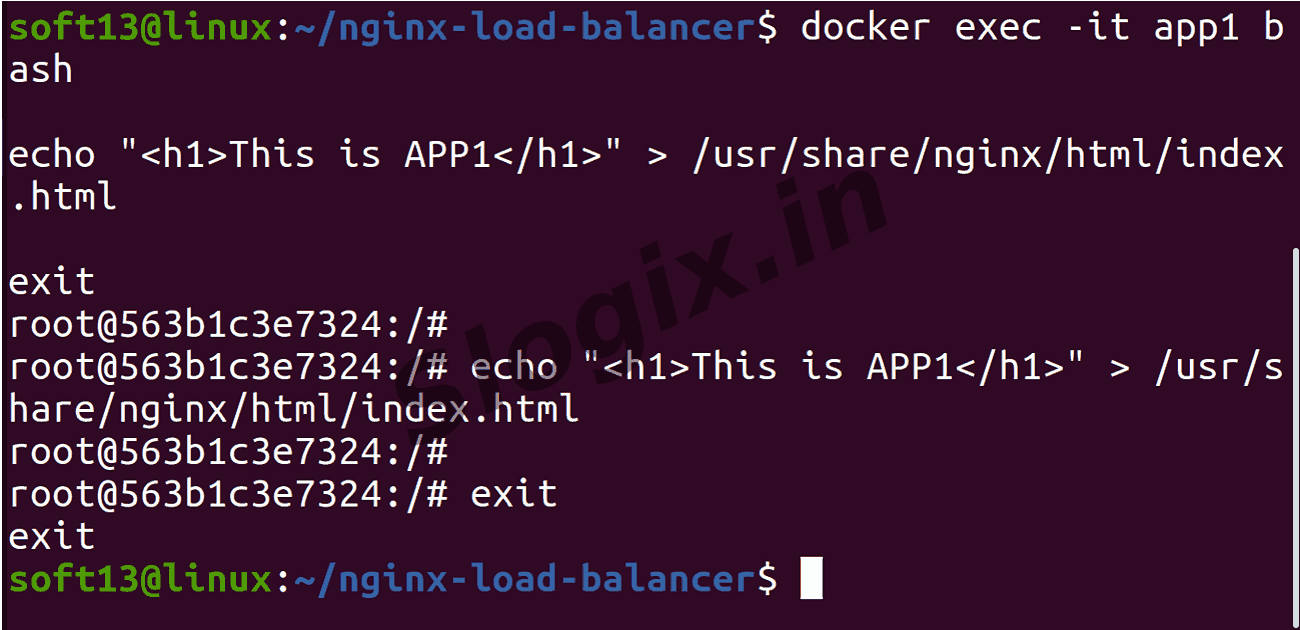
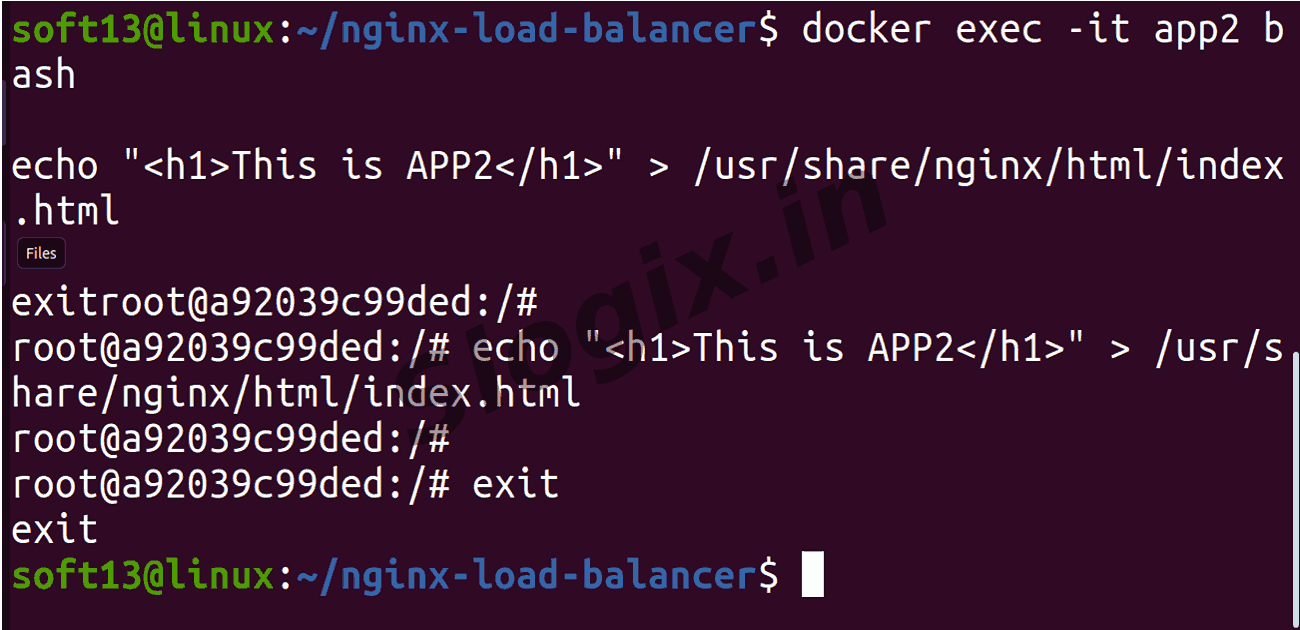
    Container Command to set response
    For APP1 docker exec -it app1 bash
    echo "<h1>This is APP1</h1>" > /usr/share/nginx/html/index.html
    exit
    For APP2 docker exec -it app2 bash
    echo "<h1>This is APP2</h1>" > /usr/share/nginx/html/index.html
    exit
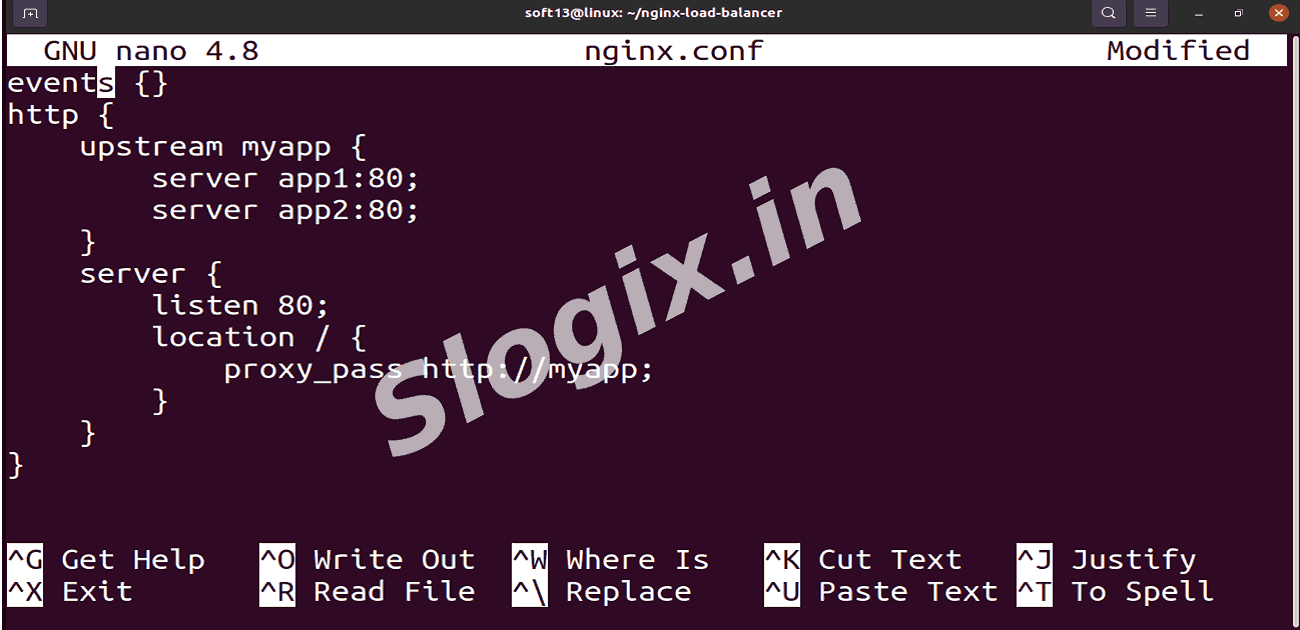
  •  Step 3: Create nginx.conf (Load Balancer Configuration)
     Description: Create a custom config file that forwards requests to both containers.
     Command:
    nano nginx.conf
                
     Paste the following:
    events {}
    http {
        upstream myapp {
            server app1:80;
            server app2:80;
        }
    
        server {
            listen 80;
            location / {
                proxy_pass http://myapp;
            }
        }
    }
                
     Save → CTRL + O → Enter → CTRL + X
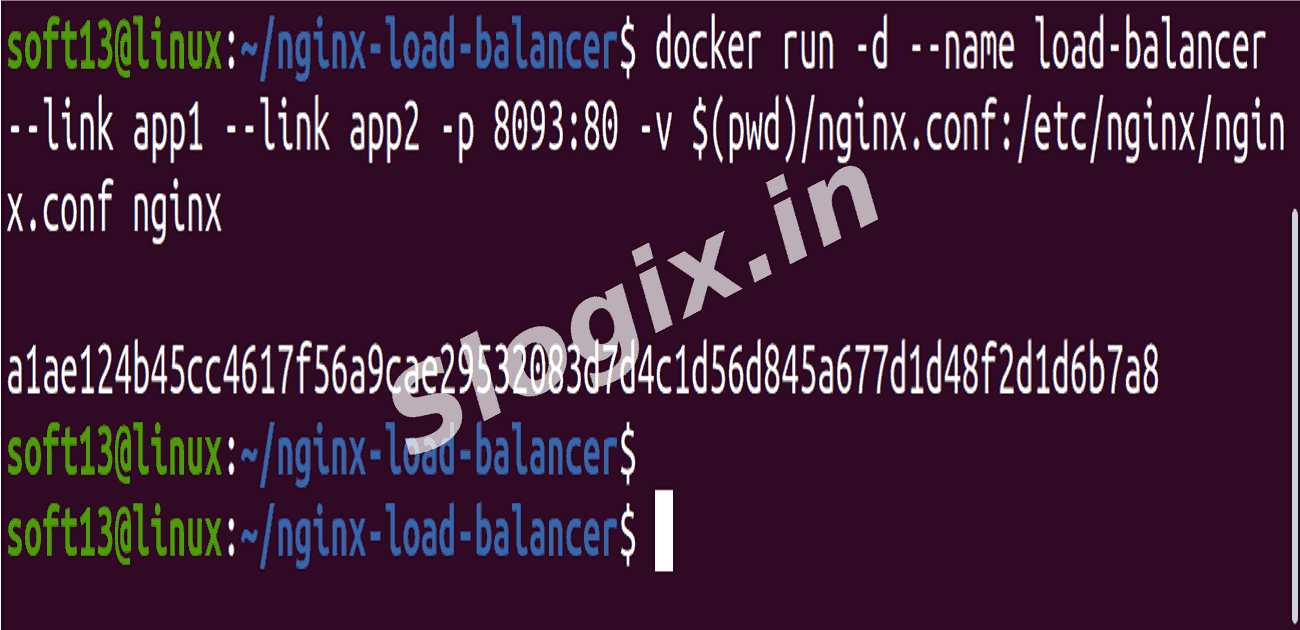
  •  Step 4: Run the NGINX Load Balancer Container
     Description: Start a new NGINX container that uses your custom configuration and connects to both backend apps.
     Command:
    docker run -d --name load-balancer --link app1 --link app2 -p 8093:80 -v $(pwd)/nginx.conf:/etc/nginx/nginx.conf nginx
                
     ✔ --link makes app1 & app2 reachable
     ✔ -v mounts custom config
     ✔ Port mapping: 8093 → 80
  •  Step 5: Test the Load Balancer
     Description: Access the container in the browser and refresh multiple times.
     Open:
     http://localhost:8093

     ➡ You should see alternating responses:
     This is APP1
     This is APP2
     This is APP1
     This is APP2
Screenshots
  • 387
  • 388
  • 389
  • 390
  • 391
  • 392
  • 393
  • 394
  • 395
  • 396
  • 397