-
Step 1 — Verify Java Installation
Description: Ensure Java JDK is installed on the Ubuntu system before using Jenkins.
Command:
java -version
javac -version
-
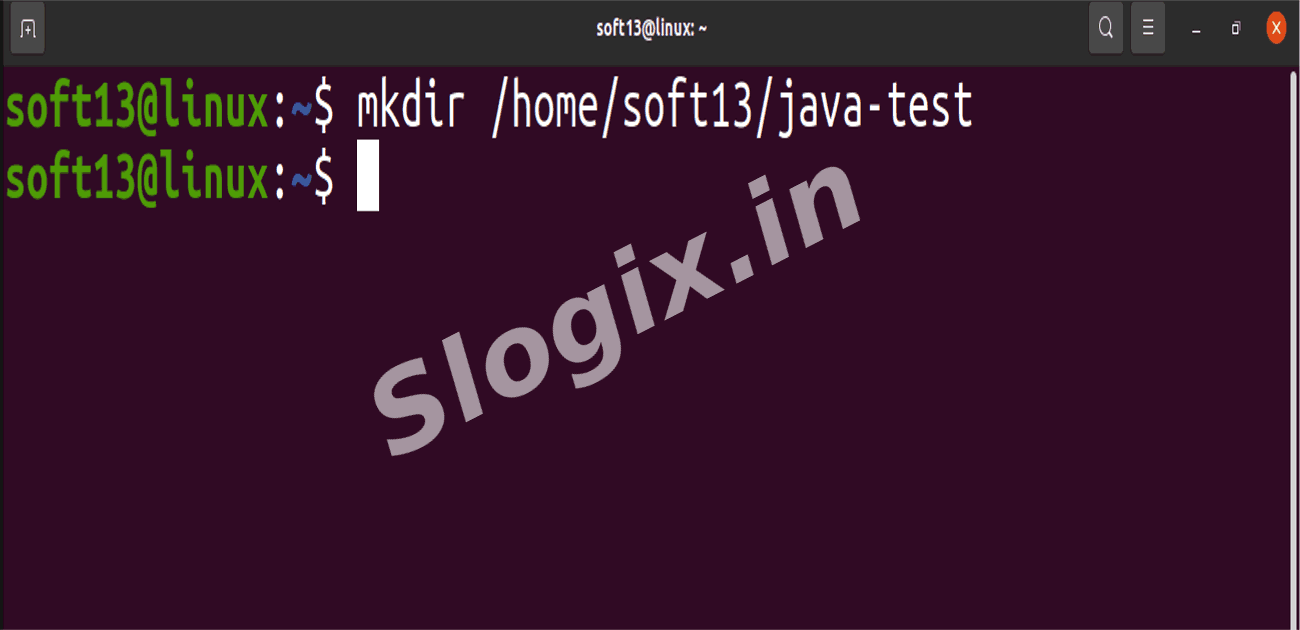
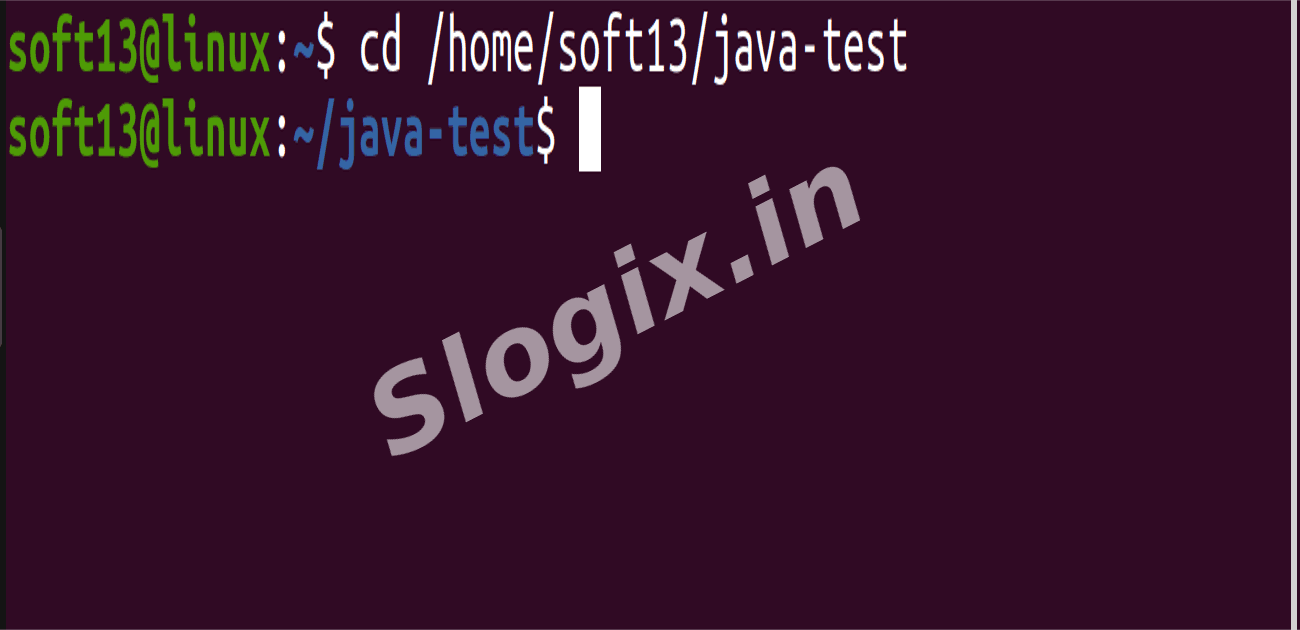
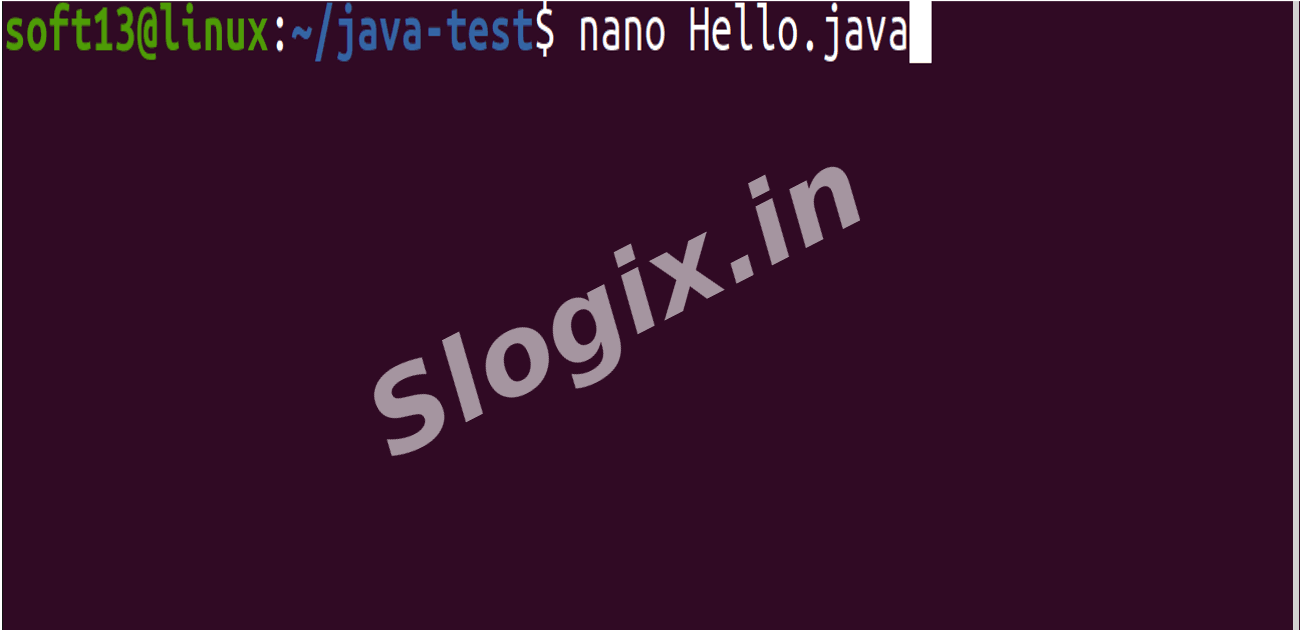
Step 2 — Create a Java Project Folder
Description: Create a directory and prepare a Java program file.
Commands:
mkdir /home/soft13/java-test
cd /home/soft13/java-test
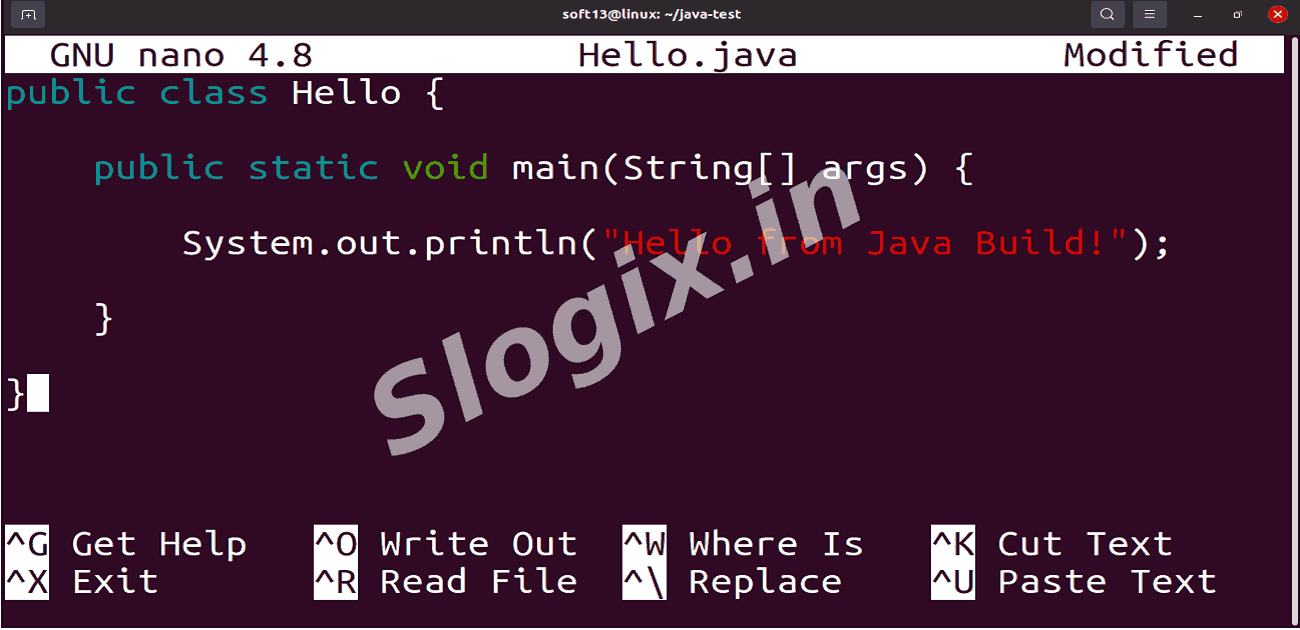
nano Hello.java
Paste Java code:
public class Hello {
    public static void main(String[] args) {
        System.out.println("Hello from Java Build!");
    }
}
-
Step 3 — Allow Jenkins Access to This Folder
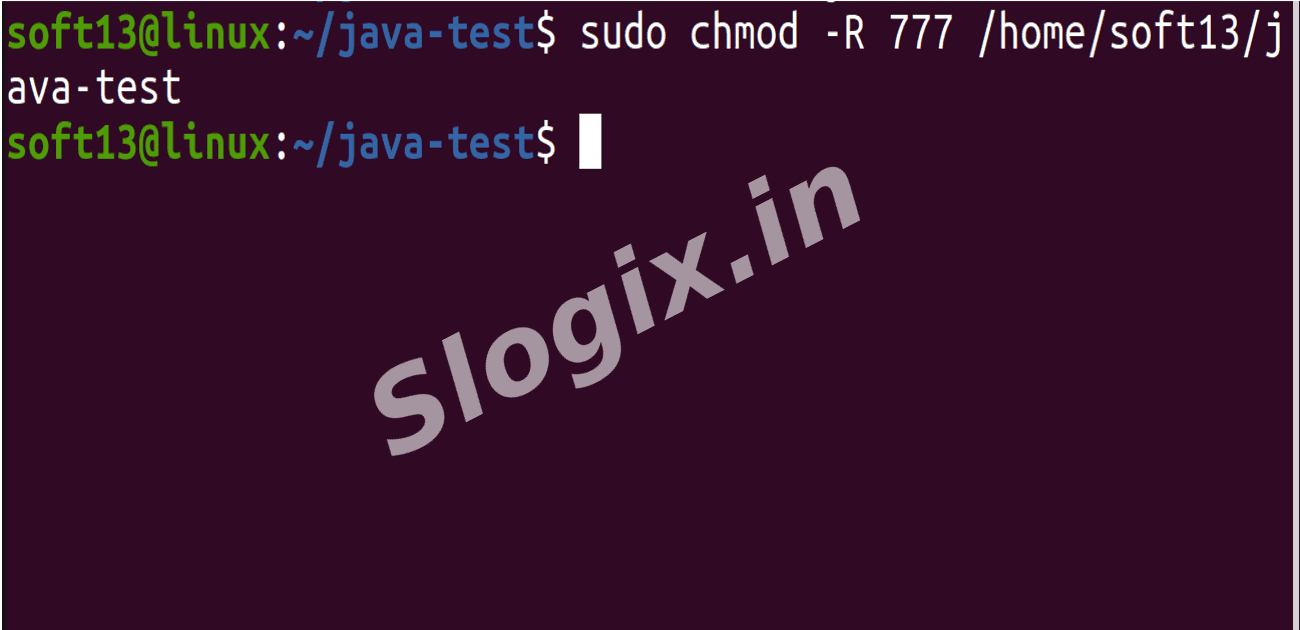
Description: Give permission so Jenkins can read and execute files.
Command:
sudo chmod -R 777 /home/soft13/java-test
-
Step 4 — Open Jenkins Dashboard
Description: In browser go to:
http://localhost:8080
-
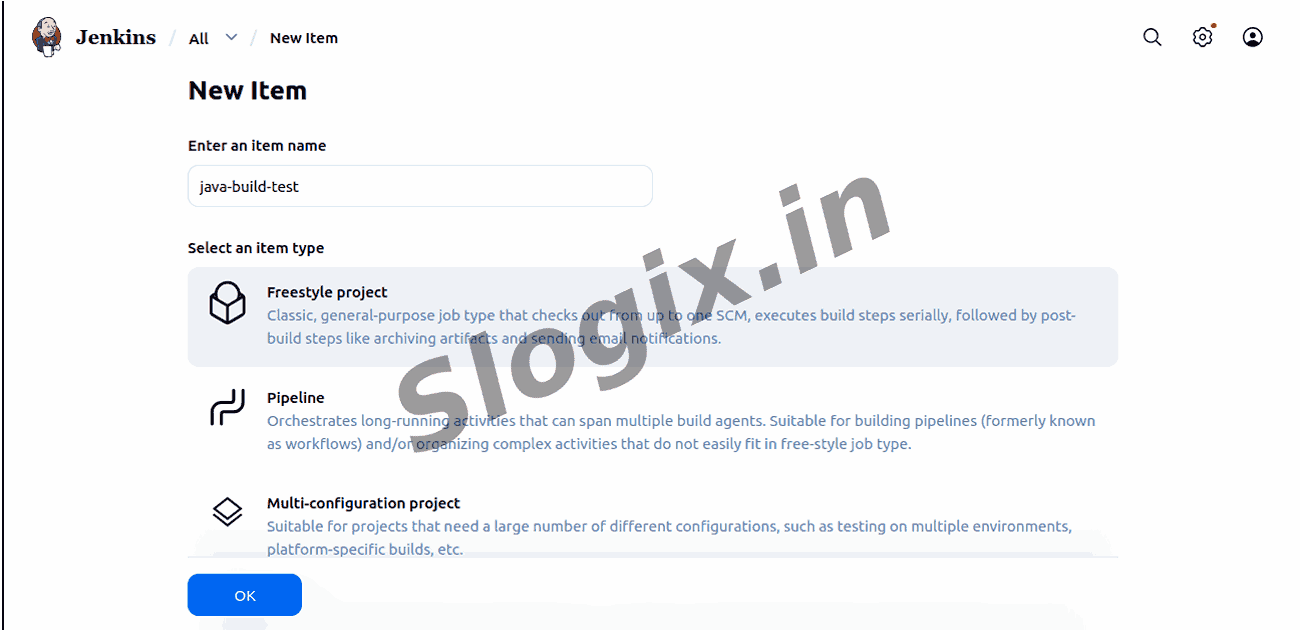
Step 5 — Create a New Jenkins Freestyle Job
Description: Click New Item, enter job name java-build-test, choose Freestyle project, click OK.
-
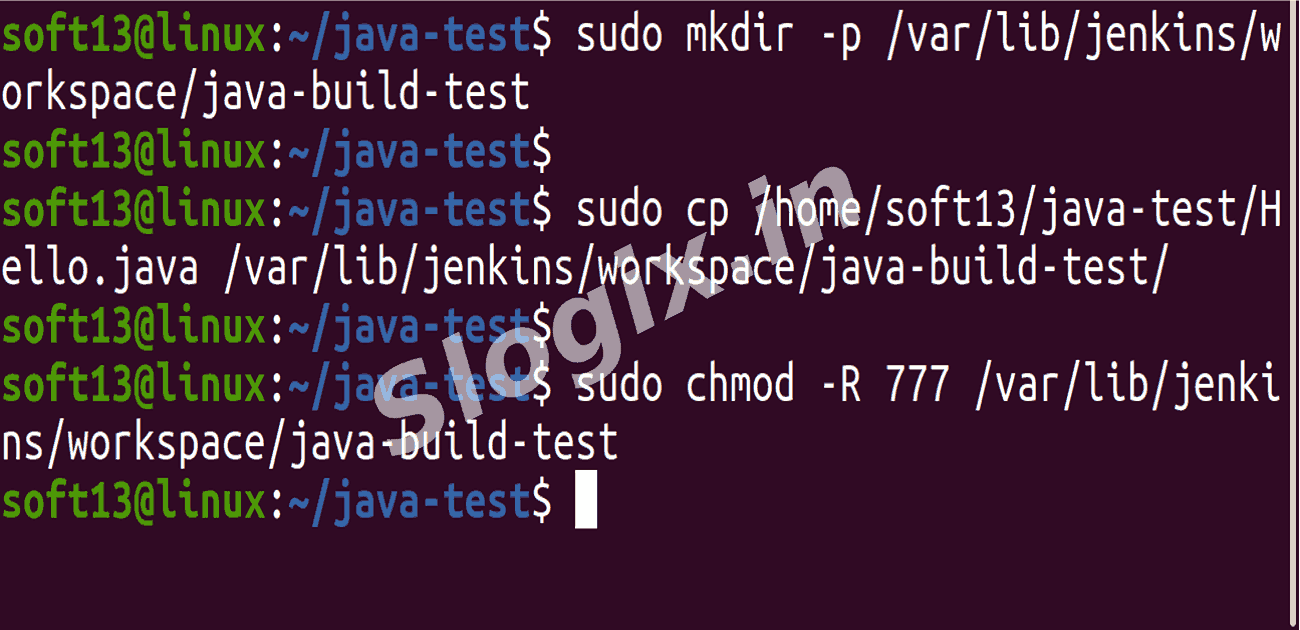
Step 6 — Move Project to Jenkins Workspace
Description: Jenkins must compile inside its own workspace.
Commands:
sudo mkdir -p /var/lib/jenkins/workspace/java-build-test
sudo cp /home/soft13/java-test/Hello.java /var/lib/jenkins/workspace/java-build-test/
sudo chmod -R 777 /var/lib/jenkins/workspace/java-build-test
-
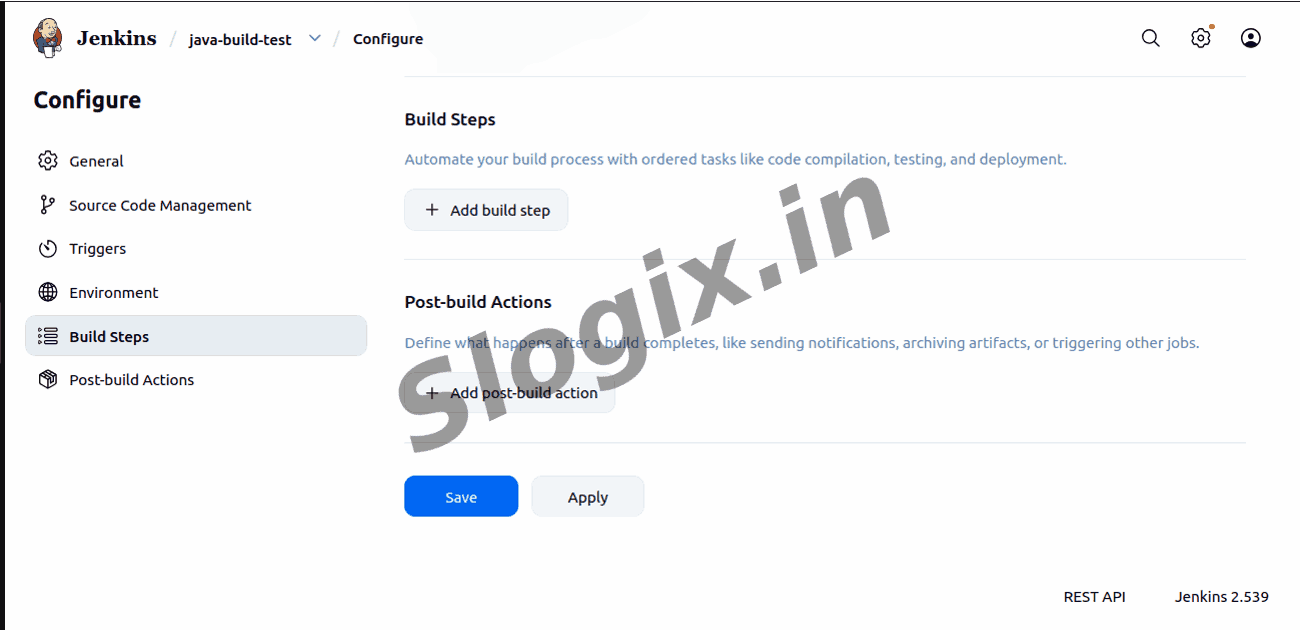
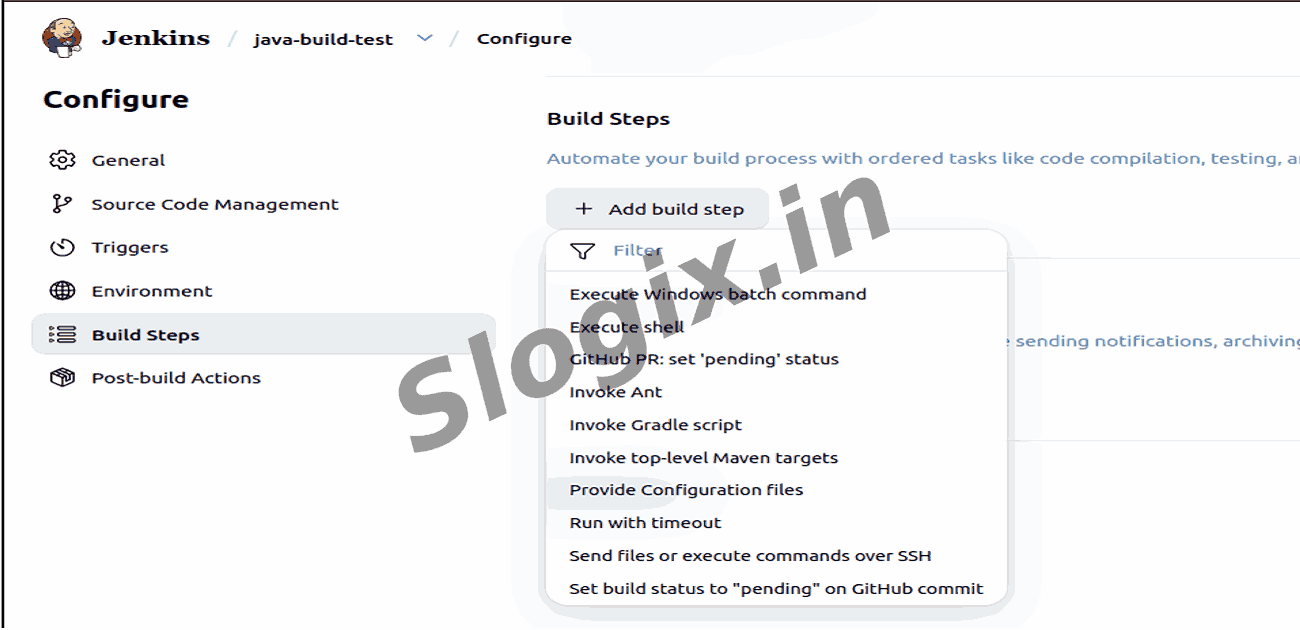
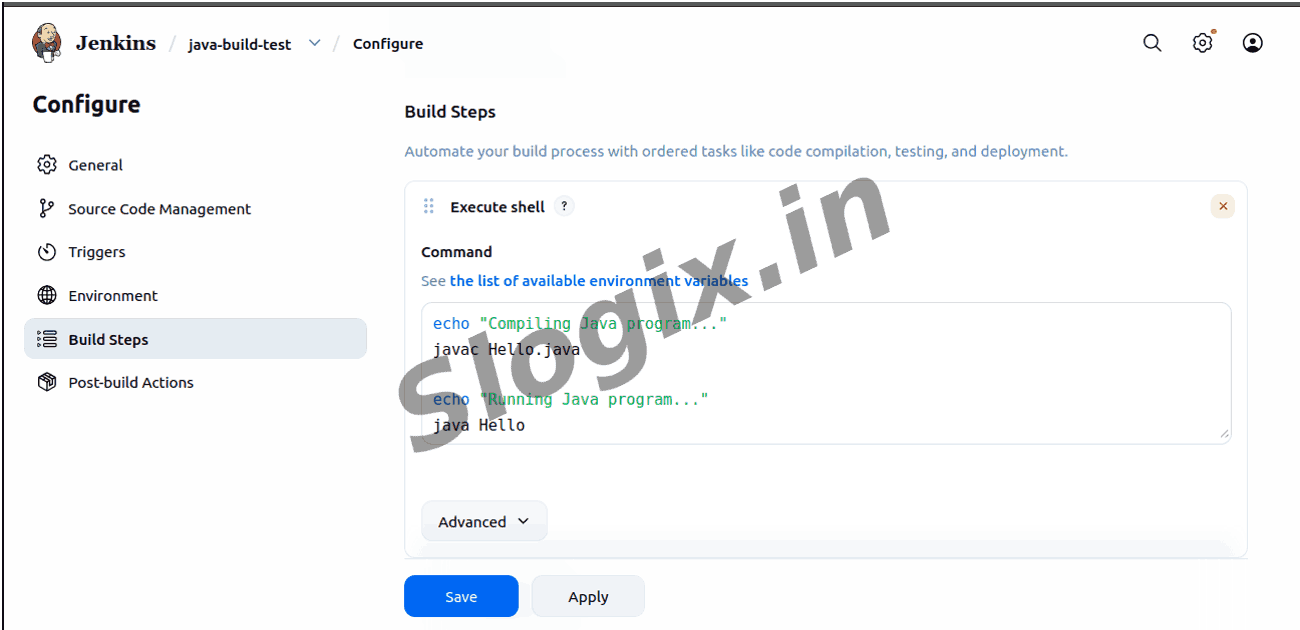
Step 7 — Add Build Step in Jenkins
Description: Scroll to Build → Click Add build step → Select Execute Shell, then paste:
echo "Compiling Java program..."
javac Hello.java

echo "Running Java program..."
java Hello
-
Step 8 — Save the Job
Description: Click Save to store pipeline settings.
-
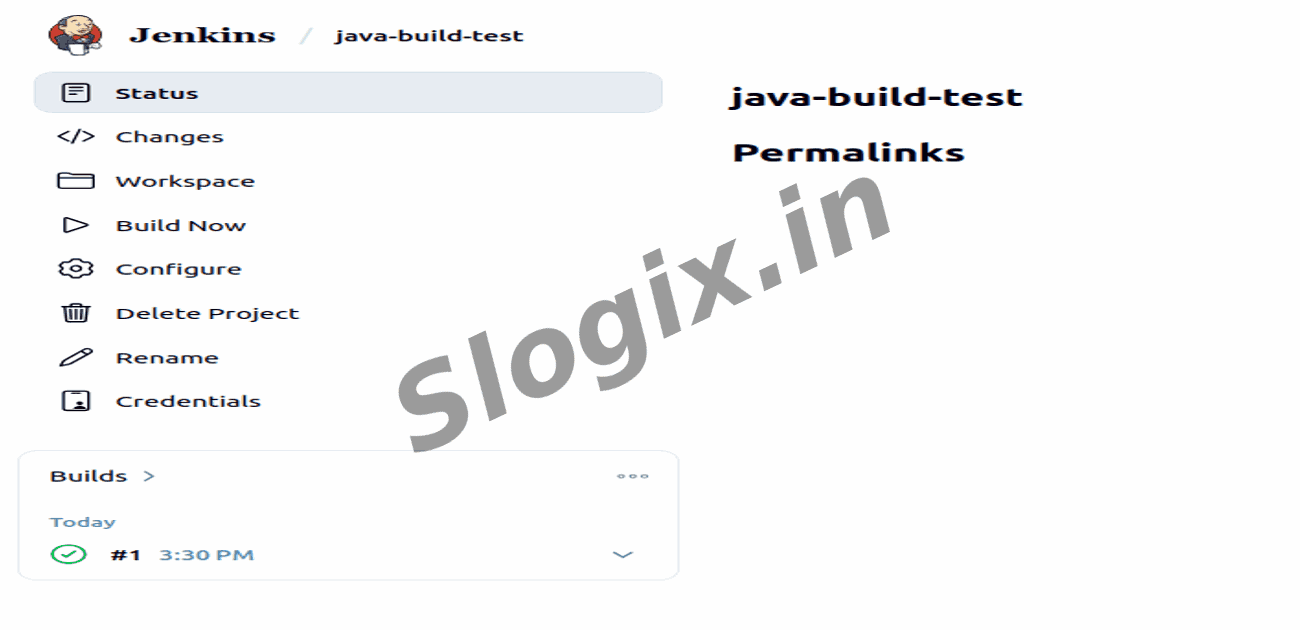
Step 9 — Run the Job
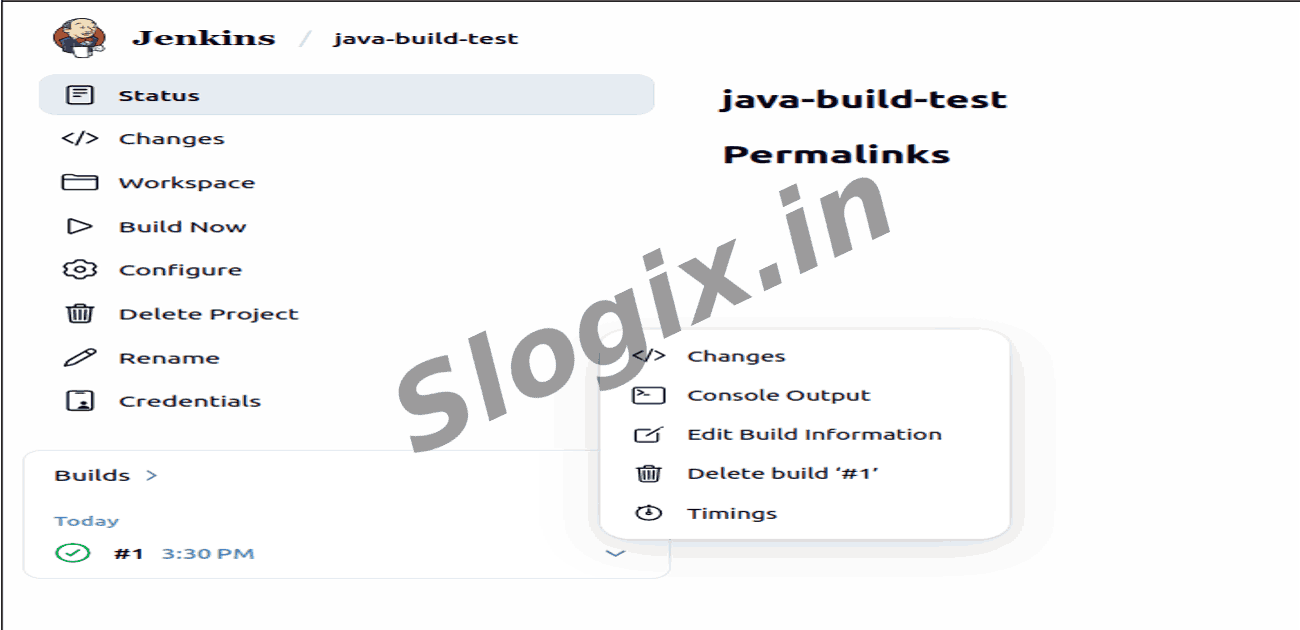
Description: Click Build Now to execute Java compile and run process.
-
Step 10 — Check the Result
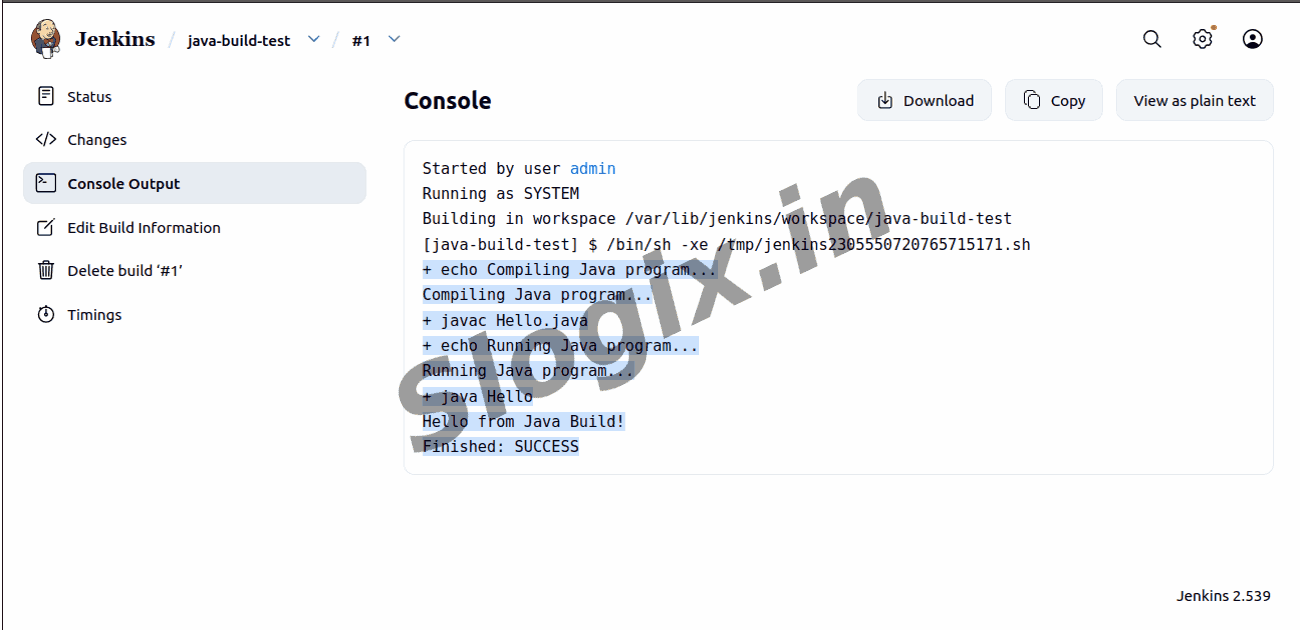
Description: Open Build #1 → Console Output, you should see:
Compiling Java program...
Running Java program...
Hello from Java Build!
Finished: SUCCESS
 Research Breakthrough Possible @S-Logix