How to Create a Jenkins Job that Clones a GitLab Repository and Lists its Contents?
Share
Condition for Create a Jenkins Job that Clones a GitLab Repository and Lists its Contents
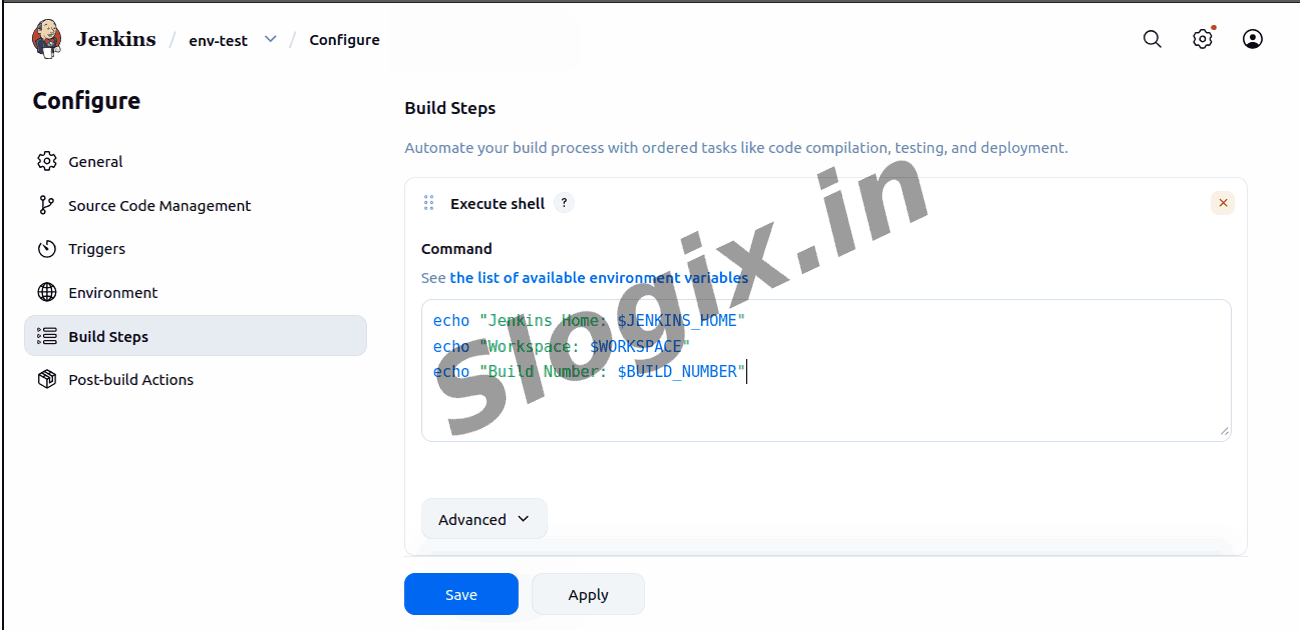
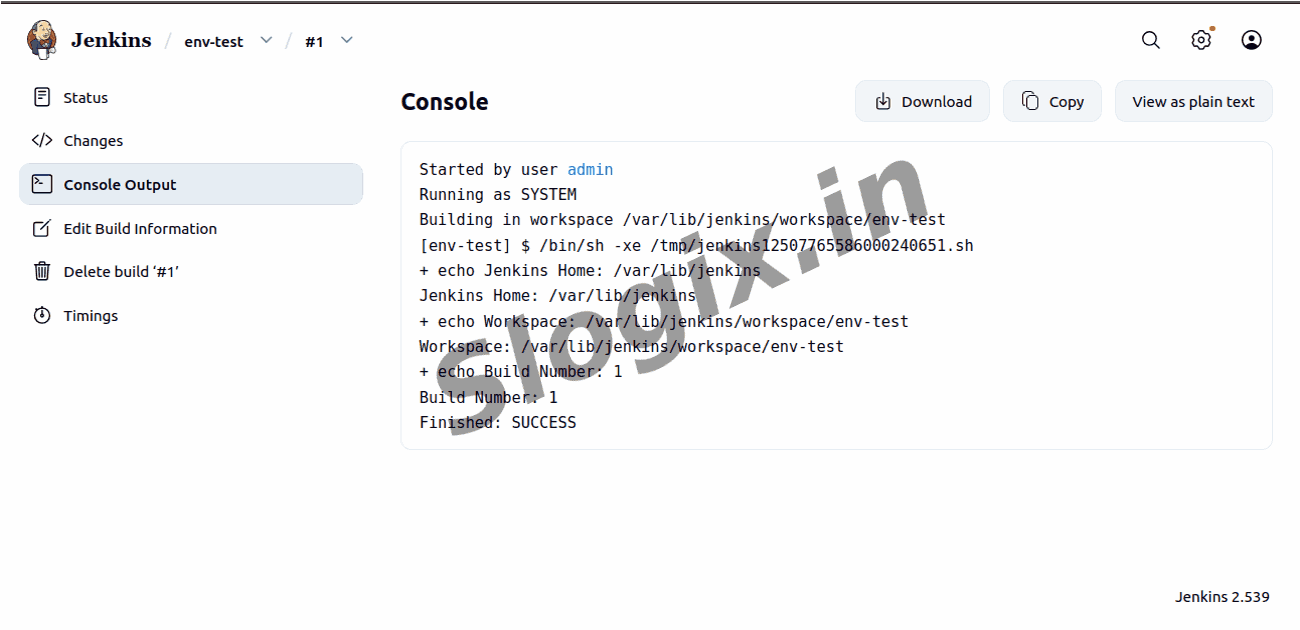
Description: Jenkins automatically provides several environment variables during a build, such as $JENKINS_HOME, $WORKSPACE, and $BUILD_NUMBER. These variables help you identify the Jenkins home directory, the job workspace, and the build number. By printing them in a job, you can verify the environment setup and use these variables in scripts or pipelines.
Steps
Step 1 — Choose a Public GitLab Repository
Select any public GitLab repository. Example:
https://gitlab.com/rajagurumoorthy2002/python-ci-test.git
Step 2 — Create a New Jenkins Job
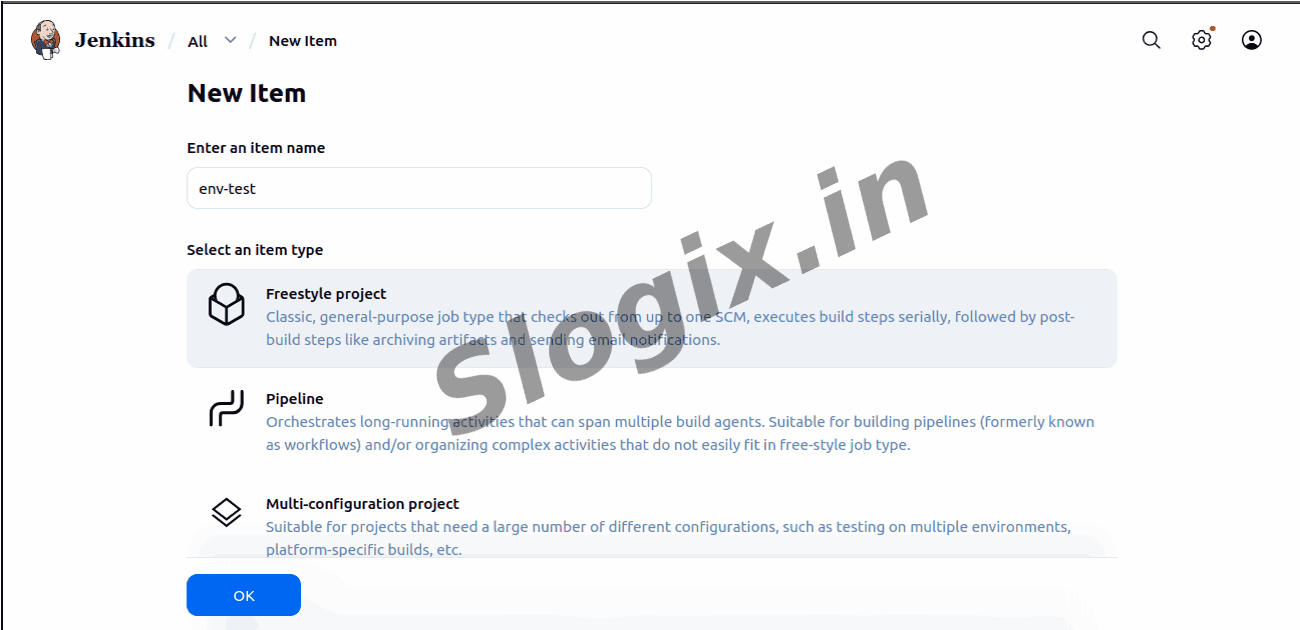
Open Jenkins Dashboard → Click New Item
Enter Job Name: gitlab-clone
Select Freestyle Project → Click OK
Step 3 — Configure GitLab Repository
Scroll to Source Code Management → Select Git
In Repository URL, enter:
https://gitlab.com/rajagurumoorthy2002/python-ci-test.git
Under Branches to build, enter: */main
Since the repository is public, no credentials are required
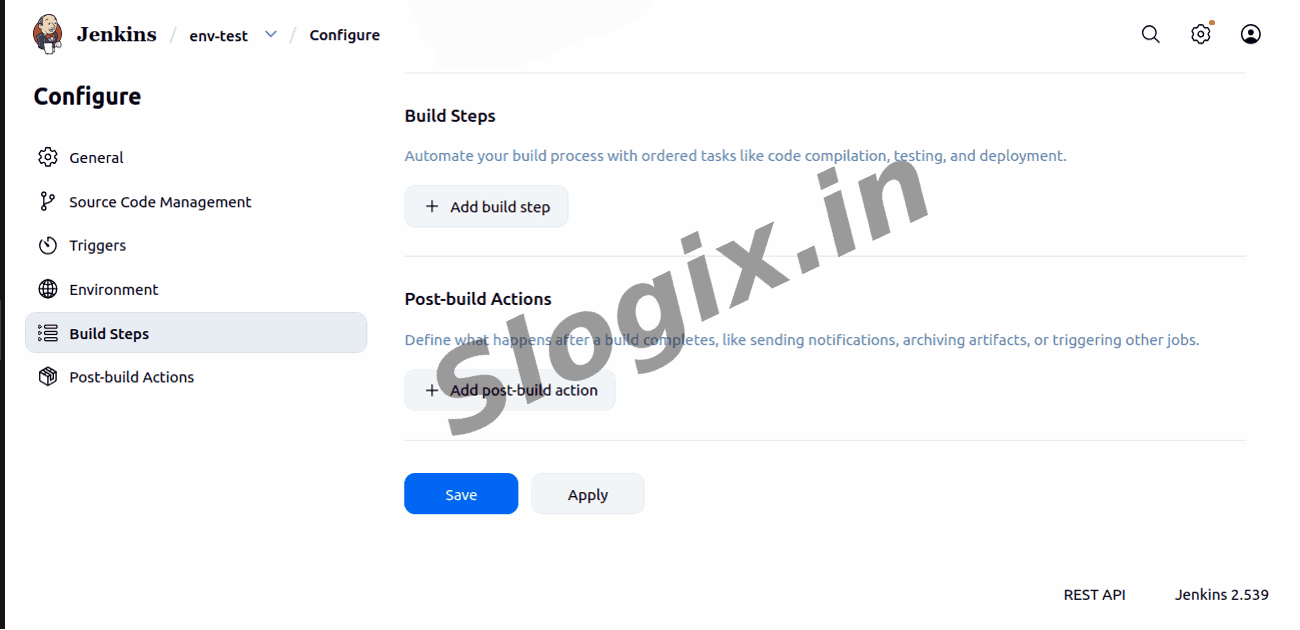
Step 4 — Add Build Step
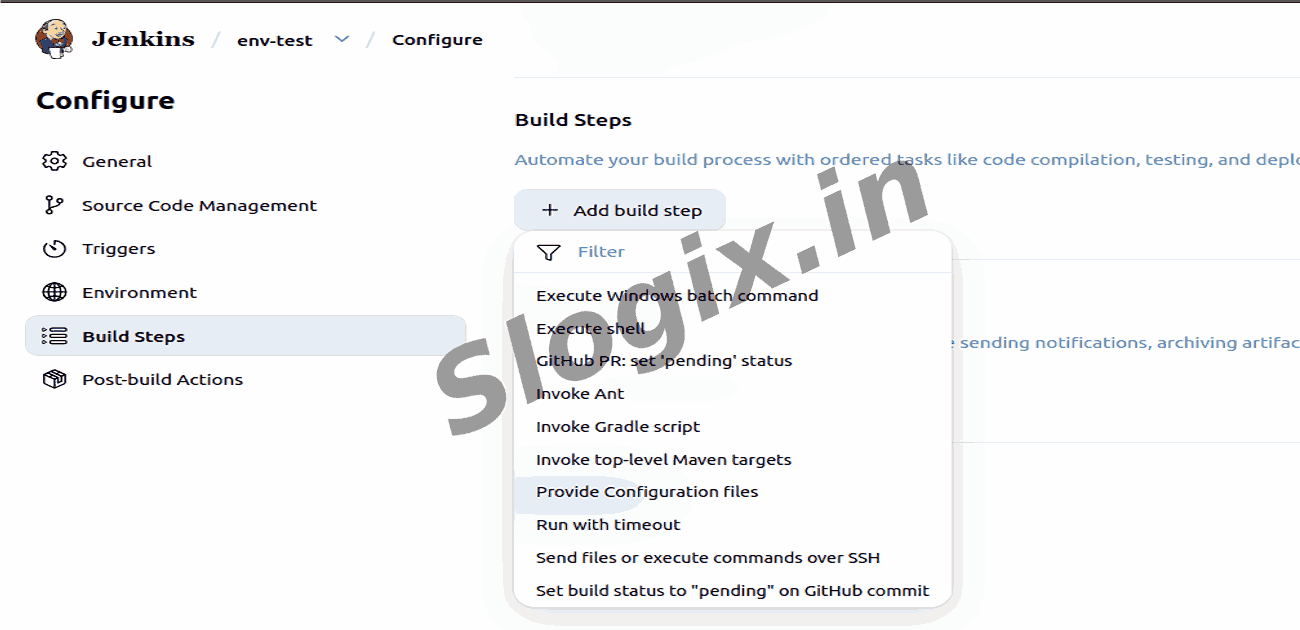
Scroll to Build → Click Add build step → Execute shell
Enter the following command to list files in the workspace:
ls -l
Step 5 — Save the Job
Click Save
Step 6 — Run the Job
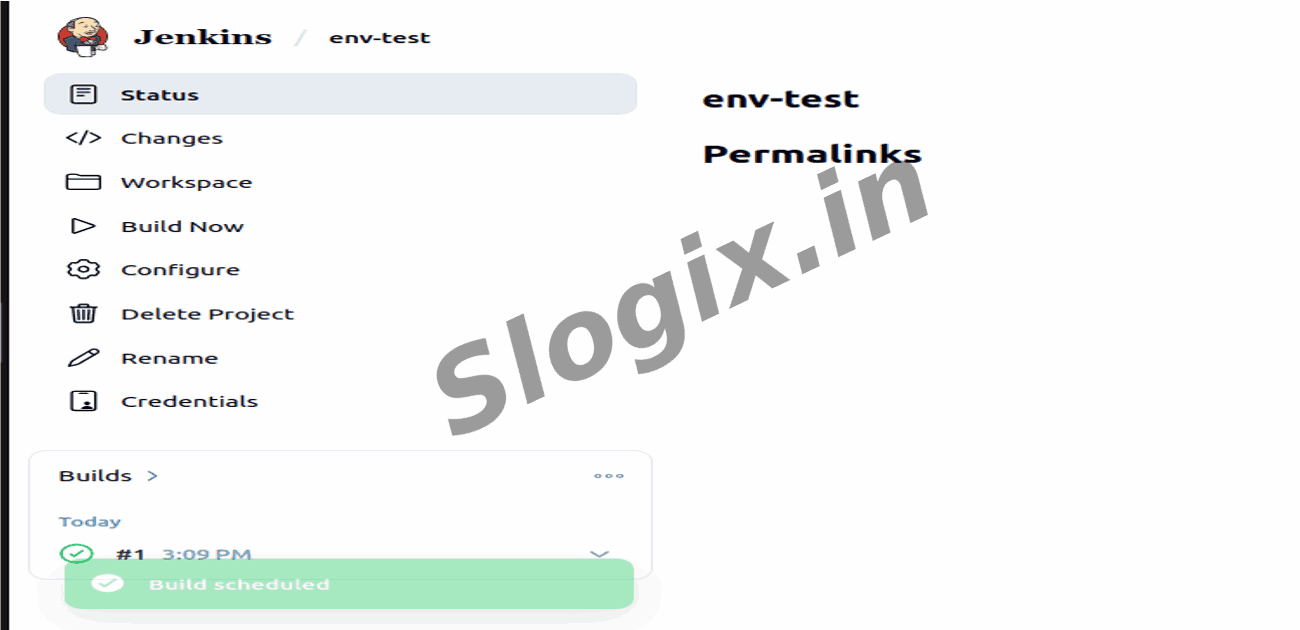
Click Build Now on the left panel
Step 7 — Check Console Output
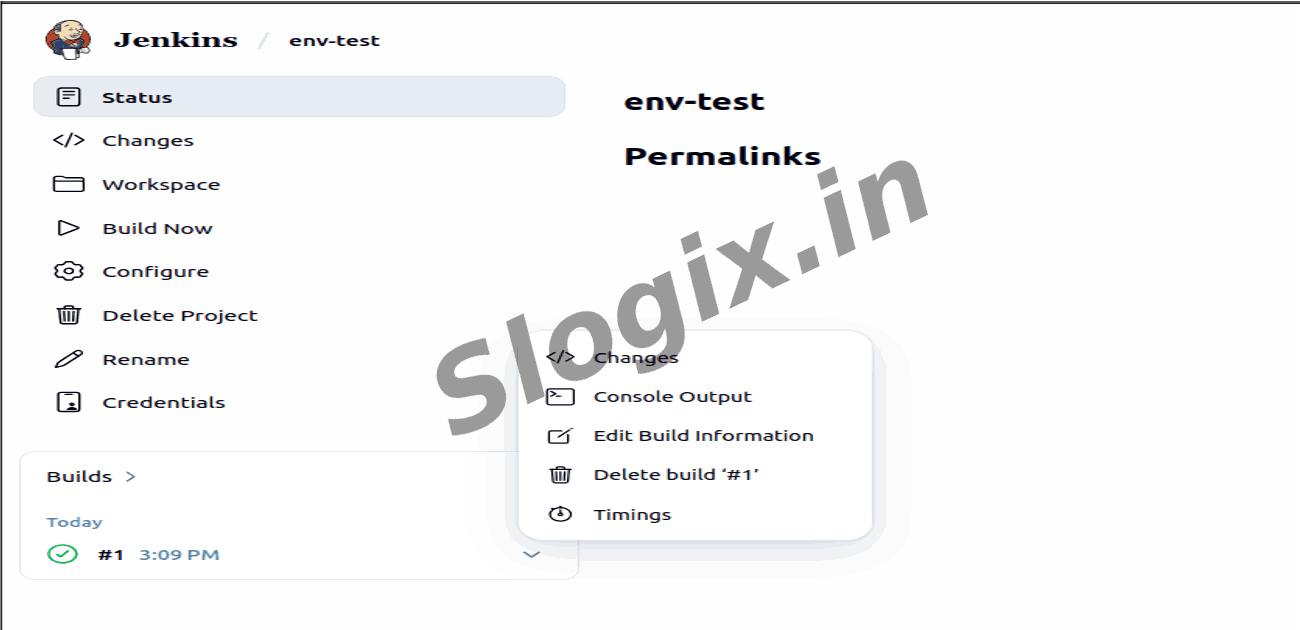
Go to Build History → Click Build #1 → Console Output
You should see:
Git cloning commands executing
Files from the repository listed via ls -l
Job completes with Finished: SUCCESS
Goal Achieved
The job successfully clones a GitLab repository into Jenkins workspace and lists its contents, making it ready for further build, test, or deployment steps.
 Research Breakthrough Possible @S-Logix