List of Topics:
Location Research Breakthrough Possible @S-Logix pro@slogix.in

Office Address

Social List

How to Configure a Jenkins Job to Automatically Trigger Another Job After a Successful Build?

Jenkins

Condition for Configure a Jenkins Job to Automatically Trigger Another Job After a Successful Build

  • Description:
    This task helps you to create a Jenkins job that automatically triggers another job after it completes. You will create Job A, which initiates the build, and Job B, which runs automatically after Job A succeeds. This demonstrates how Jenkins enables chained automation and multi-stage pipelines by connecting jobs based on build results.

Steps

  •  Step 1 — Create Job B (Triggered Job)
     Description: Create the job that will be executed automatically by another job.
     Go to Jenkins Dashboard
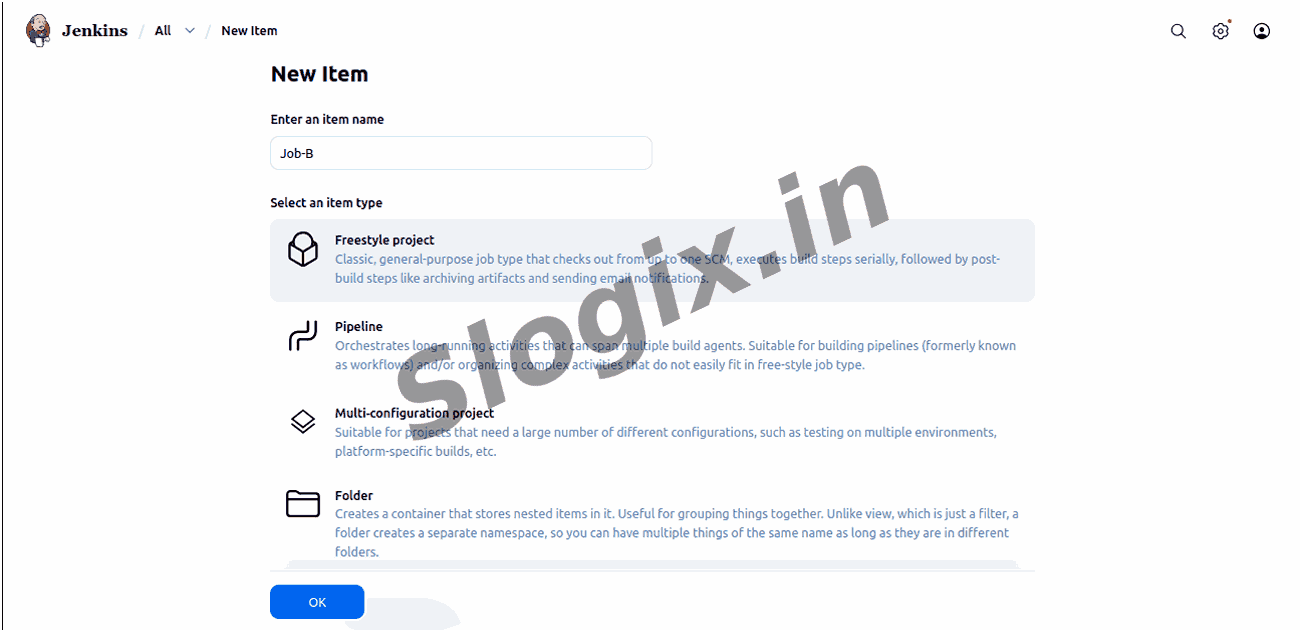
     Click New Item
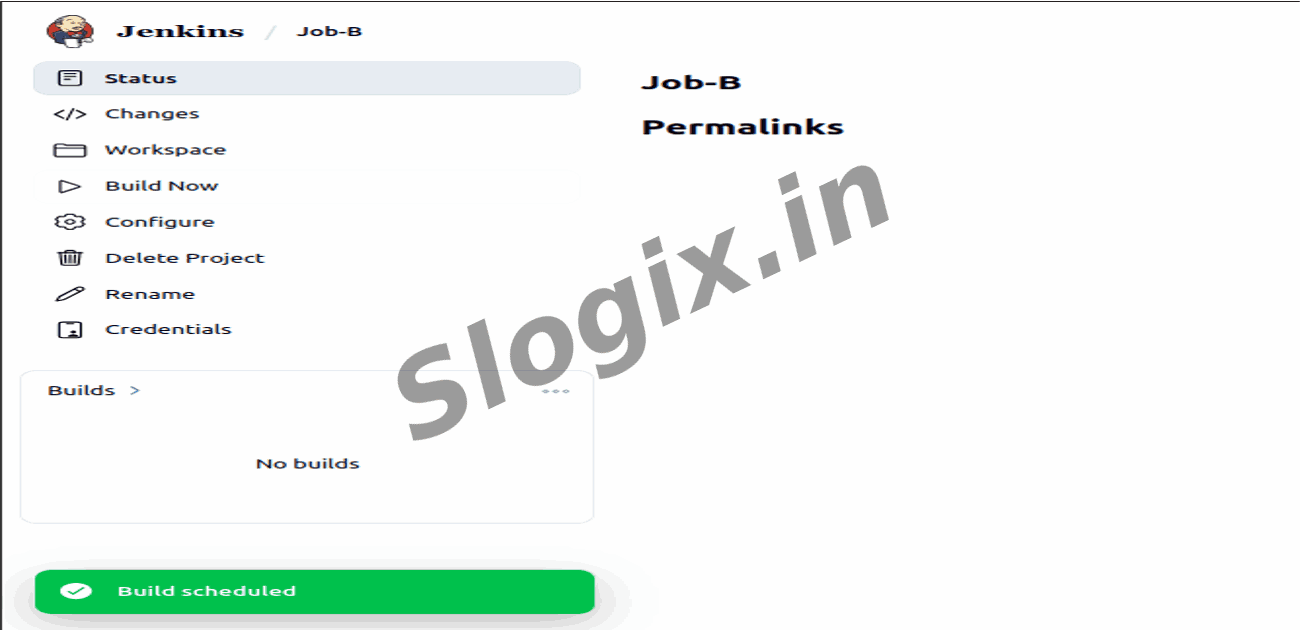
     Enter name: Job-B
     Select Freestyle project → OK
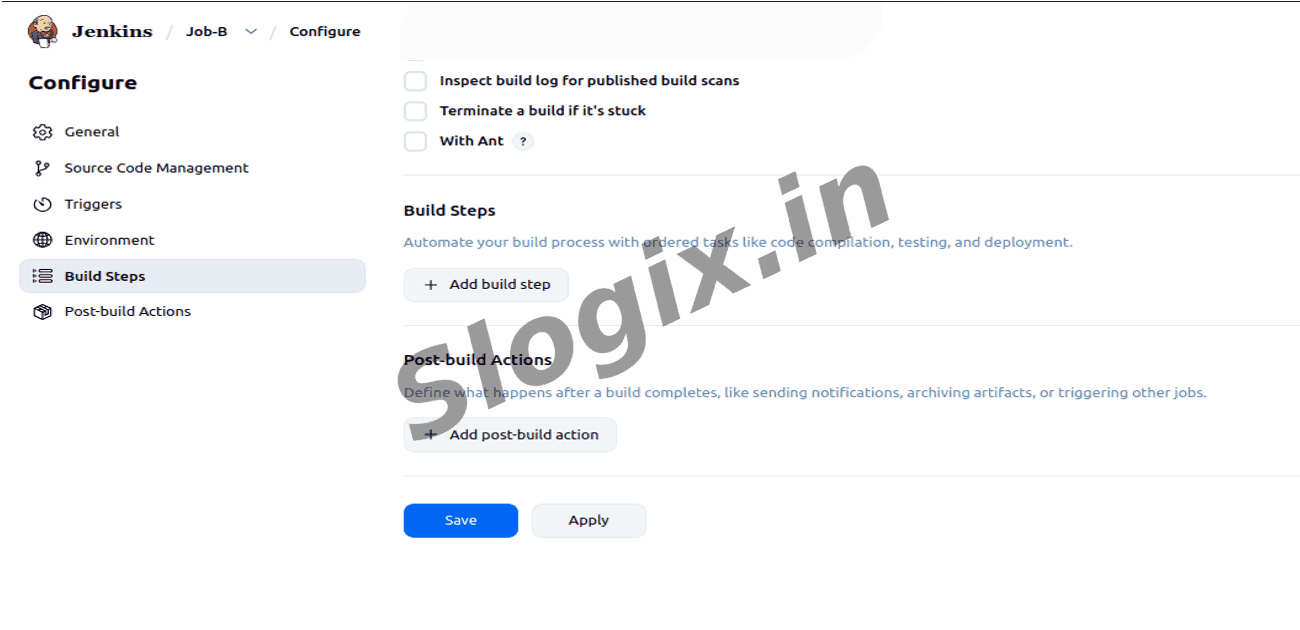
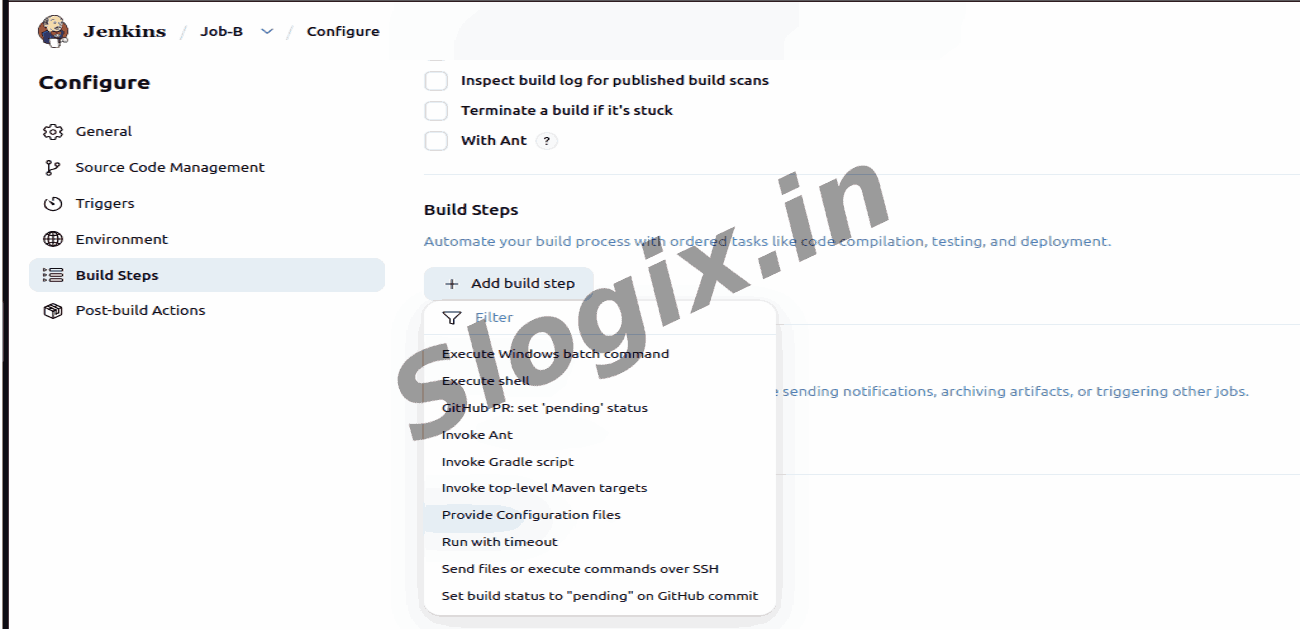
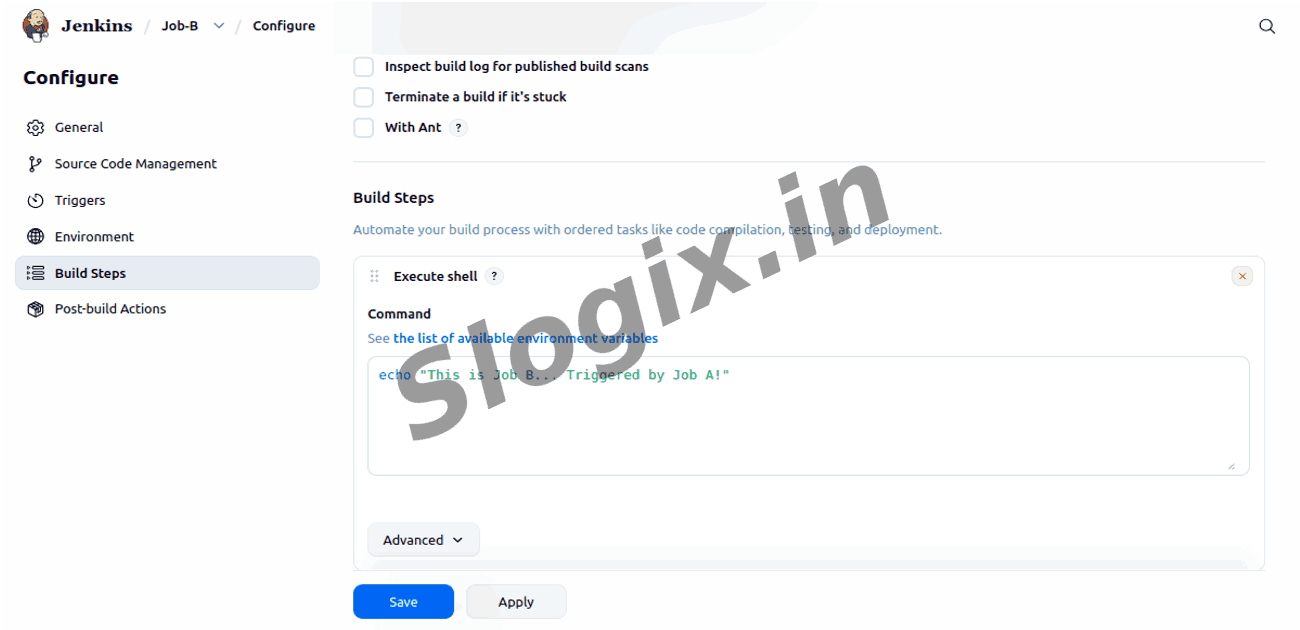
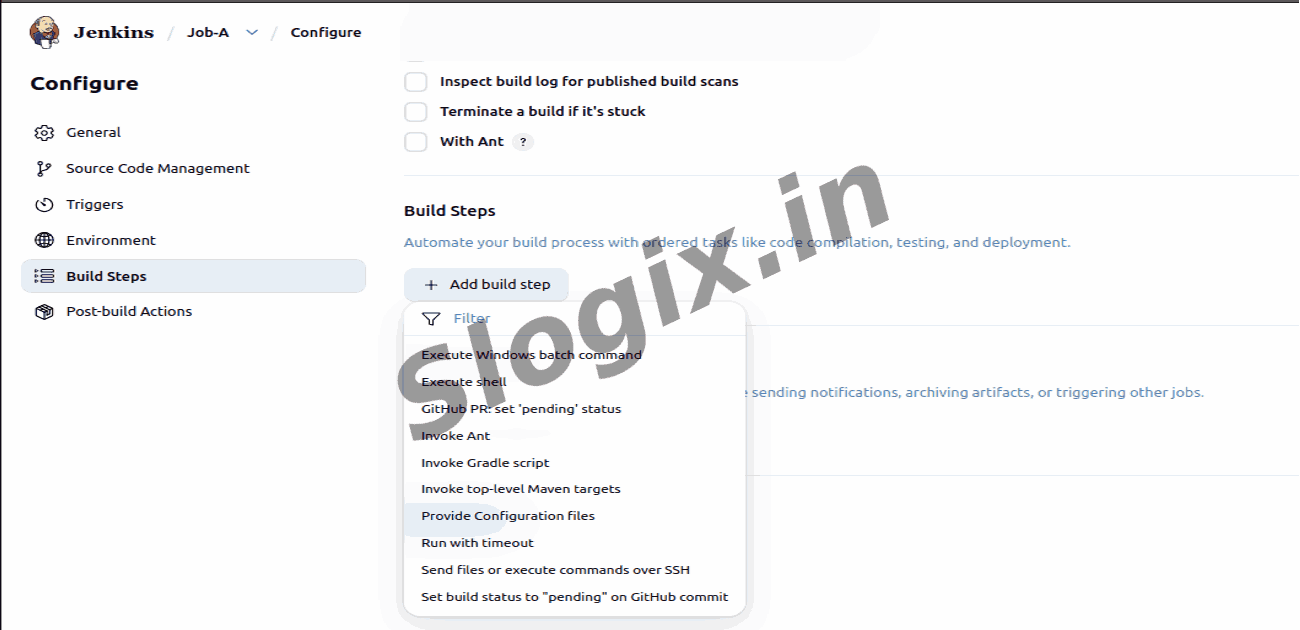
     Scroll to Build → Add build step → Execute shell
     Paste:
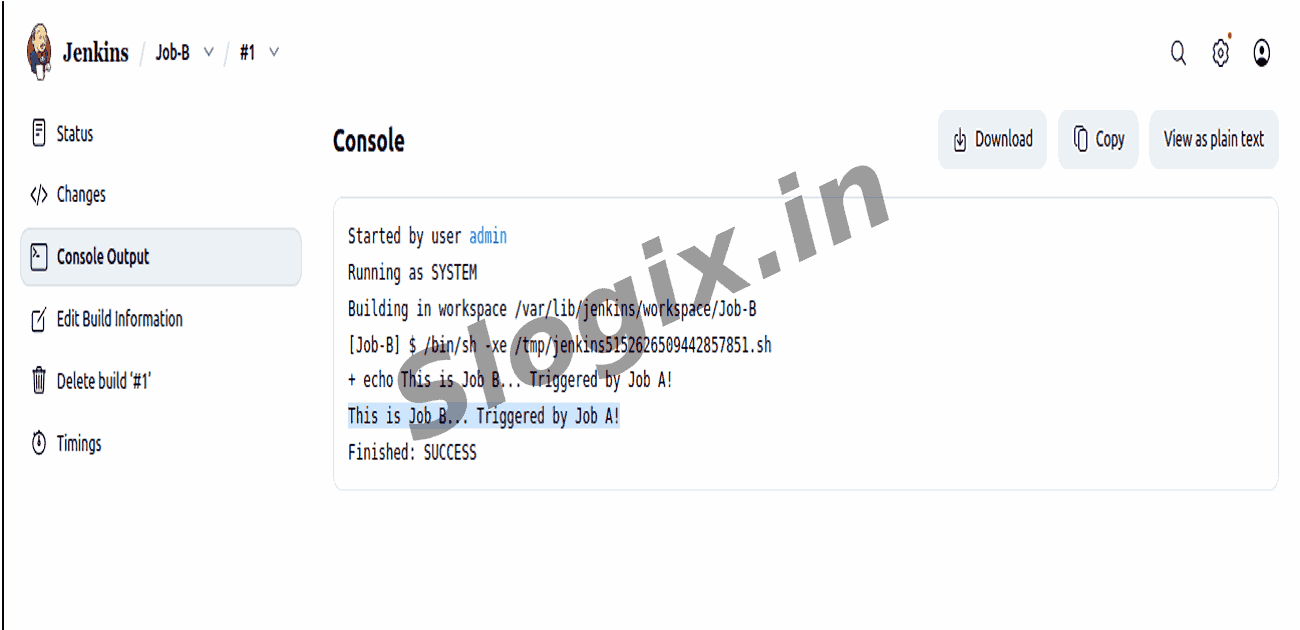
    echo "This is Job B... Triggered by Job A!"
     Click Save
  •  Step 2 — Create Job A (Triggering Job)
     Description: Create the job that initiates the process and triggers Job B.
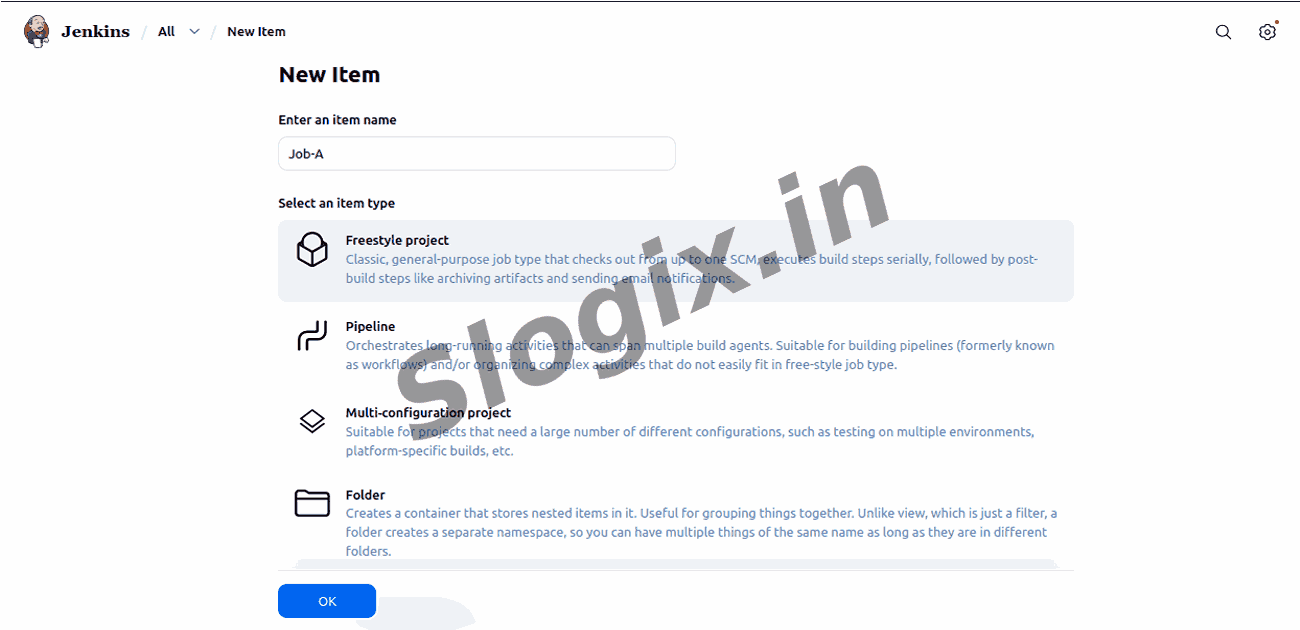
     Click New Item
     Enter name: Job-A
     Select Freestyle project → OK
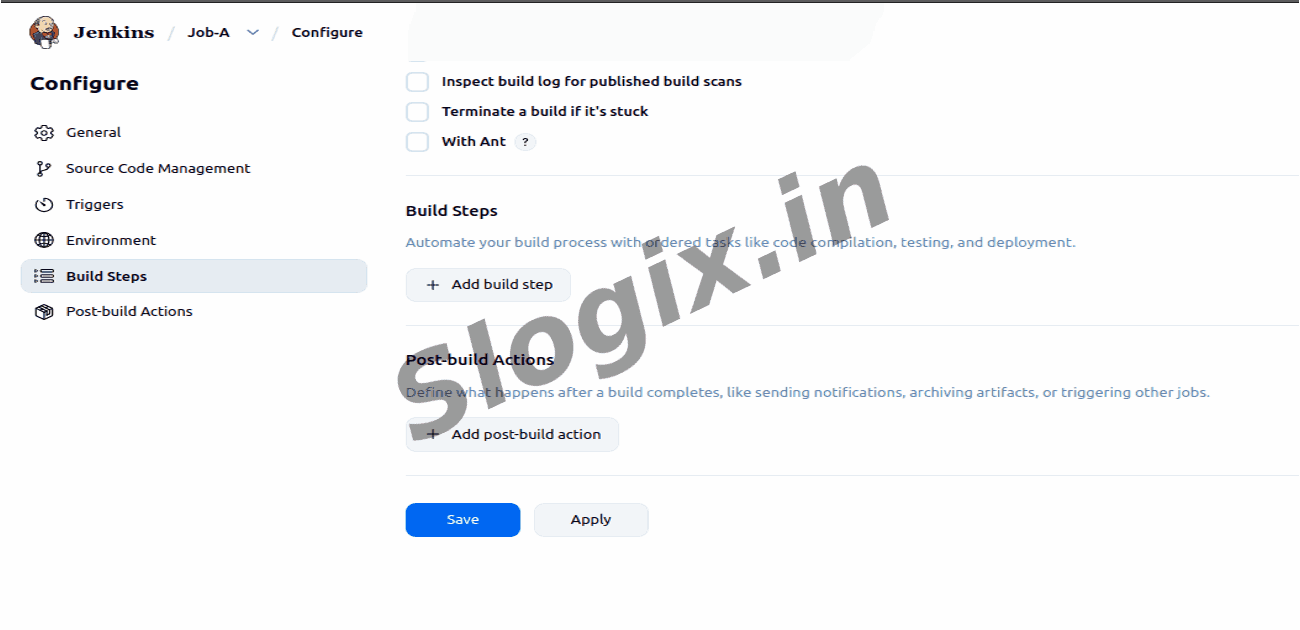
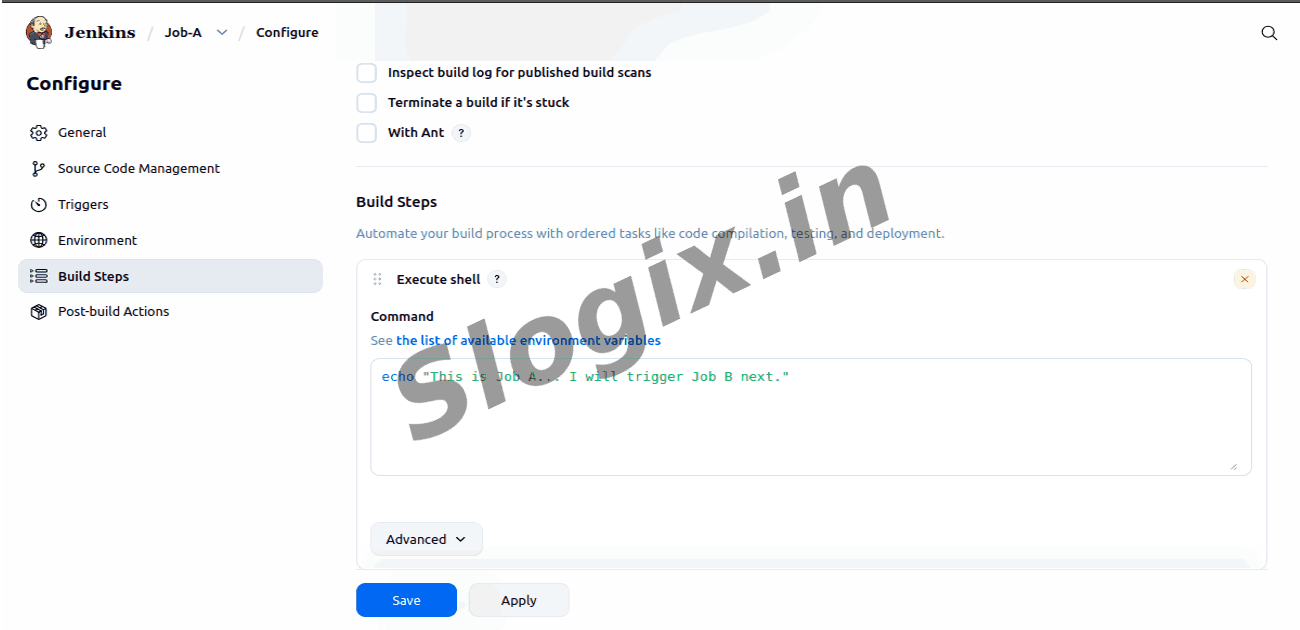
     Add build step → Execute shell
     Paste:
    echo "This is Job A... I will trigger Job B next."
  •  Step 3 — Add Post-Build Trigger in Job A
     Description: Configure Job A to trigger Job B after successful execution.
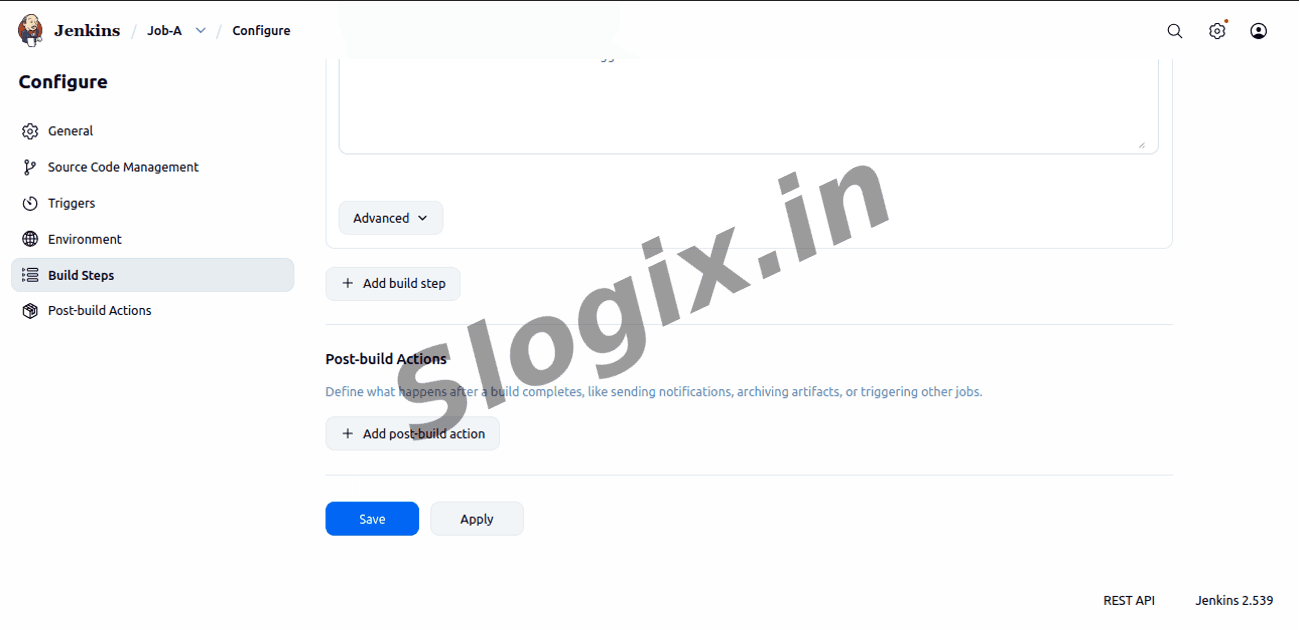
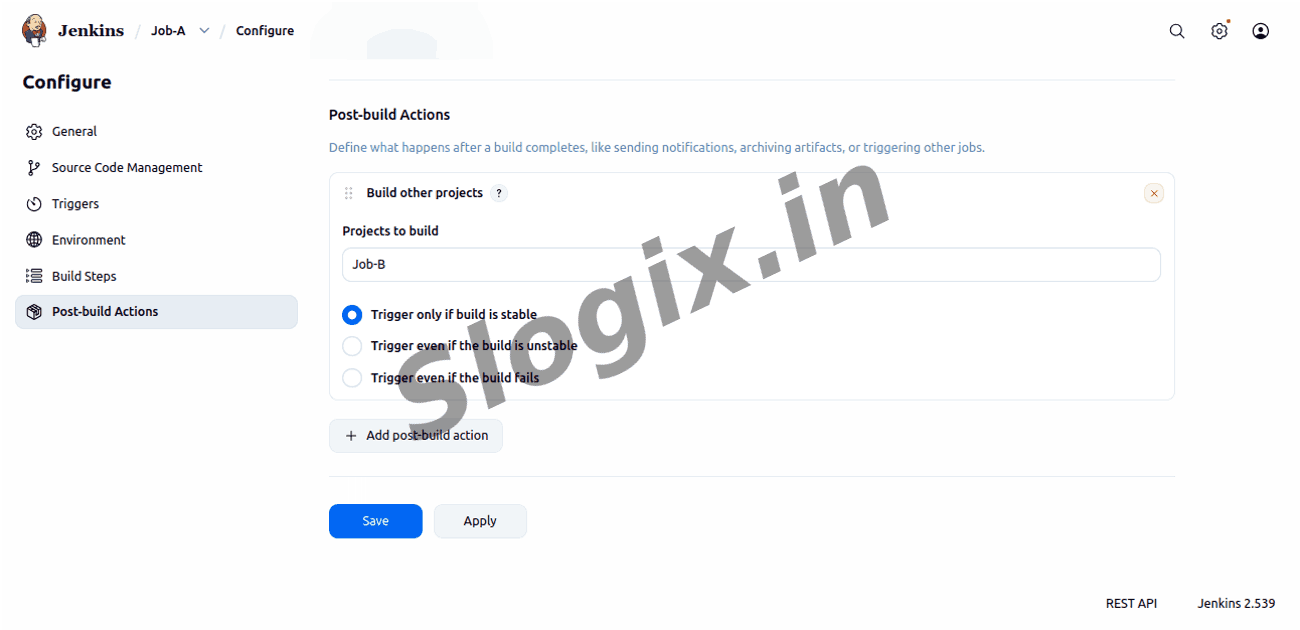
     In Job A settings → Scroll to Post-build Actions
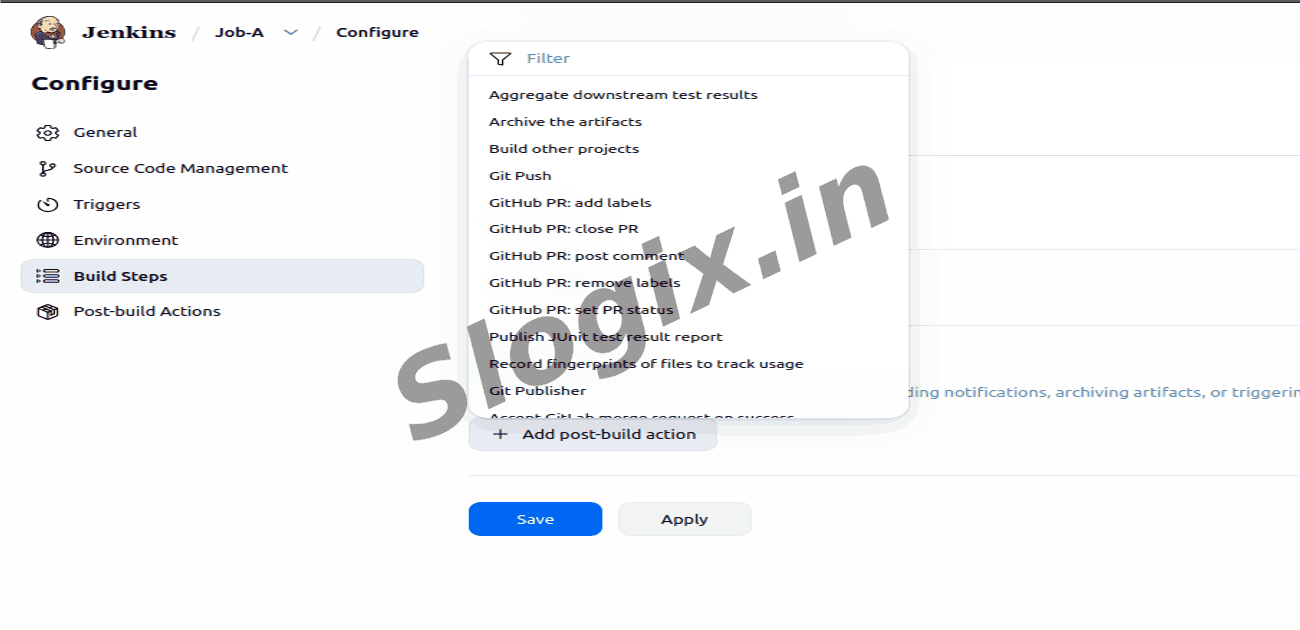
     Click Add post-build action
     Select Build other projects
  •  Step 4 — Configure the Trigger
     Description: Specify which job should run and when.
     In Projects to build → enter: Job-B
     Under Trigger only if build succeeds select:
     Trigger only if build is stable (recommended)
     Click Save
  •  Step 5 — Run Job A and Verify the Trigger
     Description: Test the configuration and ensure Job B runs automatically.
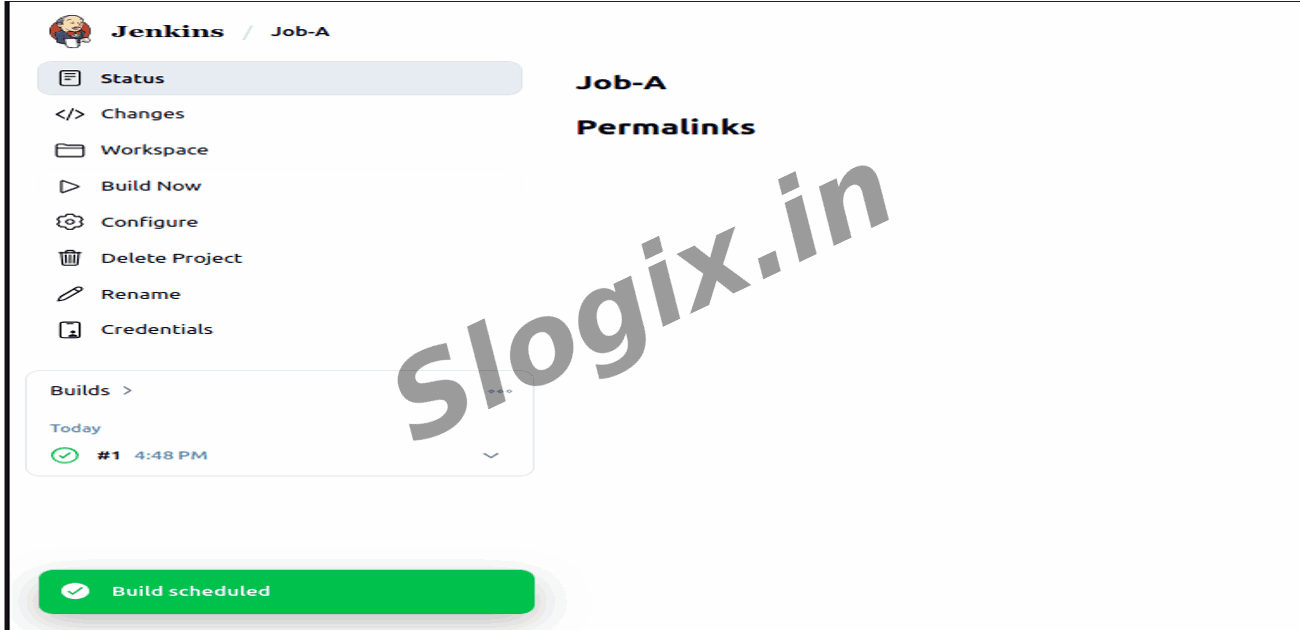
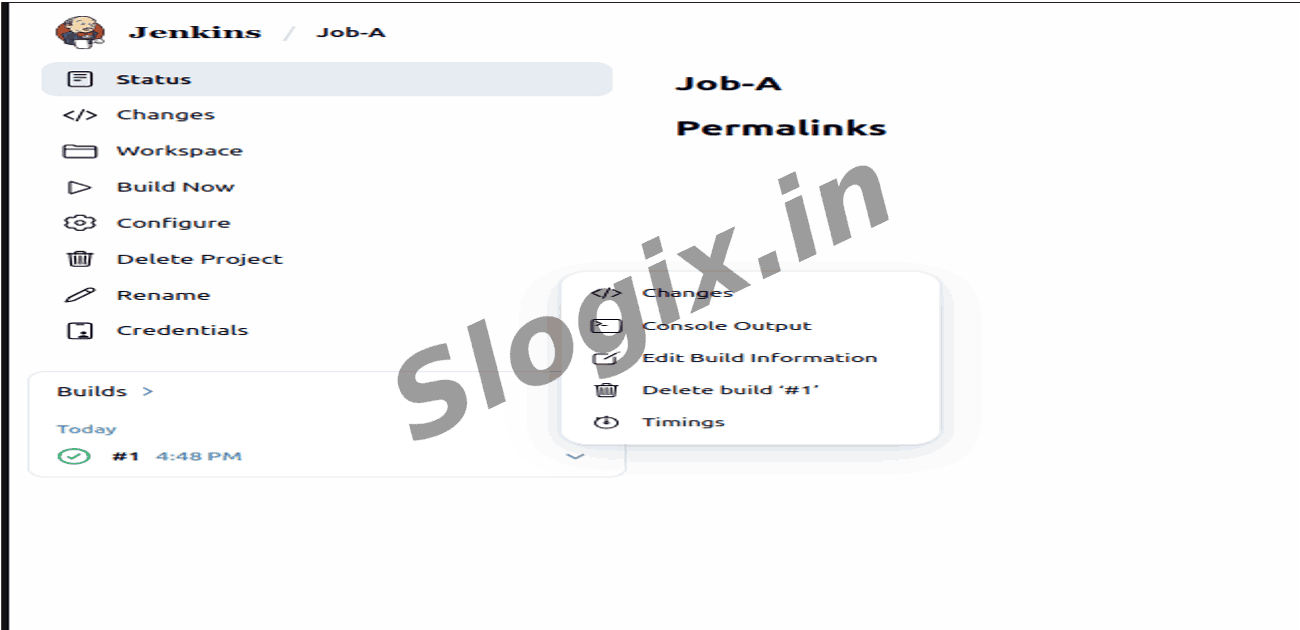
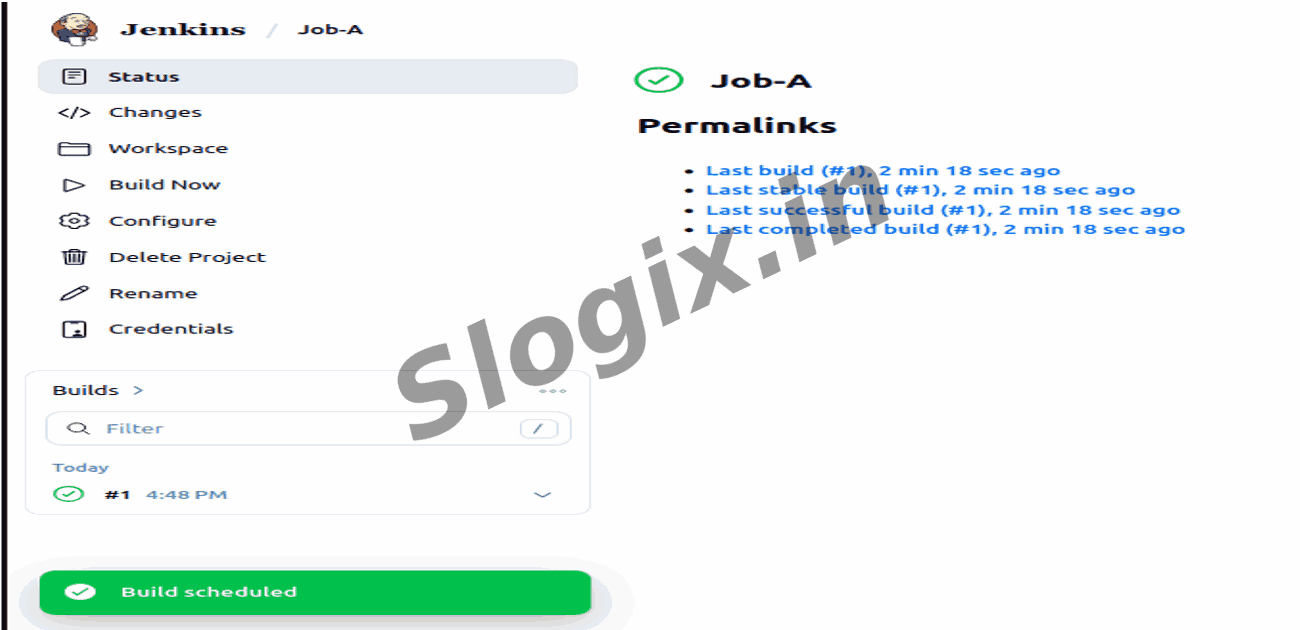
     Open Job A
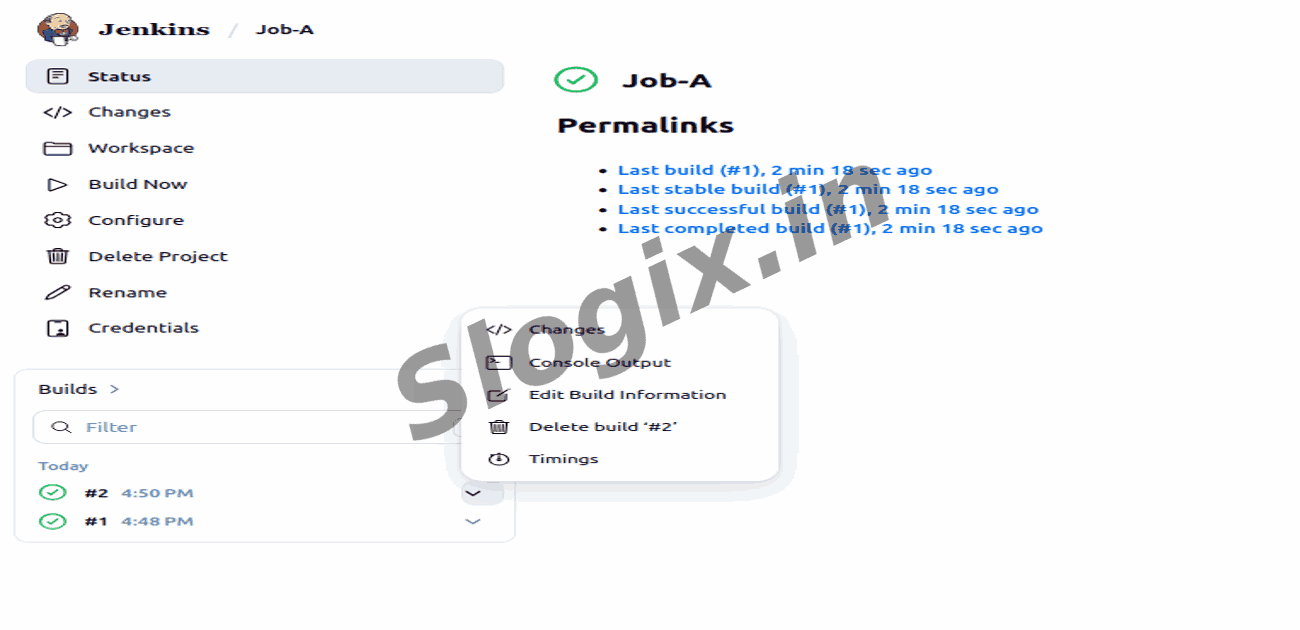
     Click Build Now
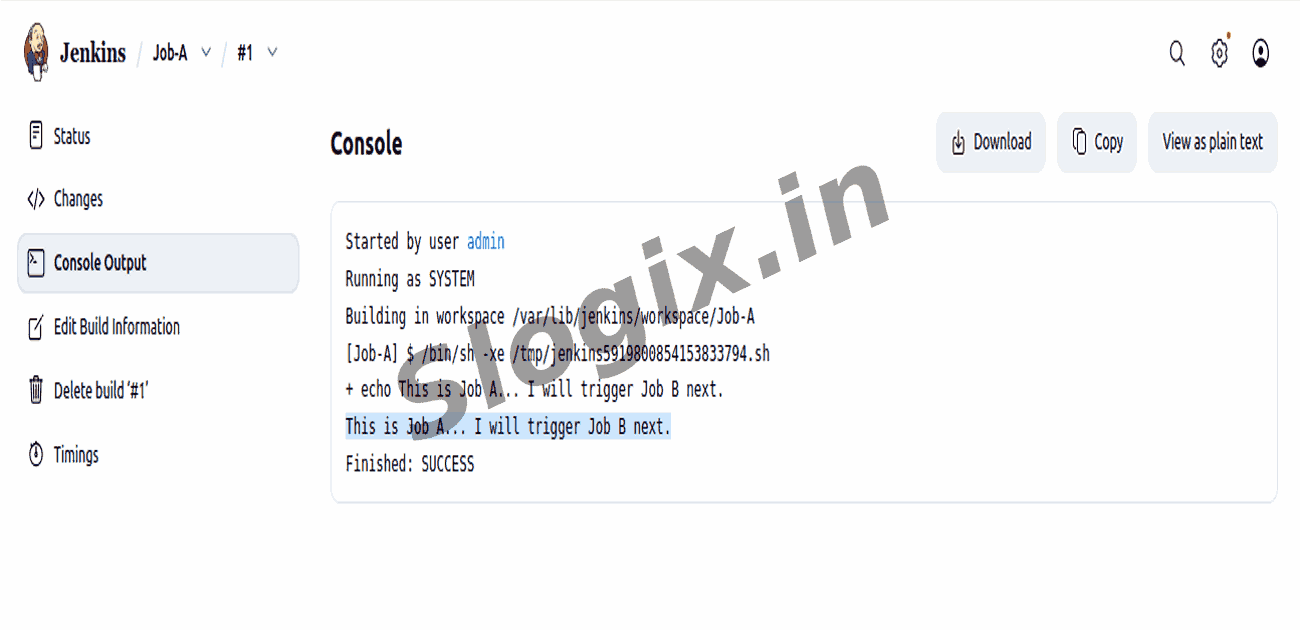
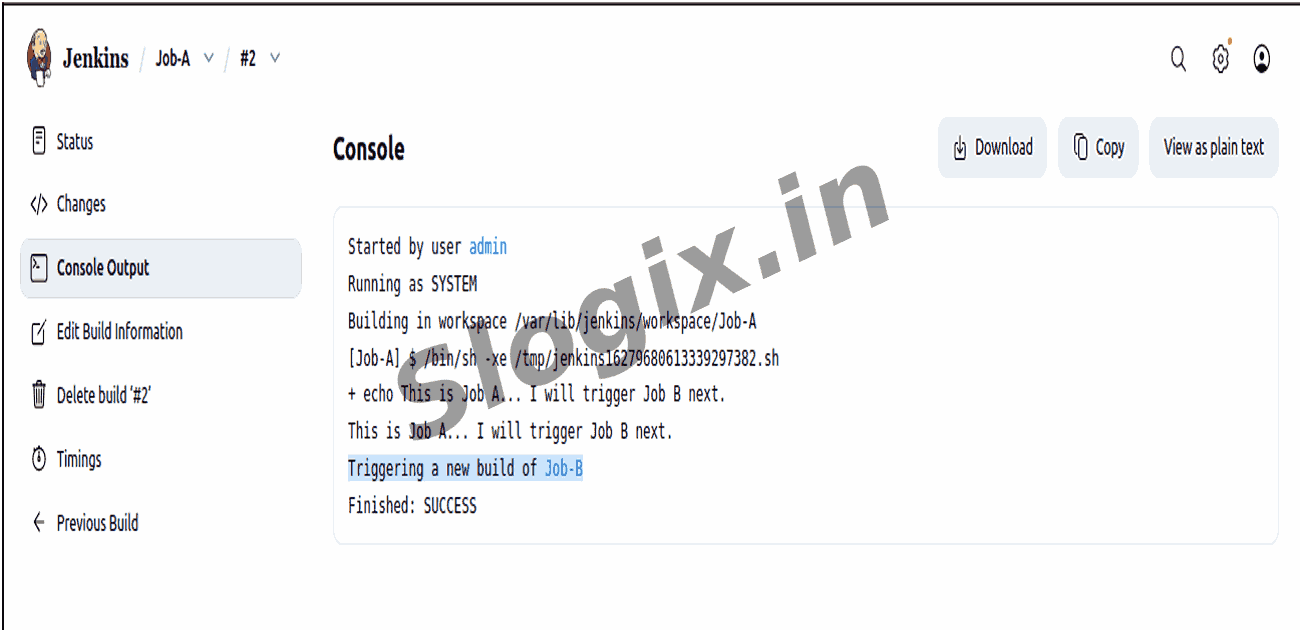
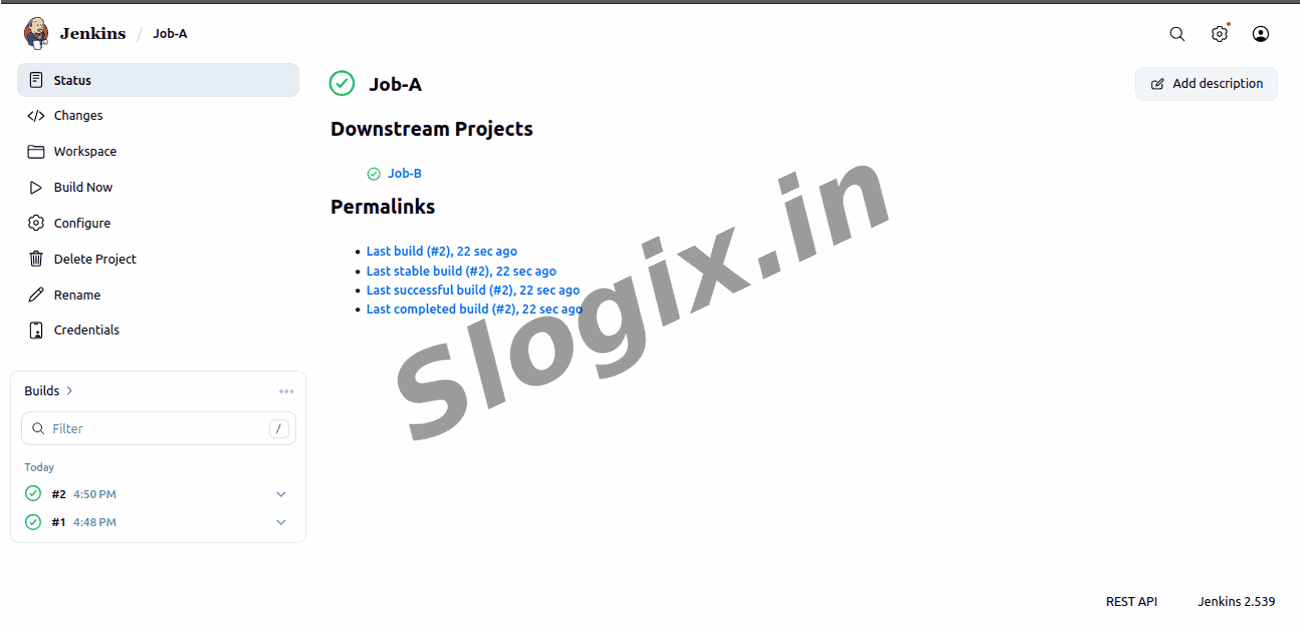
     View Console Output of Job A → should show:
     Triggering Job-B
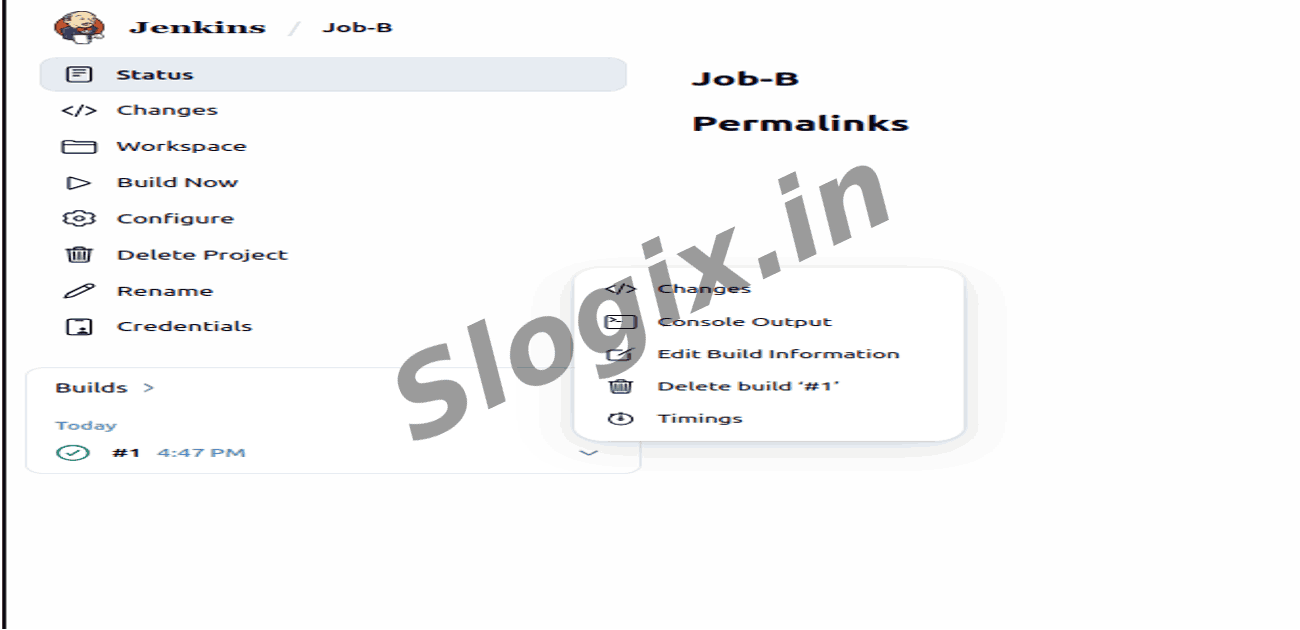
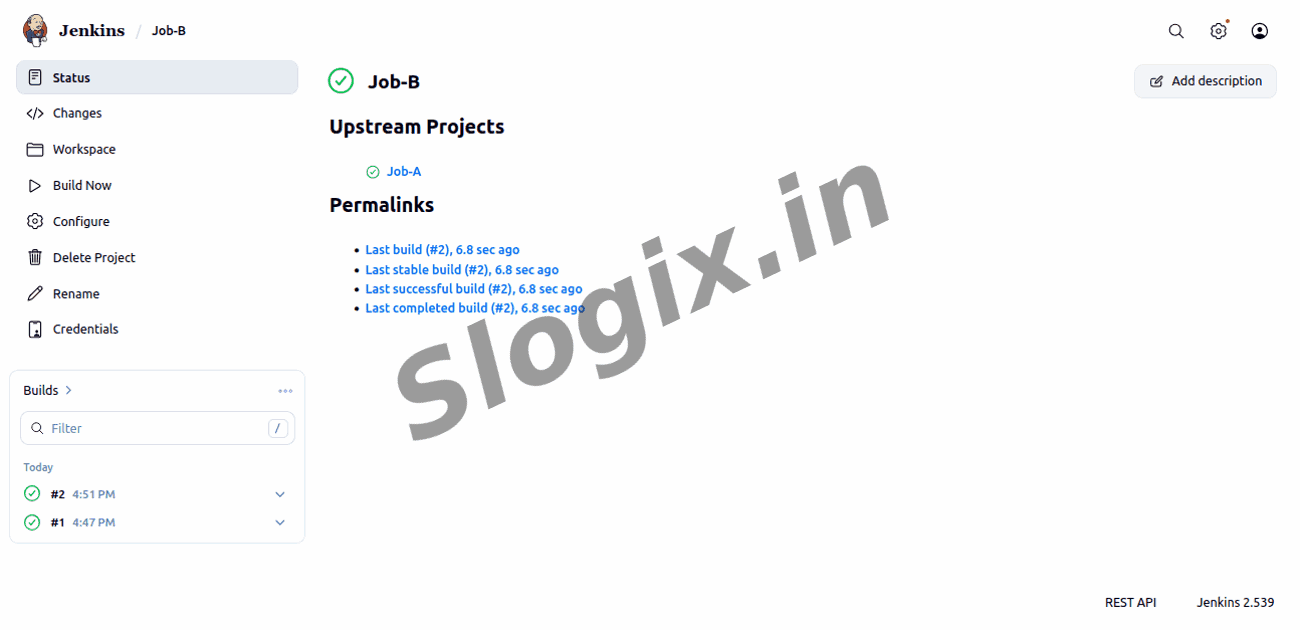
     Go to Job B → Build History → verify the build was started by Job A.
Screenshots
  • 282
  • 283
  • 284
  • 285
  • 286
  • 287
  • 288
  • 289
  • 290
  • 291
  • 292
  • 293
  • 294
  • 295
  • 296
  • 297
  • 298
  • 299
  • 300
  • 301
  • 302
  • 303