List of Topics:
Location Research Breakthrough Possible @S-Logix pro@slogix.in

Office Address

Social List

How to Create a Parameterized Jenkins Pipeline that Accepts User Input and Prints Customized Output During the Build?

Jenkins

Condition for Create a Parameterized Jenkins Pipeline that Accepts User Input and Prints Customized Output During the Build

  • Description:
    This task helps you to create a Parameterized Jenkins Pipeline. When running the job, Jenkins will display fields asking for user input (name and environment). After submitting, the pipeline will print the message:
    ➡ Hello , deploying to 
    This activity teaches how to use parameters in a Jenkins Pipeline to make builds dynamic and customizable.

Steps

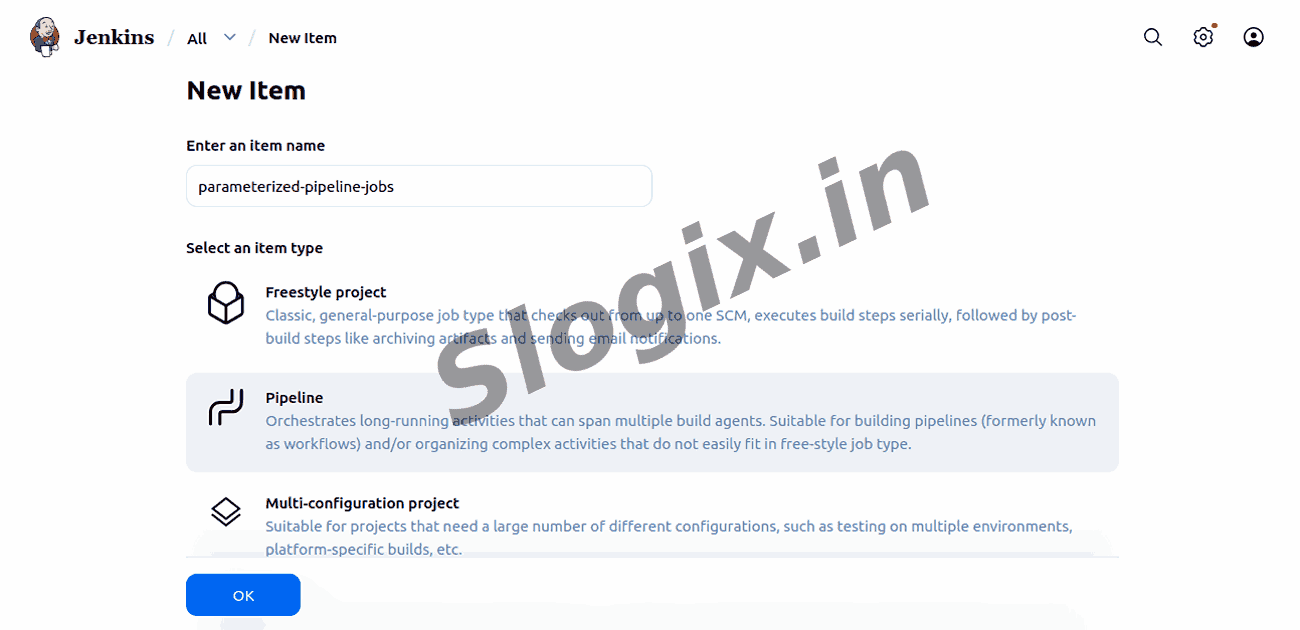
  •  Step 1 — Create a New Jenkins Pipeline Job
     ✔ Description: Start by creating a pipeline job that will use parameters.
     Click New Item
     Enter item name: parameterized-pipeline-job
     Select Pipeline
     Click OK
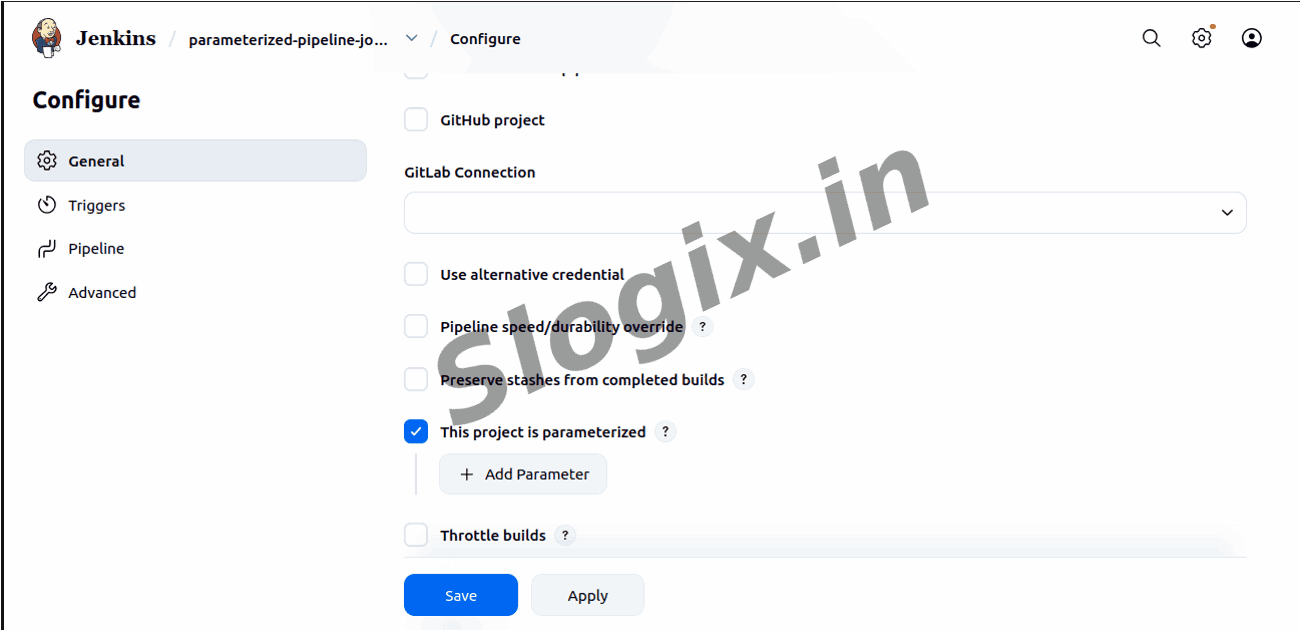
  •  Step 2 — Enable Build Parameters
     ✔ Description: Allow the job to receive input before execution.
     Scroll and find This build is parameterized
     Check the box ✔
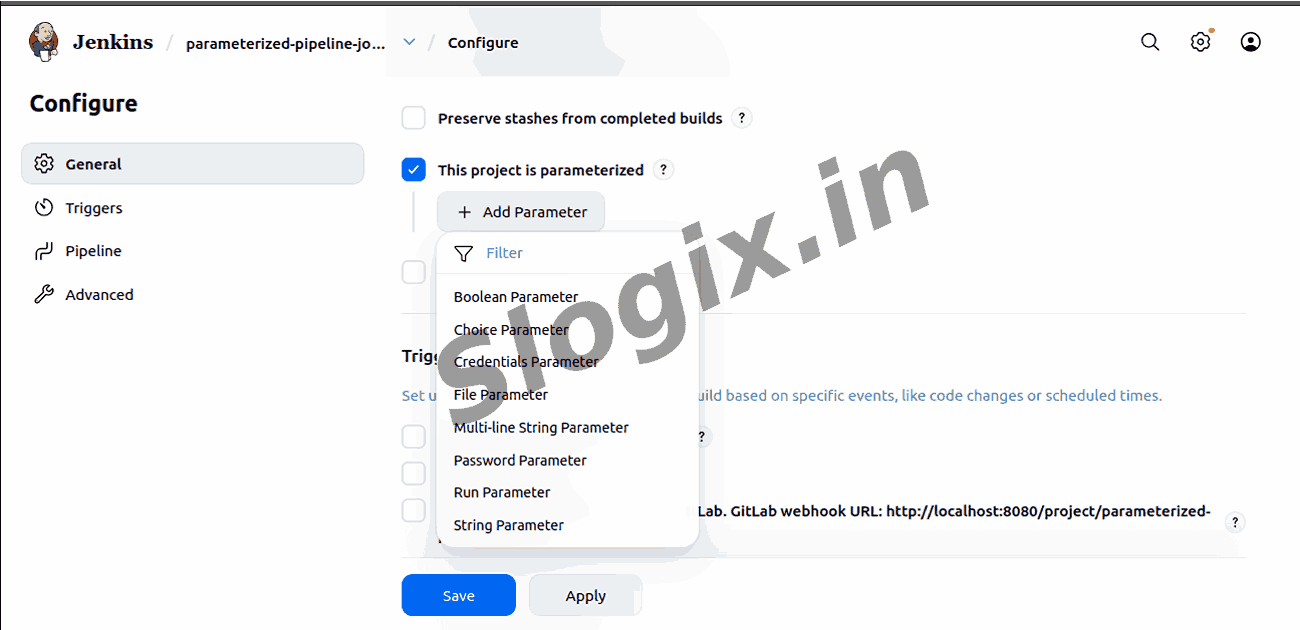
  •  Step 3 — Add Build Parameters
     ✔ Description: Add input fields to collect data from users.

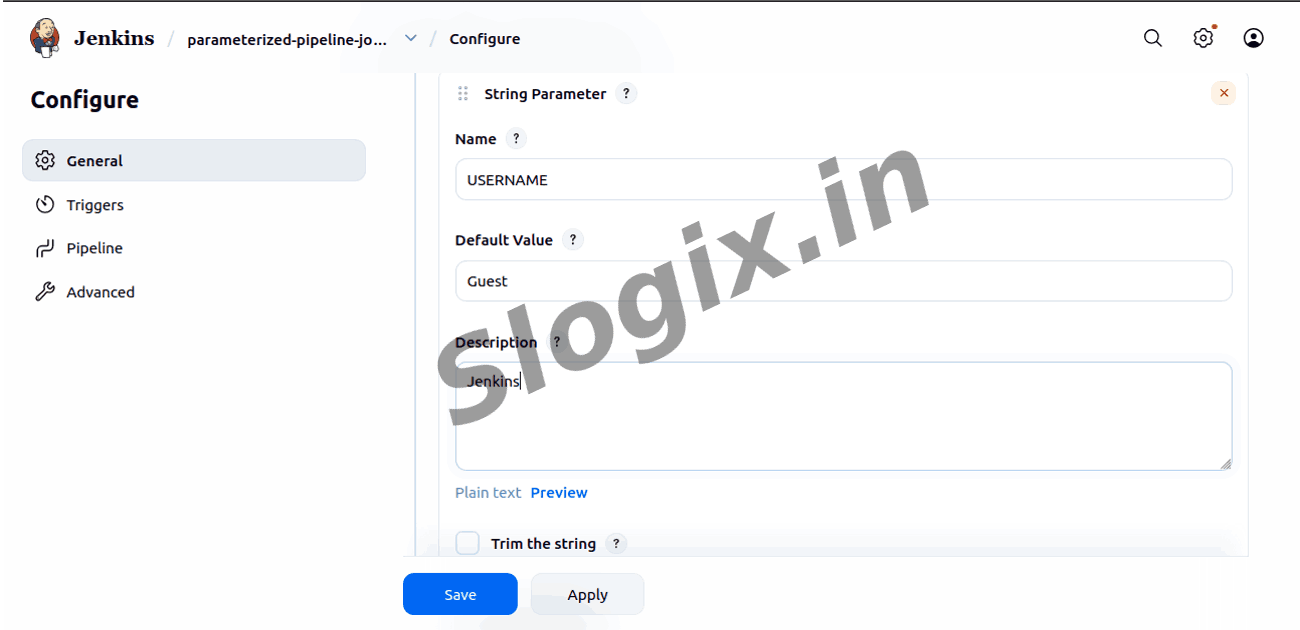
     Add String Parameter
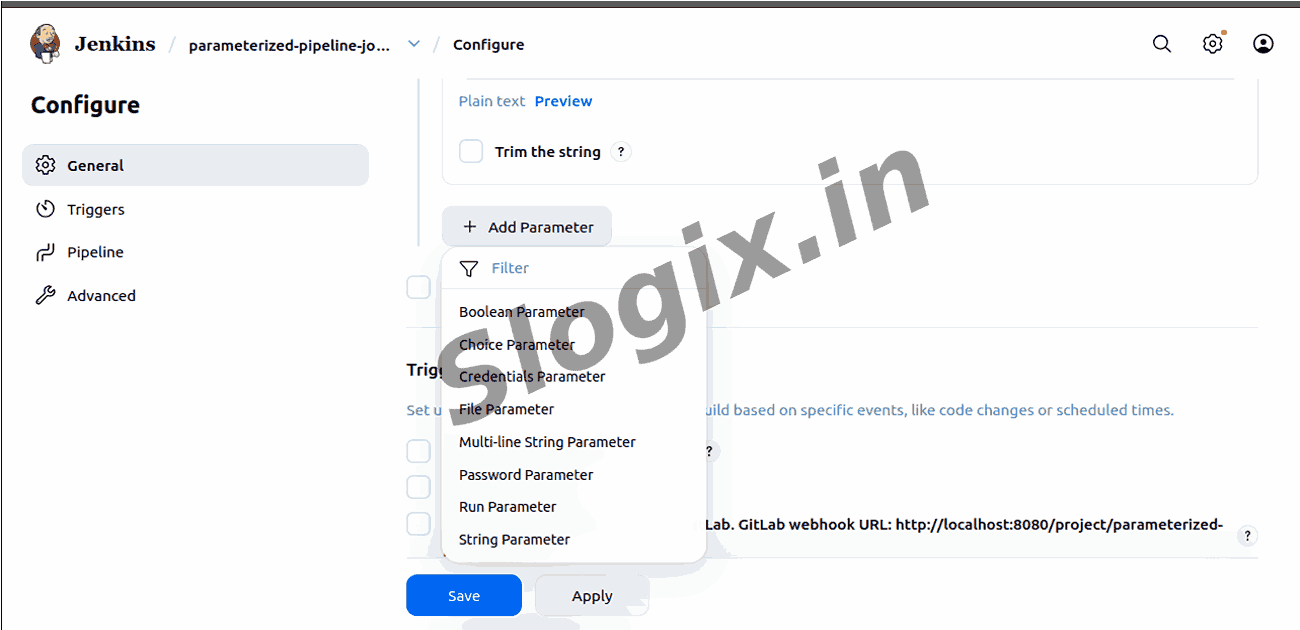
     Click Add Parameter → String Parameter
     Fill these fields:
    Field Value
    Name USERNAME
    Default Value Guest
    Description Enter your name

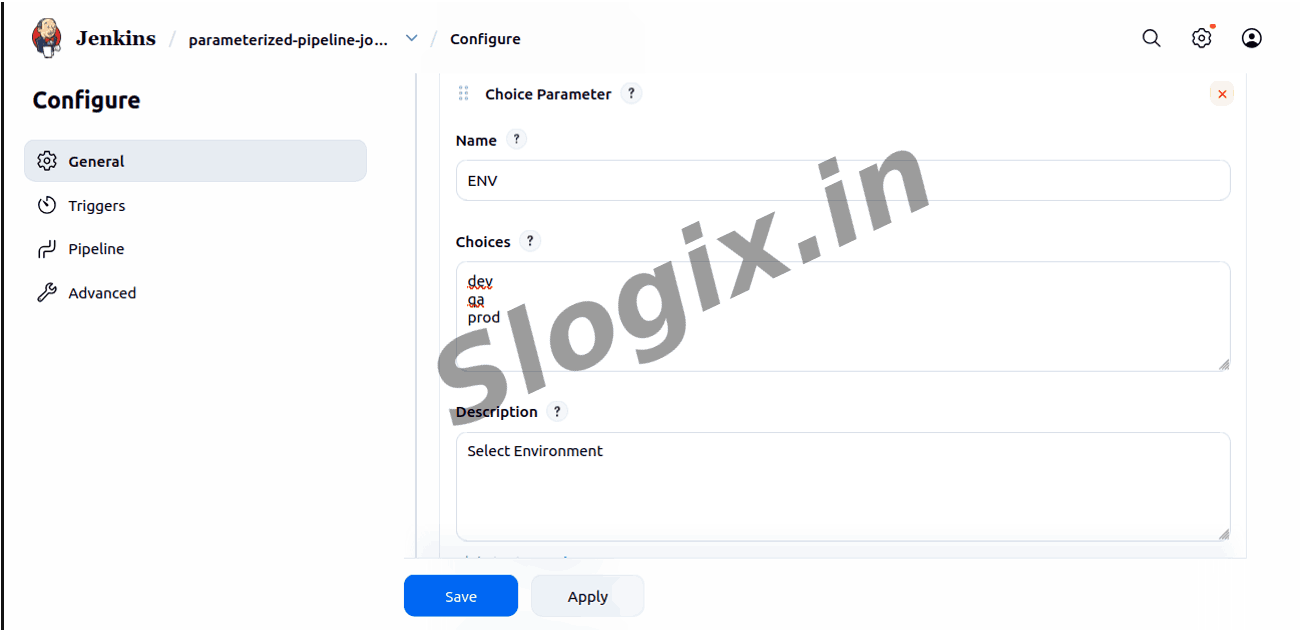
     Add Choice Parameter
     Click Add Parameter → Choice Parameter
     Fill fields:
    Field Value
    Name ENV
    Choices dev
    qa
    prod
    Description Select environment
  •  Step 4 — Add the Pipeline Script
     ✔ Description: Use a pipeline script that prints entered values.
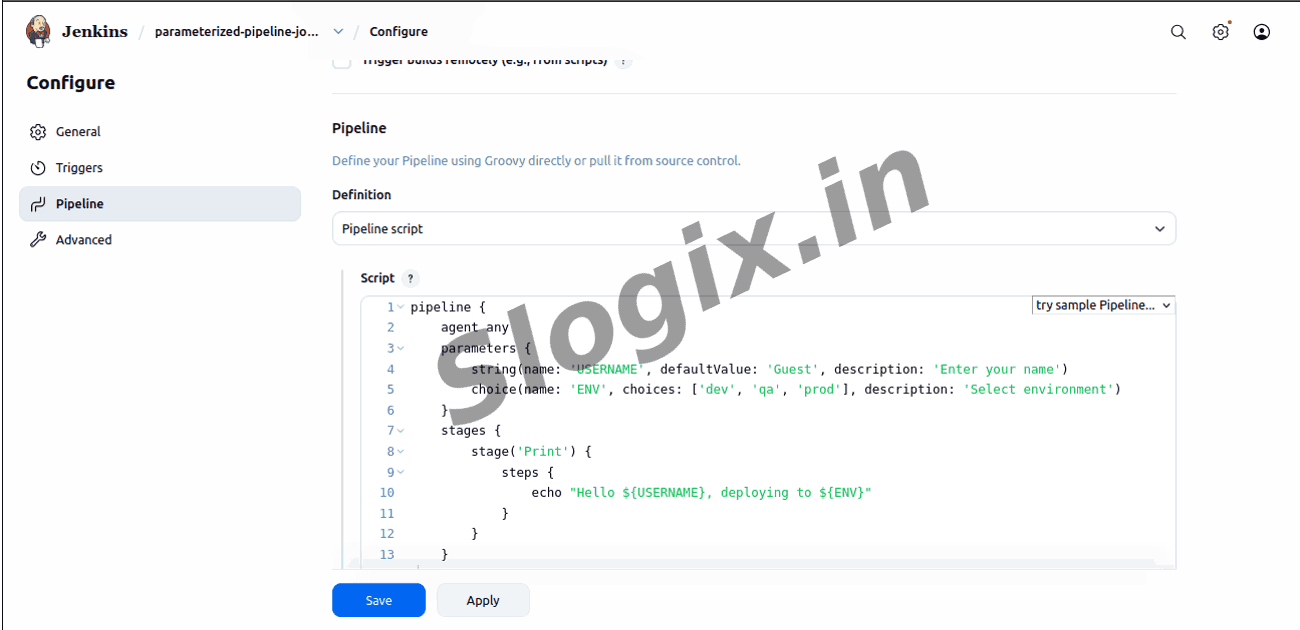
     Paste this script in Pipeline → Definition → Pipeline Script:
    pipeline {
        agent any
        parameters {
            string(name: 'USERNAME', defaultValue: 'Guest', description: 'Enter your name')
            choice(name: 'ENV', choices: ['dev', 'qa', 'prod'], description: 'Select environment')
        }
        stages {
            stage('Print') {
                steps {
                    echo "Hello ${USERNAME}, deploying to ${ENV}"
                }
            }
        }
    }
  •  Step 5 — Save the Pipeline
     Description: Save your configuration.
     Click Save
  •  Step 6 — Build the Pipeline with Parameters
     Description: Run the pipeline and enter the requested values.
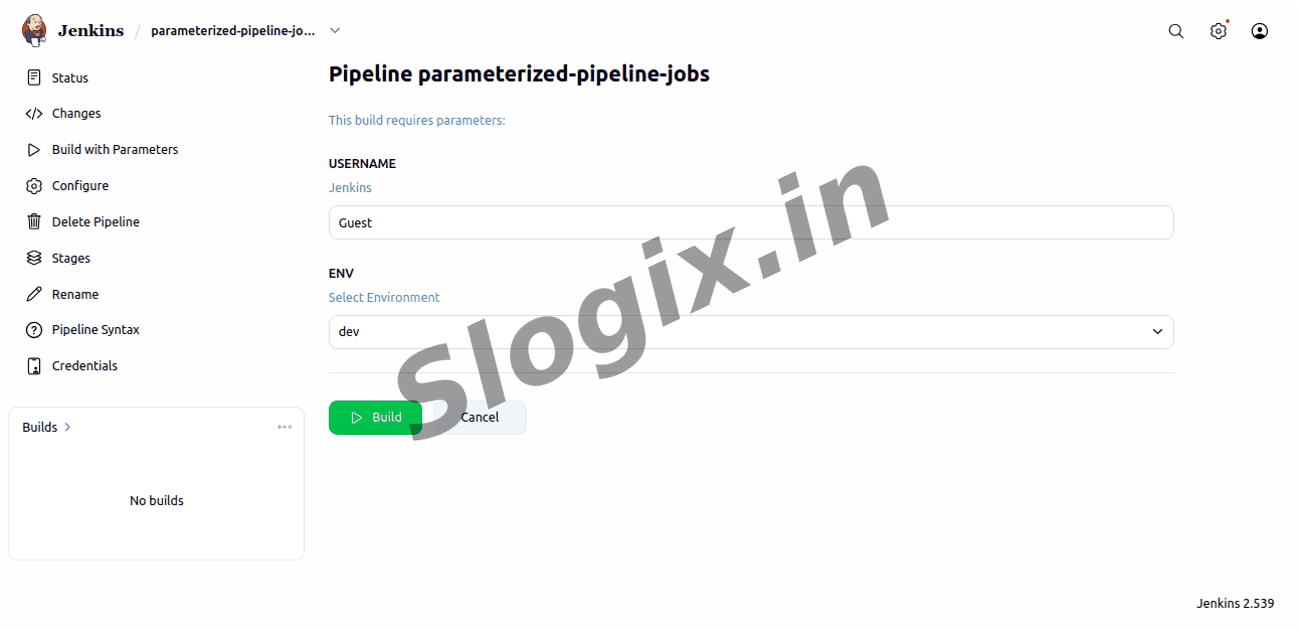
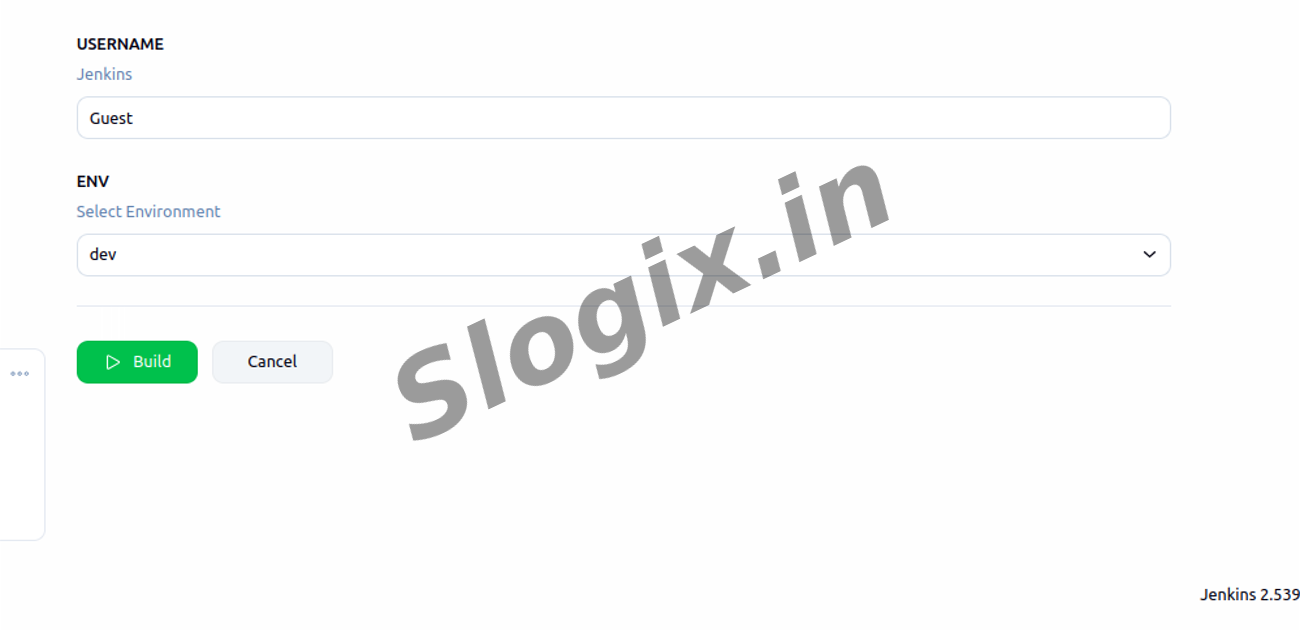
     Click Build with Parameters
     Enter a name (Example: Raj)
     Select ENV as dev / qa / prod
     Click Build
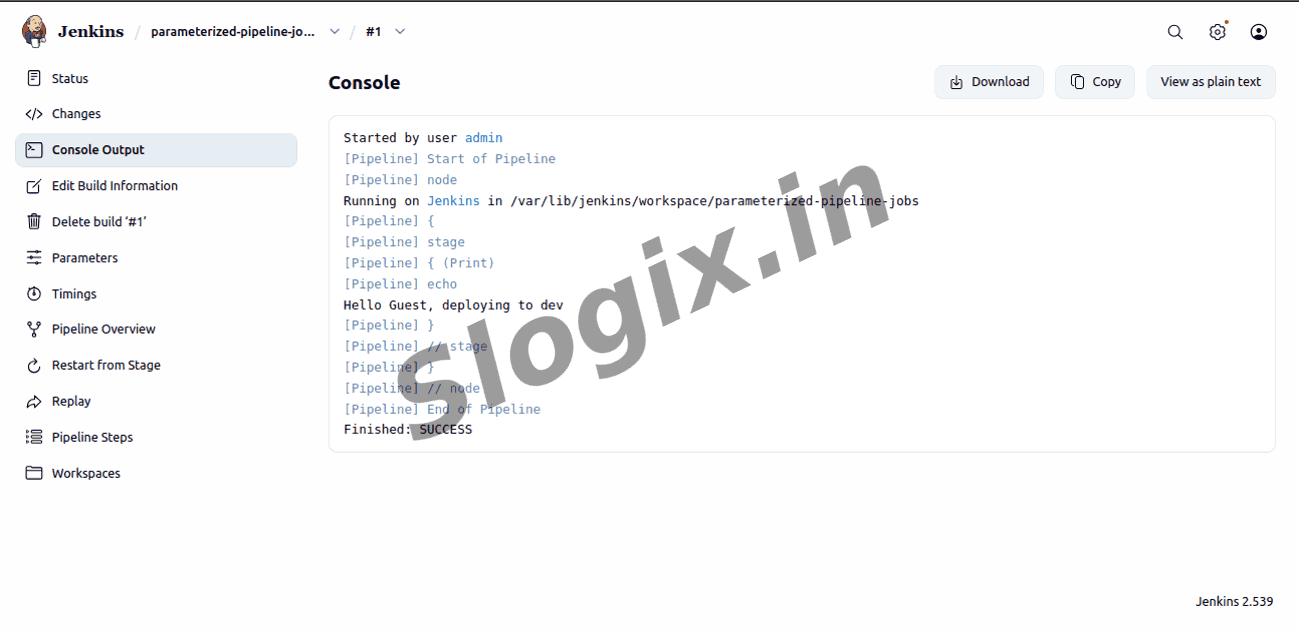
  •  Step 7 — View the Console Output
     Description: Validate the results.
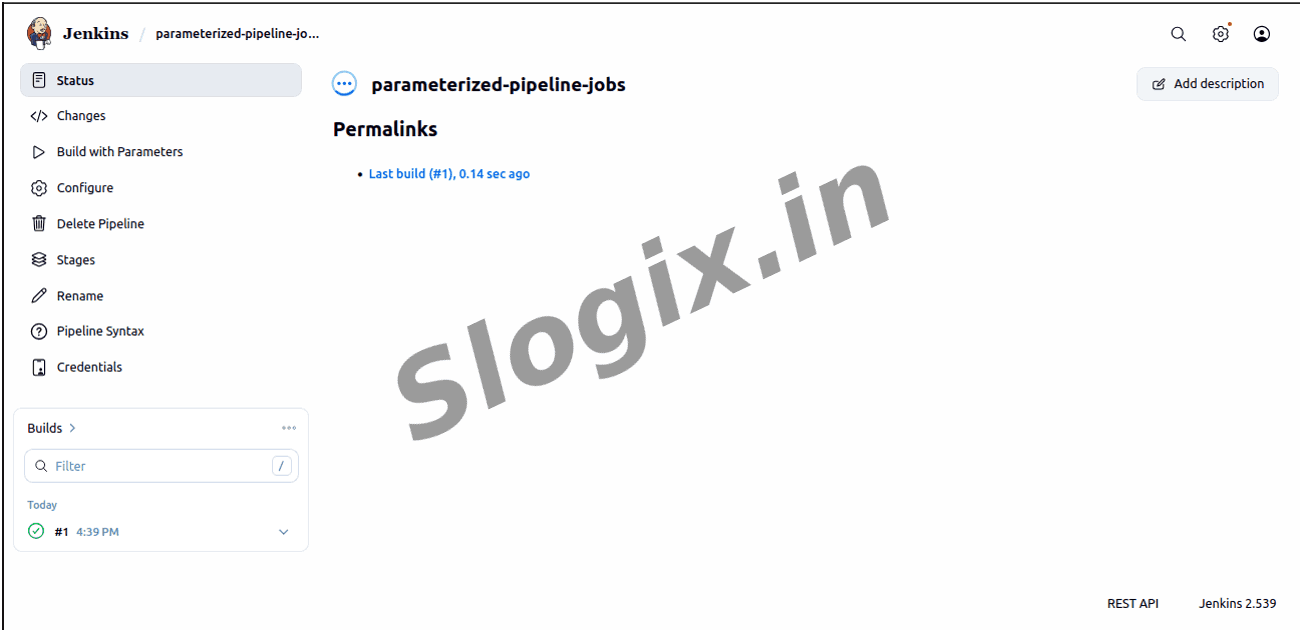
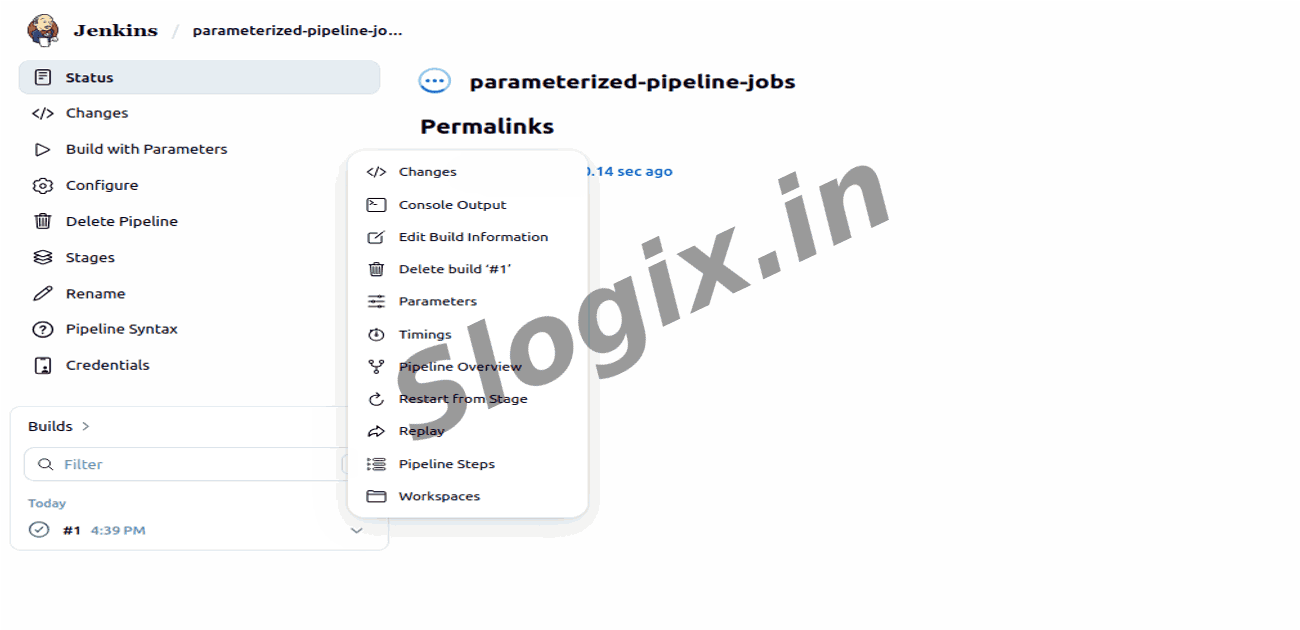
     Go to Build #1 → Console Output
     Expected Output:
    Hello Raj, deploying to dev
Screenshots
  • 270
  • 271
  • 272
  • 273
  • 274
  • 275
  • 276
  • 277
  • 278
  • 279
  • 280
  • 281