List of Topics:
Location Research Breakthrough Possible @S-Logix pro@slogix.in

Office Address

Social List

How to Create a Parameterized Jenkins Job that Asks for a User Name and Prints a Custom Greeting Message During the Build?

Jenkins

Condition for Create a Parameterized Jenkins Job that Asks for a User Name and Prints a Custom Greeting Message During the Build

  • Description:
    This task helps you to configure a Parameterized Build Job in Jenkins. When executing the job, Jenkins will display a form asking for the user’s name. After submitting, Jenkins will print the line:
    ➡ Hello , welcome to Jenkins!
    This teaches how parameters are used to pass values into Jenkins jobs at runtime.

Steps

  •  Step 1 — Create a New Jenkins Job
     Description: Begin by creating a new job that will accept parameters.
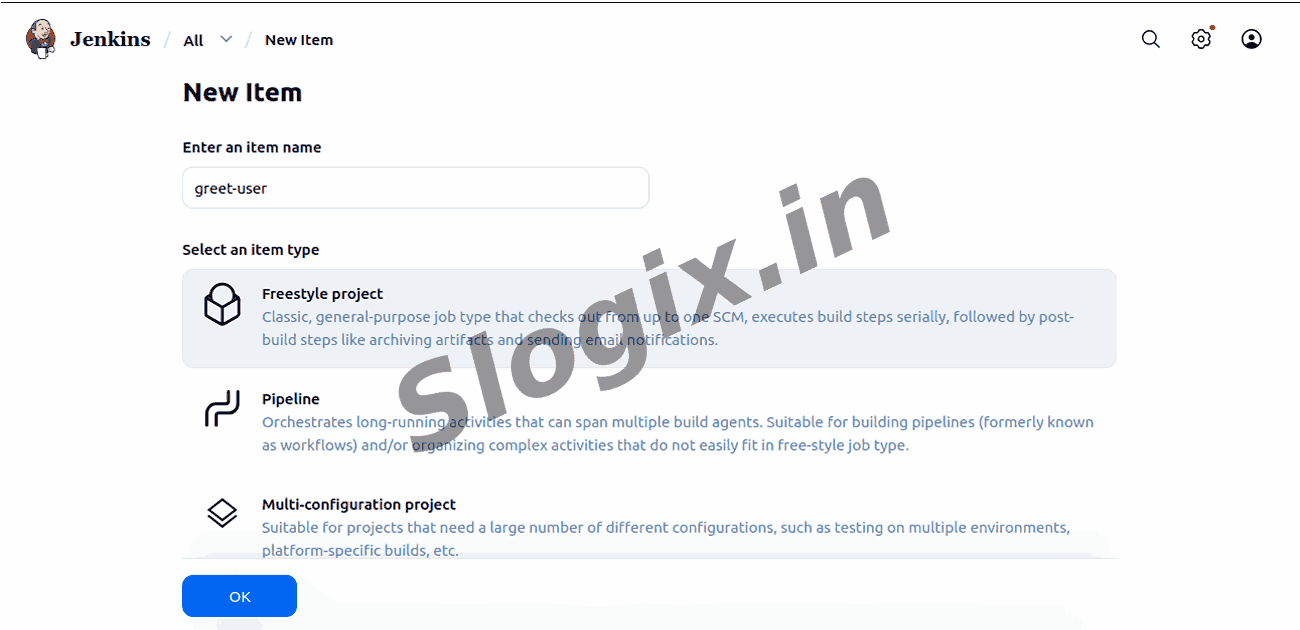
     Click New Item (Left Menu)
     Enter item name: greet-user
     Select Freestyle project
     Click OK
  •  Step 2 — Enable Build Parameters
     Description: Allow the job to accept user input before build starts.
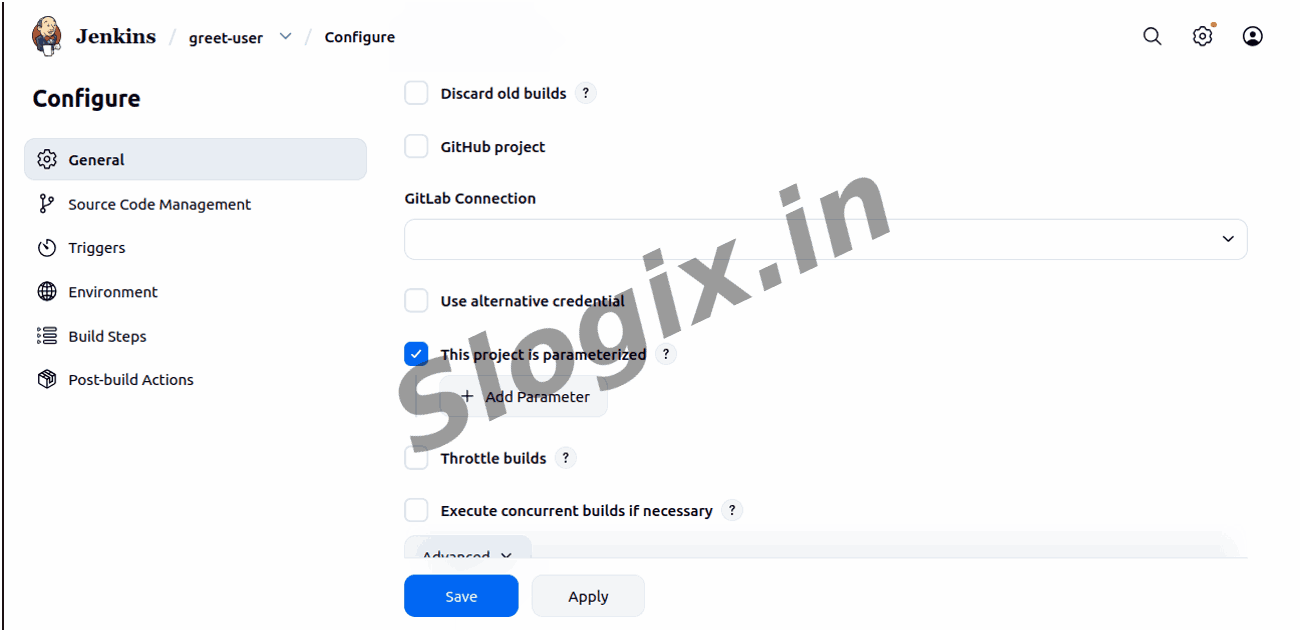
     Scroll to the General or Build Triggers section
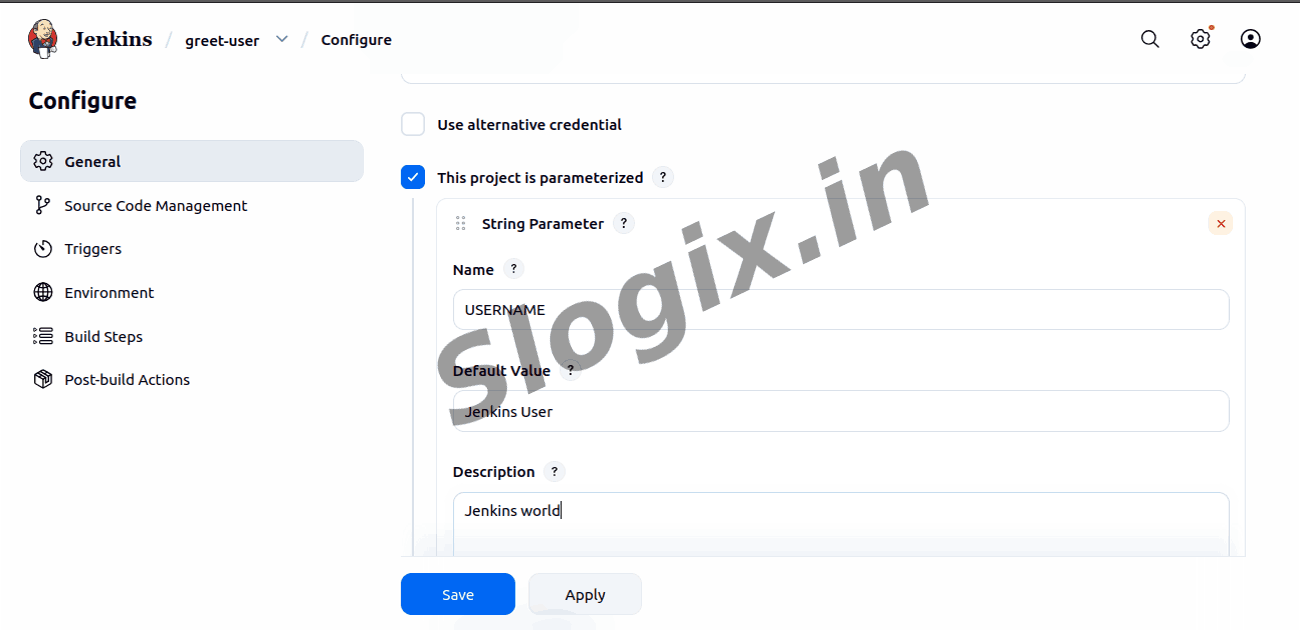
     Check ✔ This build is parameterized
  •  Step 3 — Add a String Parameter
     Description: Create a parameter that accepts a name input.
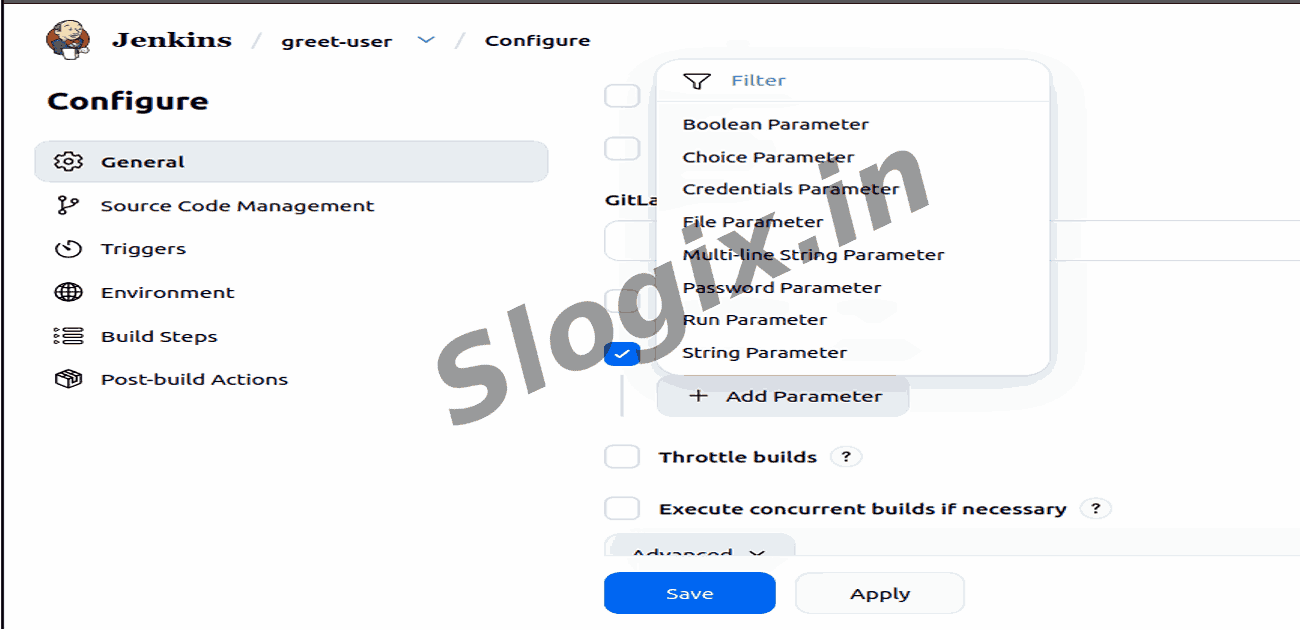
     Click Add Parameter
     Select String Parameter
     Fill details:Now fill details:
    Field Value
    Name USERNAME
    Default Value Jenkins User
    Description Enter your name (optional)
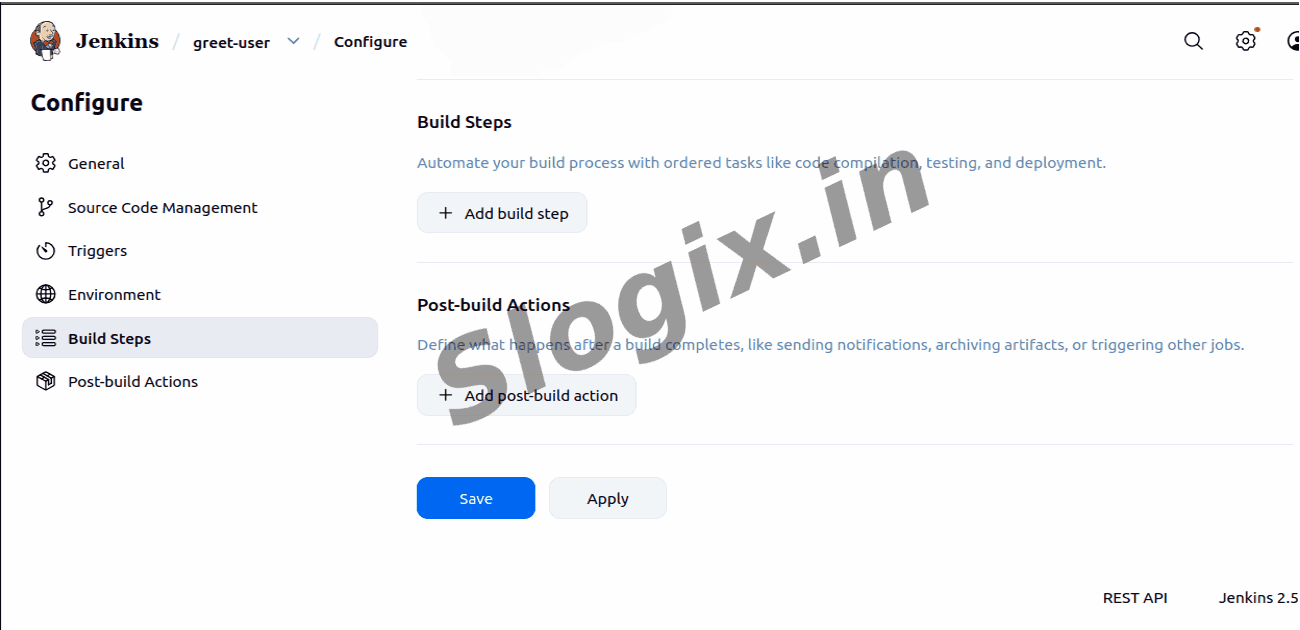
  •  Step 4 — Add Build Step
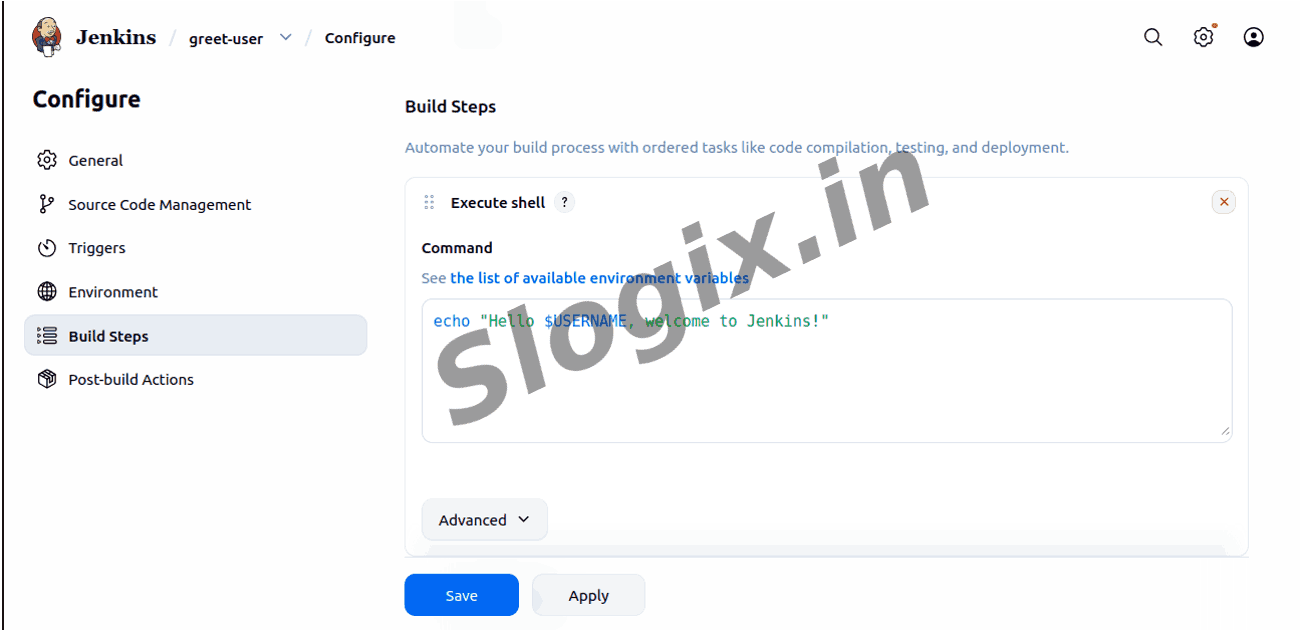
     Description: Create a shell script that prints the value entered by the user.
     Scroll to Build section
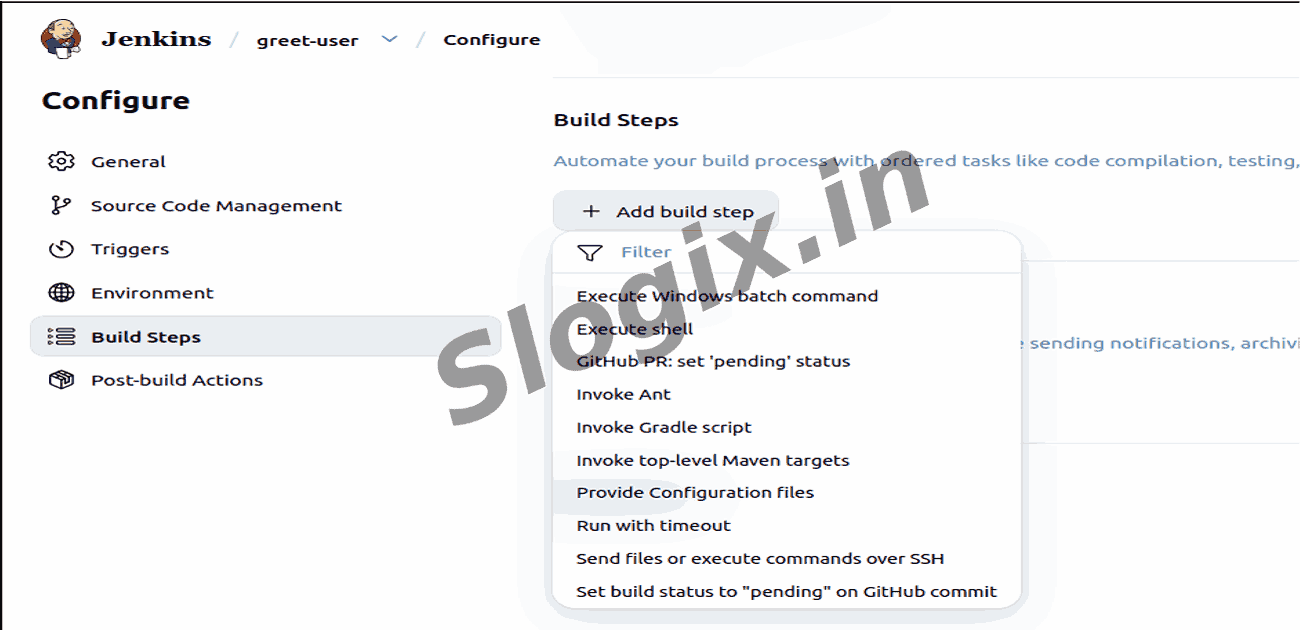
     Click Add build step → Execute shell
     Paste this shell script:
    echo "Hello $USERNAME, welcome to Jenkins!"
  •  Step 5 — Save the Job
     Description: Save the job settings to apply configuration.
     Click Save
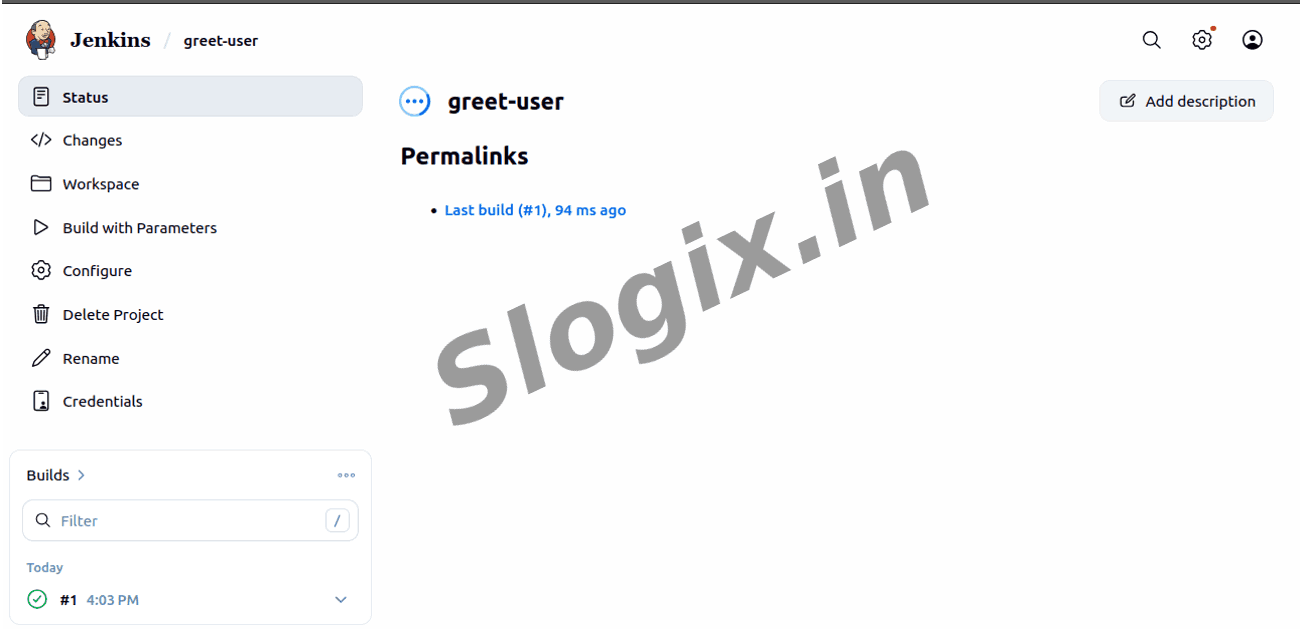
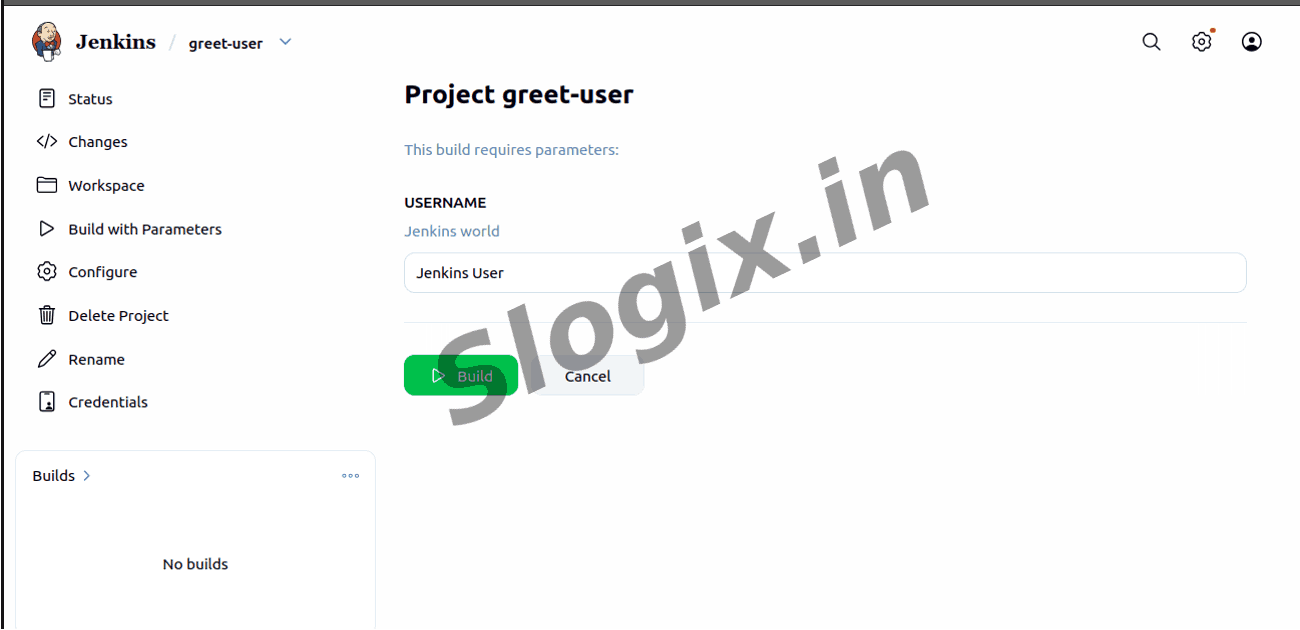
  •  Step 6 — Run the Parameterized Build
     Description: Trigger the job and provide input.
     Click Build with Parameters
     Enter name (Example: java)
     Click Build
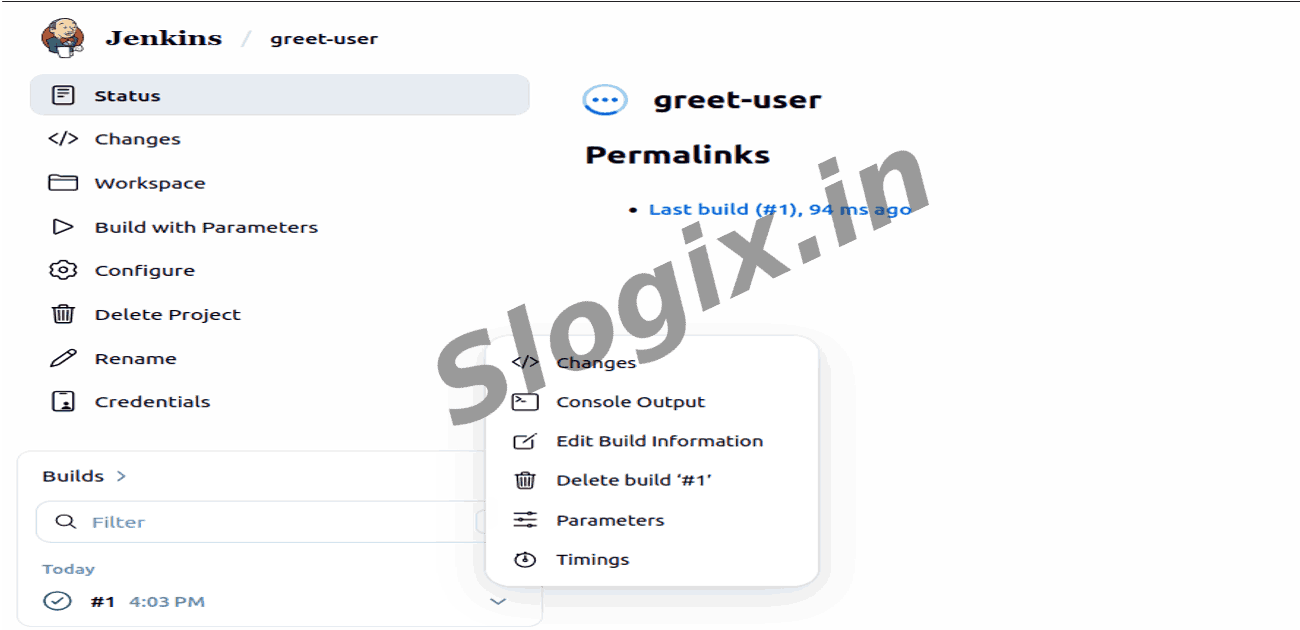
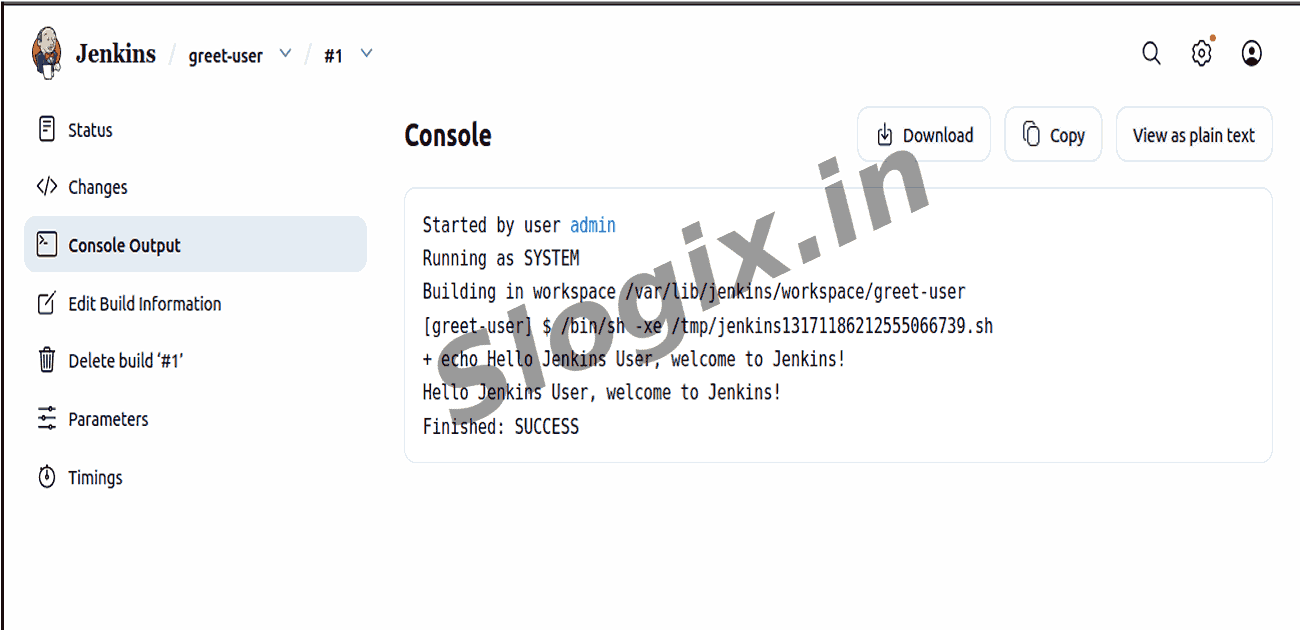
  •  Step 7 — View Output
     Description: Verify that the greeting is printed in console.
     Open Build #1 → Console Output
     Expected Output:
    Hello java, welcome to Jenkins!
Screenshots
  • 259
  • 260
  • 261
  • 262
  • 263
  • 264
  • 265
  • 266
  • 267
  • 268
  • 269