List of Topics:
Location Research Breakthrough Possible @S-Logix pro@slogix.in

Office Address

Social List

How to Create a Jenkins Job that Downloads a Webpage using Curl Command and Displays the HTML Output?

Jenkins

Condition for Create a Jenkins Job that Downloads a Webpage using Curl Command and Displays the HTML Output

  • Description:
    This task helps you to create a Jenkins Freestyle job named download-test that uses the curl command to download a webpage (https://example.com). This helps demonstrate how Jenkins can perform network-related tasks, check internet connectivity, retrieve files from web servers, and view downloaded content directly in the Jenkins console.
  •  The command used:
     curl https://example.com
     curl stands for Client URL
     It sends a request to a web server and receives a response.
     It shows progress (download %, speed, time taken)
     Finally prints the HTML content of the page
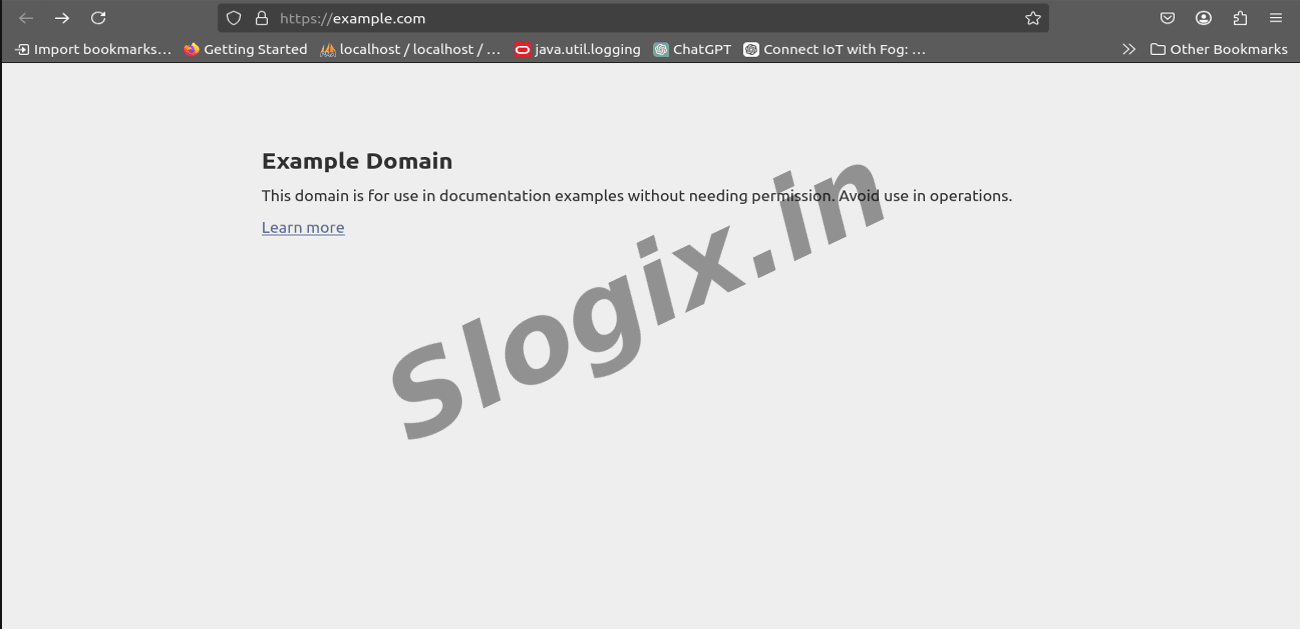
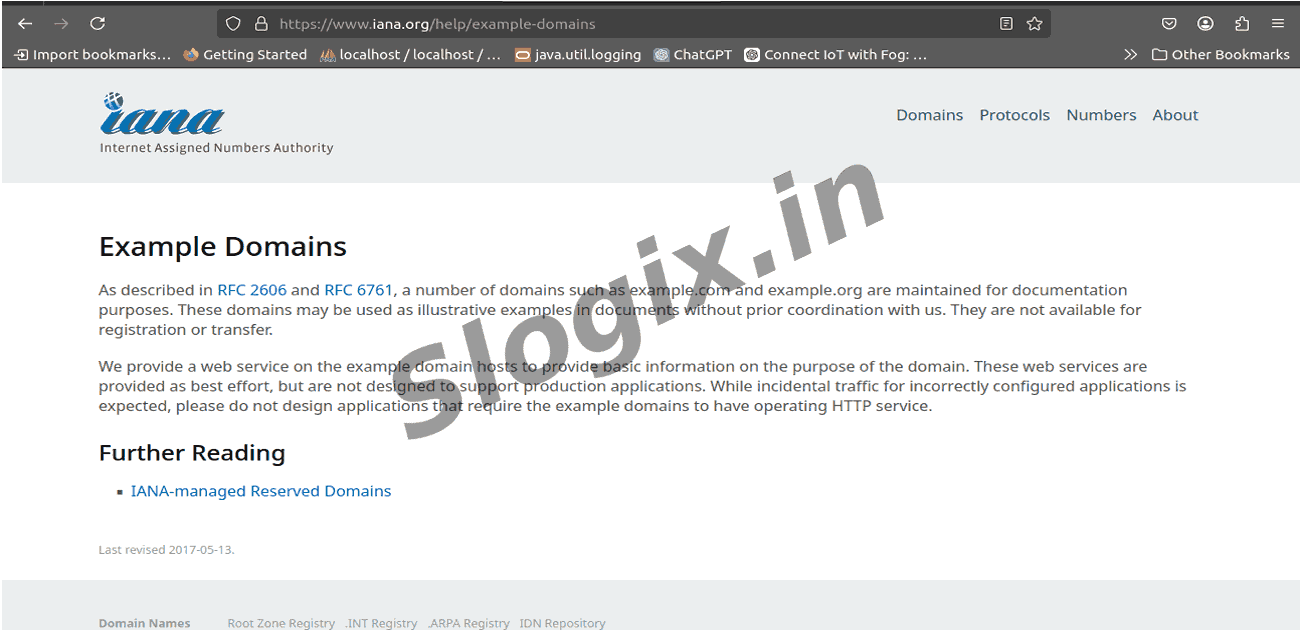
     The website https://example.com is a publicly available test domain maintained by IANA, always returning a simple HTML page useful for examples and documentation.

Jenkins Job to Download Example.com Using curl

  •  Step 1 — Open the Jenkins dashboard
     Start Jenkins and open a browser to http://localhost:8080 (or your Jenkins server URL). You should see the Jenkins home page.
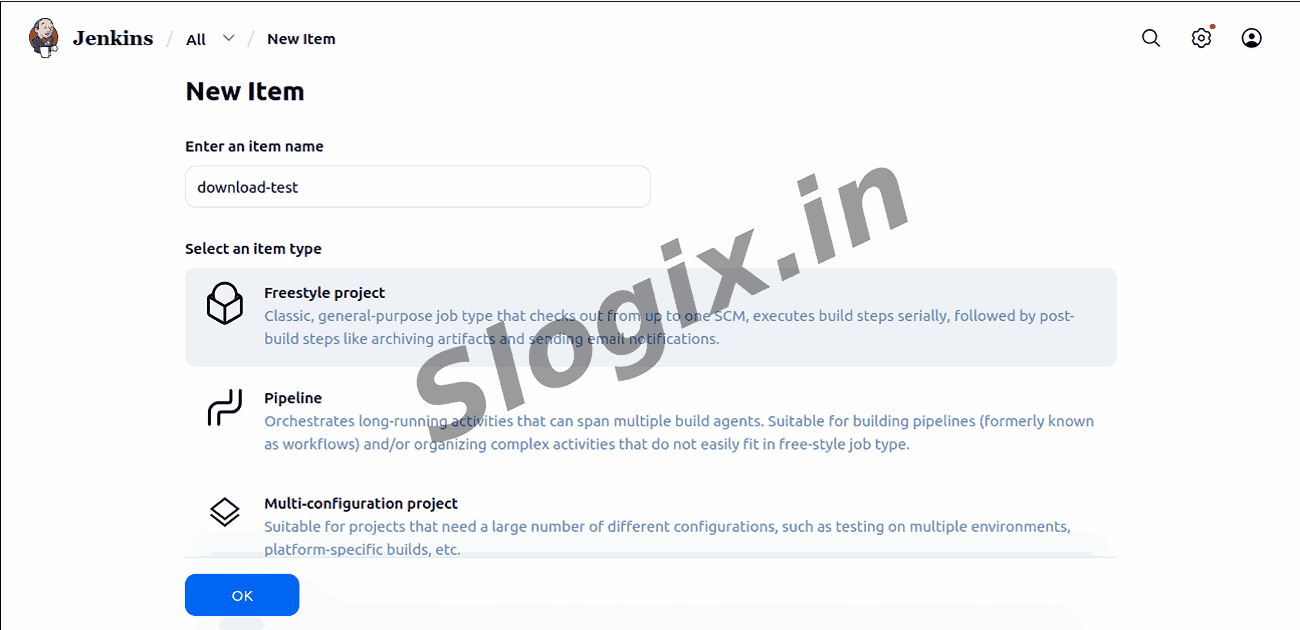
  •  Step 2 — Create a new job
     On the left menu click New Item to start creating a job.
  •  Step 3 — Name the job
     In the Enter an item name field type download-test.
  •  Step 4 — Choose job type
     Select Freestyle project and click OK.
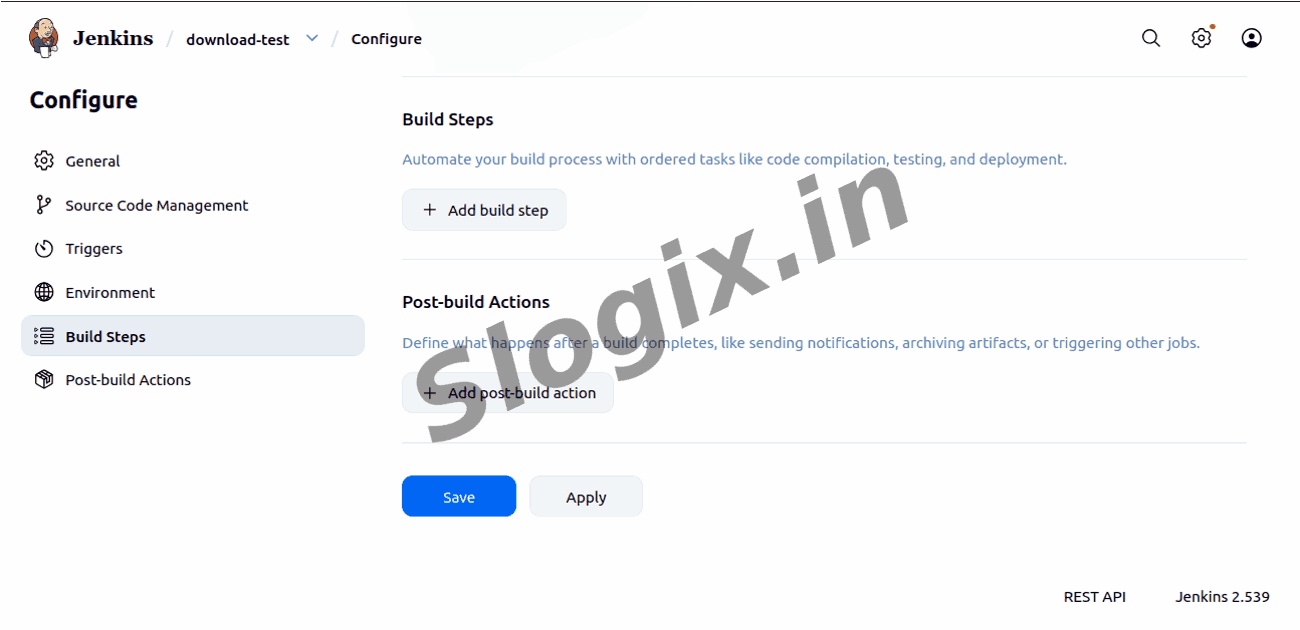
  •  Step 5 — Go to the Build section
     On the job configuration page scroll down until you reach the Build section
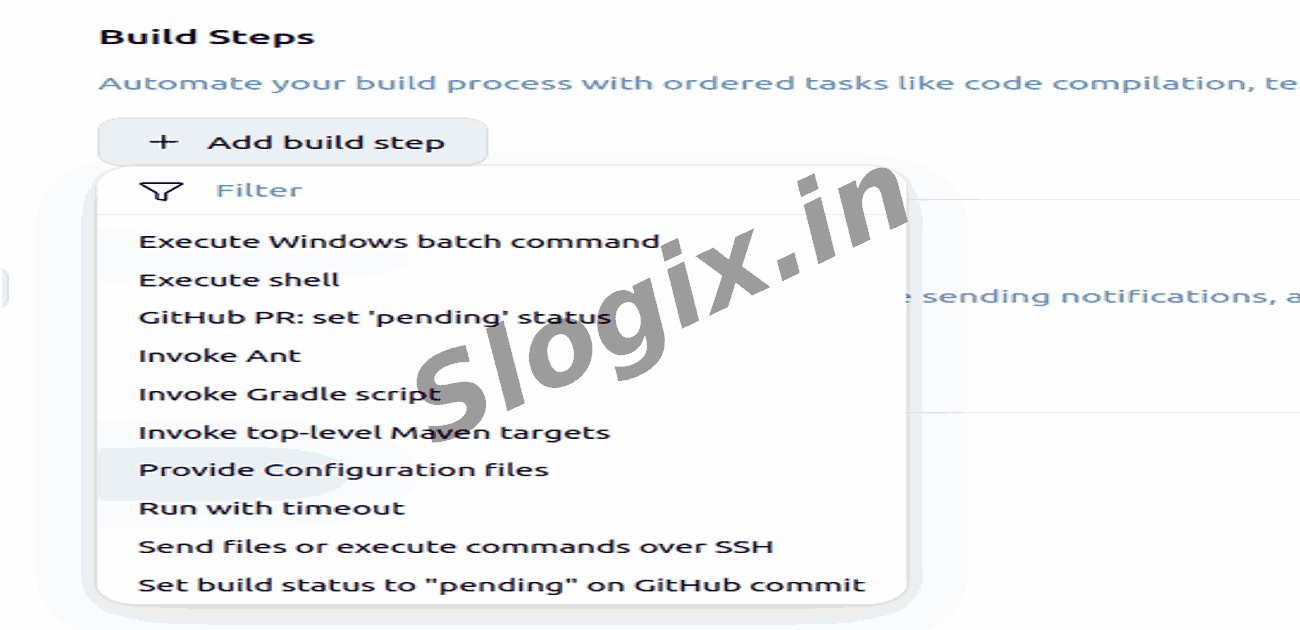
  •  Step 6 — Add an “Execute shell” build step
     Click Add build step and choose Execute shell from the dropdown
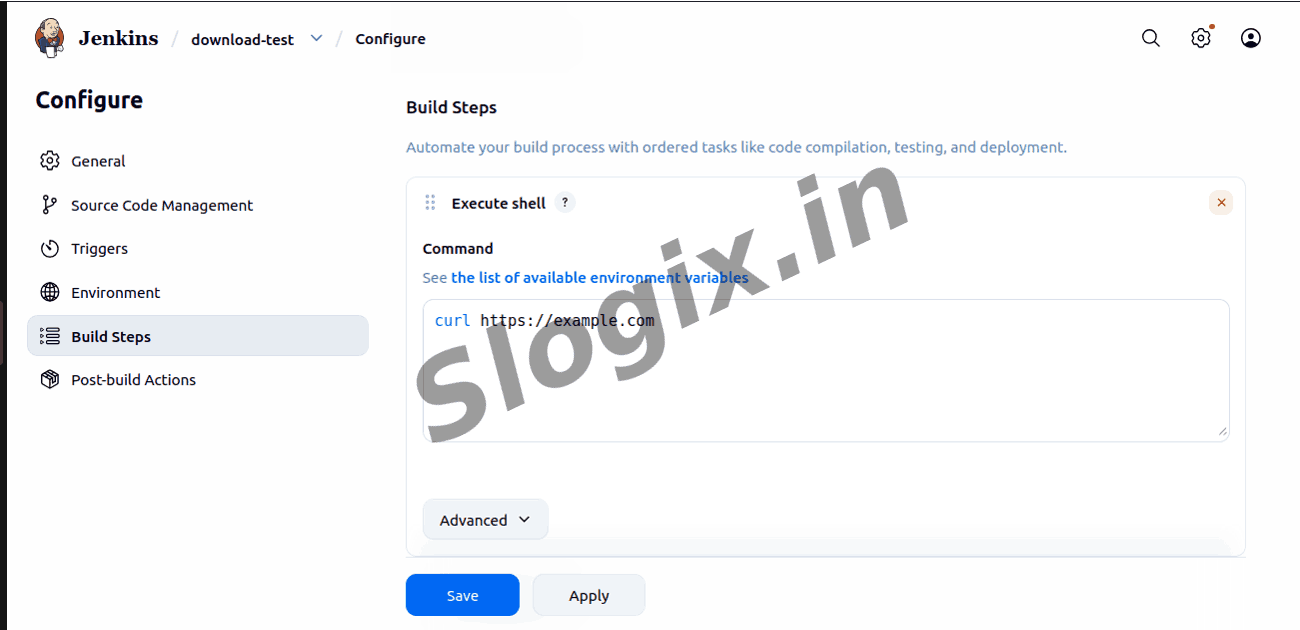
  •  Step 7 — Enter the curl command
     In the shell command box type:
    curl https://example.com
     This will fetch the HTML of example.com and print it to the console
  •  Step 8 — (Optional) Save output to a file
     If you want to save the downloaded content instead of printing it, use:
    curl -o example.html https://example.com
     This creates example.html in the workspace
  •  Step 9 — Save the job
     Scroll to the bottom and click Save to store the job configuration
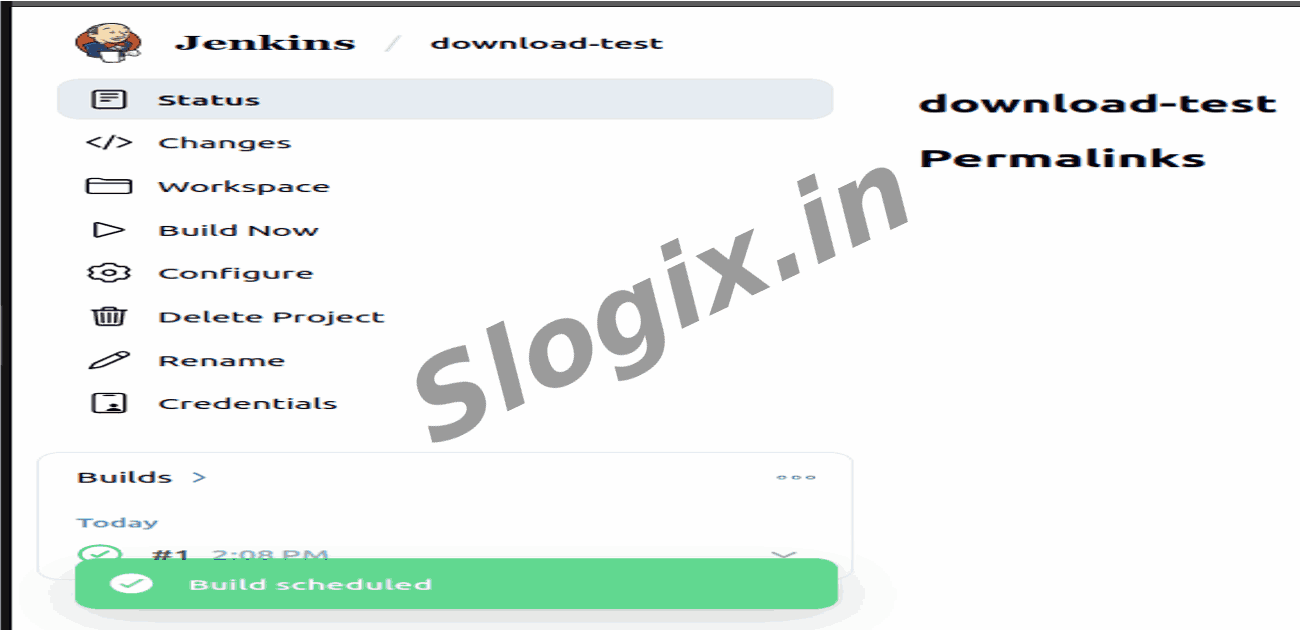
  •  Step 10 — Run the job
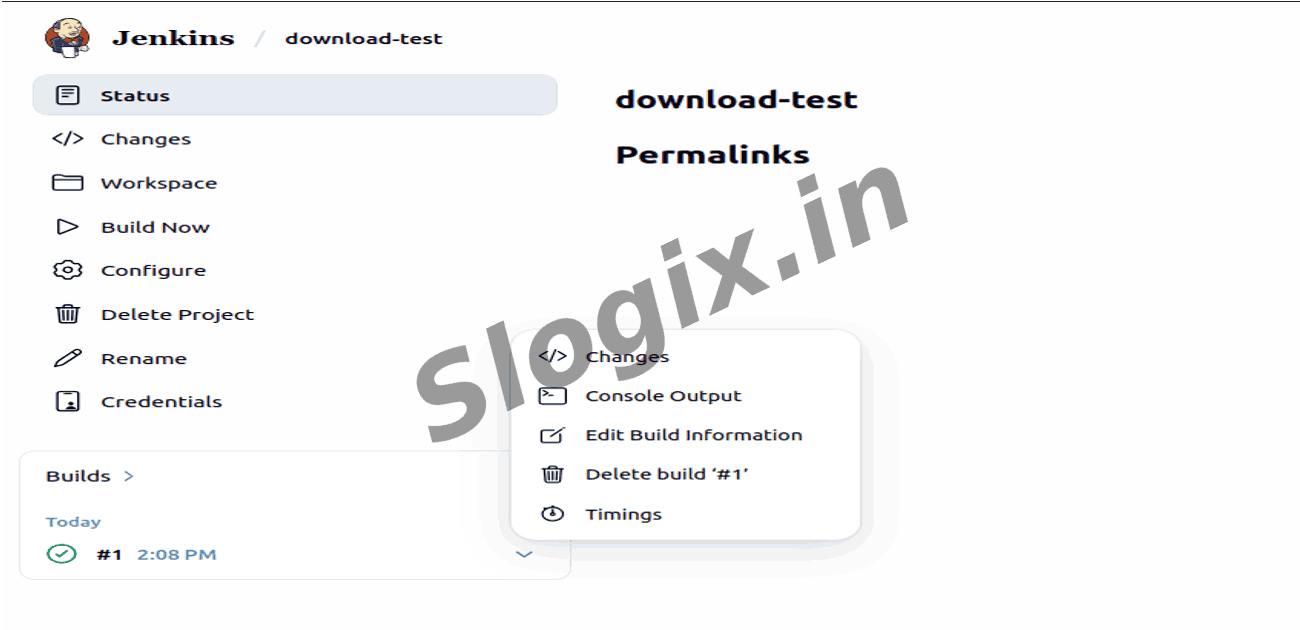
     On the job page click Build Now (left panel) to start the build
  •  Step 11 — View the console output
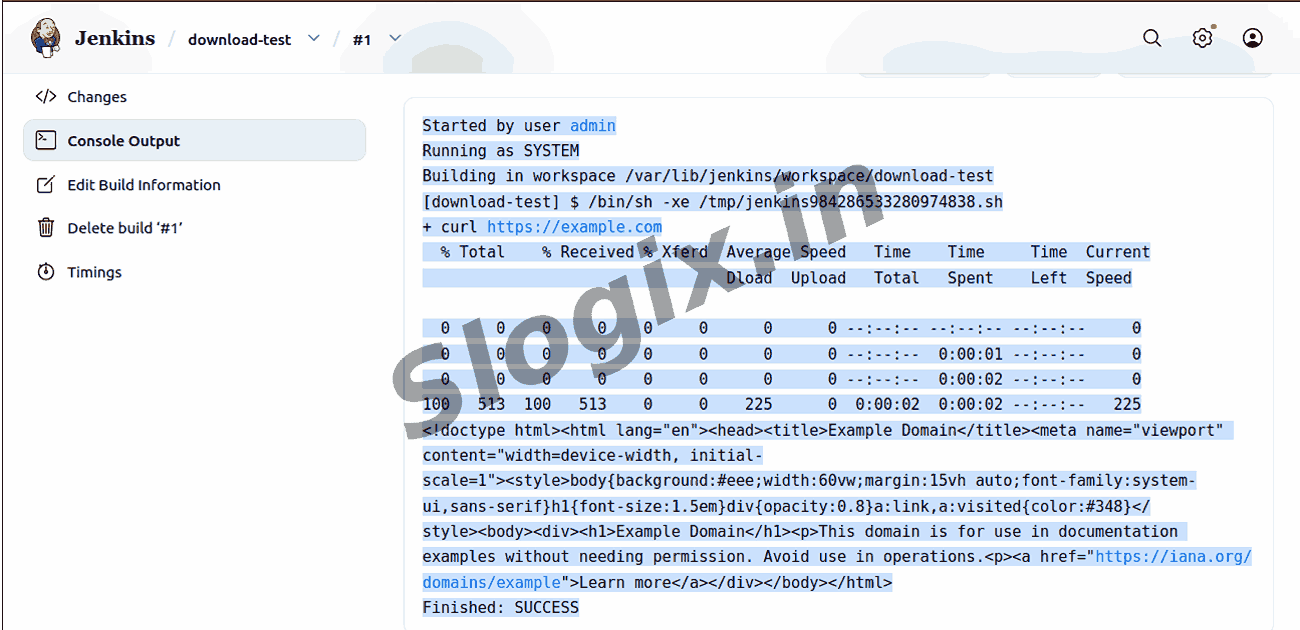
     In the Build History click the latest build number, then click Console Output. You will see curl’s progress lines and the downloaded HTML (or the saved-file message if you used -o)
  •  Explain curl https://example.com
     curl = Client URL
     It is a command-line tool used to send HTTP requests and receive responses.
     This command tells your system: “Go to https://example.com and download whatever content the server gives back.”
     curl will show: % progress, downloaded bytes, speed, and finally the webpage’s HTML output.
  •  What is https://example.com?
     It is a special website used for testing and documentation.
     It is maintained by IANA.
     It always returns a simple HTML page.
  •  Explanation of the Progress Stats
     These lines show download progress:
     % Total % Received % Xferd Average Speed Time Time Time Current
     Dload Upload Total Spent Left Speed
  •  Meaning of columns:
     Total → total size to download
     Received → how much downloaded
     Speed → current download speed
     Time Total / Spent / Left → download time
     Current → current speed
     Then you see multiple lines such as:
     0 0 0 0 0 0 0 0 --:--:-- --:--:-- --:--:-- 0
     This means: 0 bytes received (initial processing), 0 download speed, curl is waiting for the server response.
     At the end:
     100 513 100 513 0 0 236 0 0:00:02 0:00:02 --:--:-- 236
     Meaning: The total page is 513 bytes, Download is 100% completed, Speed was ~236 bytes/sec, Time taken: 2 seconds.
  •  Explanation of the HTML Output
     After downloading, curl prints the HTML source code of the webpage:
    <!doctype html>
    <html lang="en">
    <head>
    <title>Example Domain</title>
    ...
    
    <!doctype html>
    <html lang="en">
    <head>
    <title>Example Domain</title>
    <meta> tags
    <style> → CSS styling
    </head>
    <body>
    <h1>Example Domain</h1>
    <p>This domain is for use in documentation examples without needing
    permission.</p> <p><a href="https://iana.org/domains/example">Learn more</a></p> </body> </html>
Screenshots
  • 166
  • 167
  • 168
  • 169
  • 170
  • 171
  • 172
  • 173
  • 174