List of Topics:
Location Research Breakthrough Possible @S-Logix pro@slogix.in

Office Address

Social List

How to Create a Jenkins Job that Runs Automatically Every 5 Minutes Using a Cron Schedule?

Jenkins

Condition for Create a Jenkins Job that Runs Automatically Every 5 Minutes Using a Cron Schedule

  • Description:
    In Jenkins, you can schedule a job to run automatically at fixed intervals using the Build periodically feature. By configuring a cron expression, Jenkins triggers the job without needing manual execution. Using */5 * * * *, the job will run once every 5 minutes.

Steps

  •  Step 1 — Open Jenkins Dashboard
     Open your browser and go to: http://localhost:8080 to access the Jenkins dashboard.
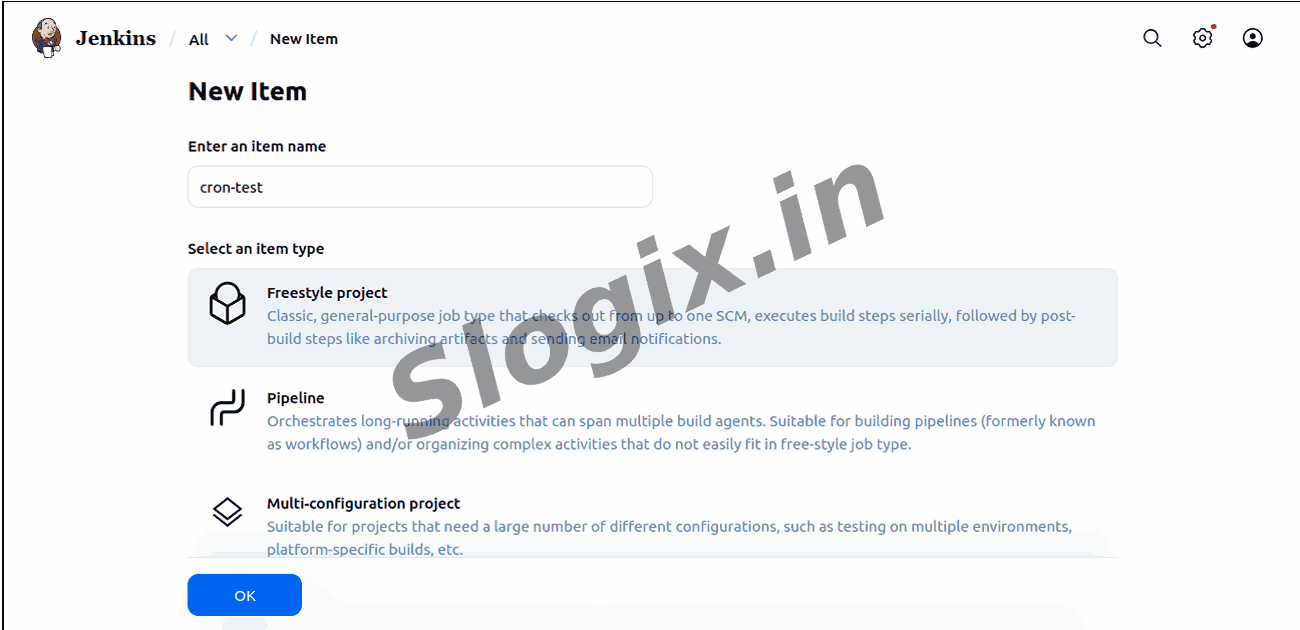
  •  Step 2 — Create a New Job
     Click New Item from the left menu to create a new Jenkins project.
  •  Step 3 — Enter Job Name
     Type the job name as:
    cron-test
  •  Step 4 — Select Freestyle Project
     Choose Freestyle Project and click OK to proceed.
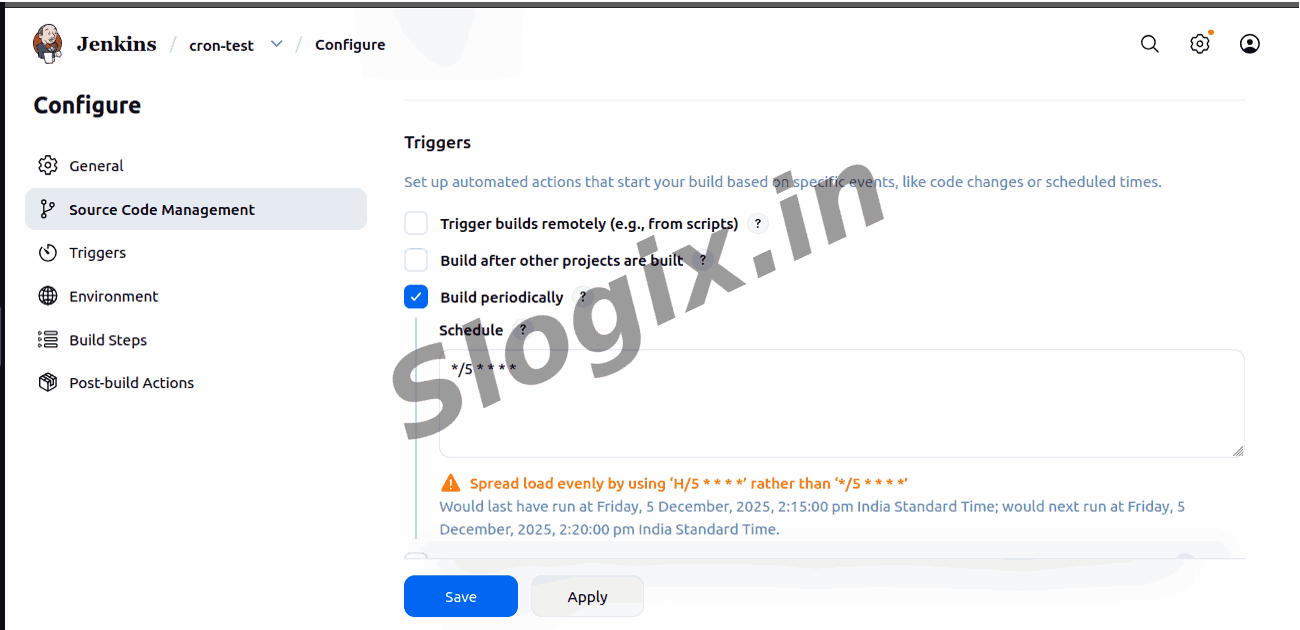
  •  Step 5 — Go to Build Triggers Section
     Inside the configuration page, scroll down to find Build Triggers.
  •  Step 6 — Enable Scheduled Triggering
     Check the box labeled Build periodically.
  •  Step 7 — Enter Cron Schedule
     In the schedule box type:
    */5 * * * *
     This tells Jenkins to run the job every 5 minutes.
  •  Step 8 — Add a Build Step (Optional but Recommended)
     Scroll to Build → click Add build step → select Execute Shell
     Example command:
    echo "This job runs every 5 minutes"
  •  Step 9 — Save the Job
     Click Save at the bottom to store your job configuration.
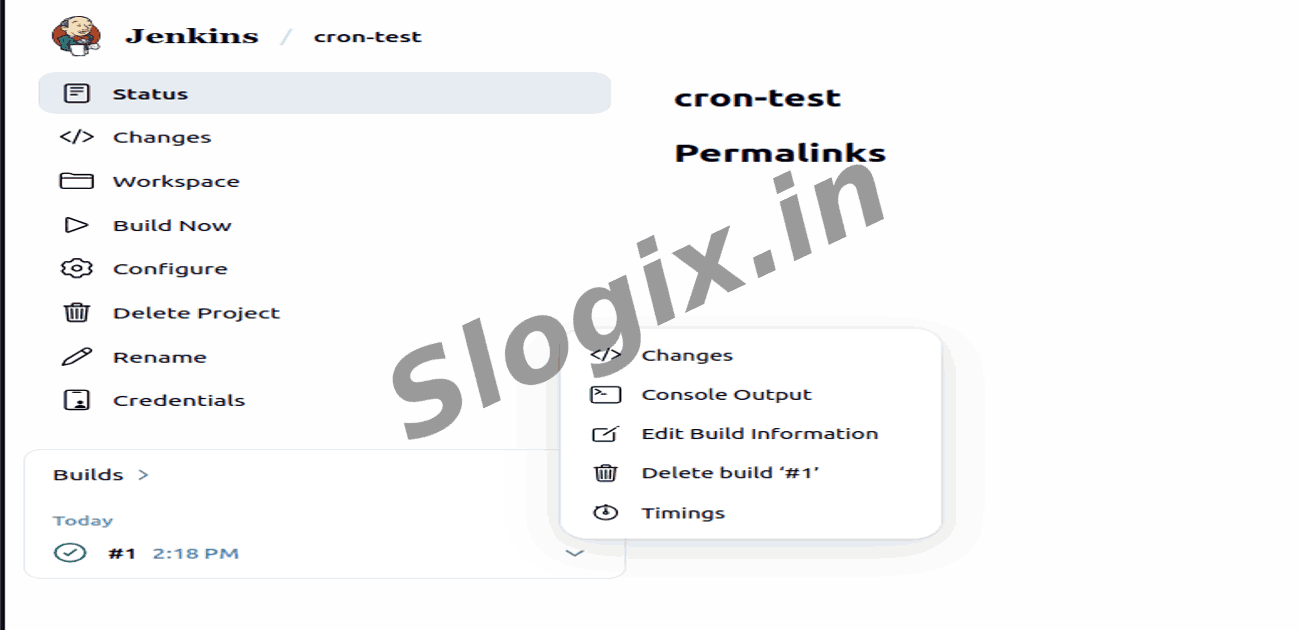
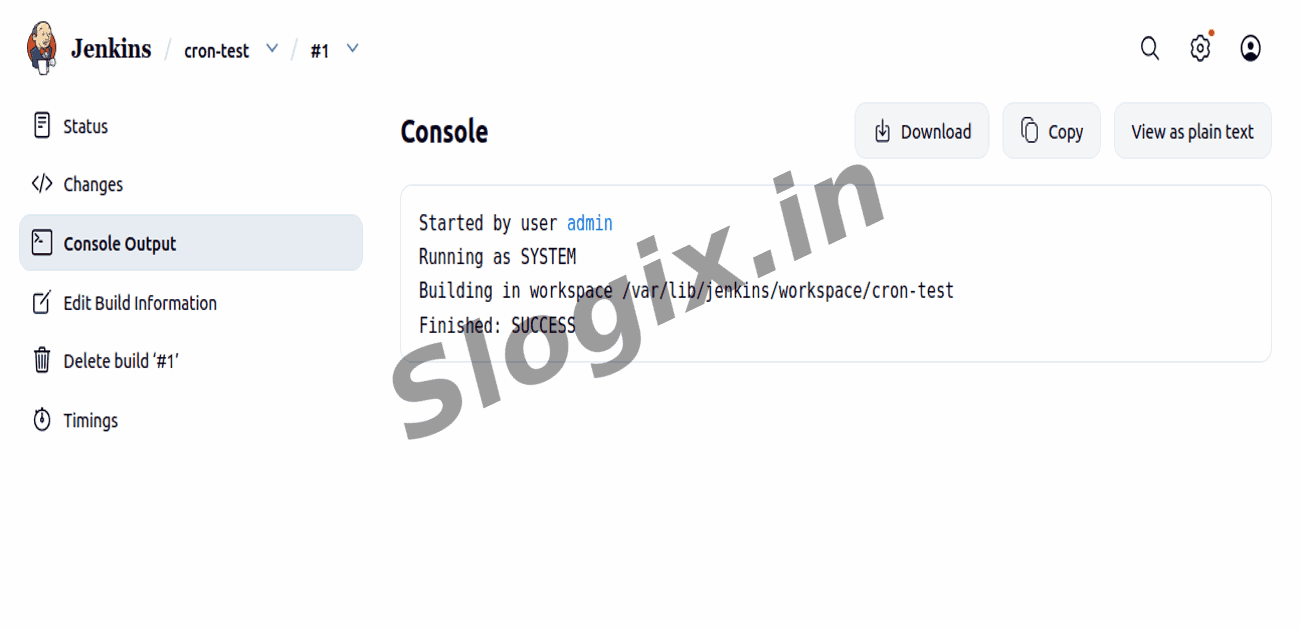
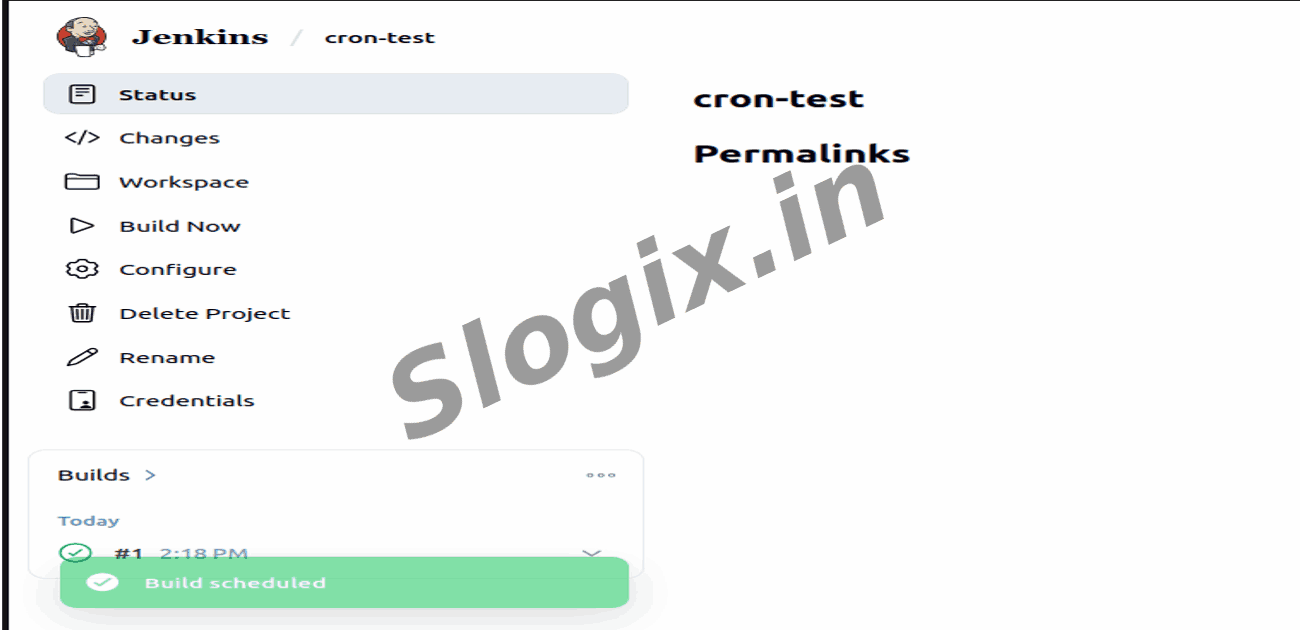
  •  Step 10 — Wait and Check Automatic Runs
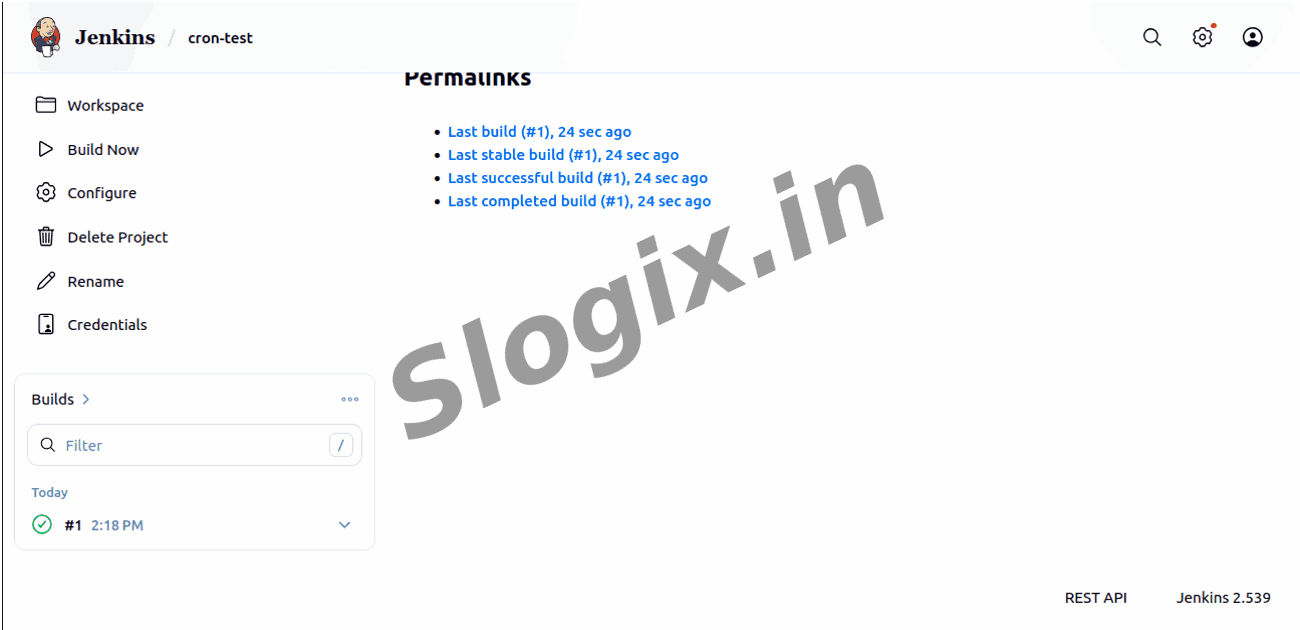
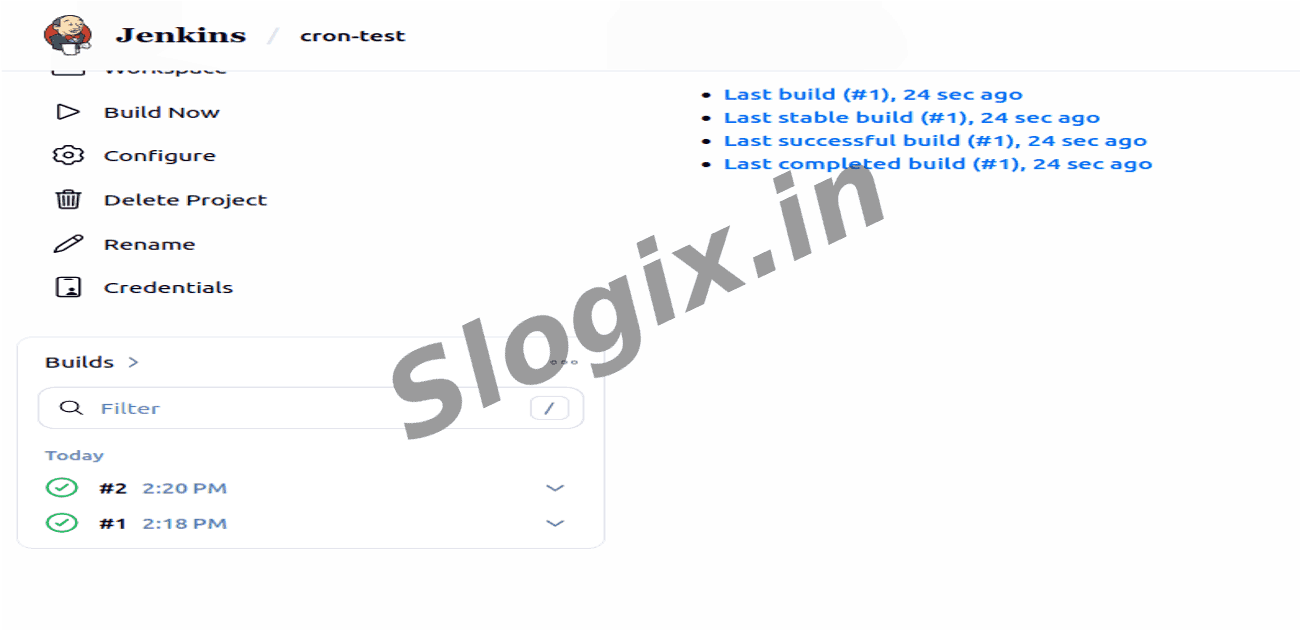
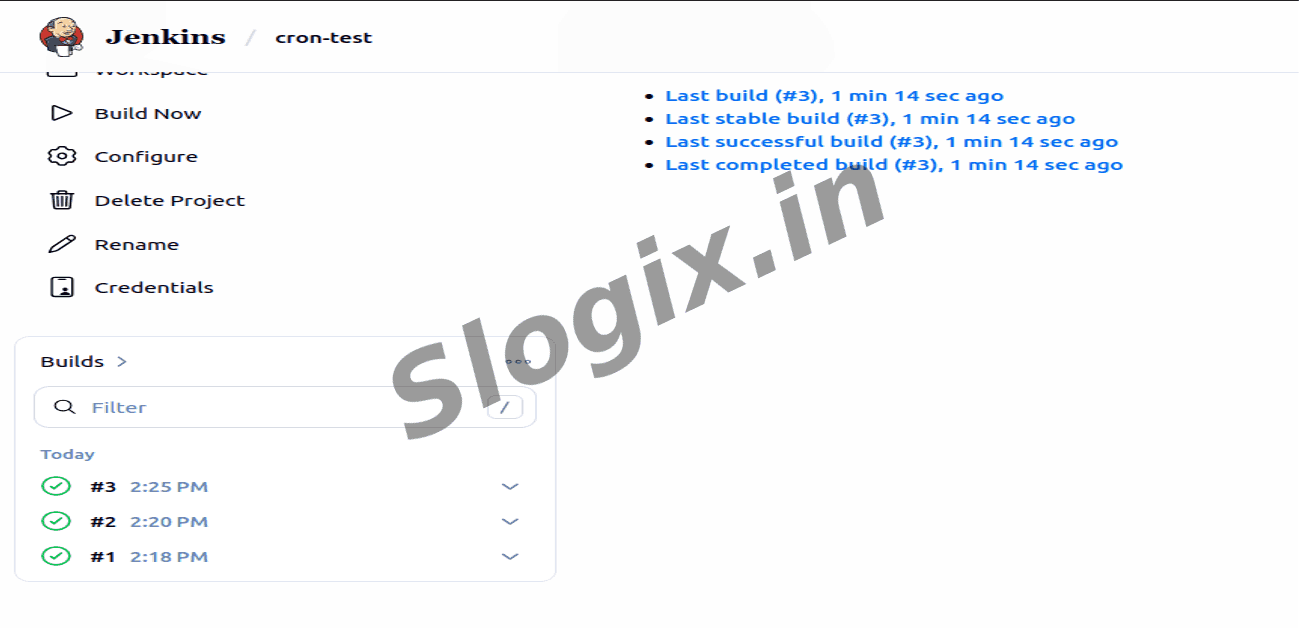
     Return to the job page → watch the Build History.
     You will see a new build triggered every five minutes automatically.
Screenshots
  • 175
  • 176
  • 177
  • 178
  • 179
  • 180
  • 181
  • 182