-
STEP 1 — Create YAML File
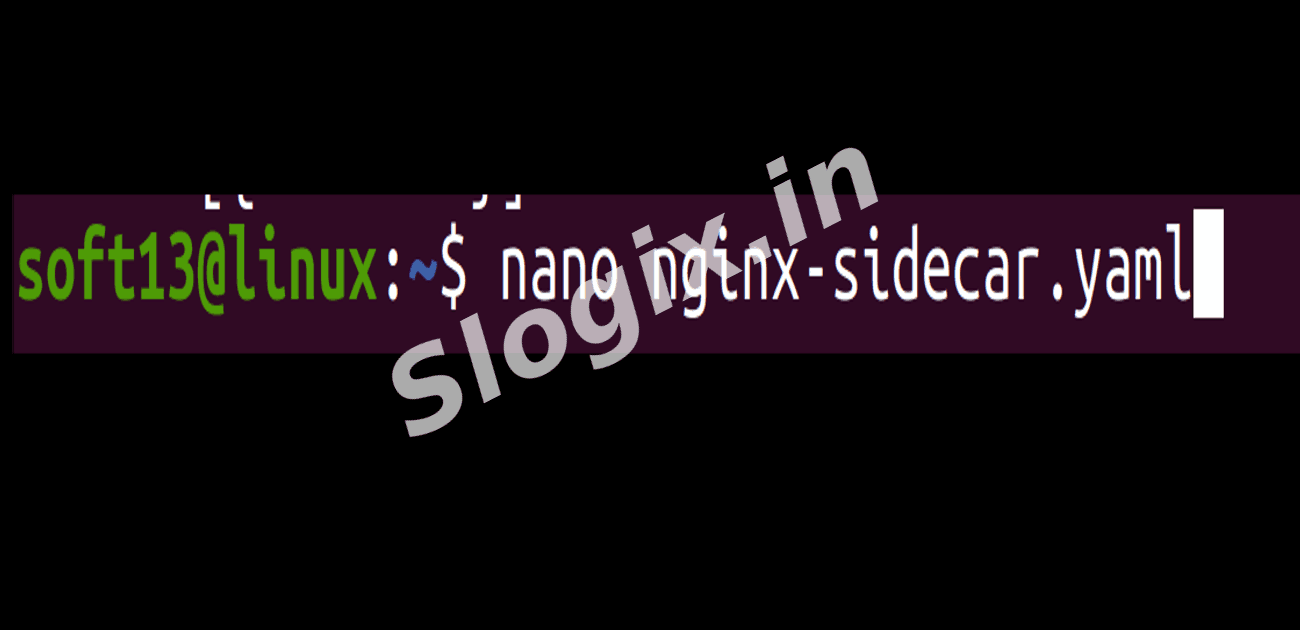
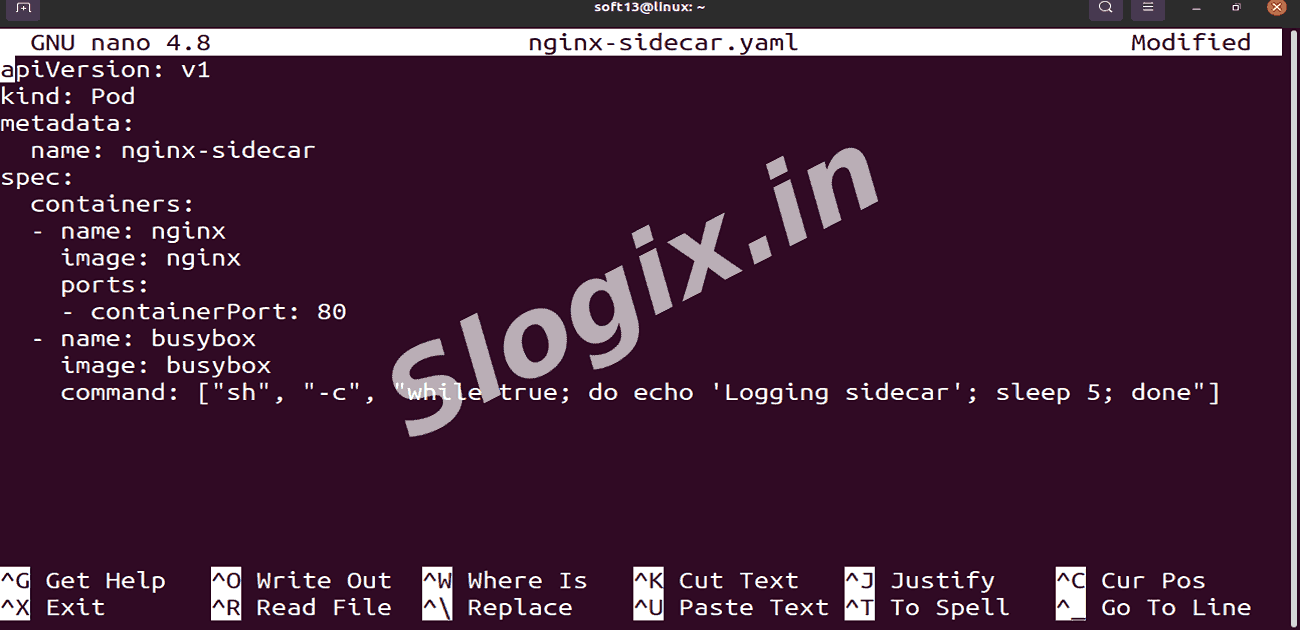
Create a file named nginx-sidecar.yaml with the following content:
apiVersion: v1
kind: Pod
metadata:
  name: nginx-sidecar
spec:
  containers:
  - name: nginx
    image: nginx
    ports:
    - containerPort: 80
  - name: busybox
    image: busybox
    command: ["sh", "-c", "while true; do echo 'Logging sidecar'; sleep 5; done"]
-
STEP 2 — Apply the Pod
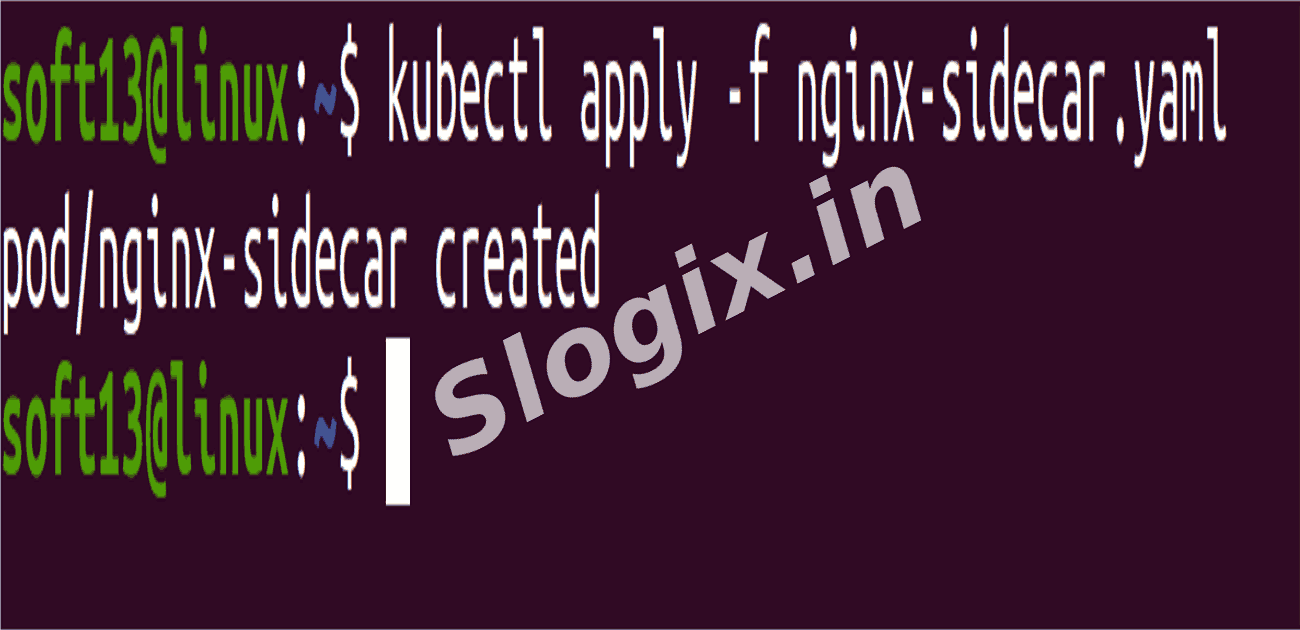
Run the following command to create the pod:
kubectl apply -f nginx-sidecar.yaml
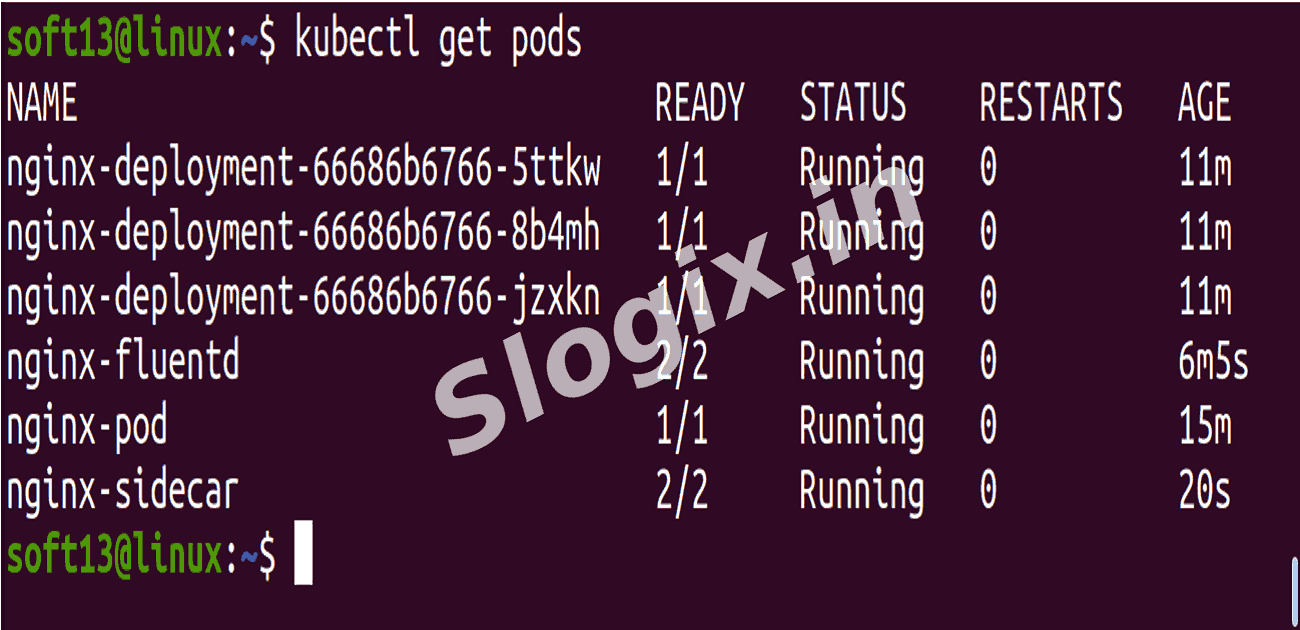
Verify the pod is running:
kubectl get pods
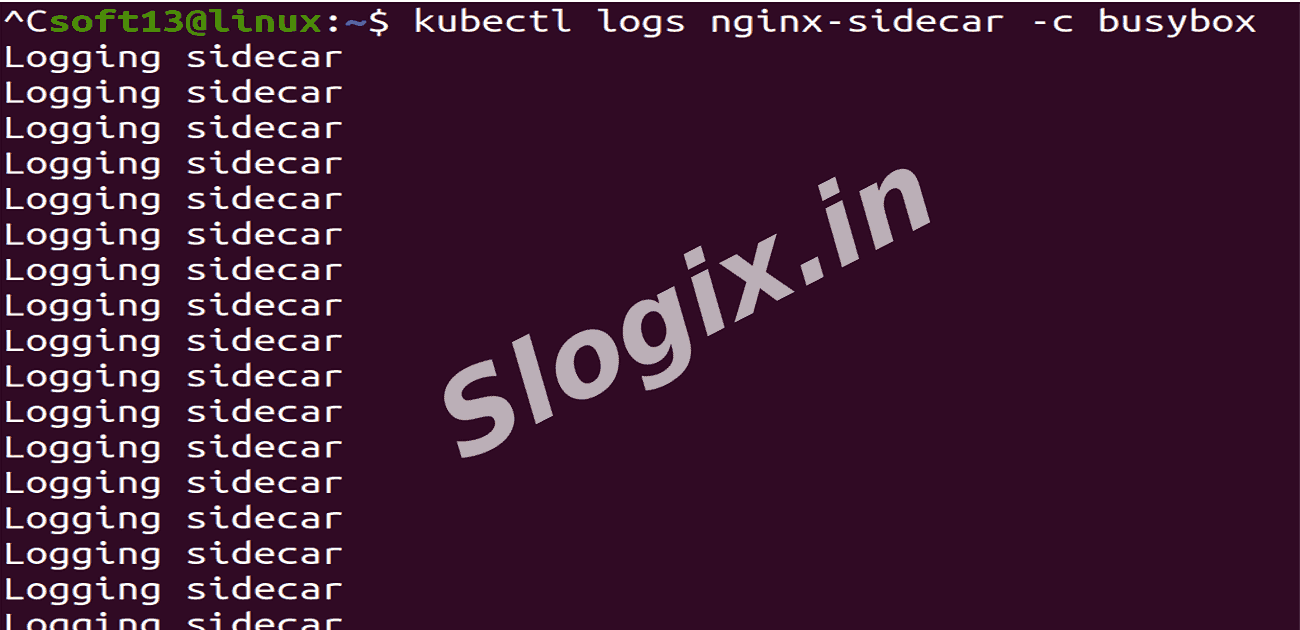
Check logs of the sidecar container:
kubectl logs nginx-sidecar -c busybox
-
STEP 3 — Expose NGINX via Port-Forwarding
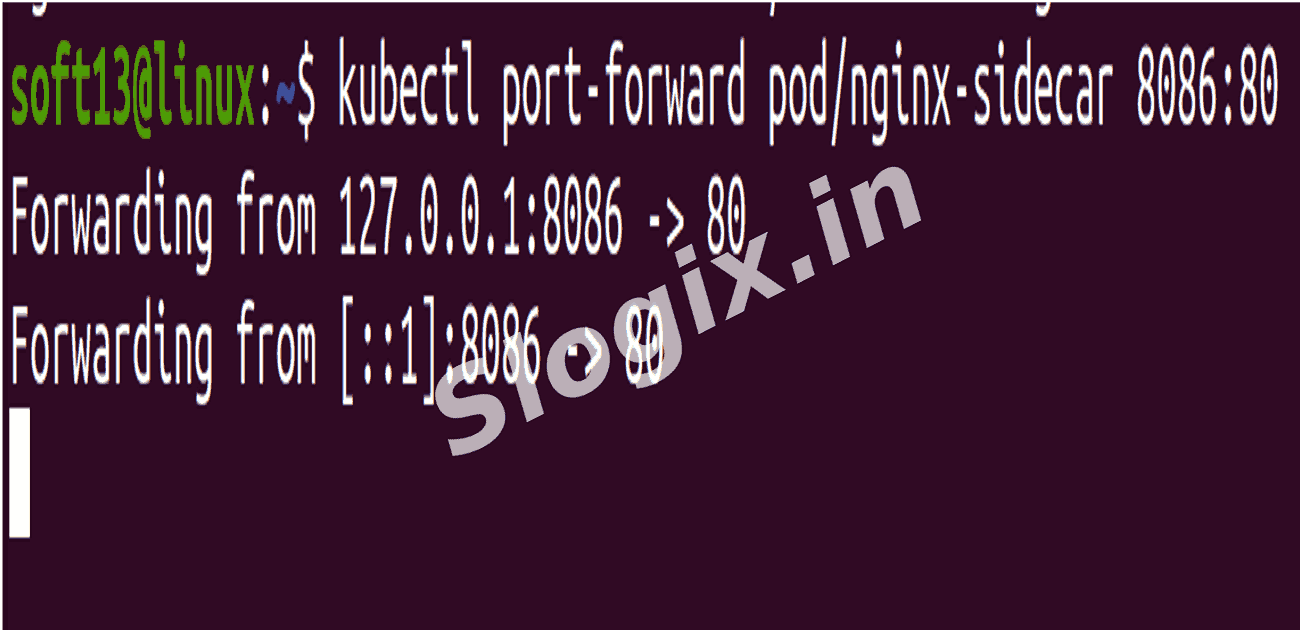
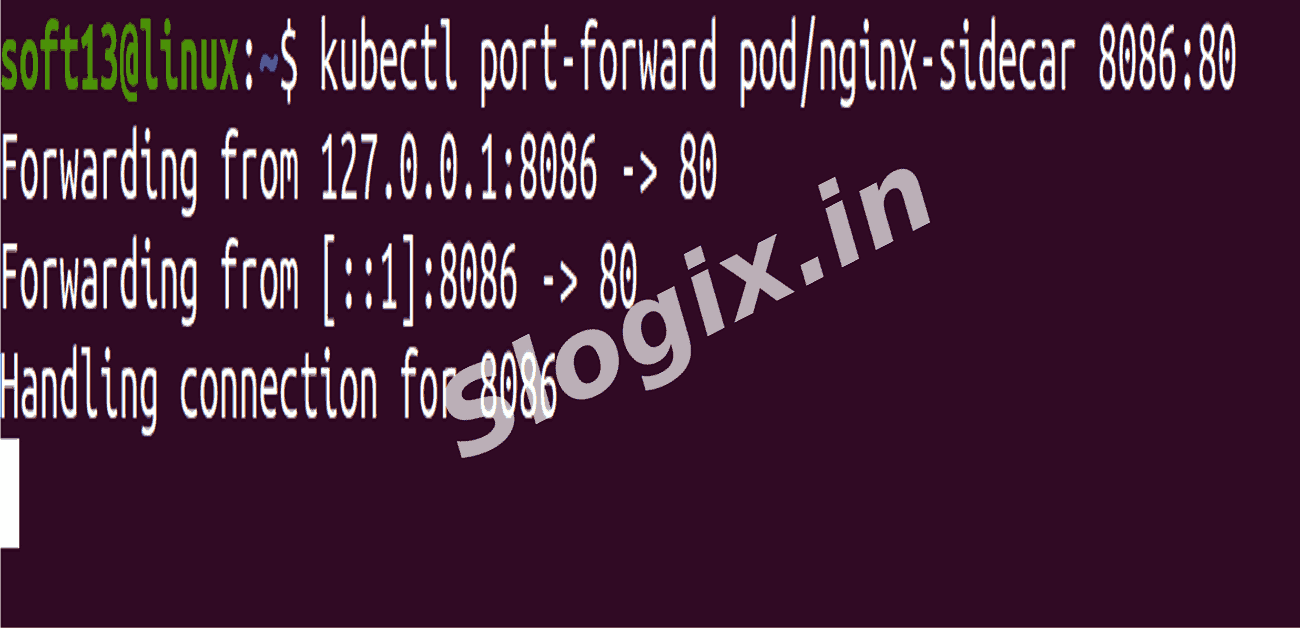
Forward port 8080 on your local machine to port 80 of the pod:
kubectl port-forward pod/nginx-sidecar 8086:80
-
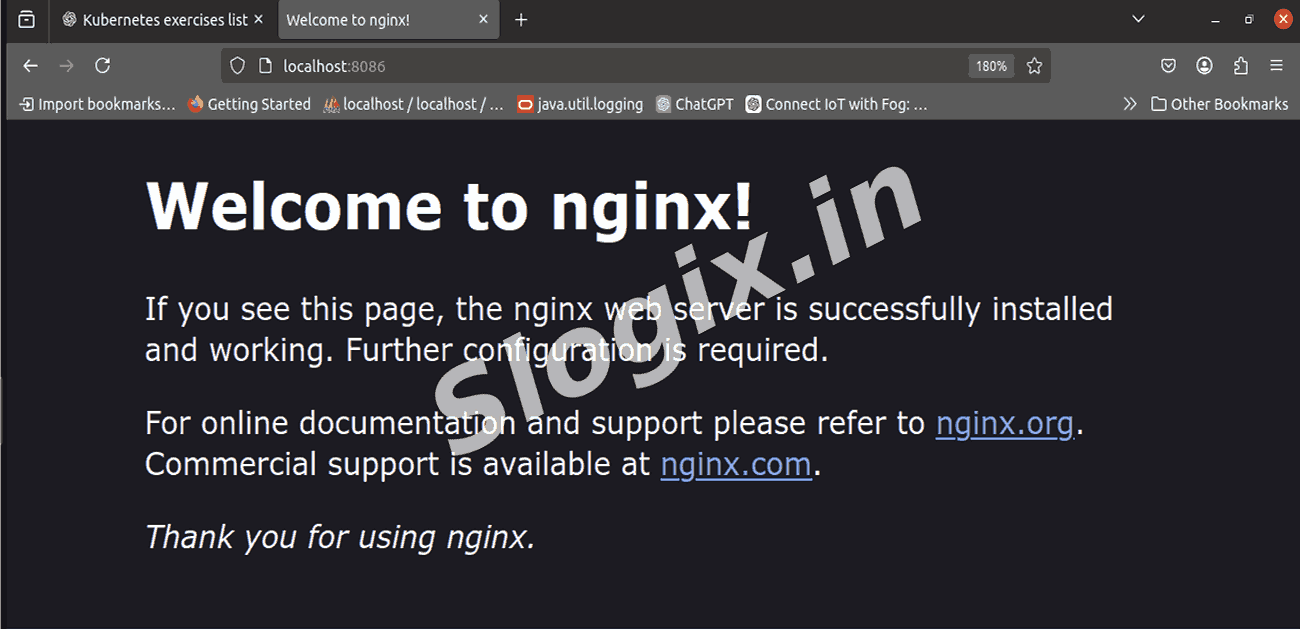
STEP 4 — Access NGINX in Browser
Open your browser and visit:
http://localhost:8080
You should see the default NGINX welcome page.
-
STEP 5 — Verify Logging Sidecar
In another terminal, check the logs of the busybox container:
kubectl logs nginx-sidecar -c busybox
You should see repeated messages:
Logging sidecar
Logging sidecar
 Research Breakthrough Possible @S-Logix