How to Create a Simple Jenkins Pipeline Job Using a Jenkinsfile that Prints a Message?
Share
Condition for Create a Simple Jenkins Pipeline Job Using a Jenkinsfile that Prints a Message
Description: A Jenkins pipeline is a set of automated processes that define the steps to build, test, and deploy your application. Using a Jenkinsfile, you can define the pipeline as code, making it easier to version, track, and reuse. In this example, we create a simple pipeline job called first-pipeline that has one stage (Hello) which prints a message.
Steps
Step 1 — Open Jenkins Dashboard
Go to your browser and enter: http://localhost:8080 (or your Jenkins server URL).
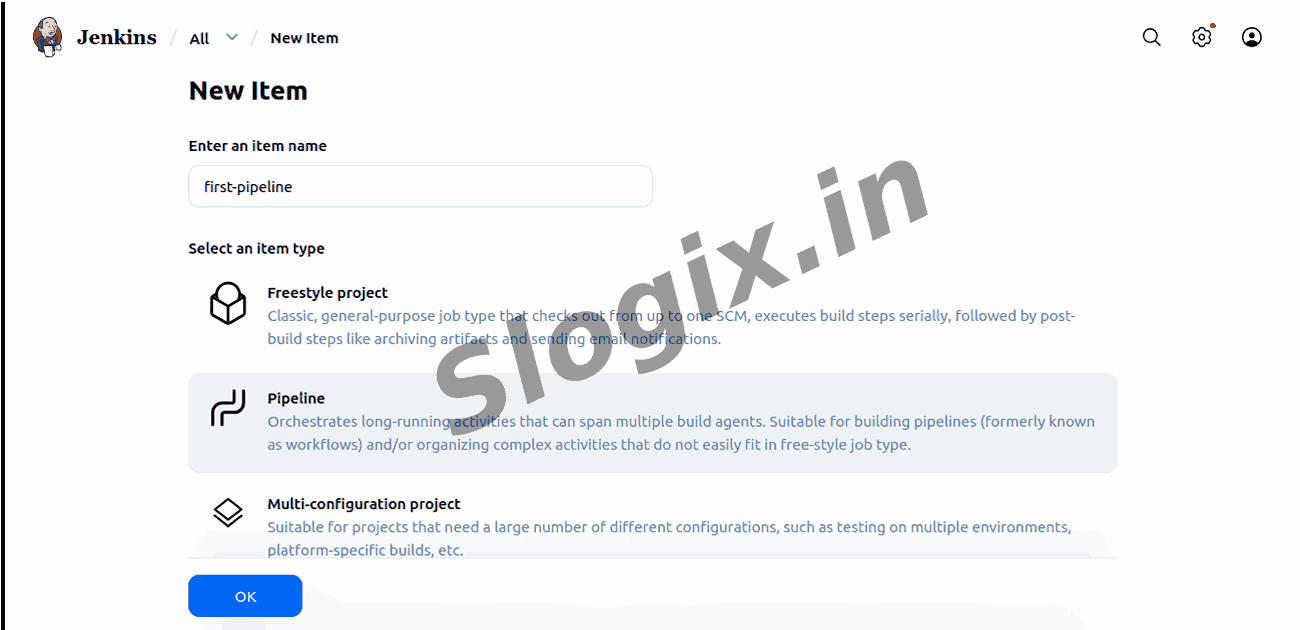
Step 2 — Create a New Item
Click New Item from the left menu to create a new job.
Step 3 — Enter Job Name
Type first-pipeline in the name field.
Step 4 — Select Pipeline Job
Choose Pipeline as the project type and click OK.
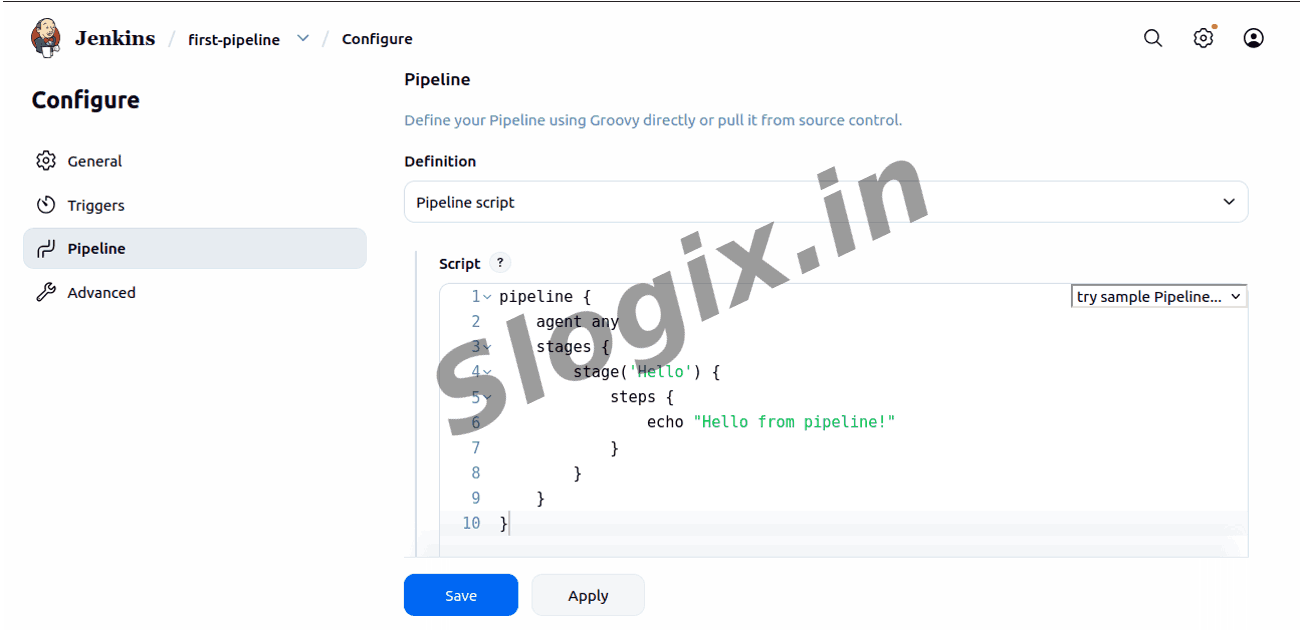
Step 5 — Configure Pipeline
Scroll down to the Pipeline section.
Step 6 — Select Pipeline Script
In the Definition dropdown, choose Pipeline script (you can also use "Pipeline script from SCM" if storing in Git).
Step 7 — Add Jenkinsfile Script
Paste the following script in the script box:
pipeline {
agent any
stages {
stage('Hello') {
steps {
echo "Hello from pipeline!"
}
}
}
}
Step 8 — Save the Job
Click Save at the bottom of the page.
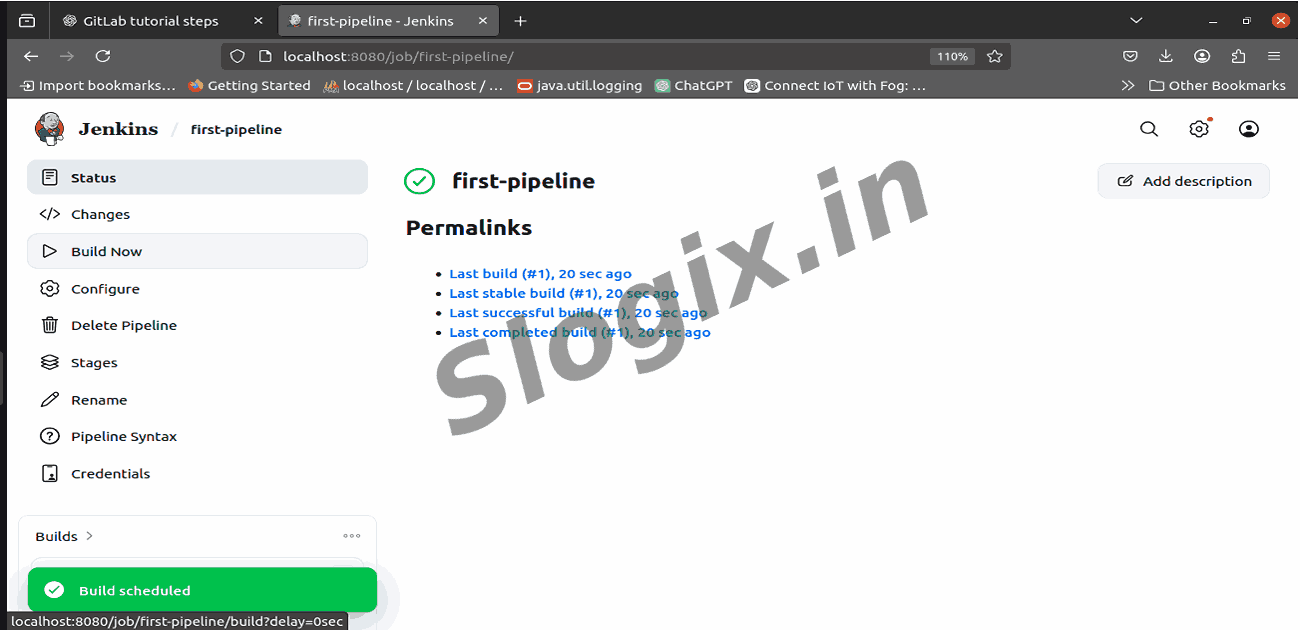
Step 9 — Run the Pipeline
On the job page, click Build Now. Jenkins will start executing the pipeline.
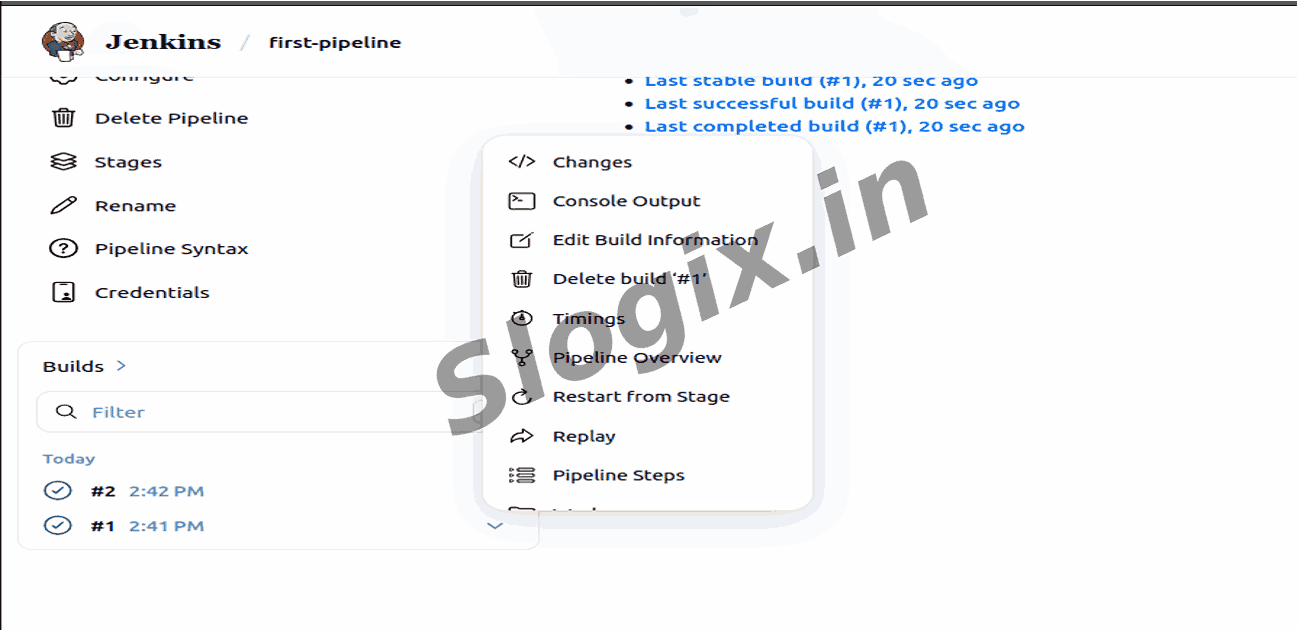
Step 10 — View Console Output
After the build starts, click on the build number under Build History → Click Console Output.
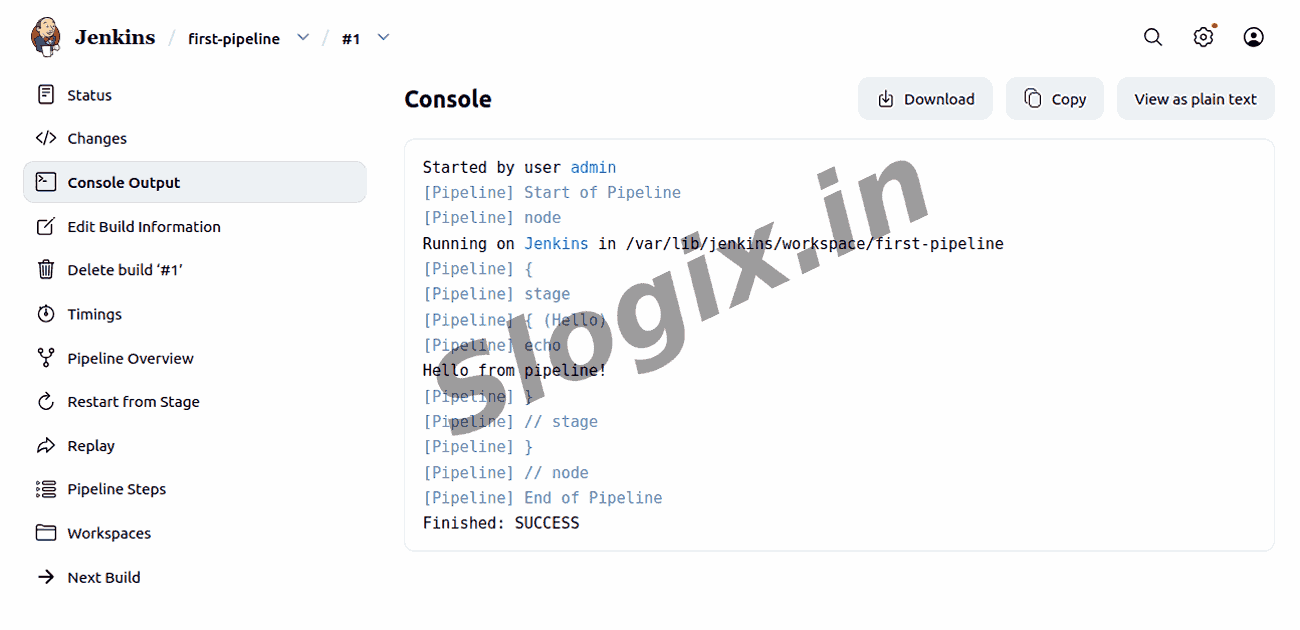
Step 11 — Verify Success
You should see the message: Hello from pipeline!
If the pipeline runs successfully and prints the message, your pipeline is set up correctly.