-
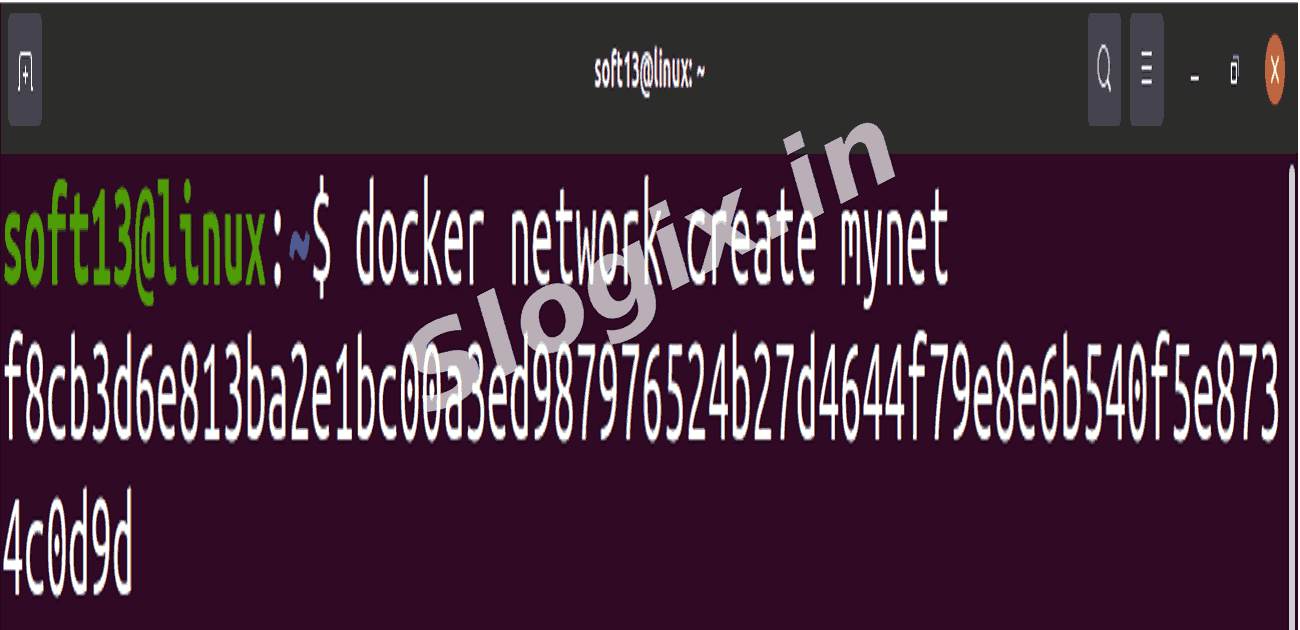
STEP 1 — Create Custom Network
docker network create mynet
-
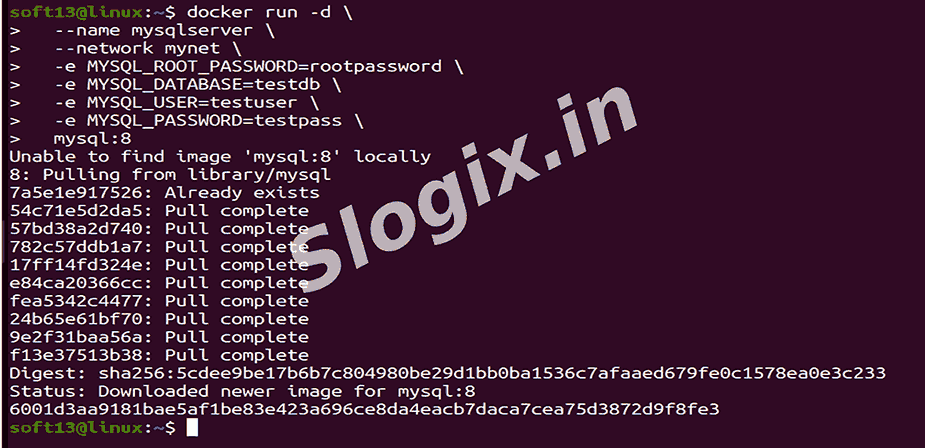
STEP 2 — Start MySQL Container
docker run -d \
  --name mysqlserver \
  --network mynet \
  -e MYSQL_ROOT_PASSWORD=rootpassword \
  -e MYSQL_DATABASE=testdb \
  -e MYSQL_USER=testuser \
  -e MYSQL_PASSWORD=testpass \
  mysql:8
✔ Container Name: mysqlserver
✔ DB created: testdb
-
STEP 3 — Create Java Application
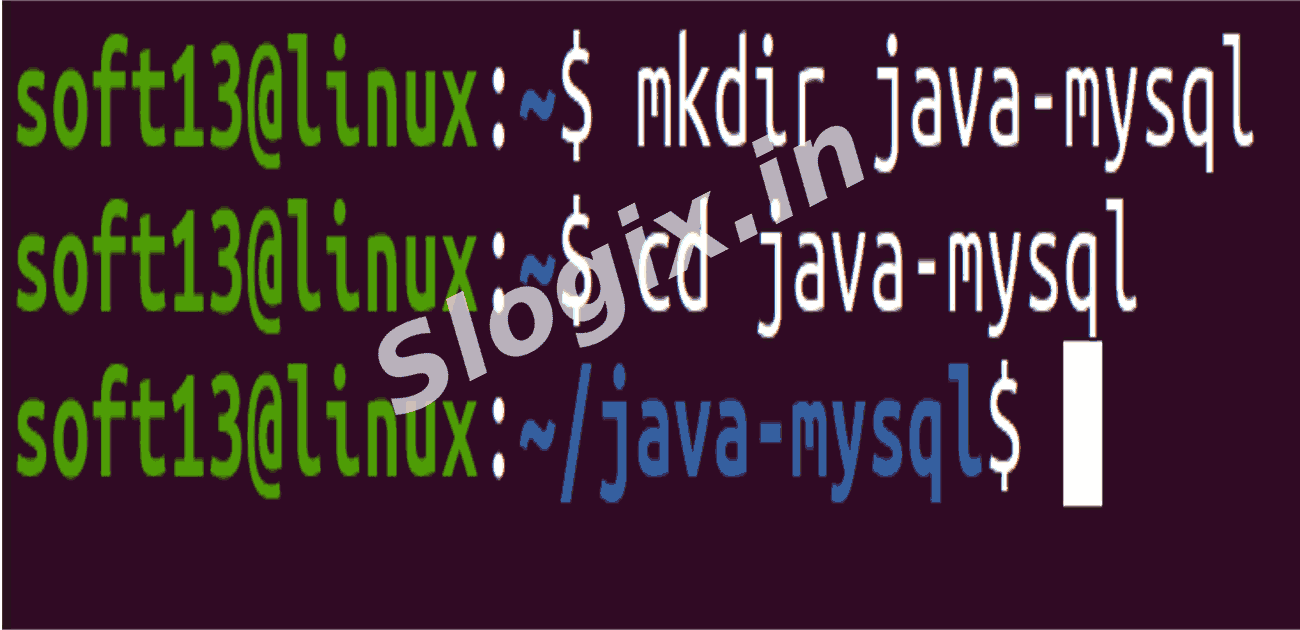
Create folder:
mkdir java-mysql
cd java-mysql
Create App.java
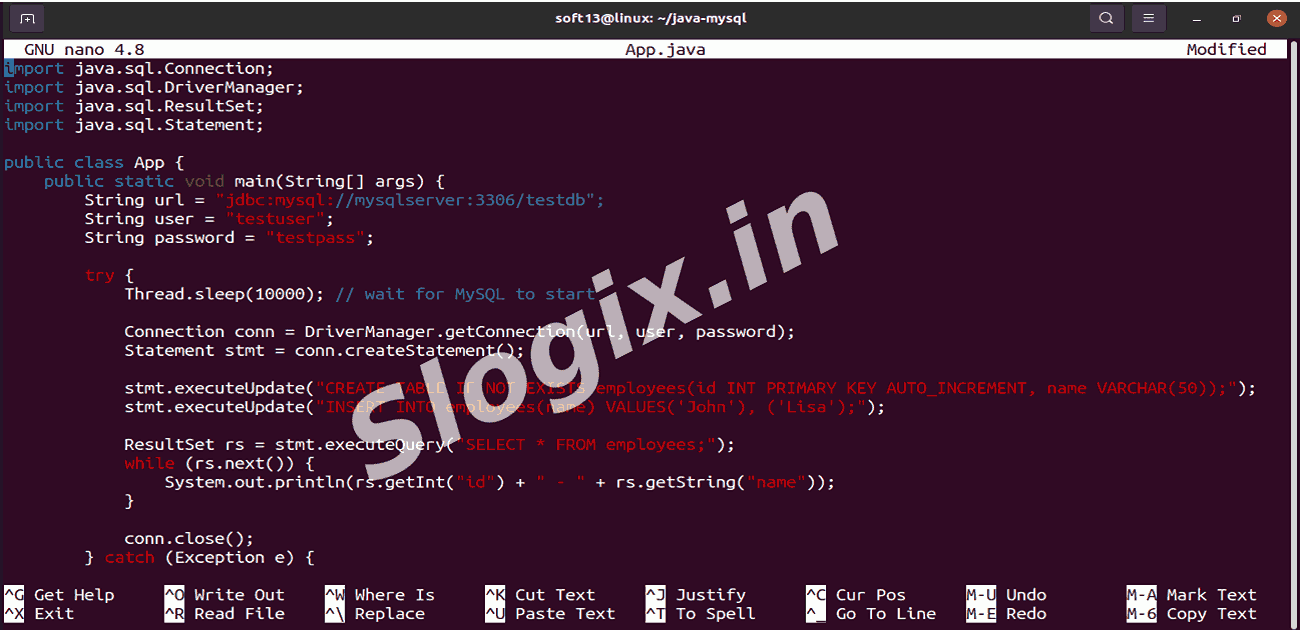
Create file: App.java
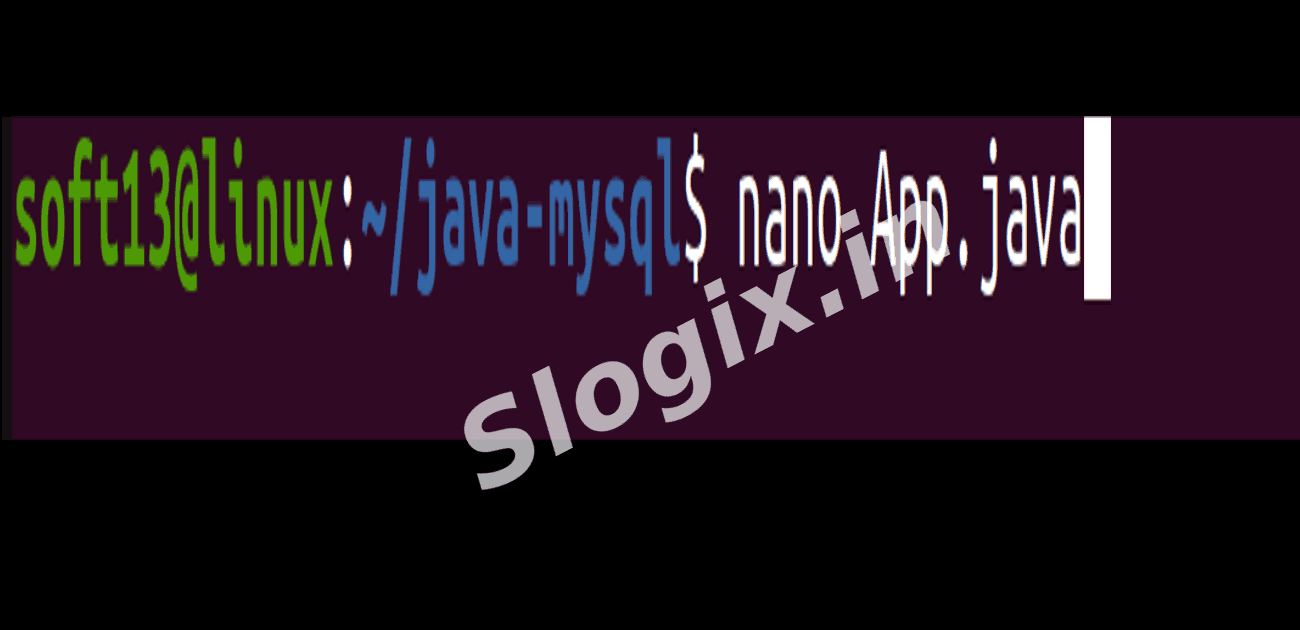
Command:
nano App.java
import java.sql.Connection;
import java.sql.DriverManager;
import java.sql.ResultSet;
import java.sql.Statement;

public class App {
    public static void main(String[] args) {
        String url = "jdbc:mysql://mysqlserver:3306/testdb";
        String user = "testuser";
        String password = "testpass";

        try {
            Thread.sleep(10000); // wait for MySQL to start

            Connection conn = DriverManager.getConnection(url, user, password);
            Statement stmt = conn.createStatement();

            stmt.executeUpdate("CREATE TABLE IF NOT EXISTS employees(id INT PRIMARY KEY AUTO_INCREMENT, name VARCHAR(50));");
            stmt.executeUpdate("INSERT INTO employees(name) VALUES('John'), ('Lisa');");

            ResultSet rs = stmt.executeQuery("SELECT * FROM employees;");
            while (rs.next()) {
                System.out.println(rs.getInt("id") + " - " + rs.getString("name"));
            }

            conn.close();
        } catch (Exception e) {
            e.printStackTrace();
        }
    }
}
-
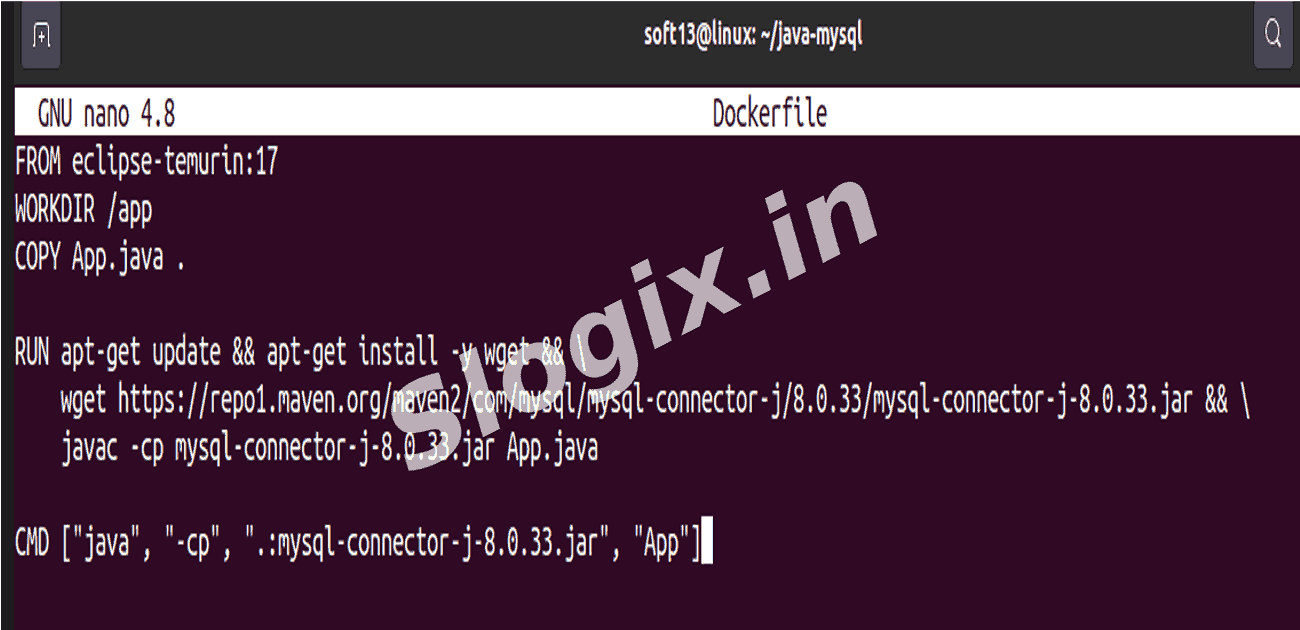
STEP 4 — Create Dockerfile
nano Dockerfile
FROM eclipse-temurin:17
WORKDIR /app
COPY App.java .

RUN apt-get update && apt-get install -y wget && \
    wget https://repo1.maven.org/maven2/com/mysql/mysql-connector-j/8.0.33/mysql-connector-j-8.0.33.jar && \
    javac -cp mysql-connector-j-8.0.33.jar App.java

CMD ["java", "-cp", ".:mysql-connector-j-8.0.33.jar", "App"]
✔ Downloads MySQL JDBC driver
✔ Compiles Java code
✔ Runs Java with connector library
-
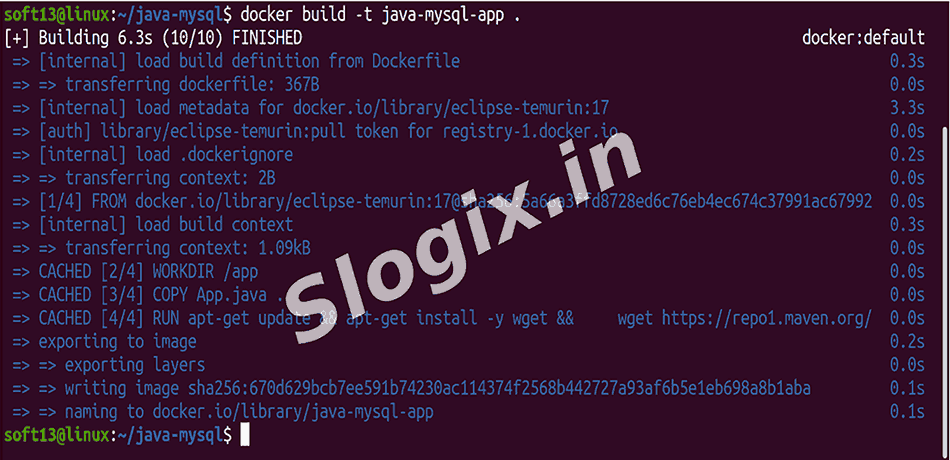
STEP 5 — Build Java Docker Image
docker build -t java-mysql-app .
-
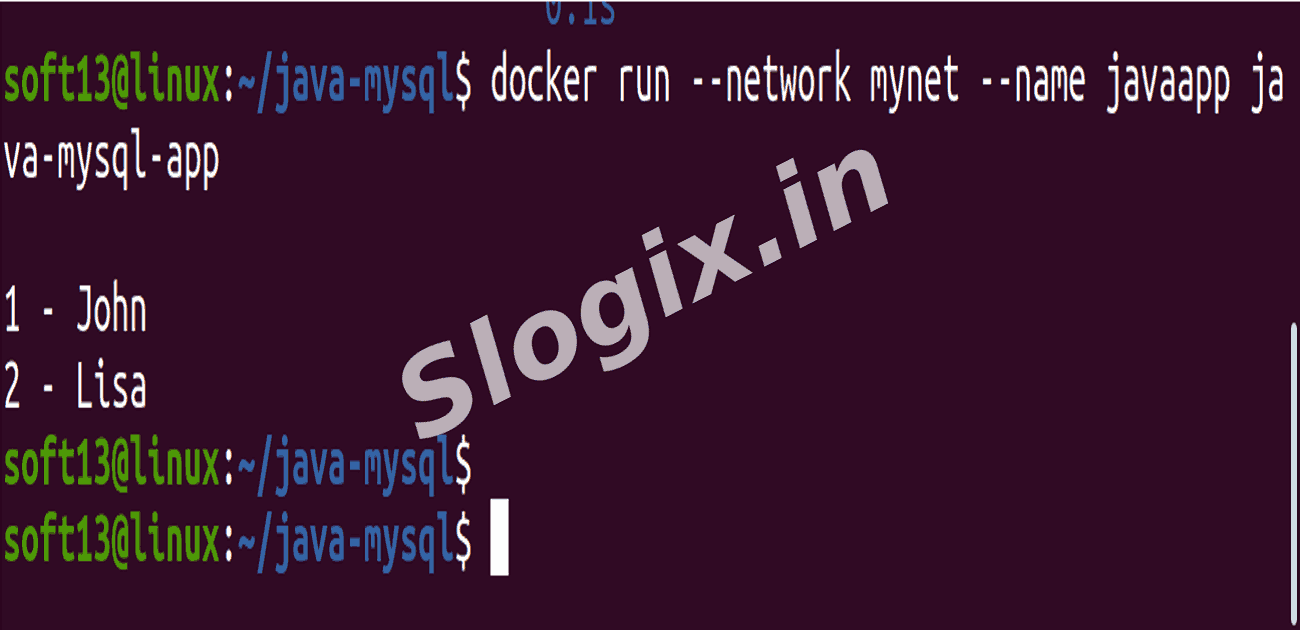
STEP 6 — Run Java App Container on Same Docker Network
docker run --network mynet --name javaapp java-mysql-app
EXPECTED OUTPUT:
1 - John
2 - Lisa
-
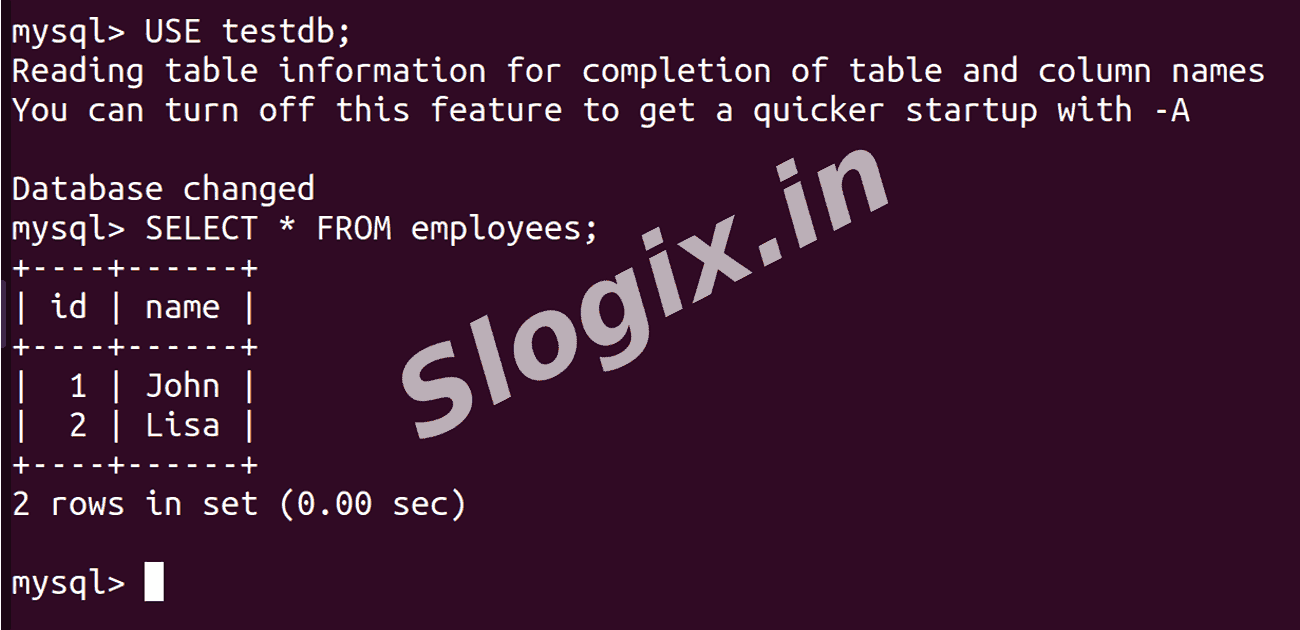
STEP 7 — Validate Data Inside MySQL
docker exec -it mysqlserver mysql -utestuser -ptestpass
Inside SQL:
USE testdb;
SELECT * FROM employees;
 Research Breakthrough Possible @S-Logix