-
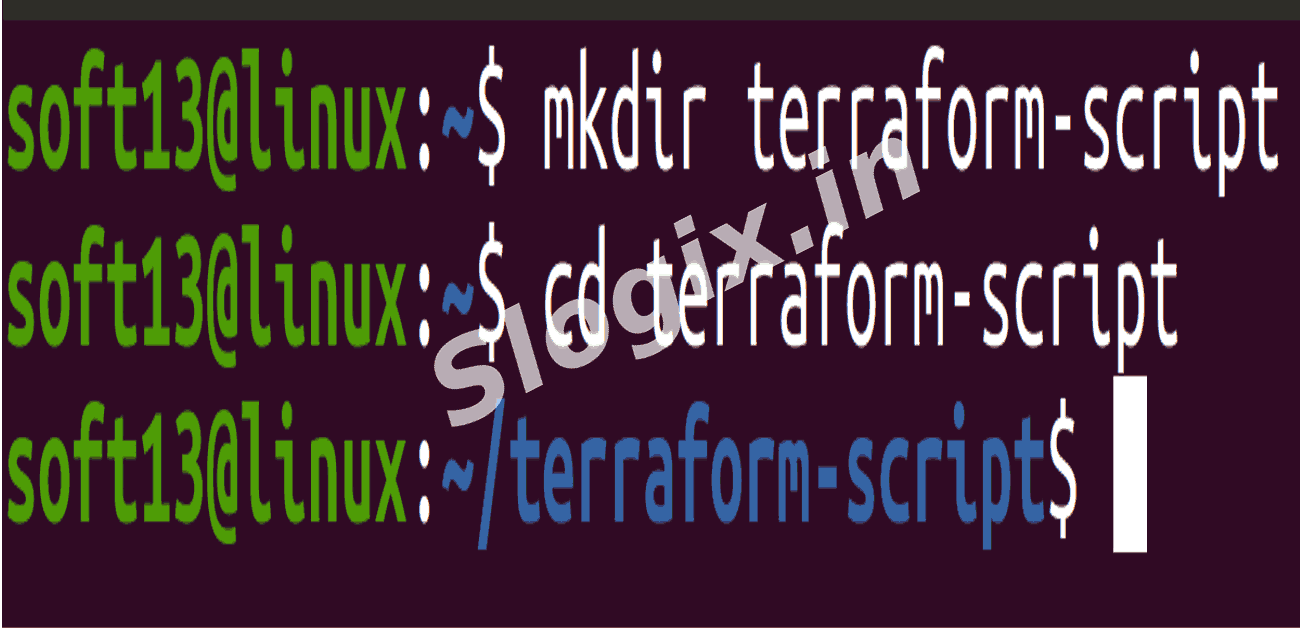
Step 1 — Create project folder
Open a terminal and run:
mkdir terraform-script
cd terraform-script
-
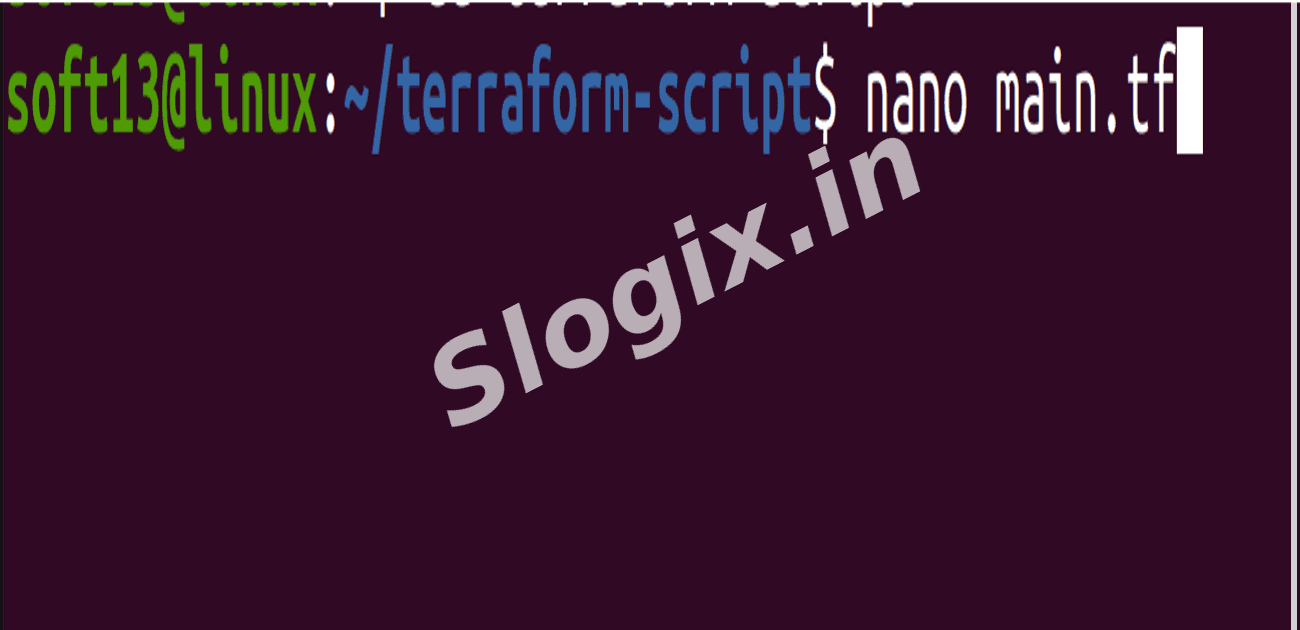
Step 2 — Create main.tf
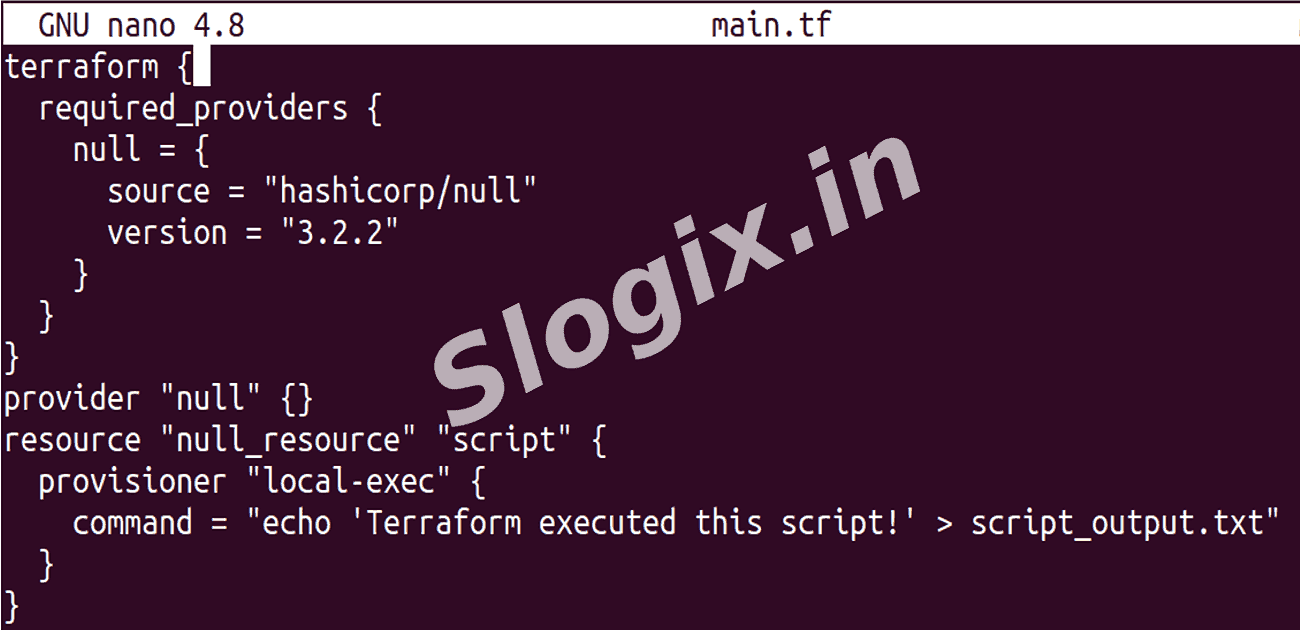
Create main.tf (edit with your editor) and paste:
terraform {
  required_providers {
    null = {
      source  = "hashicorp/null"
      version = "3.2.2"
    }
  }
}

provider "null" {}

resource "null_resource" "script" {
  provisioner "local-exec" {
    command = "echo 'Terraform executed this script!' > script_output.txt"
  }
}
Explanation:
null_resource is a placeholder resource you can attach provisioners to.
local-exec runs the given command on the machine that runs terraform apply.
-
Step 3 — Initialize Terraform
Download provider plugins and initialize the working directory:
terraform init
Expected console output snippet:
Terraform has been successfully initialized!
-
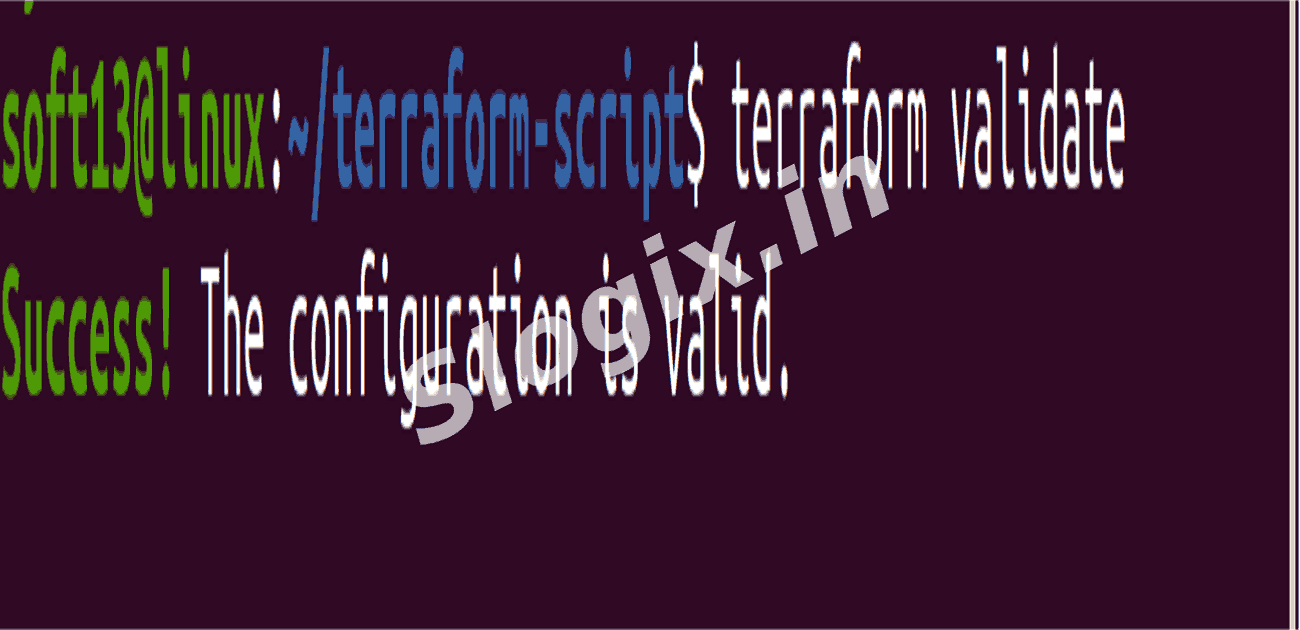
Step 4 — Validate configuration
Check HCL syntax and config validity:
terraform validate
Expected:
Success! The configuration is valid.
-
Step 5 — Preview
You can preview what Terraform will do:
terraform plan
You’ll see that one resource (null_resource.script) will be created.
-
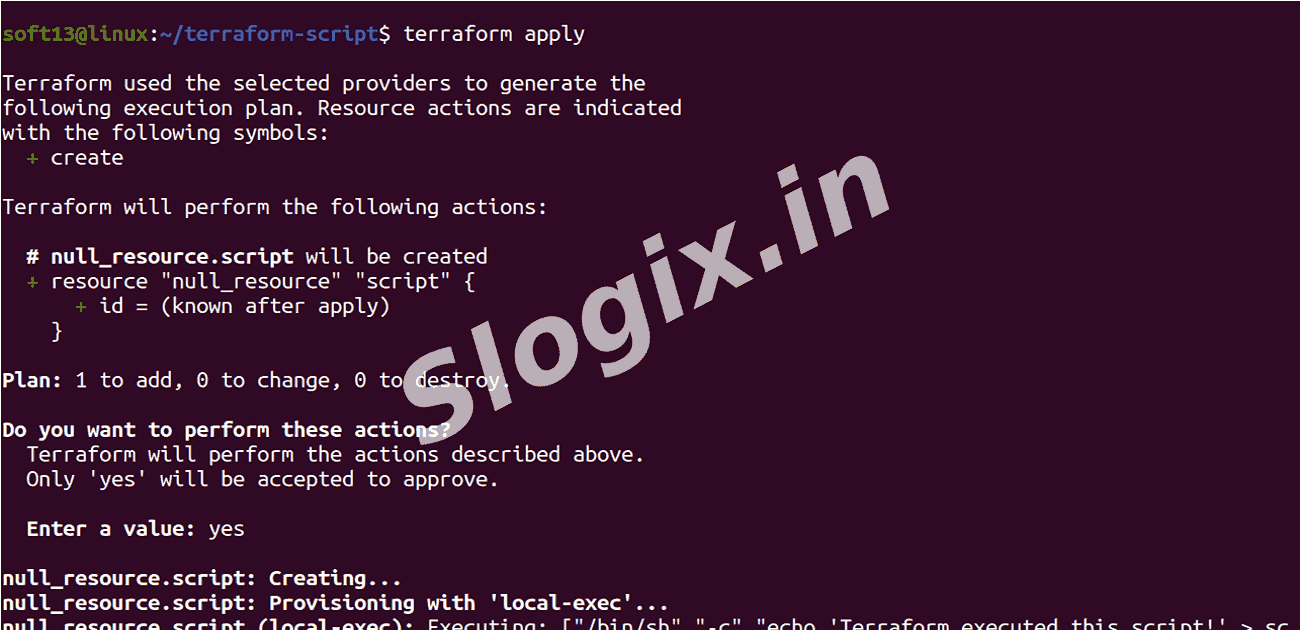
Step 6 — Apply to run the script
Execute the plan (this runs the shell command):
terraform apply
When prompted, type yes and press Enter.
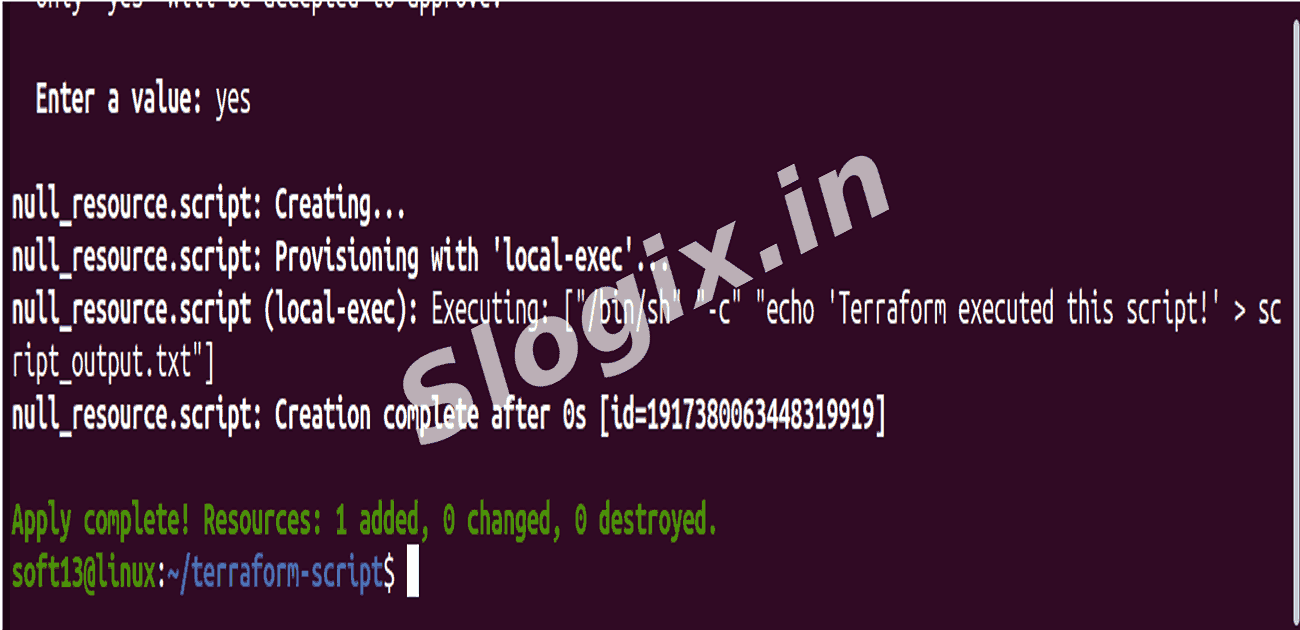
What happens: Terraform creates the null_resource and runs the local-exec command, which writes to script_output.txt.
Sample apply output snippet:
null_resource.script: Creating...
null_resource.script: Provisioning with 'local-exec'...
null_resource.script: Creation complete after 0s [id=...]
-
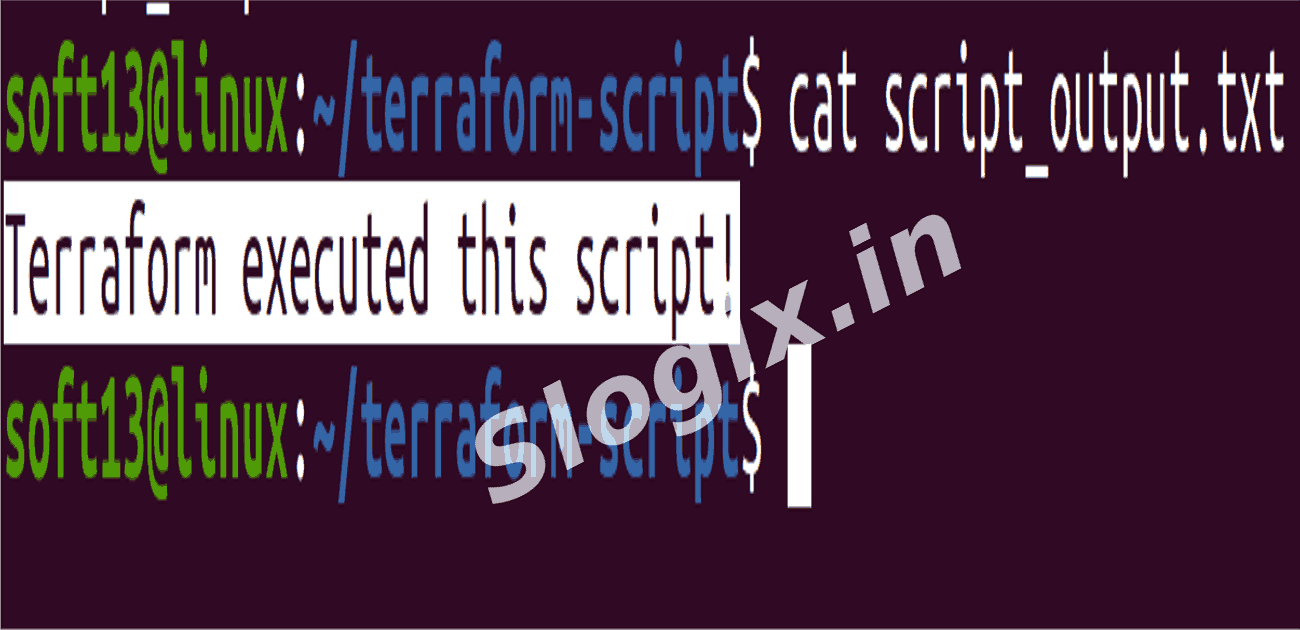
Step 7 — Verify the output file
Check the file created by the command:
cat script_output.txt
Expected file content:
Terraform executed this script!
-
Step 8 — Cleanup (optional)
Remove the resource and (optionally) the file via Terraform:
terraform destroy
Type yes when prompted. If script_output.txt remains (depending on how your command behaves), remove it manually:
rm -f script_output.txt
 Research Breakthrough Possible @S-Logix