Research Breakthrough Possible @S-Logix

Office Address
- 2nd Floor, #7a, High School Road, Secretariat Colony Ambattur, Chennai-600053 (Landmark: SRM School) Tamil Nadu, India
- pro@slogix.in
- +91-81240 01111
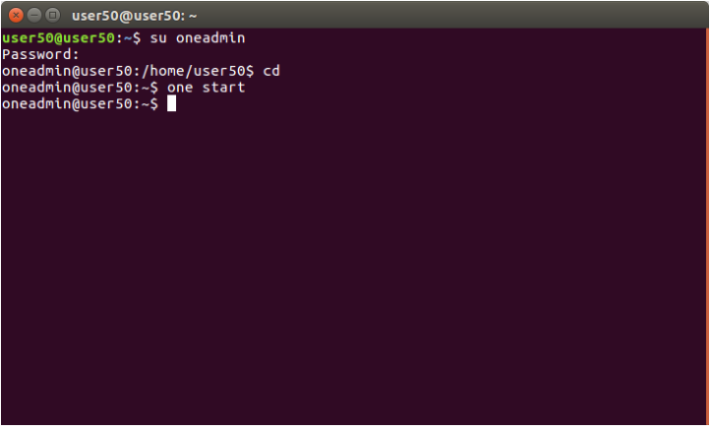
i) Login as the oneadmin user in Terminal.
Type the following command.
<one start>
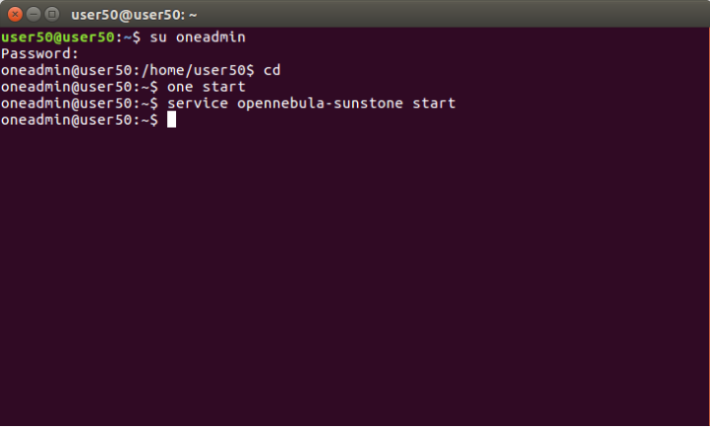
(ii) Start the OpenNebula SunStone.
Type the following command.
<service opennebula-sunstone start>
Go to https://localhost:9869 .
Login into OpenNebula Sunstone.
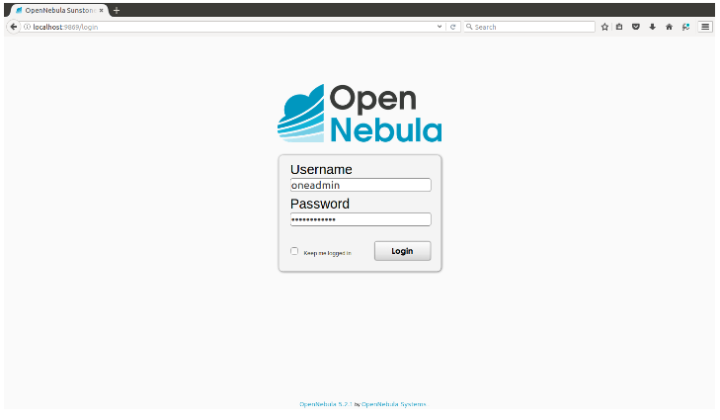
Username-oneadmin.
Password-xxxxxxxxx and click on “Login” button.
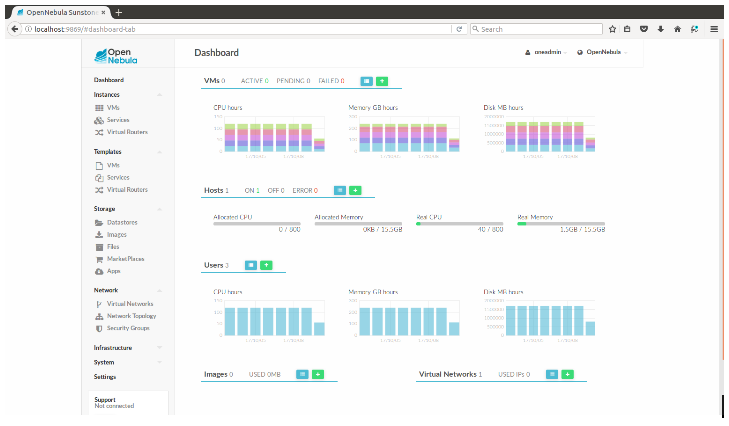
OpenNebula Dashboard screen will be displayed.

“General” TabName = "Network Name"
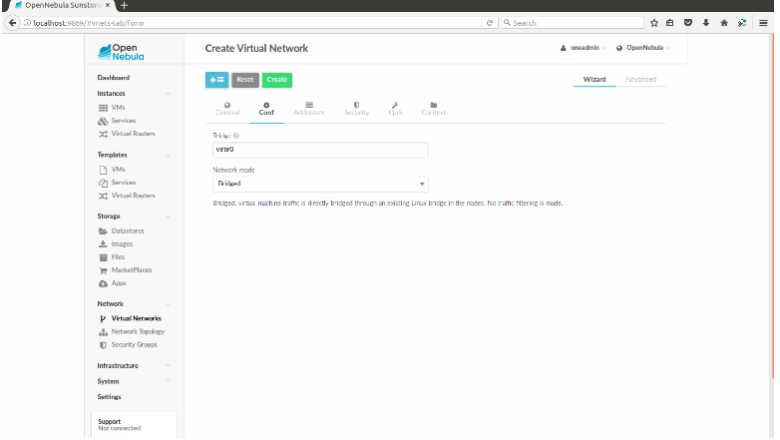
“Conf” Tab.
Bridge=”Your Bridge Name”.
Network Mode=”Bridged”.
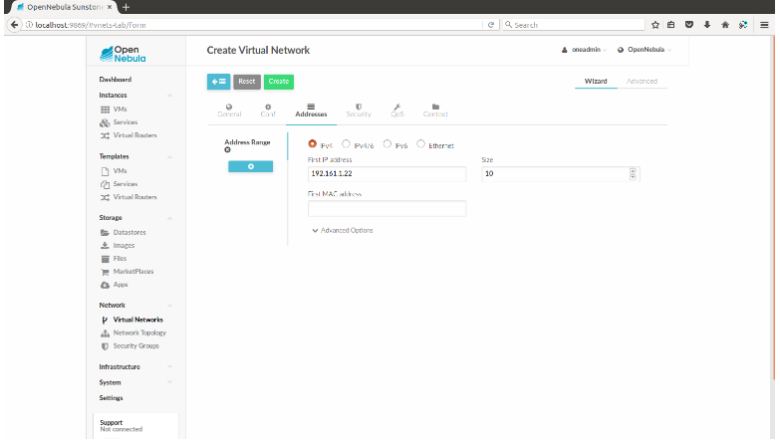
“Addresses” Tab.
Select “IPv4”.
First IP address=”Mention the IP address”
Size=”your required IP address binding in network”.
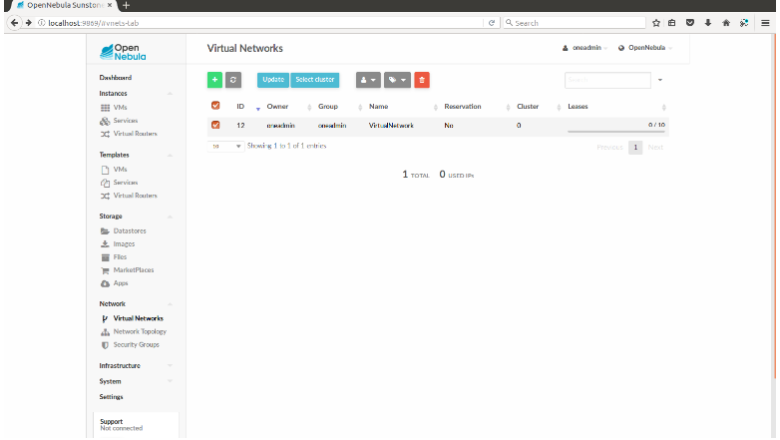
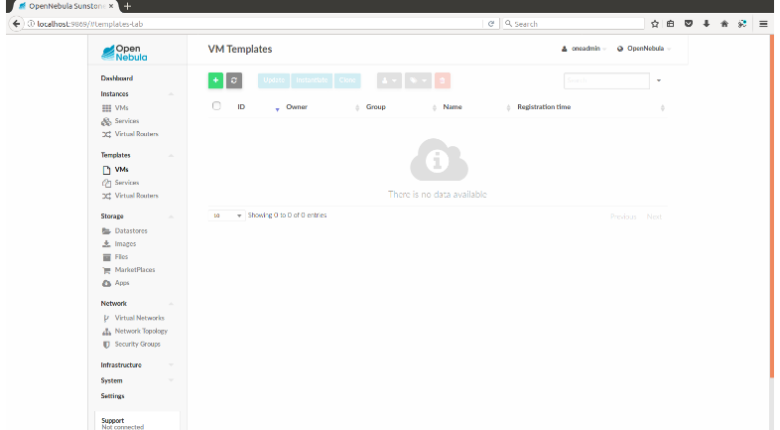
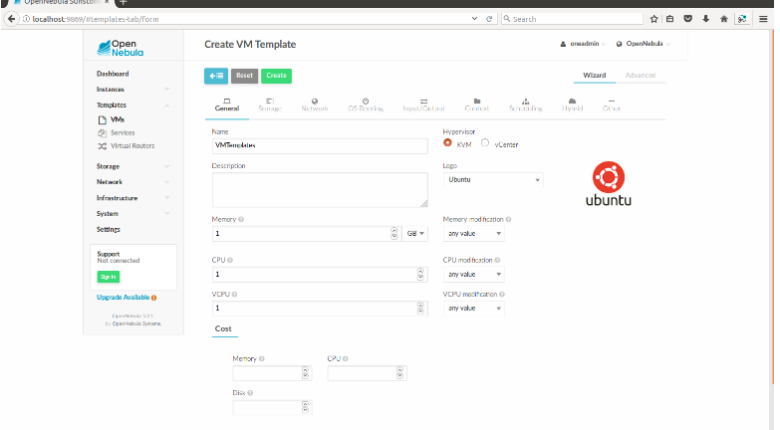
Name = "Template name"
Hypervisor=”kvm”
Memory=”Your required RAM memory in GB”
CPU=”Required CPU”
VCPU=”Required VCPU”
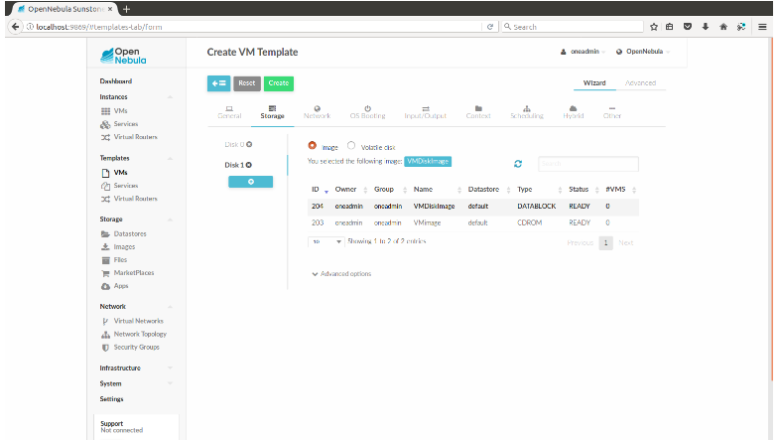
Select Disk 0
Type=image
Add the ISO image
Select Disk 1
Type=image
Add the Empty Disk Image
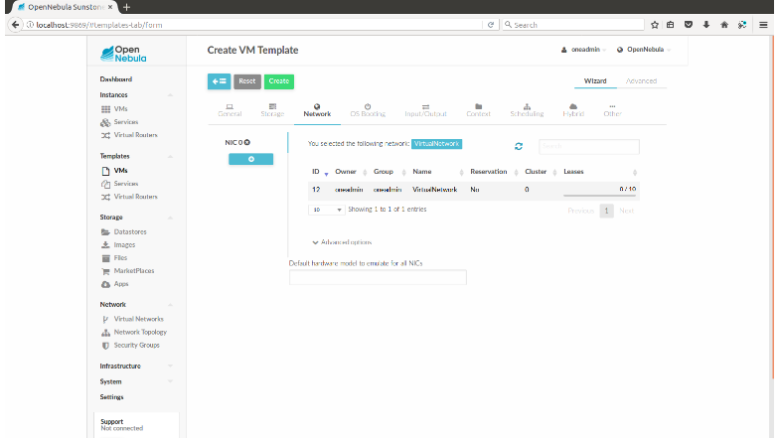
Select your required virtual network
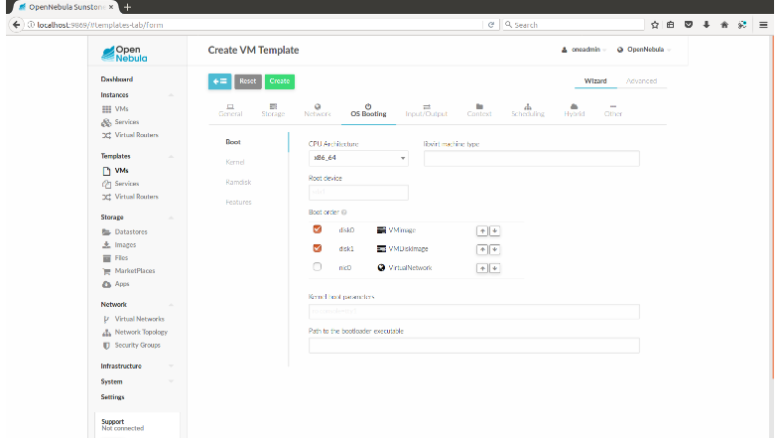
CPU Architecture=”ISO image Type”
Tick the ISO image and move into first position
Tick the Empty disk image and move into Second position
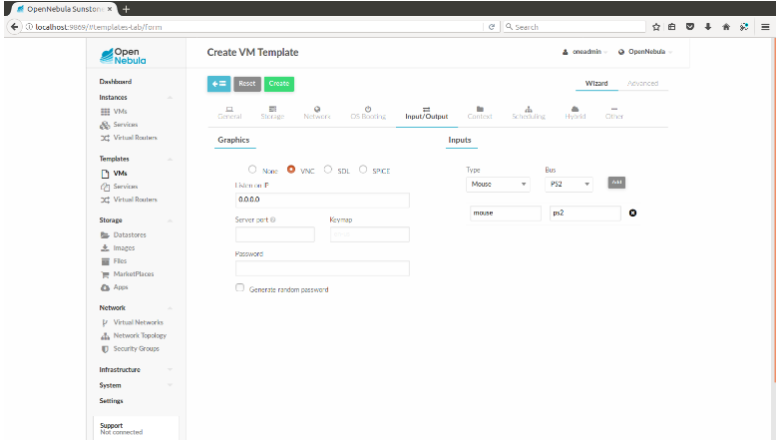
Select “VNC”.
Listen on IP=”0.0.0.0”.
Inputs Type=”Mouse” and “ps2”.
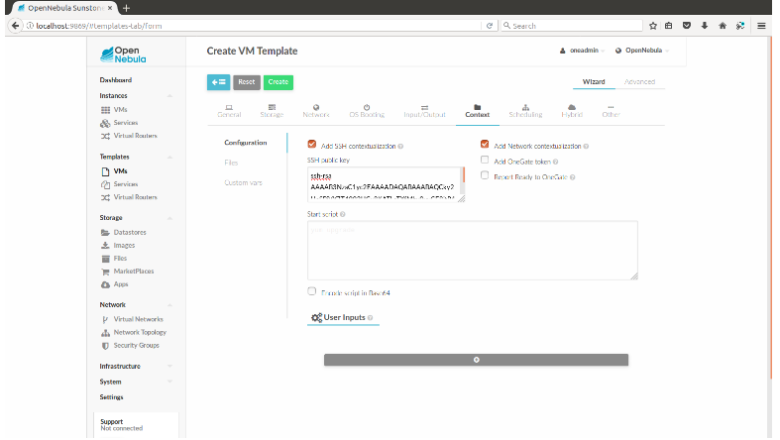
Tick the Add SSH contextualization
Add the SSH Key in SSH public key box