List of Topics:
Location Research Breakthrough Possible @S-Logix pro@slogix.in

Office Address

Social List

How to Split an Image in Java?

Splitting an Image in Java

Condition for Splitting an Image in Java

  • Description: In Java, `BufferedImage` allows manipulation of images, including extracting portions using the `getSubimage()` method. The image is divided into smaller sections by calculating the desired rows and columns. Each section is then extracted and saved as a separate image file. The `ImageIO.write()` method is used to save these sub-images without altering their resolution.
Sample Source Code
  • # ImageSplitter.java
    package JavaSamples;

    import javax.swing.ImageIcon;
    import javax.swing.JFrame;
    import javax.swing.JLabel;

    public class Image extends javax.swing.JFrame {

    public Image() {
    initComponents();
    }

    @SuppressWarnings("unchecked")
    // //GEN-BEGIN:initComponents
    private void initComponents() {

    jScrollPane1 = new javax.swing.JScrollPane();
    jTextArea1 = new javax.swing.JTextArea();
    jLabel1 = new javax.swing.JLabel();
    jButton1 = new javax.swing.JButton();

    jTextArea1.setColumns(20);
    jTextArea1.setRows(5);
    jScrollPane1.setViewportView(jTextArea1);

    setDefaultCloseOperation(javax.swing.WindowConstants.EXIT_ON_CLOSE);

    jLabel1.setText("Image Icon");

    jButton1.setText("Show Image");
    jButton1.addActionListener(new java.awt.event.ActionListener() {
    public void actionPerformed(java.awt.event.ActionEvent evt) {
    jButton1ActionPerformed(evt);
    }
    });

    javax.swing.GroupLayout layout = new javax.swing.GroupLayout(getContentPane());
    getContentPane().setLayout(layout);
    layout.setHorizontalGroup(
    layout.createParallelGroup(javax.swing.GroupLayout.Alignment.LEADING)
    .addGroup(layout.createSequentialGroup()
    .addGroup(layout.createParallelGroup(javax.swing.GroupLayout.Alignment.LEADING)
    .addGroup(layout.createSequentialGroup()
    .addGap(168, 168, 168)
    .addComponent(jLabel1))
    .addGroup(layout.createSequentialGroup()
    .addGap(153, 153, 153)
    .addComponent(jButton1)))
    .addContainerGap(343, Short.MAX_VALUE))
    );
    layout.setVerticalGroup(
    layout.createParallelGroup(javax.swing.GroupLayout.Alignment.LEADING)
    .addGroup(layout.createSequentialGroup()
    .addGap(34, 34, 34)
    .addComponent(jLabel1)
    .addGap(27, 27, 27)
    .addComponent(jButton1)
    .addContainerGap(349, Short.MAX_VALUE))
    );

    pack();
    }//
    //GEN-END:initComponents

    private void jButton1ActionPerformed(java.awt.event.ActionEvent evt) {//GEN-FIRST:event_jButton1ActionPerformed
    JFrame frame = new JFrame("Image Icon Example");
    String imagePath = "/home/soft20/NetBeansProjects/SLogixUpdates/test/slogix.jpeg";
    ImageIcon icon = new ImageIcon(imagePath);

    JLabel label = new JLabel(icon);

    // Add the JLabel to the JFrame
    frame.add(label);

    // Make the frame visible
    frame.setVisible(true);

    }//GEN-LAST:event_jButton1ActionPerformed

    public static void main(String args[]) {

    java.awt.EventQueue.invokeLater(() -> {
    new Image().setVisible(true);
    });
    }

    // Variables declaration - do not modify//GEN-BEGIN:variables
    private javax.swing.JButton jButton1;
    private javax.swing.JLabel jLabel1;
    private javax.swing.JScrollPane jScrollPane1;
    private javax.swing.JTextArea jTextArea1;
    // End of variables declaration//GEN-END:variables

    }
Screenshots
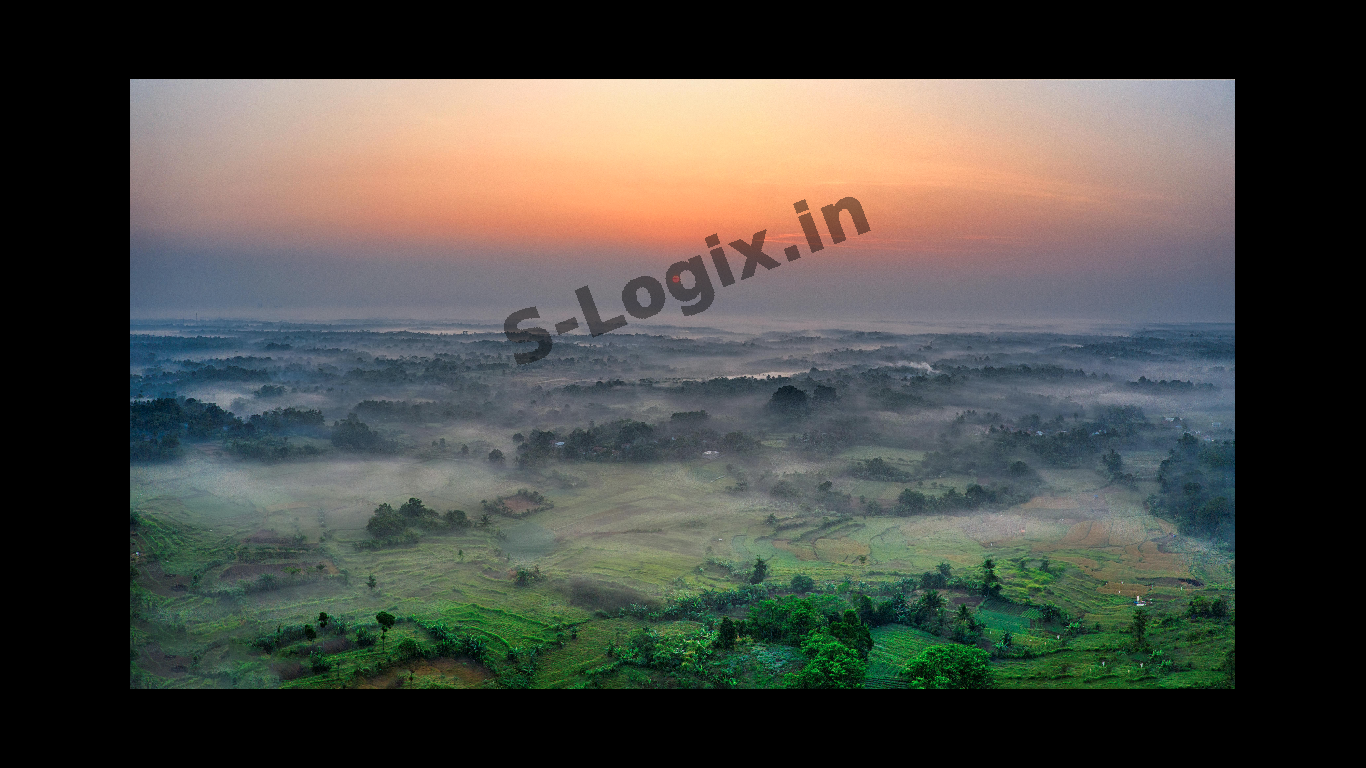
  • Full Image:
  • Full Image

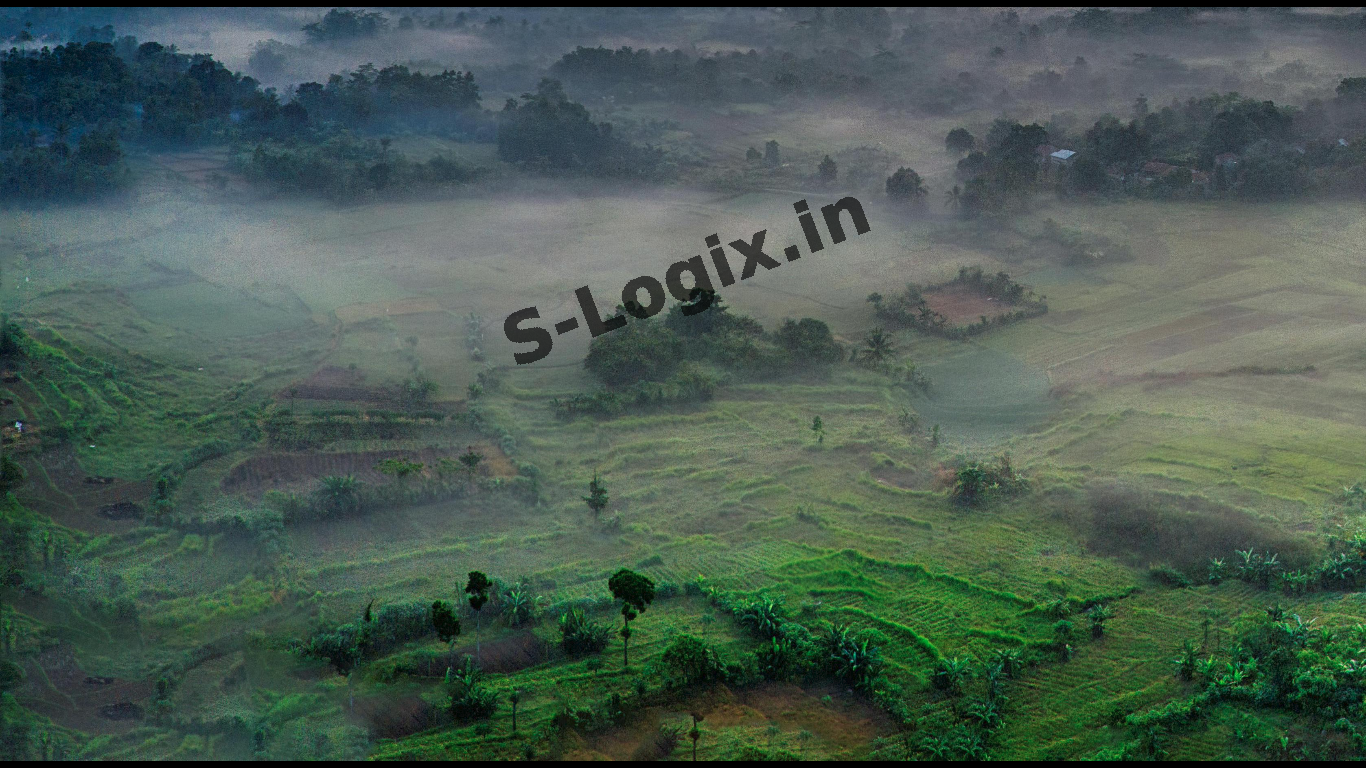
  • Top-left part of the image:
  • Top-left part of the Image

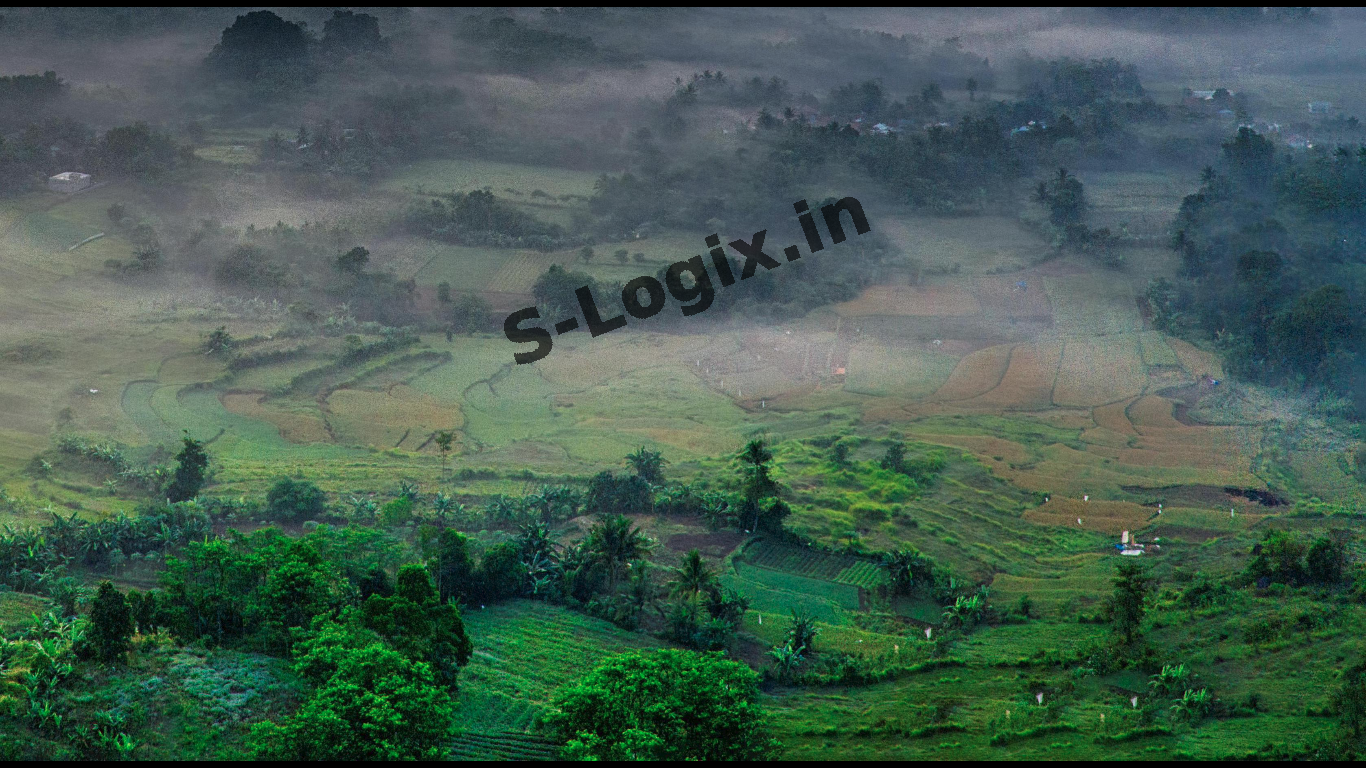
  • Top-right part of the image:
  • Top-right part of the Image

  • Bottom-left part of the image:
  • Bottom-left part of the Image

  • Bottom-right part of the image:
  • Bottom-right part of the Image

Related Links